20+ Free iLovePDF Alternatives In 2026 — Verified Limits, Privacy Scores & Use-Case
Even now, iLovePDF gets about 269.4 million visits per month, according to Semrush traffic data. That makes it the best free PDF toolkit on the public web.
Still, popularity is not the same as fit. Free users hit a 15MB file cap, daily task limits, banner ads, and forced uploads to iLovePDF’s servers.
Those issues push millions of people to look for alternatives every day. In fact, the current year’s landscape is broader and better than most listicles admit.
So, in this list, we test twenty tools against four hard criteria. We checked actual free-tier limits, where files get processed, feature breadth, and one-year total cost.
Every limit was pulled directly from an official’s pricing page. On top of that, privacy ratings reflect whether your file gets uploaded, processed locally, or kept on your own server.
You would be happy to know that 4 out of the 20+ tools we reviewed are genuinely unlimited and free with no hidden caps. Yet most “best-of” lists never name them together. Either way, you will not get padded affiliate picks here.
Instead, you get verified data and a use-case picker at the end.
Key Findings:
In 2026, the free PDF market hides more than it shows. Put simply, most listicles overlook self-hosted and browser-local tools that solve iLovePDF’s biggest weaknesses.
Four critical findings shape this entire guide:
- Self-hosted Stirling PDF and offline LibreOffice Draw remove every iLovePDF pain point at zero cost.
- PDF24’s Windows desktop app gives unlimited free use with no watermarks or task caps, per the publisher’s site.
- For sensitive documents, browser-local tools like BentoPDF never upload files anywhere.
- Adobe Reader, already free, handles sign and fill tasks that many people pay third-party tools for.
Beyond that, the market itself is growing fast. Global Growth Insights values it at $2.41 billion in 2025, rising to $7.13 billion by 2035 at an 11.47% CAGR.
Why People Look for iLovePDF Alternatives
People leave iLovePDF for some common reasons. Specifically, free-tier caps, privacy worries, missing features, and ads dominate the complaint list across G2, Capterra, and Reddit threads.
The Supatool research team surveyed iLovePDF users recently and identified seven recurring pain points: no PDF crop, bugs, limited eSign, limited direct text editing, free-tier file size limits and watermarks, promotional emails, and missing autosave.
- Topping the list are file size caps. iLovePDF’s free web tier caps individual uploads at 15 MB and limits daily operations, per its pricing page.
- Privacy is the second driver. Every file you upload sits on iLovePDF’s servers for up to two hours before deletion, per their stated retention window. That window is fine for a recipe PDF. But it is not fine for a tax return, a medical form, or a client contract.
- Next up, cost. Premium runs around $4 to $7 monthly, which is reasonable, but only if you actually hit the limits often enough to justify it.
- The fourth driver is feature gaps. To be specific, iLovePDF does not let you redact text, run OCR with high accuracy, or compare two PDFs side by side.
After testing 20+ tools, the most common switch trigger is the moment someone tries to upload a 20MB scanned contract and hits a wall.
How We Evaluated Each Tool
Each tool was scored against four criteria that actually matter to real users. To keep things honest, we rejected vague rankings in favour of verifiable, source-cited data points.
- Criterion 1 — Free-tier limits. We pulled exact numbers from each vendor’s pricing page. Where vendors hide caps, we tested until they triggered.
- Criterion 2 — Privacy model. We classified each tool as browser-local, server-then-delete, or self-hosted, since these have very different compliance implications.
- Criterion 3 — Feature coverage. We counted the number of working tools and flagged anything the free tier locks behind a paywall.
- Criterion 4 — One-year total cost. We added subscriptions, perpetual licenses, and the cost of working around free-tier caps.
Most listicles treat “free” as binary. Truthfully, though, “free” exists on a spectrum from PDF24 (truly free) to DocFly (free trial only).
The Quick-Pick Table — All 20+ Free iLovePDF Alternatives
This is the scannable view. Each row covers the data point that determines whether the tool fits your situation.
| # | Tool | Best For | Free-Tier Cap | Privacy Model |
|---|---|---|---|---|
| 1 | Stirling PDF | Self-hosting + privacy | Unlimited if self-hosted | Local server |
| 2 | PDF24 Creator | Unlimited free on Windows | None on desktop | Local (desktop) |
| 3 | Smallpdf | Polished UX | 2 tasks/hour | Server-then-delete |
| 4 | Sejda | Editing PDF text | 3 tasks/hour, 50MB, 200 pages | Server-then-delete |
| 5 | PDFescape | Browser form filling | 10MB / 100 pages | Server-then-delete |
| 6 | PDF Candy | Widest tool count | 1 task/hour | Server-then-delete |
| 7 | LibreOffice Draw | Offline + free forever | None | Local (desktop) |
| 8 | PDFgear | AI-assisted editing | None | Local (desktop) |
| 9 | UPDF | Cross-platform + AI | Free viewer | Local + cloud |
| 10 | Adobe Acrobat Reader | Read + sign baseline | Free for view/sign | Server-optional |
| 11 | Xodo | Mobile + collaboration | Generous free | Server-optional |
| 12 | DocHub | Google Workspace teams | 2,000 docs/day | Server-then-delete |
| 13 | Foxit PDF Reader | Lightweight enterprise | Free reader/light edit | Local + cloud |
| 14 | PDFsam Basic | Split/merge utility | Unlimited | Local (desktop) |
| 15 | Apple Preview | Built-in for Mac | Unlimited | Local |
| 16 | PDF2Go | High-volume conversion | Daily caps | Server-then-delete |
| 17 | BentoPDF | Browser-local privacy | Unlimited | Browser-local |
| 18 | pdfFiller | Form-heavy workflows | Trial only | Server |
| 19 | DocFly | Quick occasional edits | 3 free edits/month | Server |
| 20 | Canva PDF | Design-led PDFs | Free tier limits | Server |
The 20+ Best Free iLovePDF Alternatives in 2026
Now, let’s cover what each tool actually does, where it wins, where it loses, and who should use it.
1. Stirling PDF — Best for Self-Hosting + Privacy
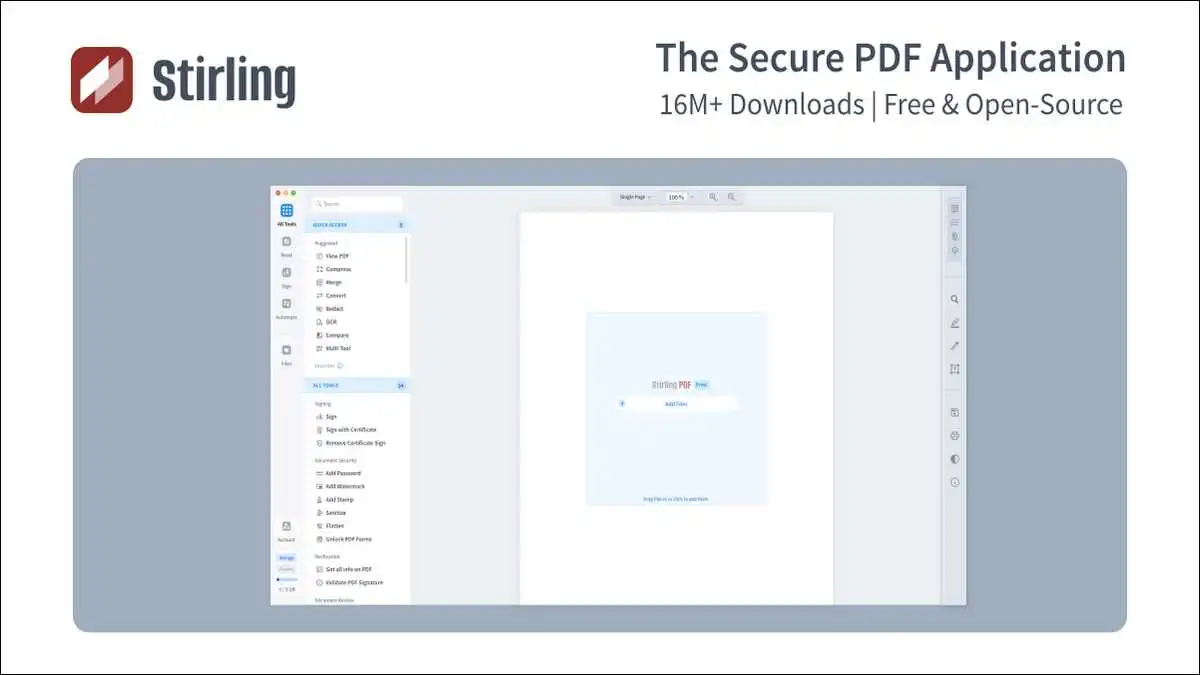
Stirling PDF is the open-source, self-hosted PDF editor that processes everything on your own server. In one move, it removes every iLovePDF privacy concern at zero cost.
The tool ships with 50+ PDF tools covering edit, merge, split, sign, redact, convert, OCR, and compress, per its GitHub repository. The docs page lists over 60 tools in the V2 release.
It runs as a Docker container, a desktop app, or a browser interface. As a result, files never leave your environment unless you explicitly send them.
Stirling PDF has crossed 25 million downloads, according to its publisher’s site. To put that in perspective, Docker pulls alone passed 6.2 million in 2025, per Open Core Ventures’ company announcement.
Most “best free PDF” lists ignore Stirling because it requires Docker setup. But that five-minute step buys you complete data sovereignty.
- Best for: Privacy-sensitive users, developers, and enterprises with compliance needs.
- Falls short on: People who do not run any kind of local server or homelab.
2. PDF24 Creator — Best Unlimited Free on Windows
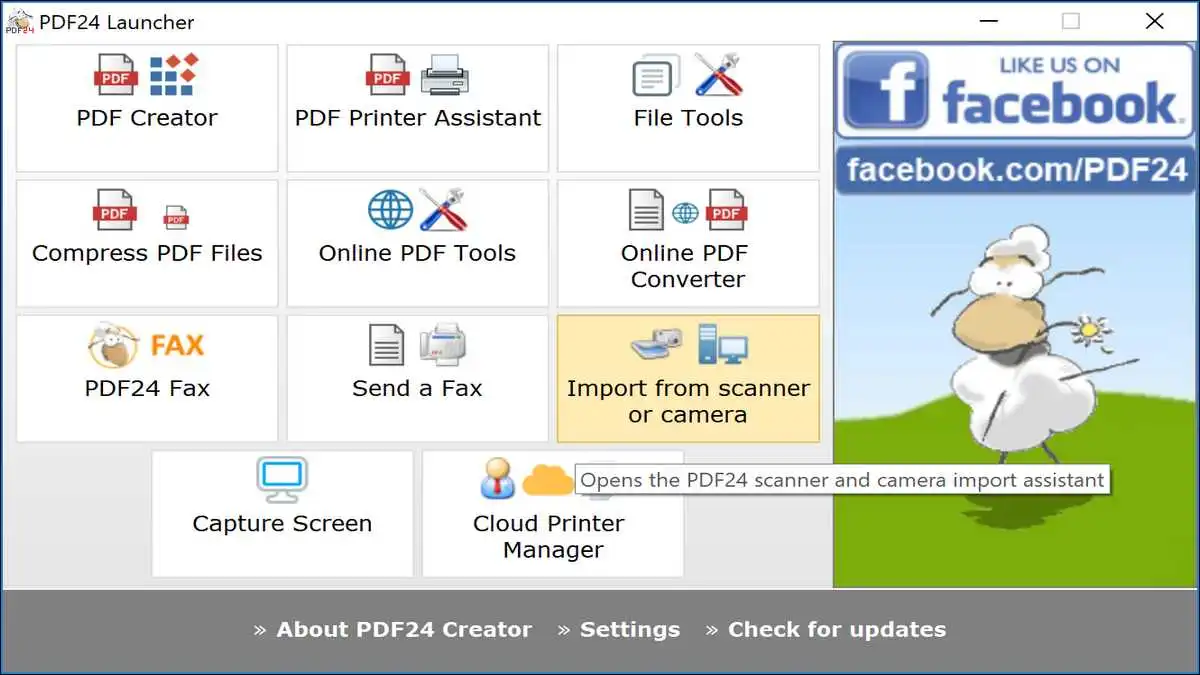
PDF24 is the closest thing to a free, no-strings PDF toolkit for Windows users. Better yet, the desktop app is genuinely unrestricted, with no watermarks.
PDF24 is the only mainstream tool on this list that the JustUse research team described as “completely free with no watermarks and no daily limits.”
The desktop app processes files locally on your Windows machine. Translation: nothing leaves your computer, which fixes iLovePDF’s biggest privacy issue.
In TechRadar’s testing, they mention PDF24 Creator as the best overall free PDF editor for Windows, citing its essential editing depth at zero cost.
Feature-wise, it includes around 25 tools covering merge, split, OCR, compression, e-signature, and form creation. That said, the interface is functional rather than beautiful.
- Best for: Windows users who want truly unlimited free use.
- Falls short on: Mac and Linux users who must use the web version with ads.
3. Smallpdf — Best Polished UX
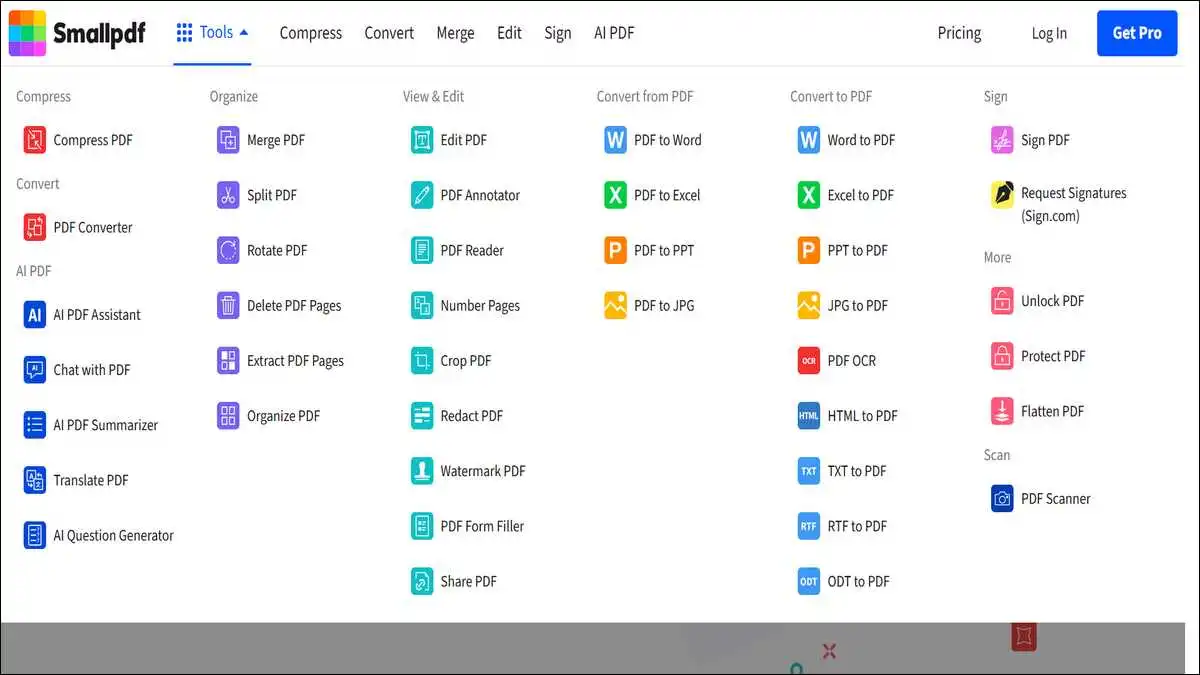
Smallpdf wins on interface design. Hands down, it is the most polished web PDF tool in 2026, but the free tier is tight.
Free users get two tasks per hour, according to Smallpdf’s published pricing page. Unfortunately, the cap kicks in fast for anyone doing real work.
The brand reaches 40+ million monthly users per its own analytics. On top of that, user reviews on Hamsterstack peg ease of use at 4.7 out of 5.
Files are uploaded to Smallpdf servers and deleted after roughly one hour. For business use, the company is ISO 27001 and GDPR compliant.
Paid plans start at $15 per month, with three tiers including a Pro for Teams option. That puts the annual cost at $180, which is steep against alternatives.
- Best for: Casual users who value UX over feature count.
- Falls short on: Anyone with regular daily PDF needs.
4. Sejda — Best for Editing PDF Text
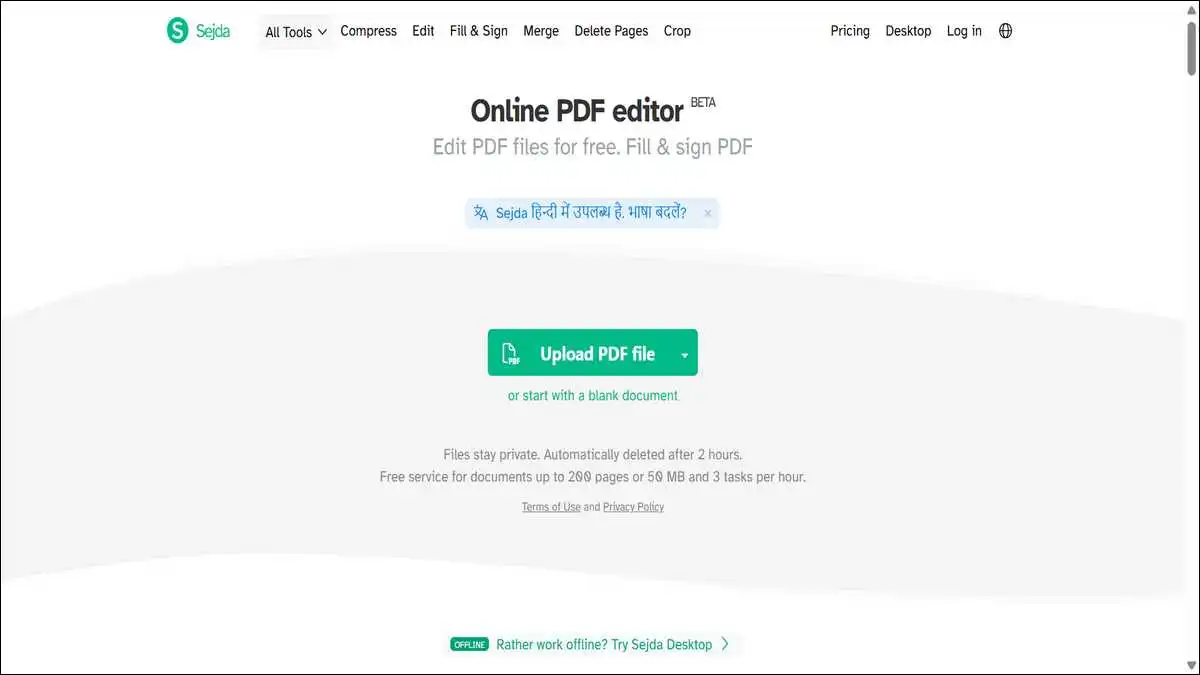
Sejda is the only tool in this category that lets you change existing PDF text without a watermark. On that point alone, it’s worth bookmarking.
The free tier allows 3 tasks per day with a 50MB file size limit and a 200-page document limit, with no watermarks within those constraints.
As the SaaSHub editor team mentions, Sejda is “one of the very few PDF editors that actually lets you edit pre-existing text in the PDF without adding a watermark.”
It runs both online and as a desktop app for Windows, Mac, and Linux. Helpfully, the desktop app keeps files offline for sensitive work.
Paid plans start at $7.50 per month, per Sejda’s pricing page. Compared to Smallpdf and iLovePDF Premium, that’s competitive.
- Best for: People who genuinely need to change words inside a PDF.
- Falls short on: Heavy users hitting the three-task hourly cap.
5. PDFescape — Best Browser Form Filling
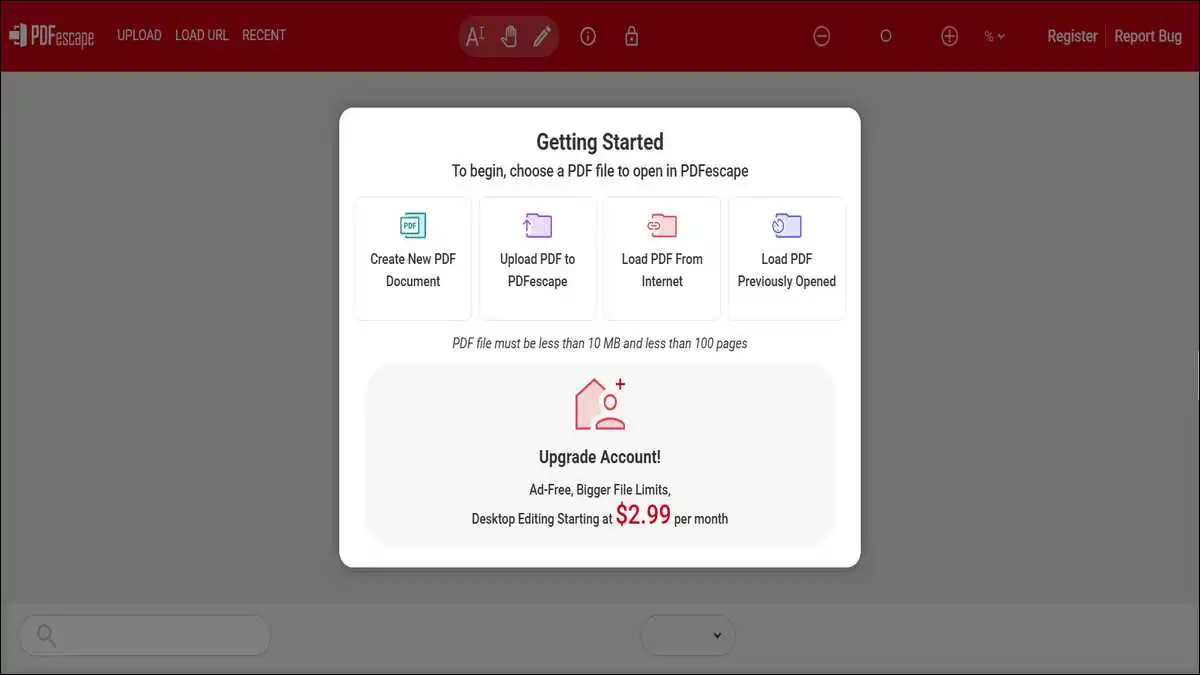
PDFescape focuses on browser-based annotation and form filling. Worth noting, it has been around longer than iLovePDF and remains rock-solid for those two tasks.
Free use covers documents smaller than 10 MB or 100 pages, whichever is greater, per Tom’s Guide 2026 testing.
The free annotation toolkit handles add, highlight, strike-through, notes, and basic page operations. On the downside, it does not include OCR, which is a notable gap.
Premium runs $36 a year, with an Ultimate plan at $72 per year. On an annual basis, both are cheaper than iLovePDF Premium.
Beyond editing, the platform offers form design and password protection. Best of all, it works in any modern browser without installation.
- Best for: Form filling and light annotation in your browser.
- Falls short on: OCR, advanced editing, and large file work.
6. PDF Candy — Widest Tool Count Under One Roof
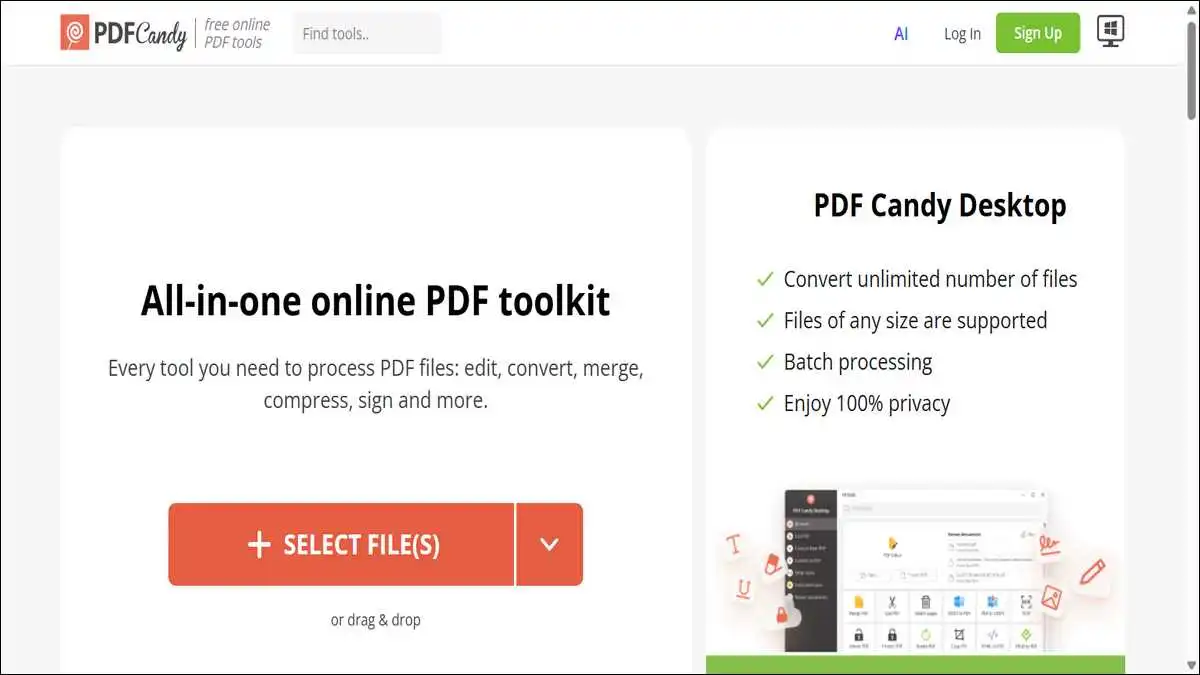
PDF Candy packs more individual PDF tools than any other free option. In fact, PCWorld counted 98 tools in the 2026 release.
The catch is a one-task-per-hour limit on the free web tier, per PCWorld’s review. To remove caps, you can pay $6 monthly or $48 yearly.
A Windows desktop version is also available for $59.90 as a one-time purchase, per its Major Geeks listing. As a plus, the desktop edition processes files offline.
Privacy is reasonable. PDF Candy’s pricing page states that uploaded files and processed output are kept for no longer than 2 hours in compliance with GDPR.
Tool-wise, the suite includes OCR, scanning, format conversion, and unusual operations like PDF-to-CAD that most competitors skip.
- Best for: Niche conversion and uncommon PDF operations.
- Falls short on: Active editing across multiple files in one hour.
7. LibreOffice Draw — Best Offline + Free Forever
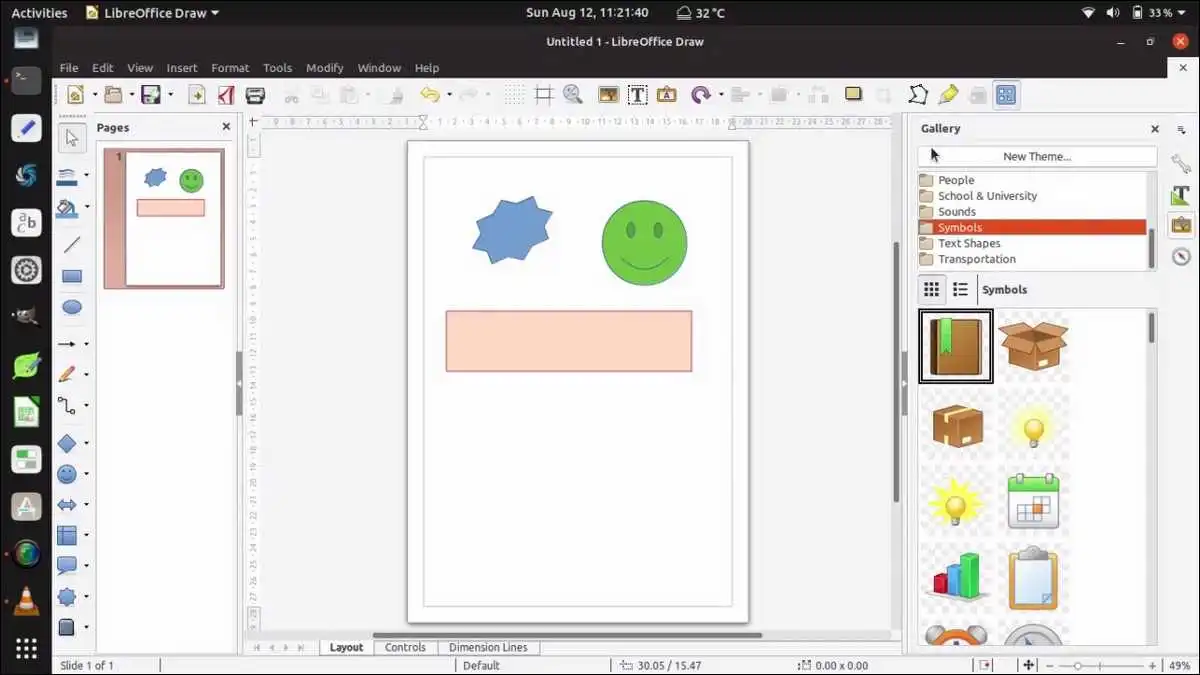
LibreOffice Draw is the surprise winner for anyone wanting a real offline PDF editor at literally zero cost. It ships as part of the LibreOffice suite.
To quote a 2026 MakeUseOf review: “even large, complex PDFs open without fuss…it’s completely free with no ads or trial countdowns hovering in the background.”
The tool opens PDFs as editable vector documents. From there, you can change text, replace images, reorder pages, and export back to PDF.
It runs offline on Windows, Mac, and Linux. Bonus: there is no account creation, no upload, no daily cap, and no email harvesting.
On the flip side, you’ll find missing PDF-specific features. LibreOffice Draw cannot merge PDFs, compress them, or convert them to Word natively.
You can pair LibreOffice Draw with PDF24 Creator on Windows, and you can replace iLovePDF entirely with zero ongoing cost.
- Best for: Privacy-conscious users who want fully offline editing.
- Falls short on: Merging, splitting, and format conversion.
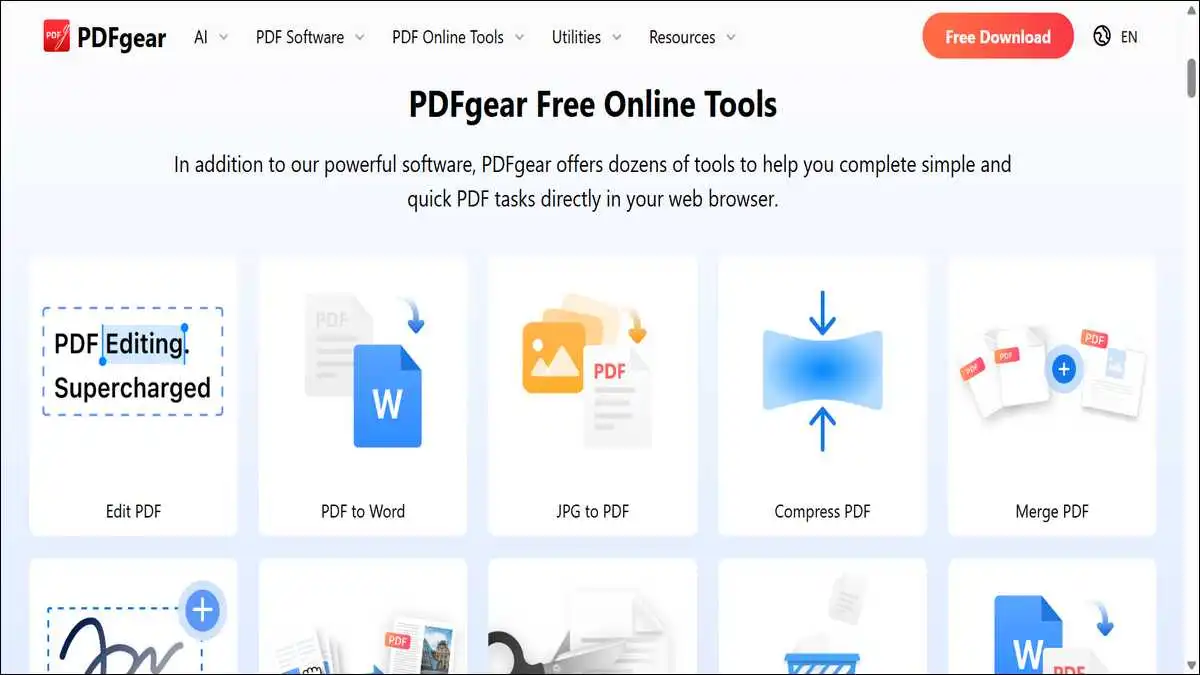
8. PDFgear — Best AI-Assisted Free Editor
PDFgear is a rare free PDF tool that adds ChatGPT-powered features without charging for them. The pitch is real PDF editing plus AI summarisation.
Further, PDFgear Copilot makes it much easier to work with your PDF files. You just type what you need, and the software performs the required command.
The PDFgear publisher’s site describes the tool as completely free, with no ads or trial countdowns. Even better, the Windows and macOS apps both run offline.
Feature-wise, the tool handles text editing, signing with mouse-drawn inking, conversion to Word and Excel, and AI summaries of long documents.
PDFgear’s free AI features make it the cheapest way to get document summarisation without paying for ChatGPT Plus or UPDF AI.
- Best for: Users who want AI features without subscriptions.
- Falls short on: Long-term certainty since the free model may change.
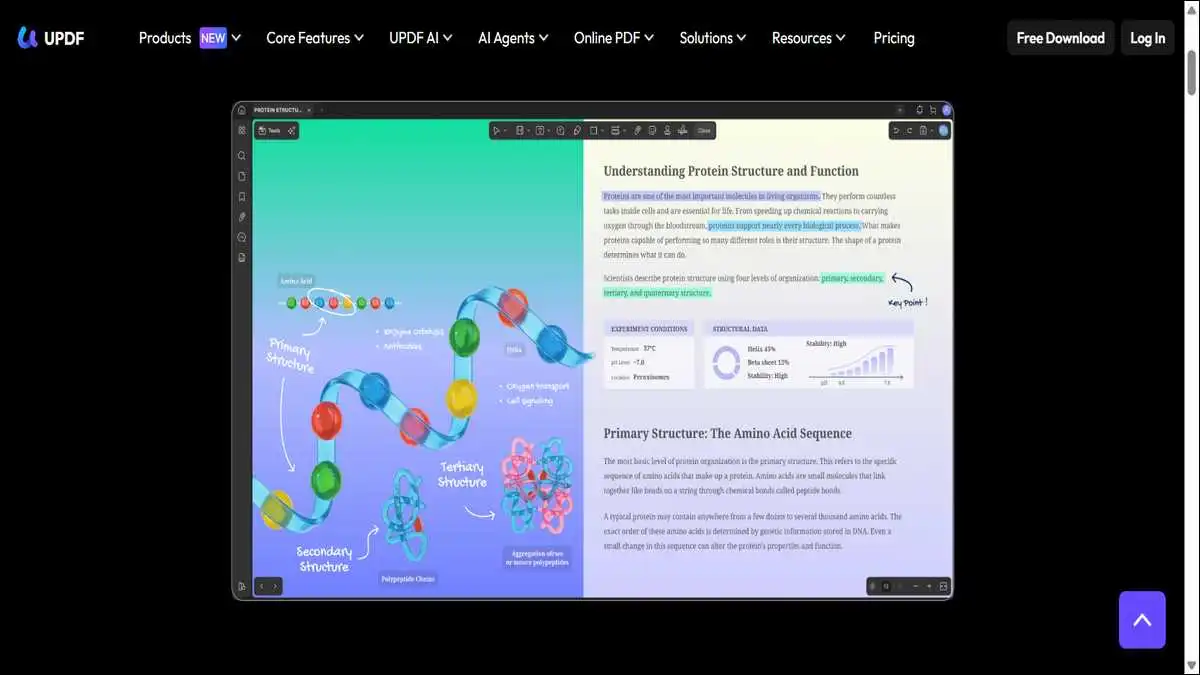
9. UPDF — Best Cross-Platform with AI
UPDF runs on every major platform with feature parity. Few tools manage that, especially while including AI.
The Supatool review mentions UPDF as offering “AI support for efficient document summarisation and analysis…comprehensive document editing and annotation tools…cloud synchronisation for easy document access across multiple devices.”
The free tier covers viewing, basic annotation, and trial editing. For full editing and AI features, you’ll need a paid license.
Paid pricing per Supatool: UPDF Pro at $52.99 perpetual or $32.99 yearly, and UPDF Pro + AI at $83.99 perpetual or $65.99 yearly.
In 2026, the perpetual license model is unusual and a strong argument against subscription-heavy alternatives.
- Best for: Multi-device users who want a one-time payment option.
- Falls short on: Users who want full editing in the free tier itself.
10. Adobe Acrobat Reader — Best Read + Sign Baseline
Adobe Acrobat Reader is the most underused free tool on this list. Sadly, many people pay for third-party tools for things Reader already handles.
Free use covers viewing, commenting, form-filling, and signing PDFs. Across platforms, the tool is available on Windows, Mac, iOS, Android, and the web.
Adobe holds 32% PDF software market share, with 85% brand recognition and 78% enterprise adoption, per Market Reports World 2026 data.
That said, the free Reader cannot edit existing text, run real OCR, or merge files. Those features live behind Acrobat Pro at $12.99 to $19.99 monthly.
Reader’s combination of sign, fill, and comment removes most non-editing reasons people pay for iLovePDF Premium.
- Best for: Reading, signing, and form-filling.
- Falls short on: Editing, merging, and format conversion.
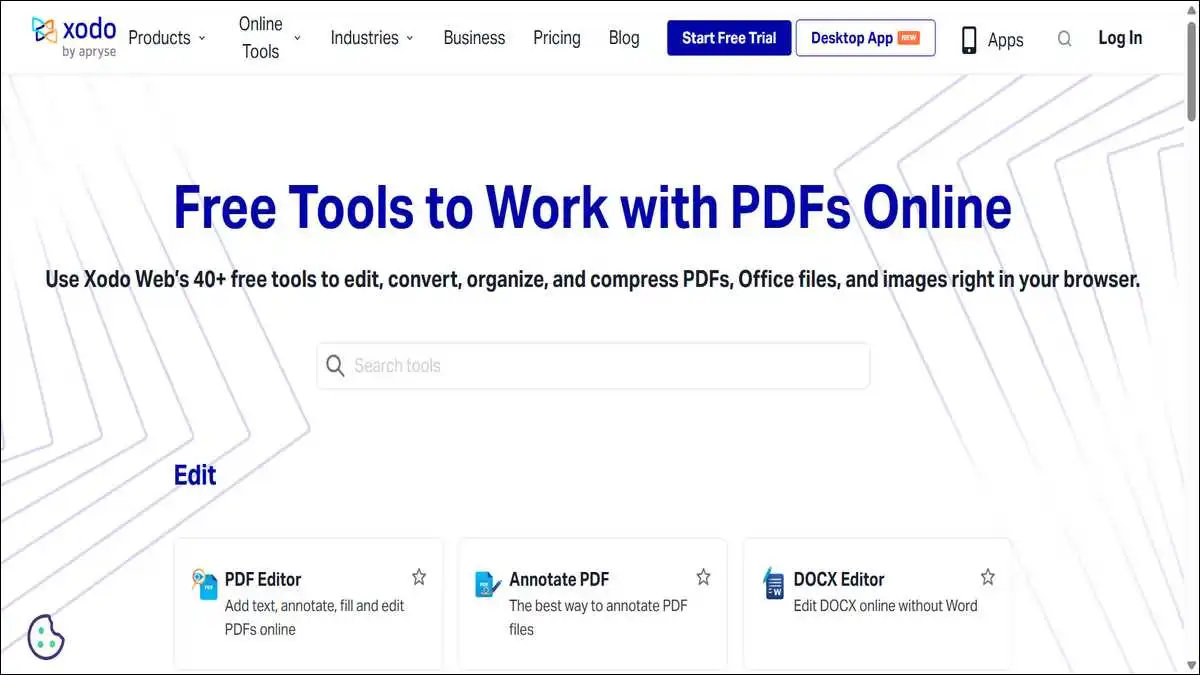
11. Xodo — Best for Mobile + Collaboration
Xodo punches above its weight on mobile. Specifically, the iOS and Android apps are smoother than Adobe Reader for everyday annotation.
The free tier covers viewing, annotation, form fill, and signing across Web, iOS, Android, and Windows. As a bonus, real-time collaboration is built in.
A LightPDF review mentions Xodo alternatives but keeps Xodo itself in the top three for cross-platform light-collaboration work.
For deeper needs, the pro tier adds advanced editing and unlimited eSign features. Pricing varies by Xodo Sign and Xodo Pro tiers.
Xodo on iPad with an Apple Pencil is the closest you can get to writing on paper while keeping the digital file intact.
- Best for: Mobile users and light collaborative review.
- Falls short on: Heavy desktop editing workflows.
12. DocHub — Best for Google Workspace Teams
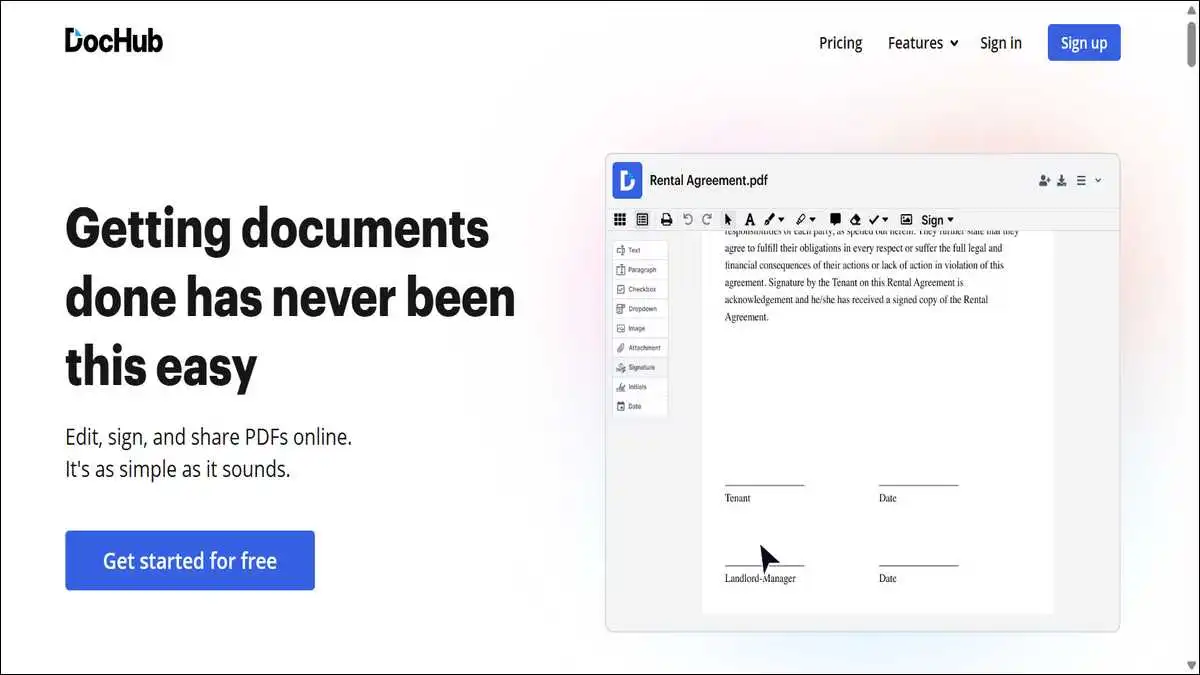
DocHub plugs directly into Google Drive and Gmail. For teams already living in Google Workspace, it removes the need for any other PDF tool.
TechRadar’s testing finds the free plan covers 2,000 documents, five eSignatures, three sign requests, and three email attachments per day.
The Pro plan is $10 per user per month, per the same TechRadar review. That unlocks unlimited document editing.
In practice, DocHub handles annotation, form filling, signing, and template management. It is not a heavy editor, but it is excellent for routing documents.
- Best for: Google Workspace teams running document approvals.
- Falls short on: Heavy editing outside the Google ecosystem.
13. Foxit PDF Reader — Best Lightweight Enterprise Reader
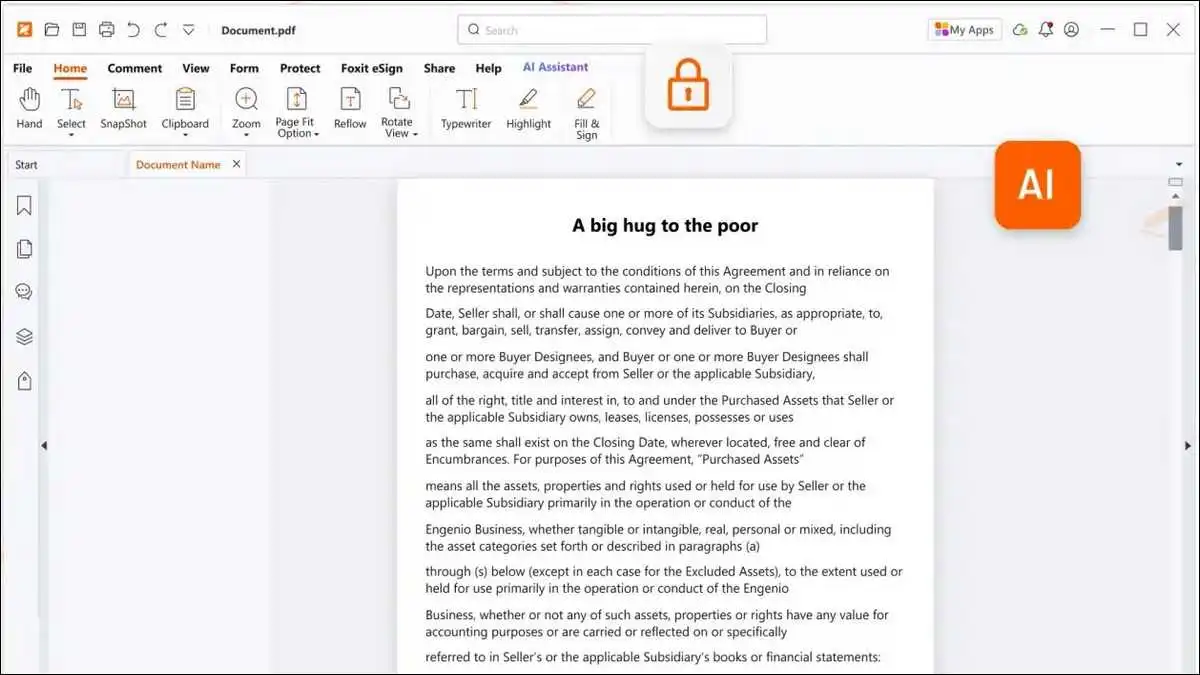
Foxit PDF Reader is the leaner alternative to Adobe Reader. To put it simply, it opens faster, uses less RAM, and includes light annotation.
The Foxit publisher site positions the reader as “suitable for both SMBs and Enterprise, across desktop, mobile and web.”
Free use covers reading, commenting, form-filling, and basic signing. For full edit and OCR, you’ll need Foxit PDF Editor, the paid tier.
For its low overhead and group policy support, Foxit is widely deployed across enterprises. It is a common Acrobat Reader replacement in IT-managed environments.
- Best for: Organisations standardising on a lightweight reader.
- Falls short on: Heavy editing without the paid Editor tier.
14. PDFsam Basic — Best Split/Merge Utility
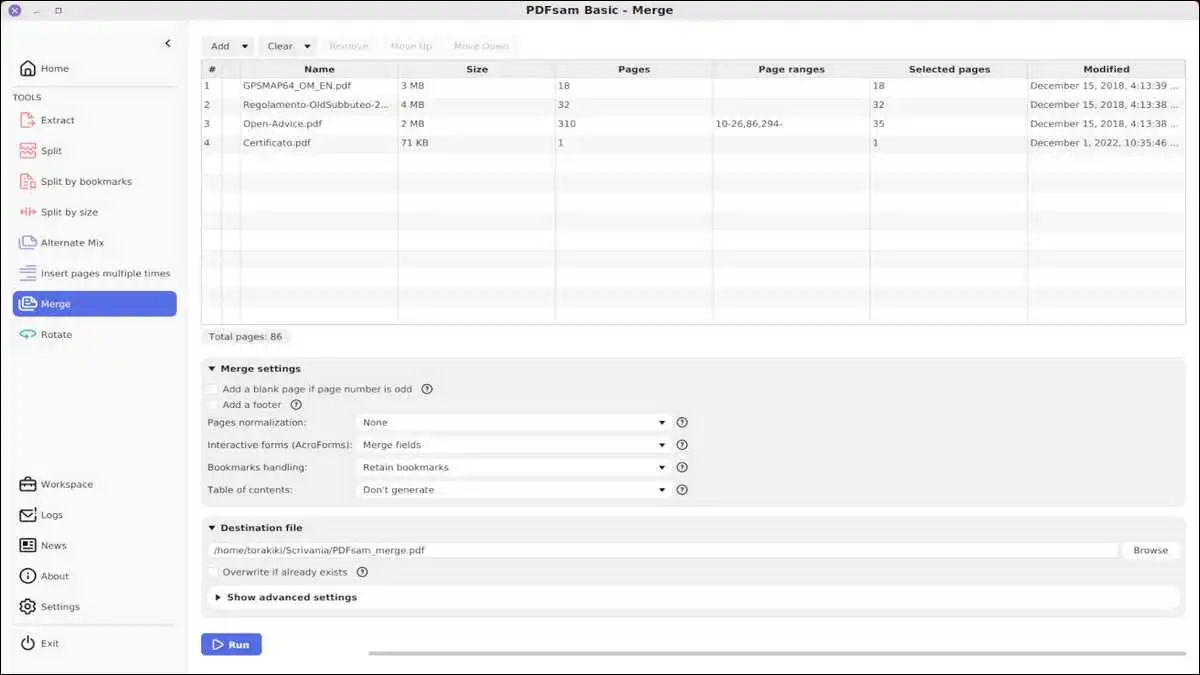
PDFsam Basic is an open-source utility for split, merge, rotate, extract, and mix operations. It does five things and does them perfectly.
Business Research Insights names PDFsam among the key players in the global PDF editing market for 2026. Cross-platform-wise, the tool runs on Windows, Mac, and Linux.
The free Basic edition is unrestricted. For more, PDFsam Enhanced and PDFsam Visual are paid tiers that add more features.
Visually, the interface is plain and functional. Best of all, there are no ads, no upsells, and no daily caps.
- Best for: Users who only need split, merge, and rotate.
- Falls short on: Editing, annotation, or conversion.
15. Apple Preview — Best Built-In for Mac
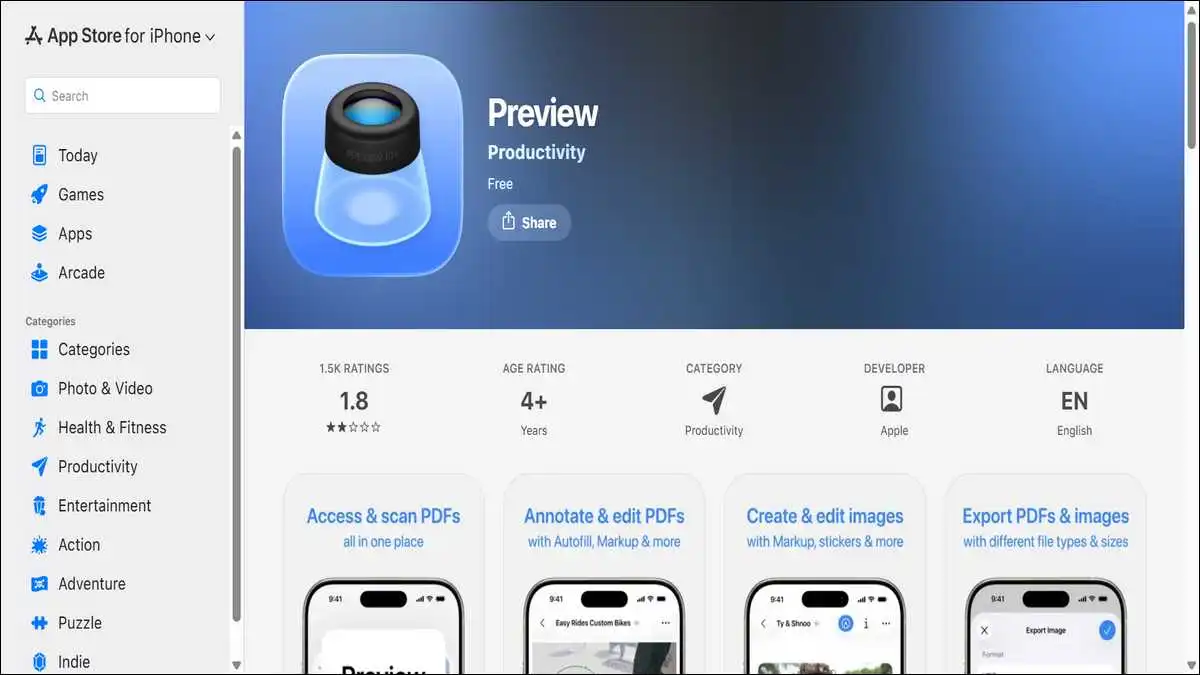
Apple Preview is free with macOS. Surprisingly, most Mac users do not realise how much PDF work it handles natively.
The TechRadar review called Preview “an excellent free PDF editor – sort of. It’s not fully fledged like Acrobat, or even PDF Candy, but it gets the basics of PDF manipulation right.”
In practice, it handles annotation, signature creation, page reorder, form fill, and password protection. All locally, with zero account creation.
For Mac users doing iLovePDF-style basic tasks, Preview already does 70% of the job with no app install.
- Best for: Mac users for everyday non-advanced tasks.
- Falls short on: OCR, complex editing, and Windows users.
Also read: Dinky: A Free Mac App To Compress Images, Videos & PDFs Locally
16. PDF2Go — Best for High-Volume Conversion
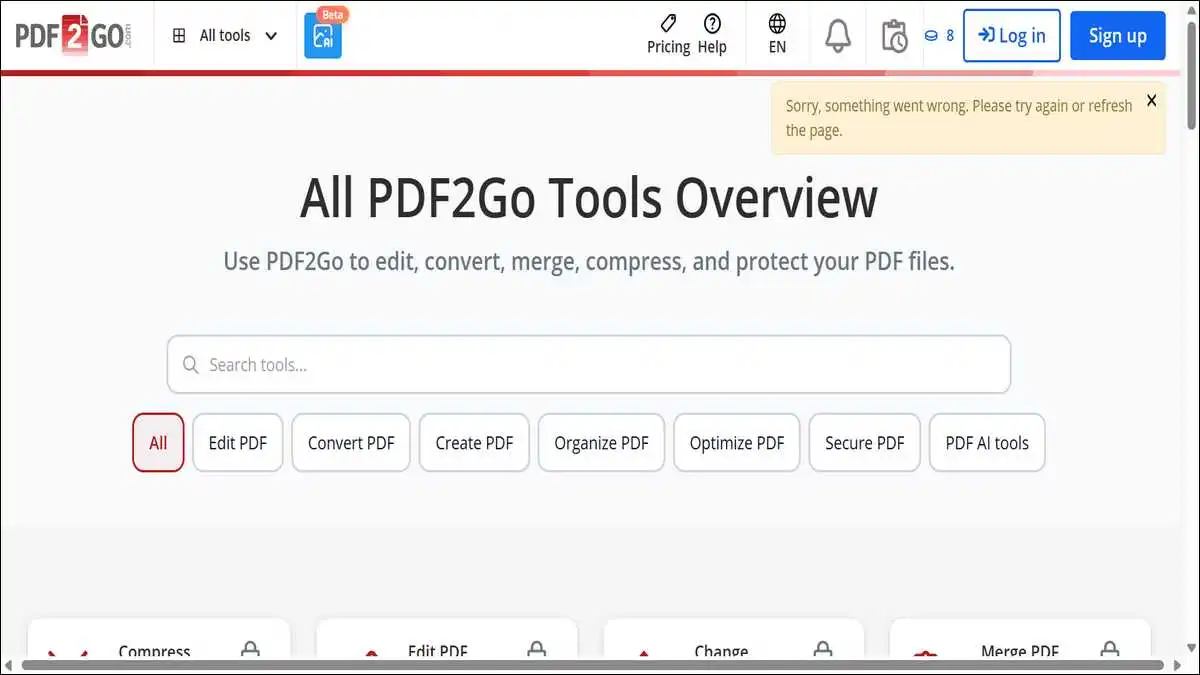
PDF2Go specialises in conversion across many file formats. Think of it as the Swiss Army knife for moving documents between formats.
According to Similarweb, it is the fourth-most-similar competitor to iLovePDF, alongside Smallpdf, PDF24, and Sejda. That ranking reflects overlap in user intent.
The free tier covers conversion with daily upload caps. For heavy use, you’ll need to unlock paid plans.
Beyond the basics, the platform supports unusual conversions like PDF to Open Office and EPUB. Few competitors match its converter catalogue breadth.
- Best for: Users who convert across many formats often.
- Falls short on: Editing and advanced security features.
17. BentoPDF — Best Browser-Local Privacy
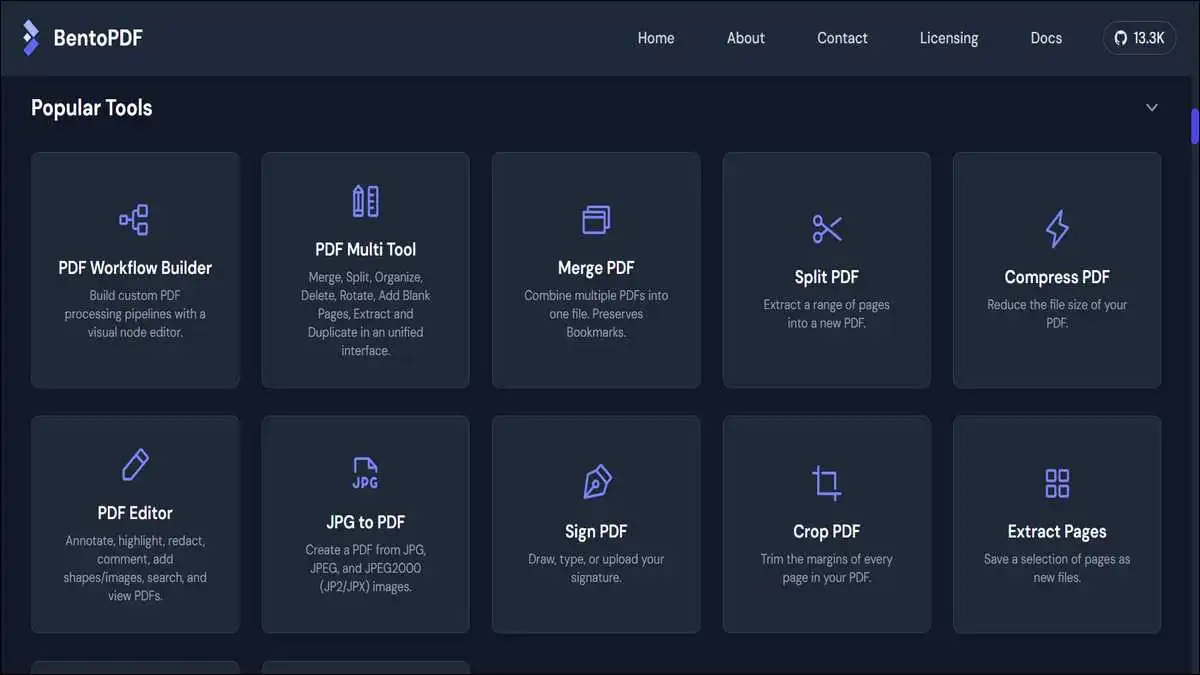
BentoPDF is the browser-local PDF toolkit that never uploads files anywhere. To explain, processing happens entirely in your browser tab.
The AlternativeTo mentions BentoPDF as “a PDF Toolkit that works fully offline with no sign-ups. It’s fast, secure and forever free. All processing for BentoPDF tools happens locally in your browser.”
The tool is free with no caps, no watermarks, and no account requirement. Coverage-wise, it handles merge, split, compress, convert, and basic edit.
Browser-local processing means files never travel over the network. In short, that eliminates the entire category of cloud privacy concerns.
For one-off sensitive tasks, BentoPDF is technically the safest non-self-hosted option on this list.
- Best for: One-off sensitive document tasks.
- Falls short on: Heavy power-user workflows.
Also read: How To Convert PDF to Word Online And Edit In A Few Seconds?
18. pdfFiller — Best for Form-Heavy Workflows
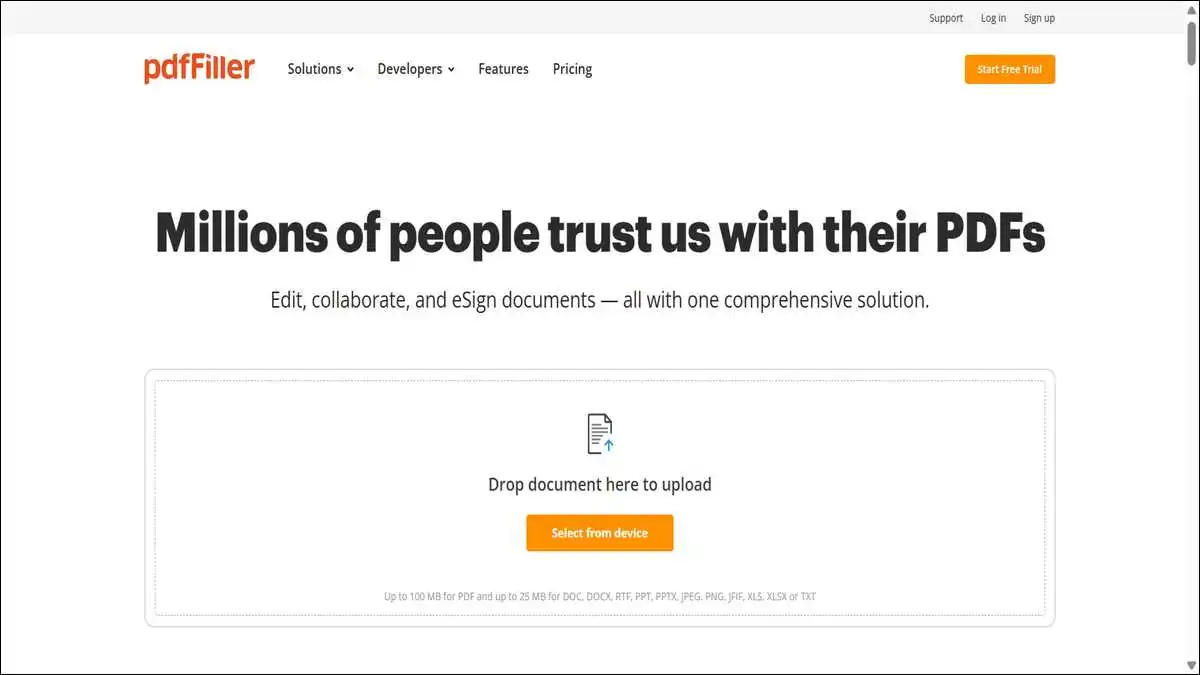
pdfFiller specialises in PDF forms and signing. Functionally, it is closer to a form-management platform than a general PDF editor.
For scale context, the G2 profile notes that pdfFiller has roughly 2 million users per year, with customers filling 20,000 forms per day.
The free trial is the only free option. After that, paid plans cover unlimited editing, templates, signatures, and team management.
Standout-wise, templates and reusable forms are the killer feature. Few competitors handle form lifecycle management as cleanly.
- Best for: Businesses with high form throughput.
- Falls short on: Free-only users since paid is required after the trial.
19. DocFly — Best for Quick Occasional Edits
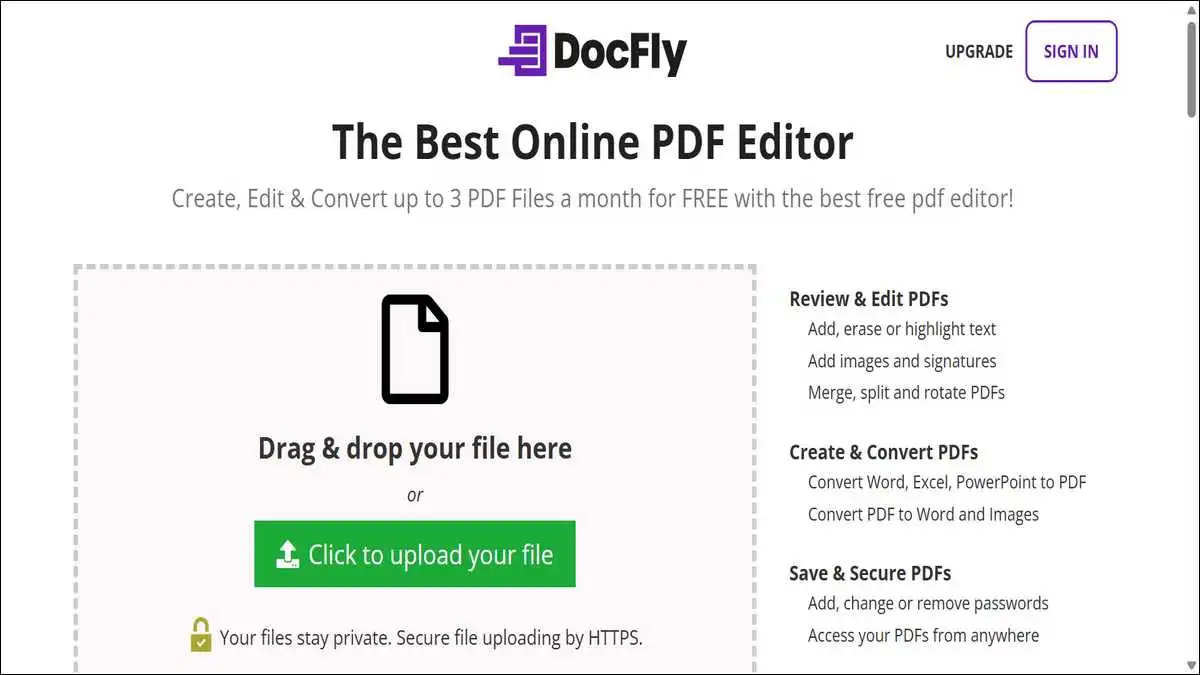
DocFly is the option for someone who edits three PDFs a month and does not want to install anything. The free tier reflects that positioning.
The Capterra listing describes DocFly as covering “creating, editing, splitting, merging, modifying, and rotating PDF files…convert files in MS Word, MS Excel, and MS PowerPoint into PDFs.”
Free users get three file edits per month. Beyond that, paid subscriptions handle unlimited use.
Setup-wise, the platform is browser-based with no install. Pricing is annual or monthly, both auto-renewing.
- Best for: Truly occasional users who do not want installation friction.
- Falls short on: Anyone editing more than three PDFs monthly.
20. Canva PDF Tools — Best for Design-Led PDFs
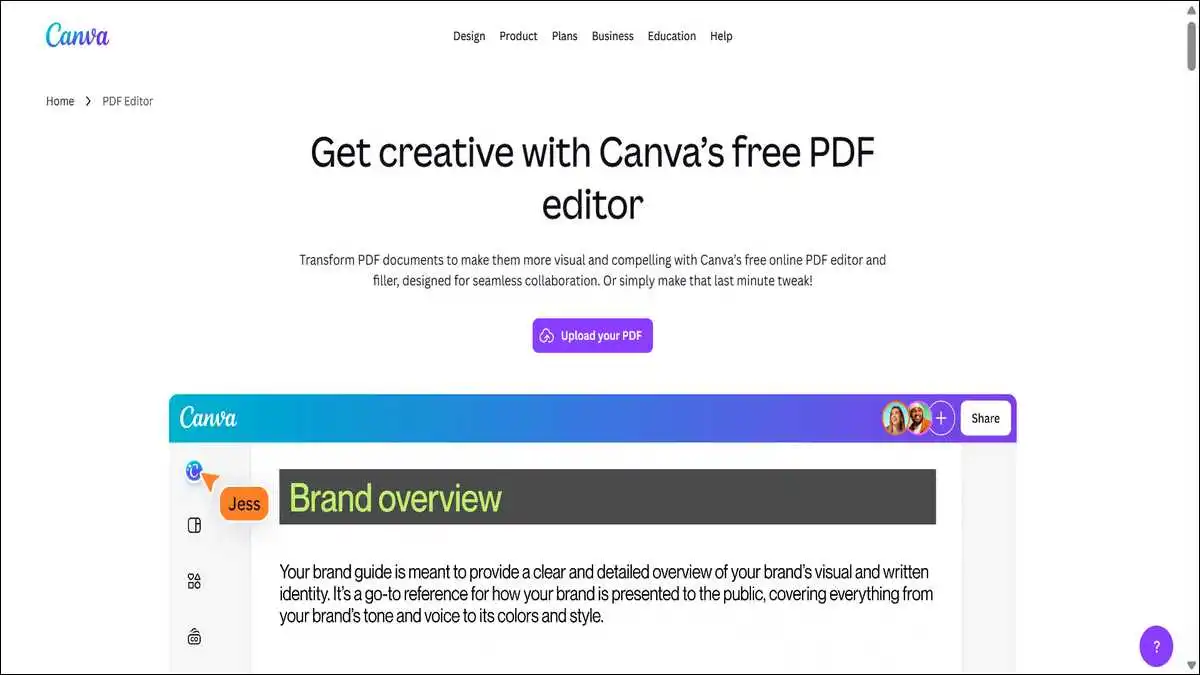
Canva is not a PDF editor first, but it handles design-led PDF work better than any traditional editor.
The 2026 TechRadar review listed Canva alongside PDF24 as “both brilliant tools — especially if you’re designing documents.”
The free tier covers PDF editing, conversion, and basic merging. For more, Canva Pro adds storage and brand kit features.
Better still, Canva keeps the visual editor everyone is already comfortable with. For marketing teams, that is a huge advantage.
- Best for: Designers and marketers producing brand-led PDFs.
- Falls short on: Heavy text editing of structured documents.
21. Convertica
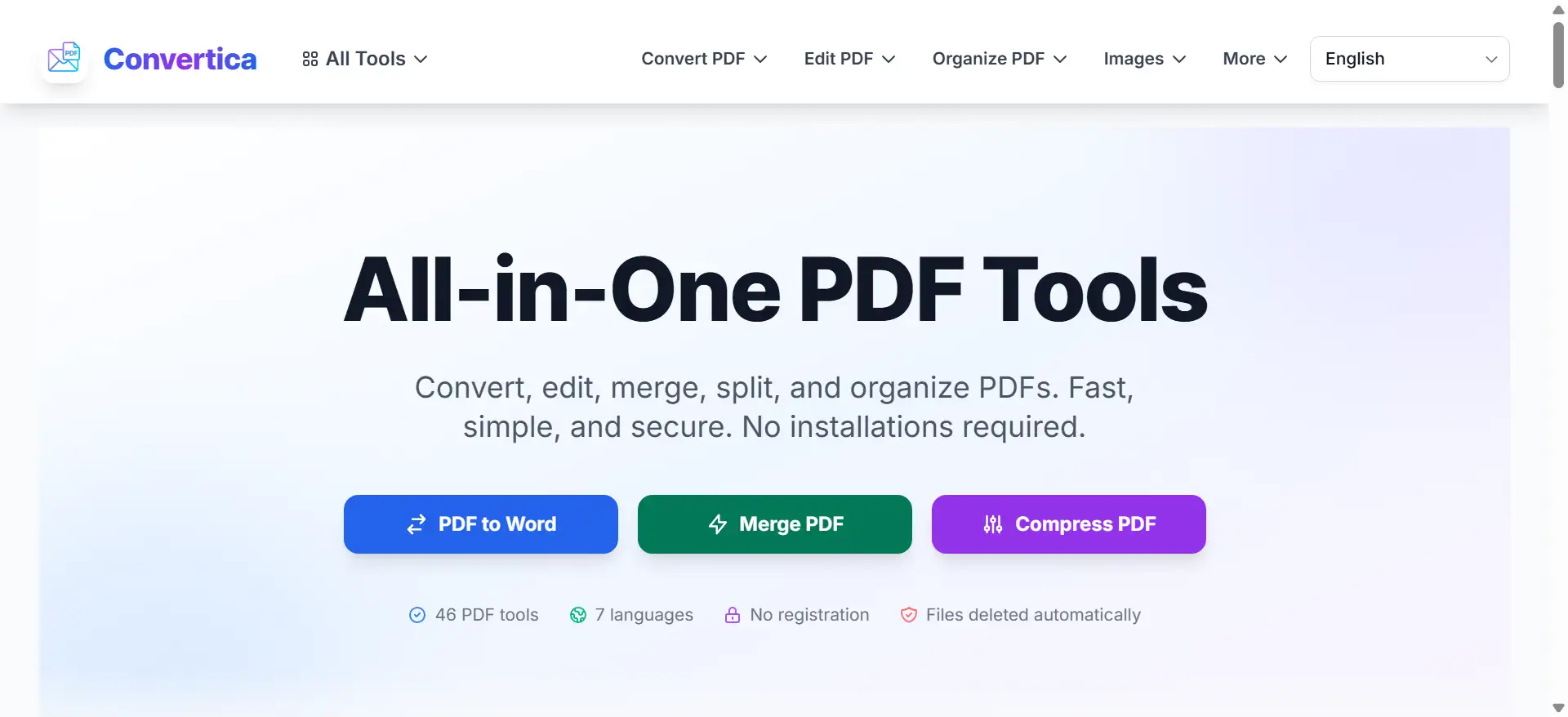
Convertica (https://convertica.net) is a free online PDF toolkit with 46 tools: convert to and from Word, Excel, PowerPoint and JPG, plus merge, split, compress, OCR for scanned files, add text and e-sign. Everything runs in the browser with no signup and no watermarks, and the interface is in 7 languages. A no-friction alternative to iLovePDF for quick one-off jobs.
If you want one line that separates it from the rest of the list: text you type into a PDF is saved as real selectable text with the font embedded, so Cyrillic, Arabic and Devanagari come out as text instead of boxes. That is where most browser-based editors fall over.
Use-Case Picker — Which Alternative Is Right for You?
The right tool depends entirely on what you are trying to do. So, the picker below maps each major use case to a primary and backup recommendation.
Here’s the thing: the right answer for a Mac student is wrong for a Windows lawyer, and pretending otherwise wastes the reader’s time.
If You Are a Student Writing Papers
Use PDF24 on Windows or LibreOffice Draw on any OS. Both are free, unlimited, and handle merging research PDFs without caps.
For mobile, switch to Xodo. Notably, it handles annotation on iPad better than any free competitor.
If You Are a Developer Automating PDF Workflows
Use Stirling PDF. The Stirling docs site confirms REST APIs available for nearly all tools to integrate into your existing systems.
As secondary options, PDFsam Basic and the iText library are solid picks. They cover scripting use cases where you do not need a full UI.
If You Are a Lawyer or Healthcare Worker
Use Stirling PDF (self-hosted) for sensitive work, or BentoPDF (browser-local) for one-off tasks. Either way, both eliminate third-party data processing.
The MiOffice analysis flagged that server-based PDF editors introduce third-party data processing, which requires Business Associate Agreements (HIPAA), Data Processing Agreements (GDPR), and vendor risk assessments (SOC 2).
If You Are a Designer Producing Marketing PDFs
Use Canva PDF tools. To keep brand consistency, the visual editor avoids learning a separate PDF tool.
For final touches like compression and form fields, run the file through PDF24 desktop.
If You Are a Small Business Owner Signing Contracts
Use DocHub if you live in Google Workspace. Otherwise, use the free signature in Adobe Acrobat Reader.
Either way, both are legally acceptable for everyday contract signing under e-signature laws like ESIGN and eIDAS.
If You Are a Mac or iPhone User
Use Apple Preview for everything basic. It is already installed and handles 70% of iLovePDF tasks.
For everything else, use PDFgear on macOS or UPDF for cross-device parity with your iPhone.
If You Want Zero Subscription Forever
Use LibreOffice Draw + PDF24 Creator + Stirling PDF. Together, the combination handles every iLovePDF task at zero ongoing cost.
For ad-free web use, BentoPDF and PDFsam Basic complete the kit.
🧭 Free iLovePDF Alternative — Decision Tree
Pick your use case → get your tool in one second
✅ Verified May 2026 — limits pulled directly from vendor pricing pages
Privacy and Compliance — Where Your Files Actually Go
This is the section the rest of the internet skips. Sadly, most “best free PDF” articles never address where your file lives after you click upload.
In total, there are three privacy models in this category. Each has different compliance implications for HIPAA, GDPR, FERPA, and SOC 2.
Browser-Local Processing
The file never leaves your computer. Instead, your browser does the work entirely in client-side JavaScript or WebAssembly.
BentoPDF and similar tools follow this model. The AlternativeTo entry confirms all processing happens locally in your browser.
In short, this is the safest cloud-style model. Even your network sees no document content.
Server-Then-Delete
The file is uploaded to the vendor’s servers, gets processed, and is then deleted after a stated window. As you’d guess, this is iLovePDF’s model.
Typically, deletion windows are one to two hours. Smallpdf states one hour. iLovePDF states two hours. Sejda states two hours.
For non-sensitive files, this model is fine. But it is risky for anything covered by HIPAA, FERPA, or strict GDPR processing rules.
Self-Hosted
You run the software on your own infrastructure. As a result, files never touch a third party at any point.
Stirling PDF is the headline option here. Looking ahead, self-hosted apps are expected to account for 75% of the PDF software market by 2032, per Global Growth Insights data cited by Open Core Ventures.
For compliance, this is the gold standard. It also requires technical setup, which is the only real barrier.
Compliance Implications
For regulated industries, the model you pick has direct consequences. To be specific, server-based tools may require contracts and vendor risk assessments.
The MiOffice analysis pointed out that “client-side tools eliminate this entire category of compliance burden because no data is transmitted to any third party.”
If you would not email a document as an attachment, you should not run it through a cloud PDF tool.
Hidden Costs of “Free” PDF Tools
Free is rarely actually free. In most cases, cloud PDF tools fund themselves through ads, email harvesting, and friction designed to push paid upgrades.
Ads on the Web Version
PDF24’s web version, several PDF Candy pages, and the iLovePDF free tier all display advertising. Worth noting, the TechRadar 2026 review confirmed PDF24’s desktop app is ad-free, but the web version is not.
The trouble? Ads slow rendering and create accidental click traps. Indirectly, they are a cost in lost time.
Email Harvesting
Several tools require an email to download converted files. Among them, DocFly, pdfFiller, and a handful of others use this pattern.
You then receive marketing emails until you unsubscribe. Privacy-wise, the cost is real but small.
Watermarks on Edit or Sign Outputs
Some tools place watermarks on outputs from free editing or signing flows. The cost is the need to redo the work on a paid tier.
For example, Smallpdf and iLovePDF both watermark certain operations for free. Sejda, on the other hand, explicitly does not, within its three-task cap.
Upgrade Friction
Free tiers are often built to nag. With each operation, you’ll see upgrade banners, modal popups, or rate-limit walls.
The cost is psychological. In the end, friction-heavy tools are slower for the same task than friction-free ones.
One-Year Total Cost Ranked
The table below shows a realistic 12-month cost for someone doing moderate PDF work — about 15 tasks per week.
| Tool | 12-Month Cost | Notes |
|---|---|---|
| Stirling PDF self-hosted | $0 | Open-source, server costs only |
| LibreOffice Draw | $0 | Fully free desktop |
| PDF24 desktop | $0 | Free Windows app |
| BentoPDF | $0 | Browser-local |
| PDFsam Basic | $0 | Open-source |
| Apple Preview | $0 | Built into macOS |
| Adobe Reader free | $0 | Free baseline |
| Sejda paid | $90 | Paid plan |
| iLovePDF Premium | ~$84 | $7/month |
| Smallpdf Pro | $180 | $15/month |
| PDF Candy paid | $48 | $48/year |
| UPDF Pro perpetual | $52.99 | One-time |
| Adobe Acrobat Pro | $240 | $19.99/month |
How to Switch From iLovePDF Without Losing Your Files
Switching tools sounds harder than it is. In reality, the actual migration is short if you take it in three steps.
Step 1 — Download Anything Saved in iLovePDF
iLovePDF Premium users may have files saved in their account. So, sign in, download all stored files, and verify locally.
Files are kept under My Files until you explicitly delete the account. To be safe, export everything first.
Step 2 — Close the Account
After confirming local backups, close your iLovePDF account from Settings. Importantly, deletion removes your files from their servers.
This is the privacy hygiene step. Frankly, open accounts with cached payment data are an unnecessary attack surface.
Step 3 — Replace Bookmarks and Workflows
Update your browser bookmarks to point to the new tool. If you use iLovePDF in scripts or Zapier, swap the connector.
For most users, a single replacement covers it. On the power-user side, you may want two tools that cover different domains.
Common Tasks Without iLovePDF — Brief How-To
The five operations below cover roughly 90% of typical PDF work. Better still, each one has a free alternative path that takes under a minute.
Merge Two PDFs
Open PDF24 desktop or BentoPDF in your browser. Drag the files in, set the order, and click merge.
Compress a Large PDF
Use PDF24 or Stirling PDF for offline compression. For one-off cloud work, Smallpdf produces clean output.
Edit Existing PDF Text
Use Sejda. Hands down, it is the most reliable free tool for changing existing words in a document.
Sign a PDF
Use Adobe Acrobat Reader, DocHub, or Apple Preview on Mac. All three produce legally acceptable signatures.
Run OCR on a Scanned Document
Use PDF24 desktop or PDF Candy desktop. Both run OCR offline with reasonable accuracy.
⚙️ Common PDF Tasks → Best Free Tool
Five tasks. Five tools. Under one minute each.
💡 Pro tip: Bookmark PDF24 + Stirling PDF + Sejda. Together, they handle 90% of all PDF work for free.
What iLovePDF Still Does Better Than Most Alternatives
iLovePDF is not bad. To be fair, honest writing requires acknowledging where it remains a strong choice.
Every other listicle frames iLovePDF as a loser. In reality, the picture is more nuanced. iLovePDF still wins on three fronts.
One — Tool Breadth in a Single Free Interface
iLovePDF offers the broadest free toolkit with 20+ tools covering editing, conversion, merging, and compression.
For users who do not want to install anything, iLovePDF covers more ground in one place than most competitors.
Two — Polished Mobile Apps
The iLovePDF mobile apps for iOS and Android are mature and well-rated. In comparison, several alternatives have weaker mobile experiences.
For phone-first users, iLovePDF often outperforms tools like Sejda and PDF24 that prioritise desktop.
Three — Affordable Premium
iLovePDF Premium runs around $4 to $7 monthly. Comparatively, that is cheaper than Smallpdf Pro at $15 monthly and Adobe Acrobat Pro at $19.99 monthly.
If you genuinely use the tool weekly, Premium is a fair upgrade. The case to leave is only strong if free-tier limits or privacy concerns hit you.
Frequently Asked Questions
The questions below come from common search patterns and Reddit threads about iLovePDF alternatives:
For non-sensitive files, yes. To clarify, the platform encrypts uploads and deletes files within two hours, per its stated retention policy. For tax forms, medical records, or legal contracts, choose a self-hosted or browser-local tool instead.
Yes. Specifically, PDF24 desktop, Stirling PDF self-hosted, LibreOffice Draw, and BentoPDF are all unlimited and free. Each fills a different use case. Together, they cover everything iLovePDF Premium does.
PDF24’s Windows desktop app has no caps, no watermarks, and no daily limits. Even better, Stirling PDF self-hosted offers the same plus more features. For online tools with no install, BentoPDF runs in the browser with no caps.
Smallpdf has a better interface but tighter free limits. According to the kordu.tools analysis, Smallpdf caps free users at two tasks per hour. By contrast, iLovePDF’s free tier is more generous if you can tolerate the 15 MB file cap.
Yes. To name a few, Xodo, UPDF, Adobe Reader, Smallpdf, and iLovePDF all have polished iOS and Android apps. For Mac users, Apple Preview on iOS via the Files app handles many basic tasks for free.
Sejda. To repeat, it is the only free tool that lets you change existing text without a watermark, within its three-task hourly cap. For an offline alternative, LibreOffice Draw handles the same task.
Yes, when you self-host them. Importantly, Stirling PDF’s code is publicly auditable, and the entire dataset stays on your hardware.
Quick comparison: iLovePDF free caps at 15 MB per file. Sejda free caps at 50 MB. PDFescape free caps at 10 MB. Among the unlimited options, PDF24 desktop, LibreOffice Draw, and Stirling PDF self-hosted have no file size limits.
Yes for cloud tools, no for desktop and browser-local tools. Typically, cloud retention windows range from one to two hours. If you do not want files on any third-party server, use a desktop or self-hosted option.
Compliance is about how you use the tool, not the tool itself. That said, a self-hosted Stirling PDF makes compliance much easier since no third-party processes data. For server-based tools, request a Business Associate Agreement or Data Processing Agreement before handling regulated data.
Wrapping Up This List!
The free PDF tool category in 2026 is better than the standard listicles make it look. Reassuringly, there is a free, no-caps option for nearly every workflow.
For 80% of users, three tools replace iLovePDF entirely. Specifically: PDF24 Creator on Windows, LibreOffice Draw on any OS, and Stirling PDF for sensitive work.
For mobile-first users, Xodo plus Adobe Reader free covers virtually everything. Best of all, no subscription required.
To be fair, iLovePDF remains a strong default for casual, non-sensitive work. The mobile apps are excellent, and Premium is reasonably priced if you use it weekly.
But if you have hit a free-tier cap, worried about a sensitive upload, or want one tool that runs offline forever, you have twenty better options.
So, bookmark this guide. The free PDF category is moving fast, and the right answer for you may change as your work changes.
Still not sure which tool fits? Scroll back to the Use-Case Picker section. In three minutes, you’ll save three hours of trial and error.