How to Import Quizlet Flashcards to Knowt: Step-by-Step Guide with Troubleshooting and Post-Migration Tips
You can move your Quizlet flashcards into Knowt in just a few minutes. It’s pretty straightforward once you know the steps. Two reliable methods exist, and the Chrome extension handles most cases with one click. If that doesn’t work for some reason, the manual text option serves as a dependable backup.
Key Findings
- The Knowt Chrome extension is the fastest method to import for most Quizlet sets.
- You can use the manual text method as a reliable backup whenever the extension faces temporary blocks.
- Terms and definitions transfer cleanly in both approaches. Images and audio often need manual recreation afterward.
- Knowt can give you unlimited free access to Learn mode, practice tests, and spaced repetition after import. These features often face limits on Quizlet’s free tier.
- Extension users report strong satisfaction, with a 4.9 out of 5 rating from roughly 1,500 reviews and 100,000 to 200,000 active installations.
The Chrome Extension Can Provide the Fastest Import for Most Quizlet Sets
Many people complete the process in under two minutes with the extension. You install it once from the Chrome Web Store. Then you activate it directly on any Quizlet page you choose. Here’s how it usually goes.
Step 1: Add the Knowt extension to Chrome
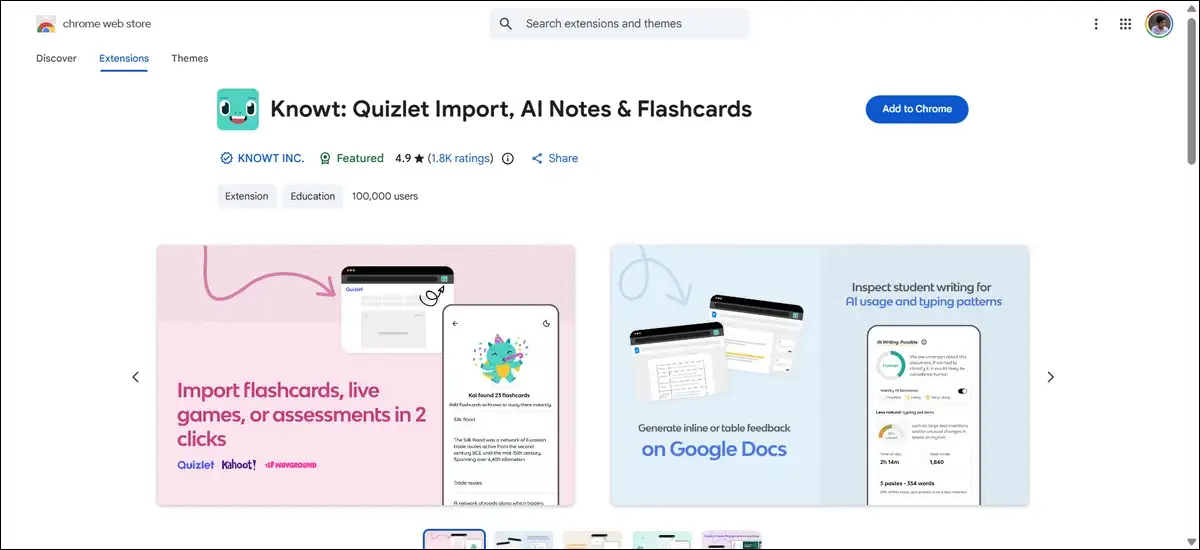
You can open the Chrome Web Store and search for “Knowt: Quizlet Import, AI Notes & Flashcards” or simply visit here. Click the blue Add to Chrome button. Confirm the installation when prompted.
Step 2: Pin the extension for quick access
Click the puzzle icon in your browser toolbar. Find the Knowt extension in the list. Click the pin icon next to it. This keeps the icon visible at all times.
Step 3: Open your Quizlet flashcard set
You can navigate to the specific set you want to import. Make sure the set loads fully in your browser before proceeding.
Step 4: Trigger the import
Click the puzzle icon again and select the Knowt extension. The popup can detect the flashcards automatically. Click the import button. Choose or create a destination notebook in Knowt if prompted.
Once the import finishes, the set shows up in your Knowt library right away. You have the option to begin studying immediately with those free modes.
The Manual Text Method Is A Reliable Backup When Needed
Quizlet sometimes restricts exports or blocks extensions temporarily. You still have the option to move content through a simple copy-and-paste process. This method requires no browser extension, so it’s handy when the first option hits a snag.
Step 1: Prepare the Quizlet set
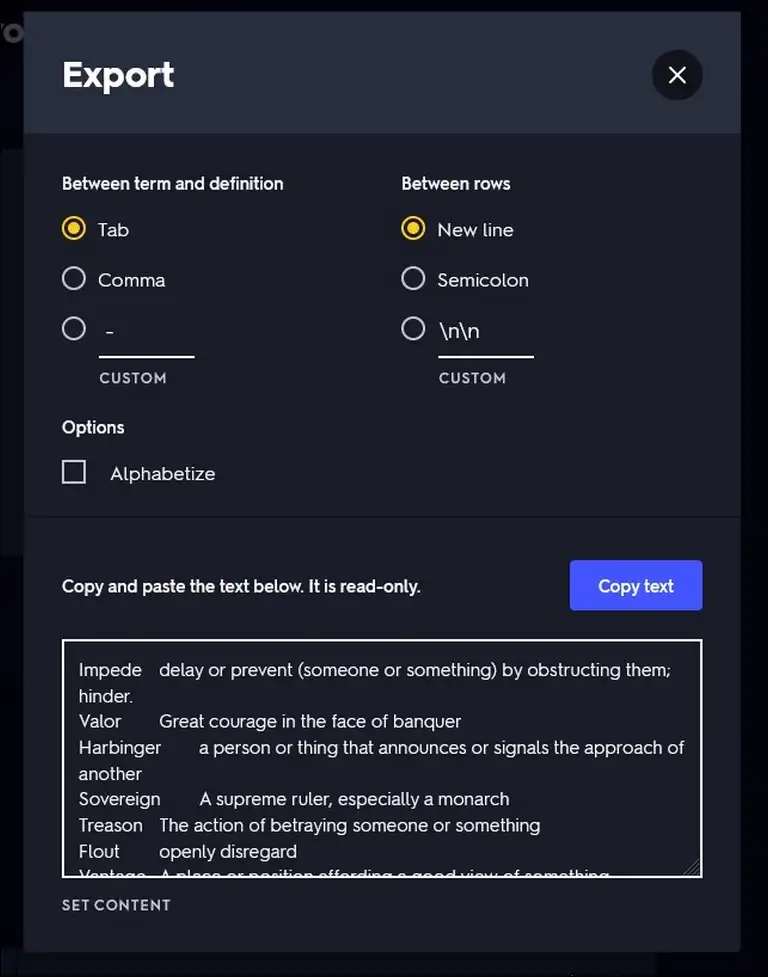
You can open the set in Quizlet and click the three-dot menu on the main set page. Select Export. If the option stays grayed out, click “Make a copy” first. Then export from the copied version.
Step 2: Copy the text with chosen separators
Select your preferred separators in the Quizlet export window. Common choices include tab for terms and newline for cards. Copy the full text block.
Step 3: Start a new set in Knowt
Go to Knowt and click the Create button. Choose Flashcards. Select the ” Import” option on the left side of the creation window.
Step 4: Paste and match separators
Paste the copied text into the import box. Set the same separators you used in Quizlet. Click Import. Knowt processes the cards and creates the new set.
This approach works in any browser. It takes slightly longer, but it avoids extension issues entirely.
Also read: Apps Like Quizlet
Knowt and Quizlet Can Differ in Study Mode Access After Import
Students often move sets because they want more free study tools. Here’s a direct comparison of key features in 2026.
| Feature | Knowt (Free Tier) | Quizlet (Free Tier) |
|---|---|---|
| Learn mode rounds | Unlimited | Limited to roughly 20 per month |
| Practice tests | Unlimited | Limited to 3 per month |
| Spaced repetition | Full access | Limited; full version requires paid plan |
| AI flashcard generation from PDFs or videos | Available with monthly caps | Tied to paid plans |
| PDF and video import | Supported | Requires a paid plan |
Knowt’s free experience can cover more core study activities for most people. You keep access to these tools after you import your sets.
Common Extension Issues Can Occur, and Here’s How to Resolve Them Quickly
Quizlet updates its site from time to time. These changes can interfere with the Knowt extension. I’ve seen users report messages about blocks or failed detection. The problems usually last just hours or a day at most, so it’s rarely a long-term headache.
Troubleshooting Table for Extension Problems
| Issue | Likely Cause | Quick Fix You Can Try |
|---|---|---|
| Extension shows “Quizlet started blocking us again” | Recent Quizlet site change | Wait for the Knowt update (often the next day). Switch to the manual method in the meantime. |
| Extension fails to detect flashcards | Outdated extension or browser cache | Close Chrome completely. Reopen it. Check for extension updates in Chrome settings. Clear site cache for quizlet.com. |
| Ad blockers or privacy tools interfere | Conflicting extensions | Temporarily disable other extensions. Test import again. Re-enable one by one to identify the conflict. |
| Import succeeds but images are missing | Data transfer limits | Recreate images manually in Knowt after import. Or add them from your own files. |
You can always fall back on the manual text method during these periods. Knowt support responds through the in-app chat when needed.
What Actually Transfers During Import
Here’s what actually transfers during import.
Terms and definitions move over reliably in both methods. You keep the core content you built on Quizlet. But images, audio pronunciations, and custom formatting often stay behind. Study progress, streak data, and class assignments don’t carry across platforms either.
After import, you have the option to enhance the set right away. Add images from your library if you want. You can also use Knowt’s AI tools to generate extra practice questions from the same cards. Organize the set into notebooks or link it to other notes as needed.
Post-Import Steps Can Help You Study More Effectively
Open the new set in Knowt and try Learn mode first. It adapts to your answers and focuses on weaker cards. Switch to practice tests for exam simulation. Enable spaced repetition if you plan long-term review.
You can also record a short lecture or upload related PDFs. Knowt’s AI creates additional flashcards or summaries from those files. This builds a connected study system around your original Quizlet content without much extra effort.
Mobile workflows require a desktop step first
One thing to keep in mind with mobile workflows is that they require a desktop step first. The Chrome extension works only on desktop browsers. So import it on your computer first.
Then open the Knowt mobile app to study the same sets. The app syncs your library across devices. You study with the same free modes on your phone or tablet.
Quick Decision Guide: Extension vs Manual Import
You want to import Quizlet flashcards to Knowt
Chrome Extension Path
Manual Text Import
My Verdict
In my experience, the Chrome extension gives you the quickest route for most desktop users. It handles the majority of Quizlet sets without extra steps. The manual text method provides a dependable backup whenever Quizlet blocks extensions or restricts exports.
Both approaches preserve your core study material. You gain stronger free study tools once the sets live in Knowt. I’d suggest starting with the extension and keeping the manual steps ready as your safety net.
Also read: 14 Best EducationBeing.com Alternatives
People Also Ask These Questions
Can I import private Quizlet sets? +
Do imported sets stay updated if I edit them later in Quizlet? +
What happens to large sets with hundreds of cards? +
Is there any cost to import or study afterward? +
You now have complete control over moving your Quizlet material. The process stays straightforward even when small technical hurdles appear. Test the extension on one set today.
You’ll see exactly how it fits your workflow.