How to Remove Previously Synced Google Account from Android After Reset
Factory Reset Protection (FRP) is a crucial security feature on modern Android devices. It’s designed to prevent unauthorized access if your phone is lost or stolen. After a factory reset, FRP locks the device, requiring you to sign in with the last Google account credentials that were synced to it. While essential for security, this can become a major headache if you’ve forgotten your login details or purchased a second-hand phone where the previous owner failed to remove their account.
This comprehensive guide will walk you through three effective methods to remove a previously synced Google account (Google FRP lock bypass) and regain full access to your Android device.
Using Your Google Account Credentials
The most straightforward and official path is to simply enter the correct login details for the Google account that was previously synced on the device.
Step-by-Step Guide
- Connect to Wi-Fi: After the factory reset, follow the on-screen setup prompts until you reach the “Verify your account” or “Google Account verification” screen.
- Enter Credentials: Carefully enter the email address or phone number and the password for the Google account previously used on the device.
- Complete Setup: Once verified, you will be allowed to proceed and set up your device as new.
What if you forgot the password?
If you remember the email address but have forgotten the password, you can use Google’s official recovery process on another device (like a computer or a friend’s phone) to regain access.
- Go to Account Recovery: Navigate to the Google Account Recovery page on a separate device.
- Follow the Prompts: Enter the email address you remember and follow the steps for password recovery. Google will ask security questions, send a code to a recovery phone/email, or use other methods to verify your identity.
- Reset Password: Once verified, create a new, strong password.
- Wait and Try Again: Crucially, if you have recently reset your password, you may need to wait at least 24 to 72 hours before attempting to log in on the factory-reset phone. Google implements a security lockout period to prevent unauthorized access immediately after a password change.
Manufacturer/Carrier Support with Proof of Ownership
If you cannot recover your Google account or are stuck with a second-hand device, the next official recourse is to seek help from the device’s manufacturer or your mobile carrier. This method is slow but is legitimate and often the last resort for legally purchased phones.
Requirements
- Proof of Purchase: You will need the original receipt or proof of ownership for the device. This proves to the manufacturer that you are the rightful owner.
- Device Details: The IMEI number, serial number, and exact model number of your Android phone or tablet.
Step-by-Step Guide
- Contact Support: Get in touch with the official customer support channel for your phone’s manufacturer (e.g., Samsung, Google Pixel, Xiaomi) or your service provider (AT&T, Verizon, etc.).
- Explain the Situation: Clearly state that your device is locked by FRP after a factory reset and you need assistance with verification.
- Provide Documentation: Submit the required proof of purchase and device information.
- Remote Bypass/Service: If your documentation is valid, the manufacturer or carrier may be able to remotely unlock the device or provide instructions for an authorized service center to perform the unlock. This process can take several days.
Using a Dedicated FRP Bypass Tool (iMobie DroidKit)
When the official methods are not viable (e.g., you can’t recover the old account, or you don’t have proof of purchase), a professional third-party tool like iMobie DroidKit can offer a faster, non-technical solution. The software’s “FRP Bypass” feature is designed to remove the previously synced Google account without needing the password.
Highlight Feature
- Broad Compatibility: Bypass FRP Lock and Google account verification on virtually all Android phones & tablets of Samsung, Xiaomi, Redmi, POCO, and OPPO, among others.
- Regain Full Access: It removes the previous Google account, allowing you to sign in with a new one and regain complete control of your phone or tablet.
- Wide Android OS Support: Compatible with Android OS versions from 6 up to 15.
- Cross-Platform: Works on both Windows and Mac operating systems.
- All-in-One Solution: DroidKit also includes features to remove the Android screen lock, recover lost or deleted data, transfer and manage device data, fix system issues, and more.
Step-by-Step Operation with DroidKit
The process for FRP Bypass varies slightly depending on your device brand and Android OS version, as DroidKit provides customized solutions. Below are the general steps:
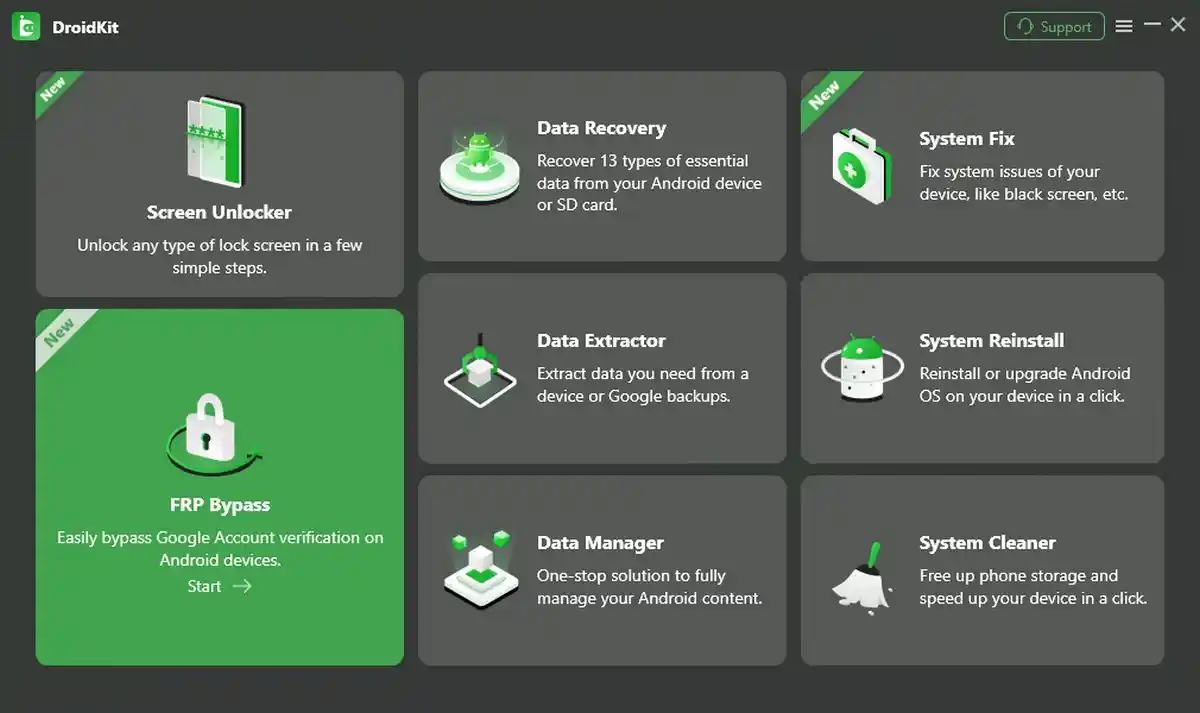
Step 1: Launch DroidKit and Connect Your Device
- Download and install DroidKit on your computer (Windows or Mac).
- Launch the software and click the “FRP Bypass” mode on the main interface.
- Connect your locked Android device to the computer using a USB cable.
- Click the “Start” button.
Step 2: Prepare Configuration File
- DroidKit will automatically detect your device and prepare a configuration file specific to its brand and Android version.
- Once the file is prepared, click “Start to Bypass”.
Step 3: Put Device into Recovery Mode (Follow On-Screen Guide)
- DroidKit will prompt you with specific, easy-to-follow instructions to put your device into Recovery Mode. This process uses a combination of hardware buttons (Power, Volume Up/Down).
- Follow the instructions exactly as shown on the screen.
Step 4: Select Your Device System Version
- Once your phone is in Recovery Mode, you will see a list of device system versions on the DroidKit interface. Select the one that matches your device and click “Next”.
- Follow the prompts to complete the corresponding settings on your device (usually wiping the cache partition or similar steps).
Step 5: Complete the Bypass
- DroidKit will then execute the bypass process based on the system information you provided.
- Wait for the process to complete. Once finished, the device will restart, and the FRP lock will be removed. You can then sign in with a new Google account and set up your phone.
Final Thoughts
While Factory Reset Protection is a necessary security measure, being locked out of your own device can be incredibly frustrating. The best practice is always to remove your Google account from the device’s settings before performing a factory reset to prevent the FRP lock from activating in the first place.
However, if you find yourself stuck, choosing between the official (but slow and document-dependent) methods and a reliable, fast third-party tool like DroidKit provides you with options to regain control over your phone.