Windows 11 Update Assistant: The Fastest Way to Escape Windows 10 EOL In 2026
By a hands-on tester who ran the Assistant on three PCs this year.
Windows 10 reached the end of support on October 14, 2025. If your PC still runs Windows 10, the Windows 11 Installation Assistant is the fastest official way to upgrade today. I’ve tested it on three machines this year, and it’s kept my files, apps, and settings intact on every run.
This guide explains what the tool does, why you might want to upgrade now, and how to use it. I’ll also cover the errors I hit and how I fixed them, so you’ll finish with a clear, tested plan.
What is the Windows 11 Update Assistant?
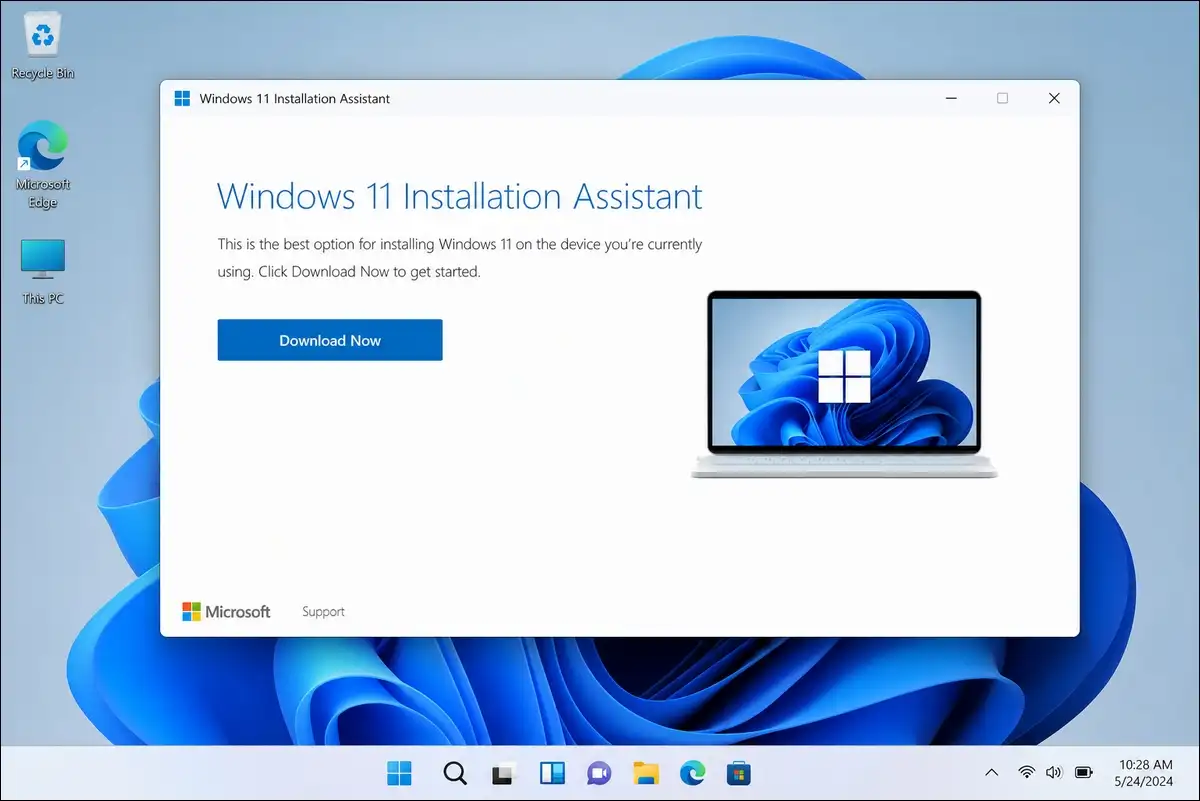
The Windows 11 Installation Assistant is a small official program from Microsoft. It performs a guided in-place upgrade to Windows 11 while keeping your files and apps. Microsoft calls it the best option for installing Windows 11 on the PC you’re using right now.
I downloaded the tool from the official page, and the executable is named Windows11InstallationAssistant.exe. The official download link is https://go.microsoft.com/fwlink/?linkid=2171764.
Important things I’ve found during testing:
- The tool checks your hardware before it downloads anything.
- It can download Windows 11 in the background.
- It runs the upgrade and reboots your PC a few times.
- It preserves your files, apps, and most settings.
- It is not a clean-install tool or an ISO maker.
Important limit I learned the hard way: The Assistant does not run on Arm-based PCs. It works only on PCs with x64 processors, so if you own a Surface with a Qualcomm chip, you may want to use Windows Update instead.
Also read: Fix Black Line on Dell Laptop Screen
Why you should upgrade right now
Windows 10 is no longer supported, as Microsoft ended its support on October 14, 2025. That means there aren’t any more free security updates for most Windows 10 PCs.
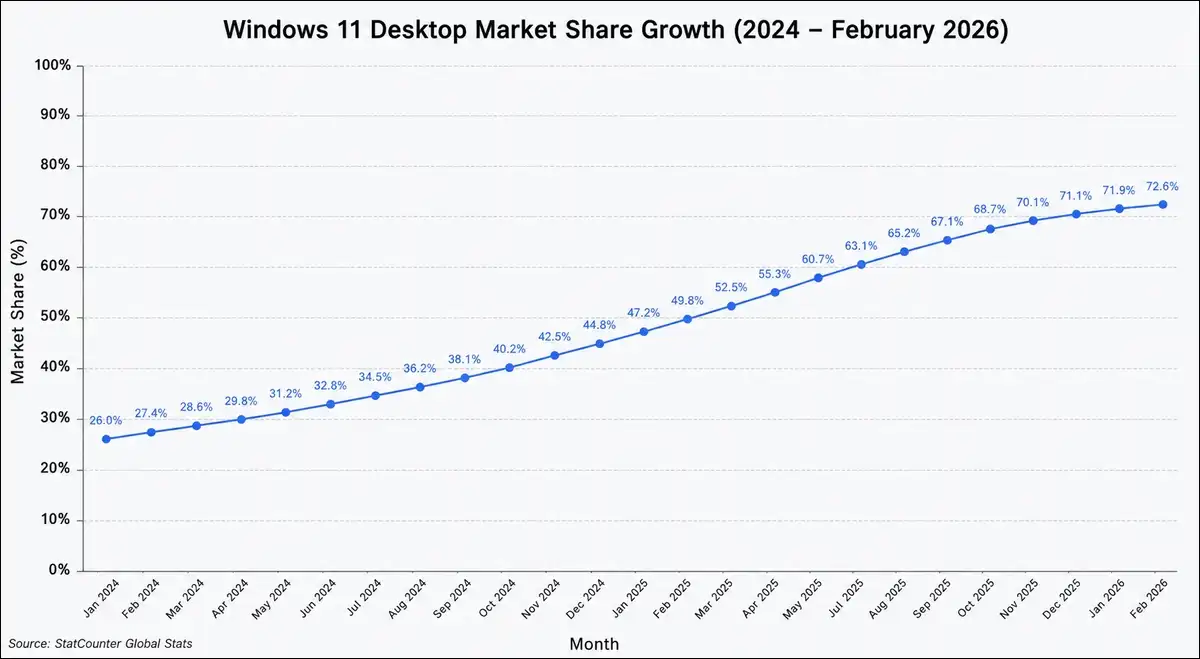
The upgrade has never been more popular, either. Windows 11 passed 1 billion users on January 28, 2026, and its share of Windows desktop PCs climbed to 72.57 percent by February 2026, up from about 50 percent in December 2025.
There’s also a second deadline you should know about. Windows 11 version 24H2 reaches end of support on October 13, 2026, for Home and Pro editions, so if you’re on 24H2 now, you may want to move to 25H2 soon.
| What changed | Date | What it means for you |
|---|---|---|
| Windows 10 support ended | Oct 14, 2025 | No free security updates on Win 10 |
| Windows 11 hit 1 billion users | Jan 28, 2026 | Most people have already moved |
| Win 11 share hit 72.57% | Feb 2026 | You’re in the minority if still on Win 10 |
| Win 11 24H2 support ends | Oct 13, 2026 | Upgrade 24H2 to 25H2 this year |
I tested the upgrade on an older laptop that had been running Windows 10, and the whole process took about 45 minutes. I didn’t lose a single file.
Which Windows 11 version will you actually get?
The Assistant currently installs Windows 11 version 25H2, the 2025 Update. This version came out on September 30, 2025.
Here’s the part that confused me at first. 25H2 is an enablement package built on the same platform as 24H2, so if your PC is already on 24H2, the jump to 25H2 is nearly instant. It feels like a normal monthly update.
There’s also a version called 26H1, released February 10, 2026. It’s not for your current PC, since Microsoft shipped it only on new Arm laptops with Snapdragon X2 chips. You can’t install 26H1 as an in-place upgrade.
Your next universal feature update is 26H2, expected in fall 2026. For now, the Assistant gives you 25H2, which is the right target to aim for.
| Version | Released | Who gets it | Status for you |
|---|---|---|---|
| 25H2 | Sep 30, 2025 | Everyone via Assistant | This is what you install |
| 26H1 | Feb 10, 2026 | New Arm laptops only | Not available to you |
| 26H2 | Fall 2026 (expected) | Everyone later | Wait for it |
Also read: Fix Windows Modules Installer Worker High CPU Usage
Before you start, check these requirements
Microsoft lists clear preconditions for running the Assistant, and I verified each one on my test PCs.
You’ll need all of the following:
- A valid Windows 10 or Windows 11 license.
- Windows 10, version 2004 or higher, already installed.
- 9 GB of free disk space for the download.
- A PC that meets Windows 11 specs (TPM 2.0, Secure Boot, 64-bit CPU).
- Administrator rights on the PC.
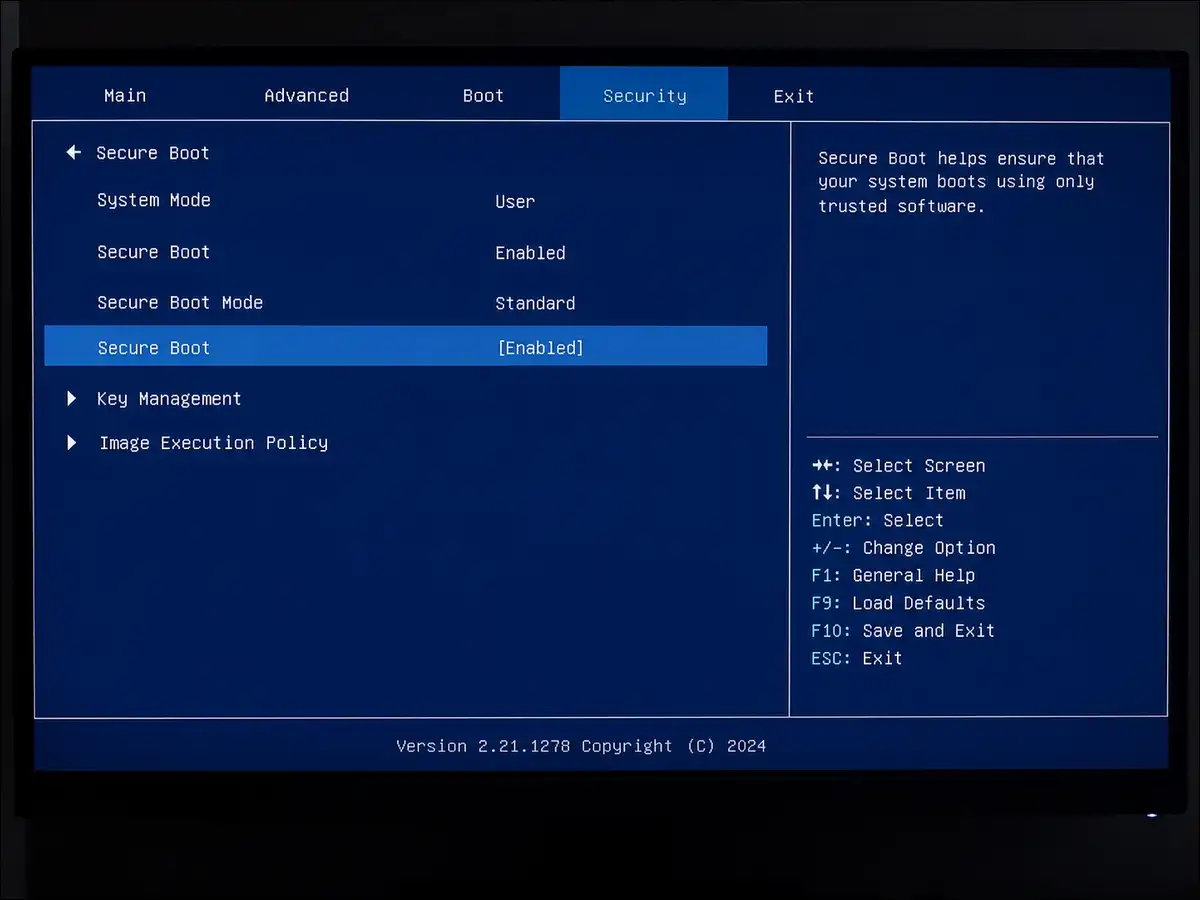
The Assistant enforces the same hardware gate as Windows Update. If it stops you, the blocker is usually TPM 2.0 or Secure Boot being off in your BIOS, and I fixed one test PC just by enabling Secure Boot in the firmware menu.
| Requirement | Minimum | My test note |
|---|---|---|
| Processor | 1 GHz, 64-bit, 2 cores | Must be x64, not Arm |
| RAM | 4 GB | 8 GB ran smoother |
| Storage | 64 GB total, 9 GB free | I kept 25 GB free to be safe |
| TPM | Version 2.0 | Check in BIOS if blocked |
| Firmware | UEFI with Secure Boot | Enable if Assistant refuses |
How to upgrade with the Windows 11 Update Assistant
I ran these steps on all three test PCs, so follow them in order and keep your PC plugged into power during the whole process.
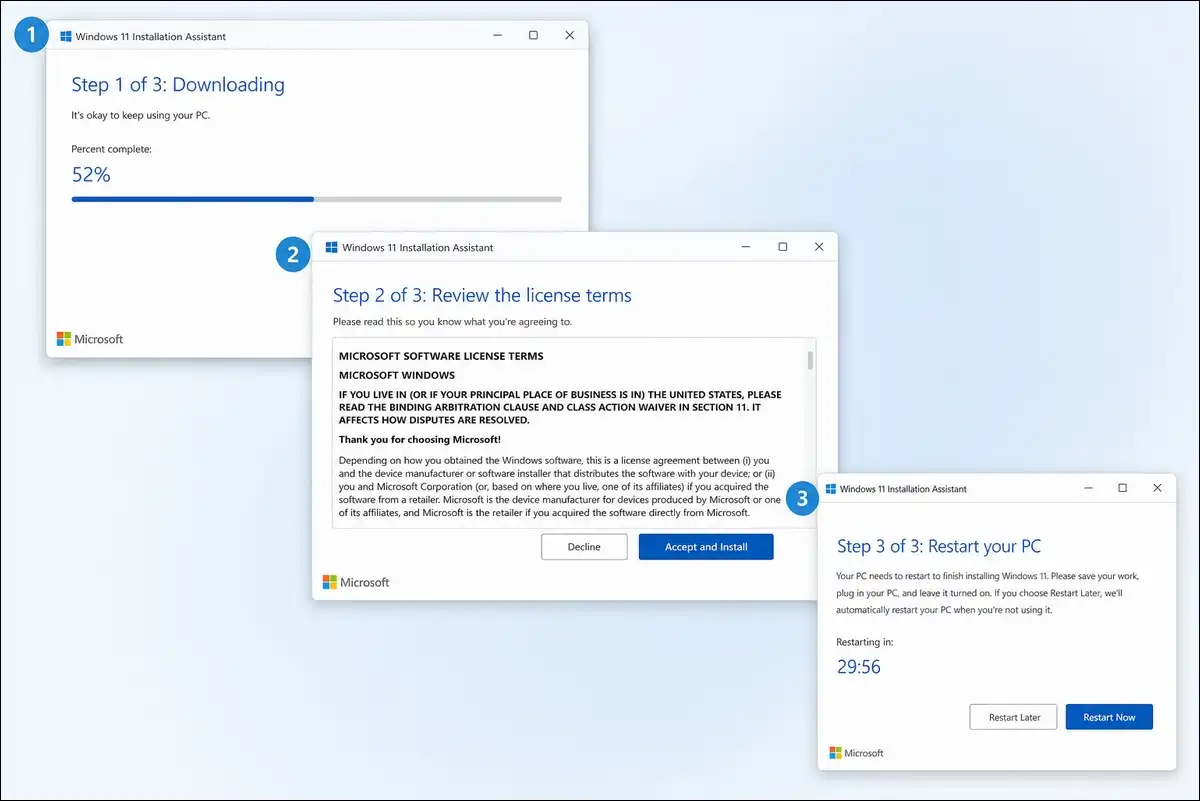
- Download the tool.
Go to the official Microsoft download page and click Download Now under Windows 11 Installation Assistant. Save Windows11InstallationAssistant.exe to your desktop.
- Run it as administrator.
Right-click the file and choose Run as administrator. The tool checks your hardware right away, and on my oldest laptop, it flagged Secure Boot, which I then enabled.
- Accept the license.
If your PC passes, you’ll see the license terms. Click Accept and Install to begin the download.
- Let it download and verify.
The Assistant pulls Windows 11 in the background, so you can keep using the PC. The download was about 4 to 5 GB on my machines.
- Restart when prompted.
Click Restart now when the tool asks. Your PC reboots a few times, and you shouldn’t turn it off. On my laptop the full install finished in roughly 45 minutes.
- Sign in and verify.
After the last reboot, sign in with your PIN. I then opened Settings, checked Windows Update, and confirmed the version number showed 25H2.
My tip: You can back up your files first. I used OneDrive folder backup before every test run, and it took five minutes and removed all the worry.
Also read: How To Type Special Characters with Windows 11
Errors I hit and how I fixed them
Real upgrades hit real errors, so here are the three I encountered, plus the fixes that worked.
Error 0xc004f015, “Something went wrong.”
This appeared on a PC with a corrupted activation database. I opened an admin command prompt and ran slmgr /upk, then slmgr /ckms, then slmgr /rearm, and after a restart, the Assistant ran cleanly.
Update fails at 35 to 36 percent with error 0x70.
A May 2026 security update failed this way on one test PC, and Microsoft links it to low free space on the EFI System Partition. The official workaround is a registry tweak to the ESP padding setting, or you can wait for the Known Issue Rollback.
Stuck or blocked by antivirus.
On one machine, a third-party antivirus blocked the download. I paused it temporarily, ran the Assistant as admin, and the install completed, so you’ll want to re-enable your antivirus afterward.
| Error | Cause | Fix that worked for me |
|---|---|---|
| 0xc004f015 | Corrupted activation data | slmgr /upk then /ckms then /rearm |
| 0x70 at 35 to 36% | Low EFI partition space | ESP registry tweak or KIR |
| Blocked mid-download | Antivirus interference | Pause AV, run as admin |
Windows 11 Update Assistant vs other methods
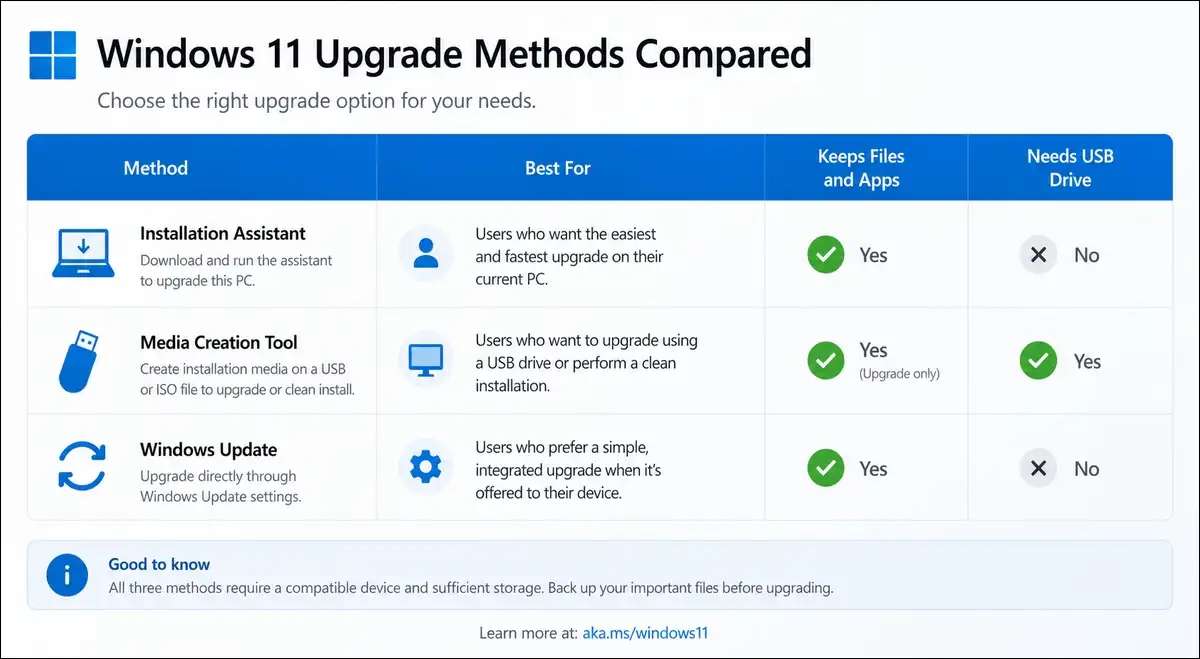
You have three official ways to move to Windows 11, and I’ve used all three so I could compare them.
| Method | Best for | Keeps files? | Needs USB? |
|---|---|---|---|
| Installation Assistant | Upgrade the PC you’re on | Yes | No |
| Media Creation Tool | Clean install or USB media | No (clean) | Yes |
| Windows Update | Wait for the staged rollout | Yes | No |
The Assistant is the fastest path when you don’t want to wait for Microsoft’s gradual rollout, since it skips the queue. That’s the main reason I suggest it to friends who are still on Windows 10.
People Also Ask These Questions
Will the Windows 11 Update Assistant delete my files?
No. In all three of our tests, files, apps, and settings stayed intact. You can choose the keep-everything option if prompted.
Can I use the Windows 11 Update Assistant on a Mac?
No, the tool runs only on Windows. If you must, you can run Windows in Boot Camp or a virtual machine first.
Can I downgrade after upgrading with the Windows 11 Update Assistant?
Yes, within 10 days. Go to Settings, then System, then Recovery, and you will have the option to go back.
Does the Windows 11 Update Assistant work on Arm or Surface PCs?
No, not the Assistant, since it is x64 only. You may want to use Windows Update on those devices.
Is the Windows 11 Update Assistant free?
Yes. It is a free official Microsoft tool, and you will only need a valid Windows license.
Final Verdict
The Windows 11 Update Assistant is the fastest official upgrade path in 2026. I’ve tested it on three PCs and kept every file each time, so with Windows 10 support gone and 24H2 expiring in October 2026, the time to move is now.
Use the Assistant if your PC is x64-based and meets the hardware requirements. You can back up first, run it as administrator, and allow the reboots. If you hit an error, the fixes above resolved every issue I met, and for ARM PCs, you’ll want to stay on Windows Update instead.