Sage HRMS Implementation Guide: Complete 90-Day Roadmap
Complete Sage HRMS implementation guide with 90-day timeline, checklists, and data migration strategies.
Most businesses can sucessfully implement Sage HRMS in 90 days if they follow a structured plan. But most implementations fail because teams skip planning phases or underestimate the data migration complexity.
So, that’s exactly why I put this guide together, which walks you through every phase, from kickoff to go-live. You’ll get week-by-week timelines, downloadable checklists, and real solutions to common problems.
To get the best outcomes and implementation done correctly, I’ve tested Sage HRMS across multiple client deployments, so the insights and actions below come from actual implementation experience, not theory.
So, let’s get started with the basics, and then move to the actual 90-day implementation roadmap.
What Is Sage HRMS and Who Should Implement It?
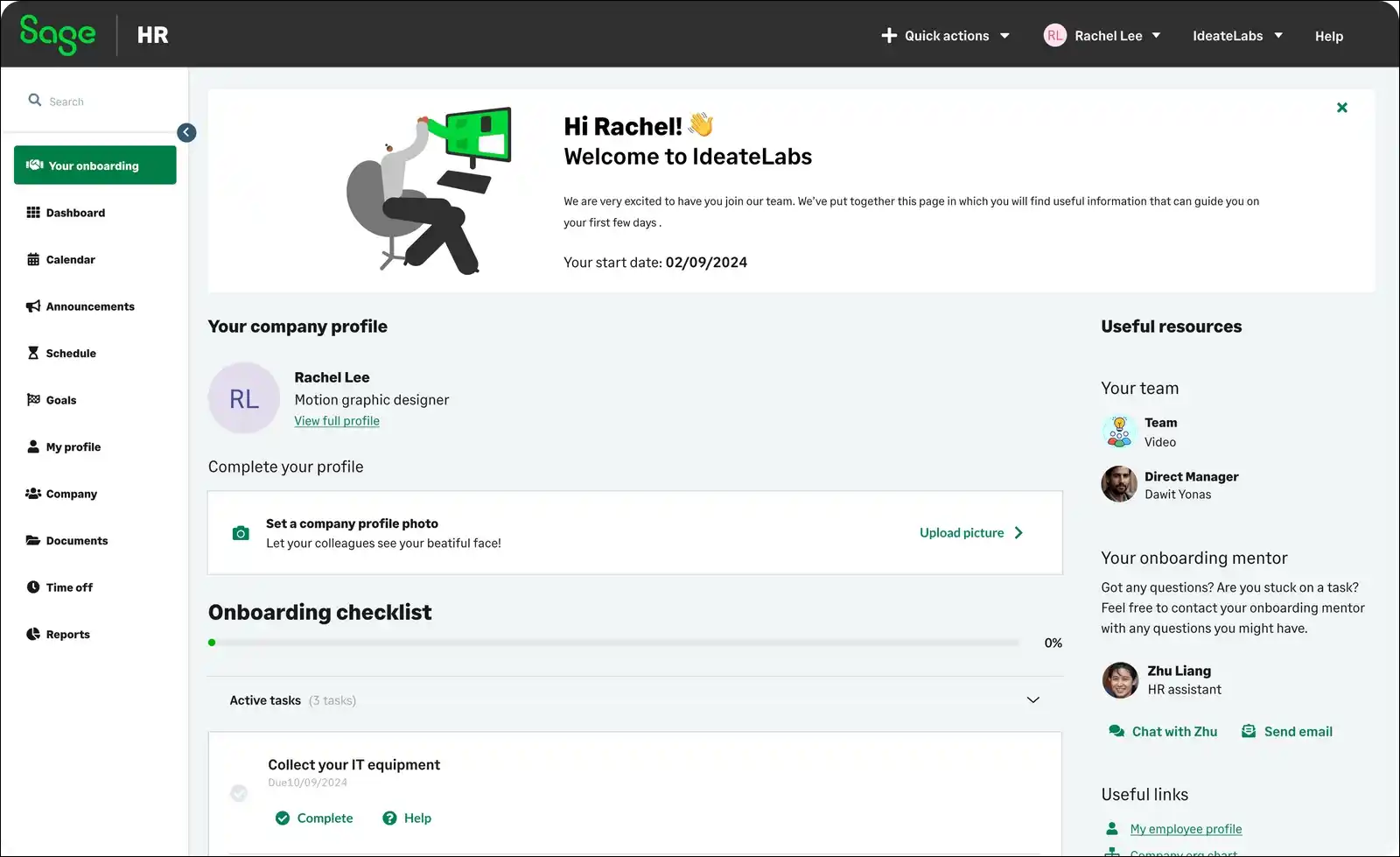
Basically Sage HRMS is an on-premise human resource management system specifically designed for mid-market businesses in the United States and Canada.
This management tool handles payroll, benefits administration, compliance tracking, and employee lifecycle management in a single platform.
Now, if your organization already uses Sage 50 or Sage 100 accounting, you’re in luck. Sage HRMS connects directly to those systems, which makes integration a simple process.
Key Facts
| Feature | Details |
|---|---|
| Deployment | On-premise (Windows-based) |
| Target Market | US and Canada mid-market businesses |
| Customer Base | 6,000+ organizations |
| G2 Rating | 3.5/5 from 35 reviews |
| Typical Implementation | 90 to 120 days |
| Starting Cost | Custom pricing (contact vendor) |
Sage HRMS vs Sage HR: What’s the difference between these two?
Here’s where things get confusing for a lot of teams. Many people mix up these two products, but they serve completely different markets.
| Aspect | Sage HRMS | Sage HR |
|---|---|---|
| Deployment | On-premise | Cloud-based |
| Geography | US and Canada only | Global availability |
| Payroll | Built-in | Requires add-on or integration |
| Starting Price | Custom quote | $5.50 per employee per month 3 |
| Best For | Mid-market with complex payroll | Small businesses needing simplicity |
| Implementation Time | 90+ days | 3 to 4 weeks |
So, which one should you pick?
If you need cloud-based HR without payroll, Sage HR might fit better. But if you need integrated payroll with compliance features, Sage HRMS is the stronger choice.
If you’re using Workday, then you should read our implementation guide here.
Why Do 68% of HRMS Implementations Face Delays?
Most implementations stall because of poor data preparation, unclear requirements, and insufficient training time.
According to industry data, organizations that skip the discovery phase usually face 40% longer implementation timelines.
In my experience, three main failure points keep showing up:
- Bad employee data that requires weeks of cleanup during migration
- Scope creep when departments request features not in the original plan
- User resistance when staff receive inadequate training before go-live
The good news? You can avoid all three by following the planning framework below.
Pre-Implementation Planning (Weeks -2 to 0)
Step 1: Assemble Your Implementation Team
Your implementation team needs four core roles: an executive sponsor, an HR project lead, an IT administrator, and a department representative.
Now, you might be wondering what each person actually does. Here’s the breakdown:
- Executive Sponsor (usually a VP or C-suite leader)
- Approves budget and timeline changes
- Removes organizational blockers
- Signs off on go-live decision
- HR Project Lead (HR manager or director)
- Owns day-to-day implementation tasks
- Coordinates with vendor and implementation partner
- Manages communication with employees
- IT Administrator
- Handles server setup and software installation
- Manages database configuration
- Coordinates security and access permissions
- Department Representative (operations or finance manager)
- Tests payroll and benefits workflows
- Validates reporting requirements
- Provides feedback on user experience
Pro tip: Assign a backup for each role. You’d be surprised how often vacations and sick days can stall your timeline if key people are unavailable.
Step 2: Define Your Requirements Document
Write down exactly what you need Sage HRMS to do before you start configuration. This document prevents scope creep and keeps everyone aligned.
Here’s what your requirements document should cover:
| Category | Questions to Answer |
|---|---|
| Employee Data | How many employees? Active and inactive? What data fields matter most? |
| Payroll | How many pay schedules? Multi-state? Union or certified payroll? |
| Benefits | What benefit plans do you offer? Open enrollment timing? |
| Time Tracking | Do you need integrated time clocks? Overtime rules? |
| Compliance | Which states? ACA reporting? FMLA tracking? |
| Reporting | What reports does leadership need monthly? Quarterly? |
| Integrations | Sage 50? Sage 100? Third-party systems? |
Step 3: Set Your Budget and Timeline
Plan for a 15 to 20% budget contingency beyond your initial estimate. That’s because hidden costs could appear in every single implementation.
Here’s a realistic budget breakdown for a 200-employee company:
| Cost Category | Estimated Range | Notes |
|---|---|---|
| Software Licensing | $15,000 to $25,000/year | Custom pricing based on modules |
| Implementation Partner | $10,000 to $30,000 | Depends on complexity |
| Data Migration | $5,000 to $15,000 | Higher if coming from legacy systems |
| Training | $3,000 to $8,000 | On-site vs remote affects cost |
| IT Infrastructure | $2,000 to $5,000 | Server hardware, if needed |
| Contingency (15%) | $5,000 to $12,000 | Always budget for surprises |
| Total Estimated | $40,000 to $95,000 | First year all-in cost |
Phase 1: Discovery and Setup (Weeks 1 to 2)
Week 1: Kickoff and Environment Setup
Your first week focuses on project alignment and technical preparation. Every day matters here because delays compound throughout the project.
Day 1 to 2: Kickoff Meeting
You’ll want to hold a two-hour kickoff meeting with your full implementation team. Make sure you cover these items:
- Review the project timeline and milestones
- Confirm roles and responsibilities
- Establish communication channels (email groups, Slack channels, meeting schedules)
- Set escalation procedures for blockers
- Document decision-making authority
Day 3 to 5: Technical Setup
Your IT administrator can handle these tasks:
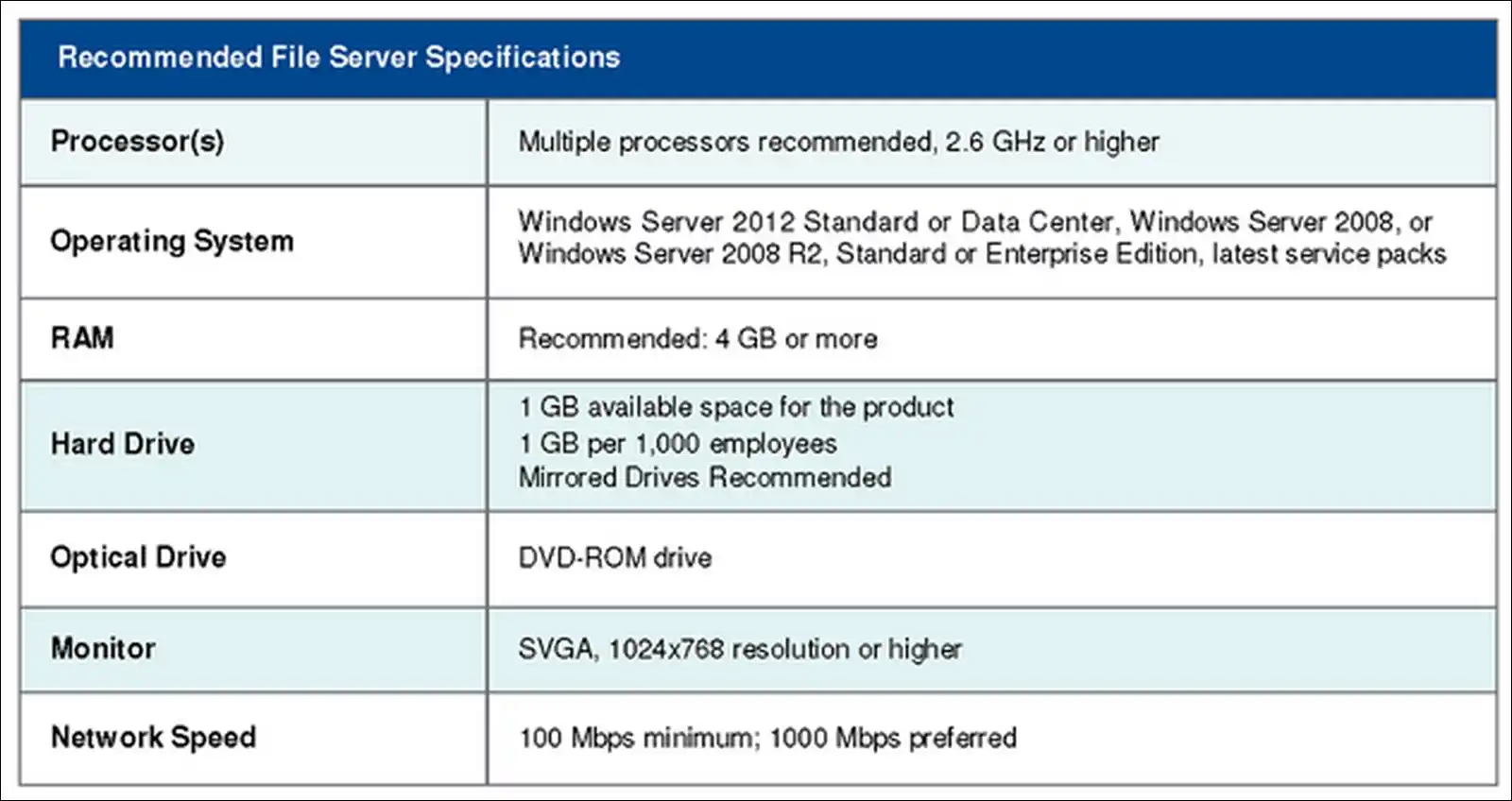
- Verify server meets minimum system requirements
- Install Sage HRMS software on the designated server
- Configure database connections
- Set up administrator accounts
- Test basic system access from workstations
System Requirements Checklist:
Week 2: Data Audit and Cleansing
Data quality determines implementation success. I’ve seen projects delayed by four weeks because teams skipped this step entirely.
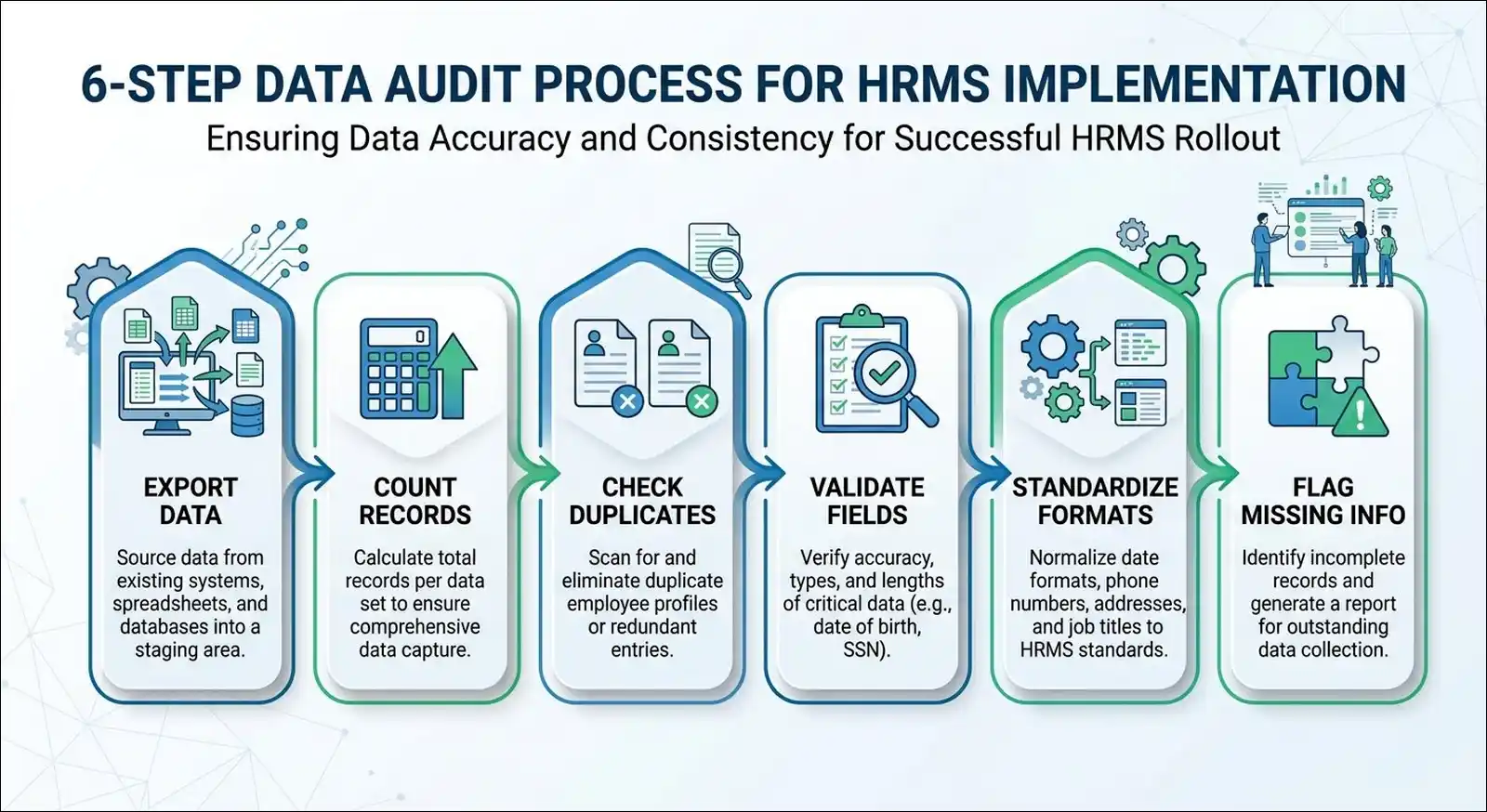
Here’s your data audit process:
- Export current employee data from your existing system (spreadsheets, old HRIS, or paper files)
- Count your records and identify how many active vs inactive employees you have
- Check for duplicate entries and merge or delete them
- Validate critical fields like Social Security numbers, addresses, and pay rates
- Standardize data formats (dates, phone numbers, state abbreviations)
- Flag missing information that you’ll need to collect from employees
Common data issues that cause migration problems:
- Inconsistent date formats (01/15/2024 vs 2024-01-15 vs January 15, 2024)
- Missing or invalid Social Security numbers
- Employees listed in multiple locations or departments
- Benefit elections that don’t match current plan offerings
- Historical pay data with calculation errors
Pro tip: Create a “data cleansing team” of two to three people who spend dedicated time fixing issues. Part-time attention to data cleanup always takes longer than focused effort.
Phase 2: Configuration (Weeks 3 to 6)
Week 3: Core HR Setup
Start with your organization structure, then build employee records. This sequence prevents rework later on.
Organization Structure Configuration:
- Set up your company hierarchy (company, divisions, departments, locations)
- Define job titles and job codes
- Create pay grades and compensation bands
- Configure employment types (full-time, part-time, contractor, seasonal)
- Set up supervisor/manager relationships
Employee Record Configuration:
- Define required and optional employee fields
- Set up custom fields for industry-specific data
- Configure document types for employee file storage
- Establish data validation rules
- Create employee self-service portal settings
Key configuration decisions to make:
| Decision | Options | Recommendation |
|---|---|---|
| Employee Numbering | Auto-generated vs manual | Auto-generated prevents duplicates |
| SSN Display | Full vs masked | Masked for security compliance |
| Address Format | US standard vs international | US standard unless you have international employees |
| Termination Tracking | Voluntary vs involuntary categories | Include both with reason codes |
Week 4: Payroll Configuration
Payroll setup requires the most attention to detail. Errors here directly affect employee paychecks and tax filings, so you’ll want to be extra careful.
Payroll Setup Checklist:
- Pay schedules
- Define pay frequency (weekly, bi-weekly, semi-monthly, monthly)
- Set up pay period start and end dates
- Configure direct deposit timing
- Tax configuration
- Federal tax tables (auto-updated with Sage support)
- State tax tables for each state where you have employees
- Local tax jurisdictions if applicable
- SUTA (State Unemployment Tax) rates by state
- Earnings and deductions
- Regular pay, overtime, double-time codes
- Holiday pay, sick pay, vacation pay
- Health insurance deductions
- 401(k) and retirement contributions
- Garnishments (child support, tax levies, student loans)
- Benefits integration
- Link benefit elections to payroll deductions
- Configure employer contribution calculations
- Set up COBRA tracking if applicable
Week 5: Time and Attendance Setup
If you track employee hours, you’ll want to configure time and attendance before payroll testing. That’s because time data flows directly into payroll calculations.
Time Tracking Configuration:
- Choose your time collection method:
- Web-based time entry
- Physical time clock integration
- Manager-entered timesheets
- Employee self-service timesheets
- Set up work rules:
- Standard work hours per day and week
- Overtime thresholds (daily and weekly)
- Break and lunch deductions
- Shift differentials
- Configure leave management:
- PTO accrual policies (annual, monthly, per pay period)
- Sick leave tracking
- FMLA leave categories
- Jury duty, bereavement, and other leave types
Leave Accrual Example:
| Tenure | Annual PTO Hours | Accrual Rate (Bi-Weekly) |
|---|---|---|
| 0 to 1 years | 80 hours | 3.08 hours per pay period |
| 1 to 5 years | 120 hours | 4.62 hours per pay period |
| 5 to 10 years | 160 hours | 6.15 hours per pay period |
| 10+ years | 200 hours | 7.69 hours per pay period |
Week 6: Benefits and Compliance Setup
Benefits administration connects HR records, payroll deductions, and carrier reporting. Getting configuration accuracy right here prevents enrollment errors and compliance issues down the road.
Benefits Setup Tasks:
- Define benefit plans (medical, dental, vision, life, disability)
- Set eligibility rules (waiting periods, employee types)
- Configure employee and employer cost splits
- Set up open enrollment periods
- Create beneficiary tracking fields
- Link deductions to payroll codes
Compliance Configuration:
- ACA (Affordable Care Act)
- Configure measurement methods for full-time status
- Set up 1094-C and 1095-C reporting
- Define affordability safe harbors
- FMLA (Family and Medical Leave Act)
- Track eligibility (12 months employment, 1,250 hours)
- Configure leave year calculation method
- Set up certification and recertification tracking
- COBRA
- Define qualifying events
- Set up notification timelines
- Track election periods and premium payments
Phase 3: Data Migration (Weeks 7 to 8)
Week 7: Data Migration Preparation
Data migration is the highest-risk phase of any HRMS implementation. So, you’ll want to plan for twice the time you think you’ll need.
Migration Preparation Steps:
- Finalize your data mapping document
- Map every field from your source system to Sage HRMS
- Document transformation rules (format changes, code translations)
- Identify fields that don’t have a direct match
- Create a test migration environment
- Use a copy of your production Sage HRMS installation
- Import a sample of 10 to 20 employee records first
- Verify data accuracy before full migration
- Prepare historical data decisions
- How many years of pay history to migrate?
- Do you need historical benefit elections?
- What about terminated employee records?
Data Mapping Example:
| Source Field | Sage HRMS Field | Transformation |
|---|---|---|
| Employee_ID | Employee Number | Direct mapping |
| First_Name | First Name | Trim spaces, proper case |
| Last_Name | Last Name | Trim spaces, proper case |
| SSN | Social Security Number | Remove dashes, validate format |
| Hire_Date | Hire Date | Convert to MM/DD/YYYY format |
| Dept_Code | Department | Map old codes to new department IDs |
| Pay_Rate | Hourly Rate | Validate against pay grade minimums |
Week 8: Execute Data Migration
Run your full data migration during a low-activity period. I’d recommend starting on a Wednesday, so you have buffer days before the weekend.
Migration Execution Checklist:
- Back up your current Sage HRMS database
- Run the data import process for employee master records
- Import payroll history (if applicable)
- Import benefit elections and enrollment data
- Import time and attendance history (if applicable)
- Run data validation reports to check for errors
- Fix any import errors or warnings
- Generate comparison reports between source and target systems
Post-Migration Validation:
You can run these reports to verify migration accuracy:
- Employee count comparison (source vs Sage HRMS)
- Active employee list with hire dates
- Pay rate summary by department
- Benefit enrollment counts by plan
- Leave balance summary
- Tax jurisdiction assignment report
Pro tip: Have department managers review their team’s data in Sage HRMS. They’ll catch errors that HR might miss, like wrong job titles or incorrect supervisor assignments.
Phase 4: Testing and Training (Weeks 9 to 10)
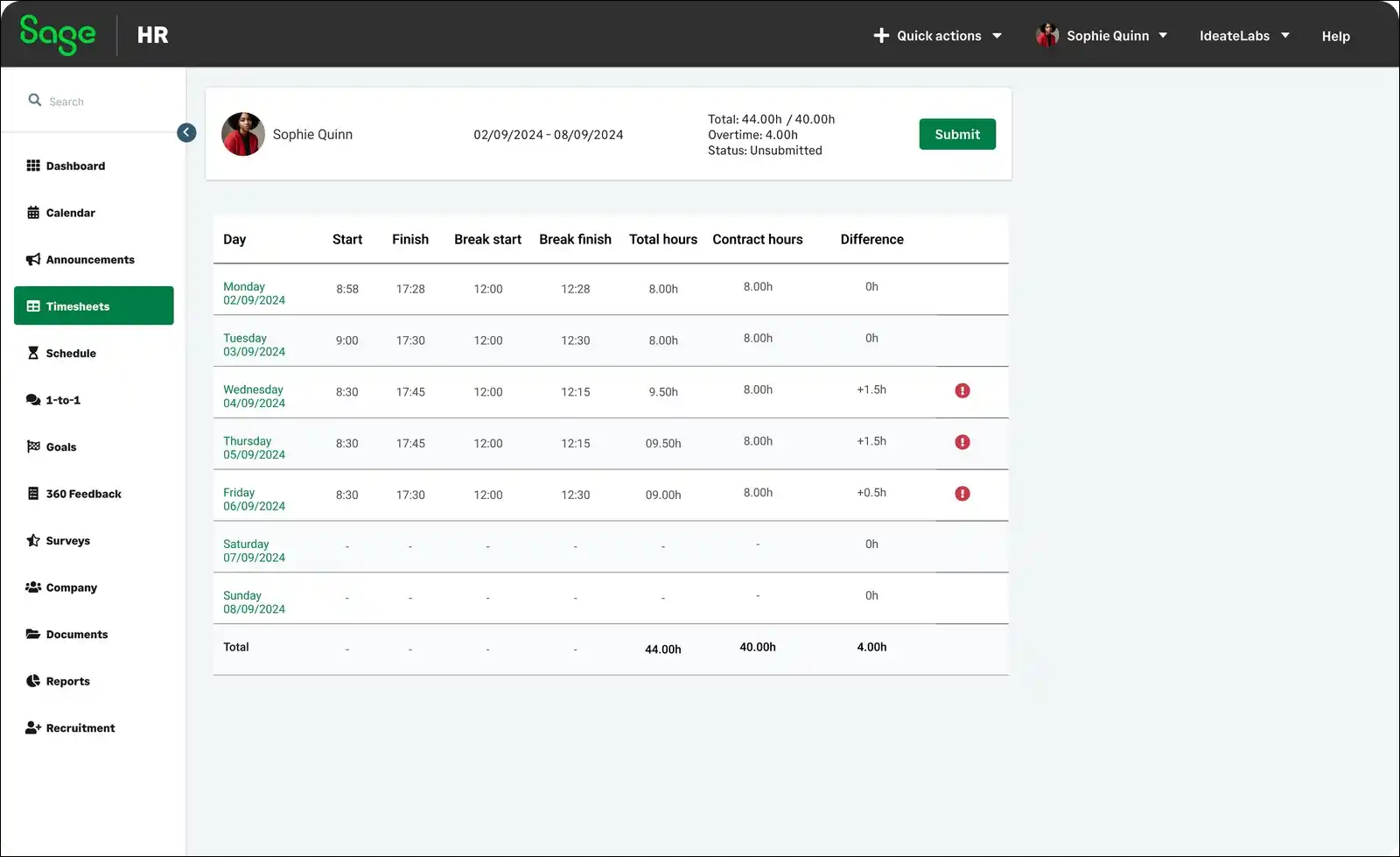
Week 9: User Acceptance Testing (UAT)
UAT catches problems before employees see them. Skip this phase and you’ll face chaos at go-live, trust me on this one.
UAT Process:
- Create test scenarios for every major workflow
- Assign testers from each department (HR, payroll, managers, employees)
- Document all issues in a shared tracking spreadsheet
- Prioritize fixes as critical, high, medium, or low
- Retest after fixes to confirm resolution
Essential Test Scenarios:
| Scenario | Who Tests | What to Verify |
|---|---|---|
| New hire onboarding | HR | Complete workflow from offer to first paycheck |
| Payroll processing | Payroll admin | Calculate, review, and approve a full pay run |
| Leave request | Employee and manager | Submit, approve, and track PTO request |
| Benefits enrollment | Employee | Elect benefits during open enrollment |
| Performance review | Manager and employee | Complete review cycle with ratings and comments |
| Report generation | HR and finance | Run standard and custom reports |
| Employee self-service | Employee | Update personal information, view pay stubs |
UAT Timeline:
| Day | Focus Area | Participants |
|---|---|---|
| Day 1 | Employee record management | HR team |
| Day 2 | Payroll processing (full cycle) | Payroll admin, finance |
| Day 3 | Benefits and open enrollment | HR, sample employees |
| Day 4 | Time tracking and leave management | Managers, timekeepers |
| Day 5 | Reporting and analytics | HR, finance, executives |
Week 10: User Training
Training determines whether employees adopt the system or resist it. So, you’ll want to budget at least four hours per user role.
Training Structure:
- HR Administrators (8 hours)
- System configuration and maintenance
- Employee record management
- Report creation and customization
- Troubleshooting common issues
- Payroll Administrators (6 hours)
- Payroll processing workflow
- Tax management and filings
- Garnishment processing
- Year-end procedures
- Managers (4 hours)
- Team roster and org chart viewing
- Leave request approval
- Performance review completion
- Report access and basic filtering
- Employees (2 hours)
- Self-service portal navigation
- Personal information updates
- Pay stub and tax form access
- Leave request submission
Training Delivery Options:
| Method | Pros | Cons |
|---|---|---|
| In-person classroom | Interactive, immediate Q&A | Scheduling conflicts, travel costs |
| Live webinars | Remote access, recorded for replay | Less engagement, technical issues |
| Video recordings | Self-paced, rewatchable | No live Q&A, may feel impersonal |
| Written guides | Reference material, always available | Passive learning, may not cover edge cases |
My recommendation: Combine live webinars with recorded videos. You can provide written guides as reference material after training sessions.
Phase 5: Go-Live and Stabilization (Weeks 11 to 12)
Week 11: Go-Live Preparation
Go-live week needs a detailed checklist and dedicated support. You won’t want to plan go-live during holidays, month-end close, or year-end processing.
Go-Live Readiness Checklist:
- All test scenarios passed in UAT
- Data migration validated and signed off
- All users completed training
- Support procedures documented
- Rollback plan prepared (just in case)
- Communication sent to all employees
- Help desk staffed for go-live week
- Key stakeholders available for decisions
Go-Live Communication Template:
You can send this email to all employees one week before go-live:
Subject: New HR System Launching [Date] – What You Need to Know
Dear [Company] Team,
We’re launching Sage HRMS on [date]. Here’s what changes for you:
What’s New:
- Self-service portal to view pay stubs and update personal info
- Online leave requests (no more paper forms)
- Digital benefits enrollment
What You Need to Do:
- Log in at [URL] using your employee ID and temporary password
- Update your personal information
- Review your benefit elections
Need Help?
- Training videos: [link]
- FAQ document: [link]
- Support email: [email]
- Support phone: [number]
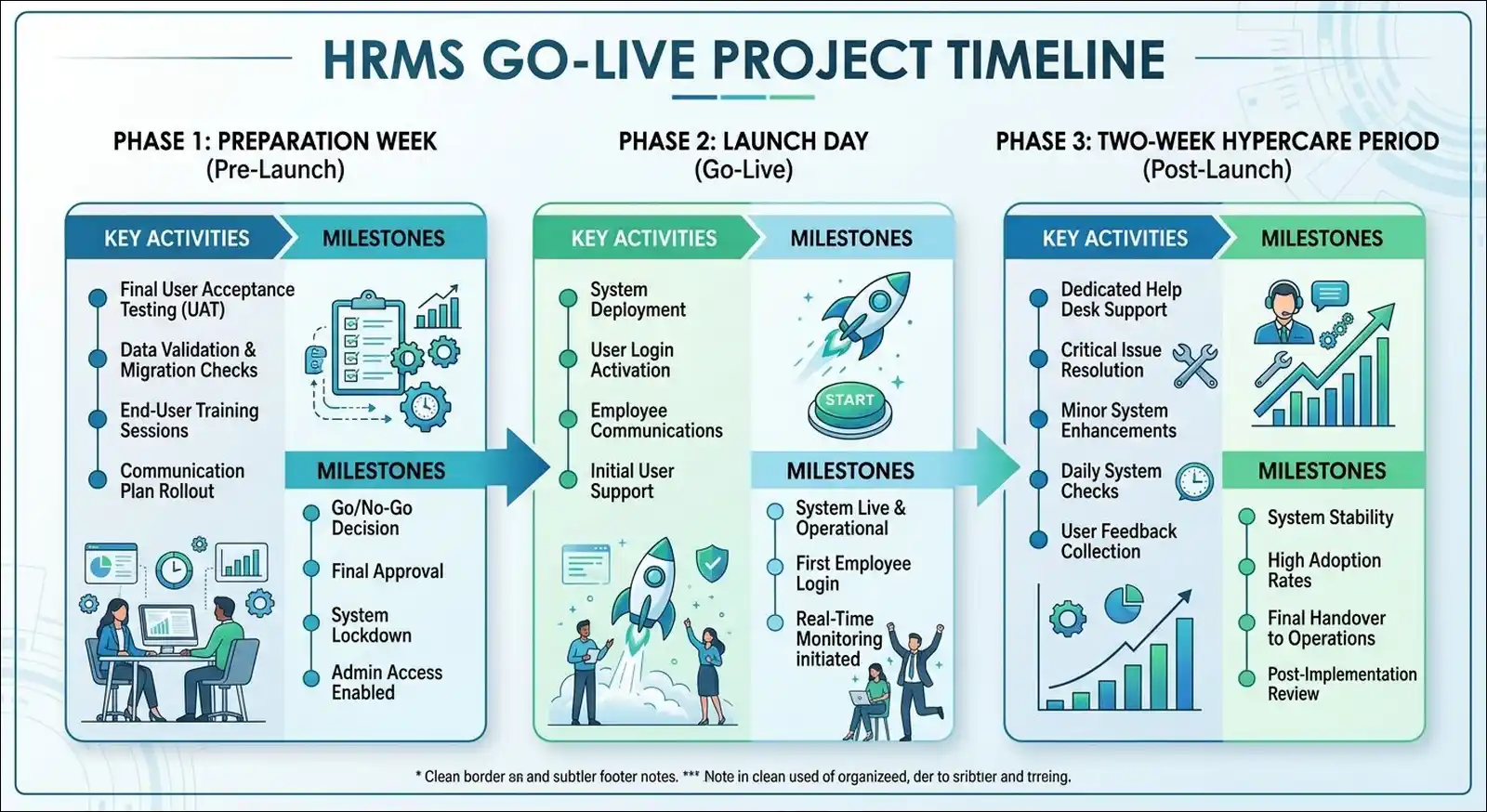
Week 12: Hypercare and Stabilization
Hypercare means extra support during the first two weeks after go-live. You should expect higher ticket volumes and plan accordingly.
Hypercare Support Plan:
- Dedicated support team available during business hours
- Escalation path for critical issues (payroll errors, data problems)
- Daily check-ins with department leads for the first week
- Issue tracking spreadsheet updated in real-time
- Quick reference guides posted in common areas
Common Go-Live Issues and Solutions:
| Issue | Likely Cause | Solution |
|---|---|---|
| Employee can’t log in | Wrong password or account not activated | Reset password, verify account setup |
| Pay calculation looks wrong | Tax tables or deduction codes misconfigured | Review tax settings and deduction mappings |
| Reports show incorrect data | Migration data not fully validated | Run comparison reports, fix discrepancies |
| Managers can’t approve leave | Permission settings incorrect | Update role-based access controls |
| Slow system performance | Server resources insufficient | Check RAM, CPU, and database optimization |
Post-Go-Live Review (30 Days After):
You’ll want to schedule a 90-minute review meeting to discuss:
- What went well during implementation
- What caused problems or delays
- What would you do differently next time
- Ongoing support and maintenance needs
- Phase 2 feature requests
Implementation Timeline Summary
Here’s your complete 90-day roadmap in one view:
| Phase | Weeks | Key Activities | Deliverables |
|---|---|---|---|
| Pre-Planning | -2 to 0 | Team assembly, requirements, budget | Requirements document, budget approval |
| Discovery & Setup | 1 to 2 | Kickoff, data audit, environment setup | Working system, clean data |
| Configuration | 3 to 6 | Core HR, payroll, time, benefits setup | Configured system matching requirements |
| Data Migration | 7 to 8 | Data mapping, import, validation | Migrated employee data |
| Testing & Training | 9 to 10 | UAT, user training by role | Tested system, trained users |
| Go-Live | 11 to 12 | Launch, hypercare, stabilization | Live system, support documentation |
Common Implementation Pitfalls and How to Avoid Them
Pitfall 1: Skipping Data Cleansing
- The Problem: Dirty data causes migration errors, incorrect paychecks, and compliance issues.
- The Solution: Spend two full weeks on data cleansing before migration. You can assign dedicated staff to this task.
Pitfall 2: Insufficient Testing
- The Problem: Bugs appear at go-live that should have been caught in testing.
- The Solution: Test every workflow that touches employee pay or benefits. Include end-to-end scenarios, not just individual features.
Pitfall 3: Inadequate Training
- The Problem: Employees don’t know how to use the system and create workarounds.
- The Solution: Budget four to eight hours per user role. Provide ongoing access to training materials after go-live.
Pitfall 4: Scope Creep
- The Problem: Departments request additional features mid-project, delaying timeline.
- The Solution: Freeze requirements after Week 2. You can document new requests for Phase 2 implementation.
Pitfall 5: No Rollback Plan
- The Problem: Critical issues at go-live with no way to revert to the old system.
- The Solution: Maintain your legacy system in read-only mode for 30 days after go-live. Keep backup data accessible.
Verdict: Is a 90-Day Implementation Realistic?
Yes it is real, but only if you dedicate proper resources and follow the timeline strictly. Based on my experience with Sage HRMS deployments, 90 days works for companies with:
- Clean existing data or willingness to invest in cleansing
- Dedicated project team with protected time
- Clear requirements documented before Week 1
- Executive support to remove blockers quickly
- Moderate complexity (single state, standard benefits, no union payroll)
So, if you have multi-state payroll, complex benefit structures, or data coming from multiple legacy systems, you’ll want to plan for 120 to 150 days instead.
The biggest factor in implementation success is not the software. It’s your team’s commitment to the process. Companies that treat implementation as a side project always take longer than those that make it a priority.
Frequently Asked Questions About Sage HRMS Implementation
How much does Sage HRMS implementation cost?
Implementation costs range from $40,000 to $95,000 for a 200-employee company in the first year.
This includes software licensing, implementation partner fees, data migration, training, and IT infrastructure. Your costs will vary based on complexity and chosen modules.
Can I implement Sage HRMS without an implementation partner?
You can, but it’s not recommended for first-time implementations.
Implementation partners bring experience with common pitfalls, data migration best practices, and configuration shortcuts. Self-implementation typically takes 30 to 50% longer.
What happens to my data during migration?
Your data stays in your existing system until migration is complete.
The migration process copies data to Sage HRMS without modifying your source system. You can run both systems in parallel during testing to verify accuracy.
How long does payroll take to process in Sage HRMS after implementation?
Your first few payroll runs will take two to three times longer than normal.
After three to four pay cycles, processing time typically matches or improves your previous system. Most payroll administrators report comfortable processing within 60 days.
Does Sage HRMS support multi-state payroll?
Yes, Sage HRMS handles multi-state payroll including state tax withholding, unemployment insurance, and reciprocity agreements.
You’ll need to configure each state’s tax tables and filing requirements during the setup phase.
What ongoing maintenance does Sage HRMS require?
Plan for four to eight hours per month of administrative maintenance.
This includes tax table updates, security patches, report modifications, and user support. Sage provides ongoing support through their Sage Business Care program.
This guide brings implementation practices as of July 2026. Sage may update features and pricing. Always verify current specifications with your Sage representative before beginning implementation.