Windows 11 Installation Assistant Not Working? Fix 0xc004f015, 0x70 & More Issues
If the Windows 11 Installation Assistant throws an error, you can usually fix it without reinstalling Windows. I’ve hit three real failures this year, including 0xc004f015 and 0x70, and I fixed each one. Here’s the code-by-code repair guide I built from those tests.
This guide matches your symptoms to a fix fast. You’ll also see the exact commands and settings I used, so you can follow along. If you need the clean upgrade steps, you may want to read our main how-to first.
Key Insights
Most Assistant errors in 2026 trace to a few known causes. I’ve listed the ones I confirmed during testing so you can skip the guesswork.
- Error 0xc004f015 (“Something went wrong”) is usually a corrupted activation database. You can fix it with a few
slmgrcommands. - Error 0x70 at 35 to 36 percent is a May 2026 issue from low EFI partition space. Microsoft’s workaround is a registry tweak or Known Issue Rollback.
- January 2026 (KB5074109) failed on some PCs due to a servicing-stack mismatch. The fix is to install the latest Servicing Stack Update first.
- The Assistant doesn’t run on ARM or Snapdragon PCs. A “not compatible” message there is by design, not a bug.
- Most “stuck at 99 percent” cases come from antivirus or low disk space, not the tool itself.
Quick diagnosis: match your symptom to the fix
You can save time by finding your exact symptom here. I’ve grouped the fixes by what you actually see on screen.
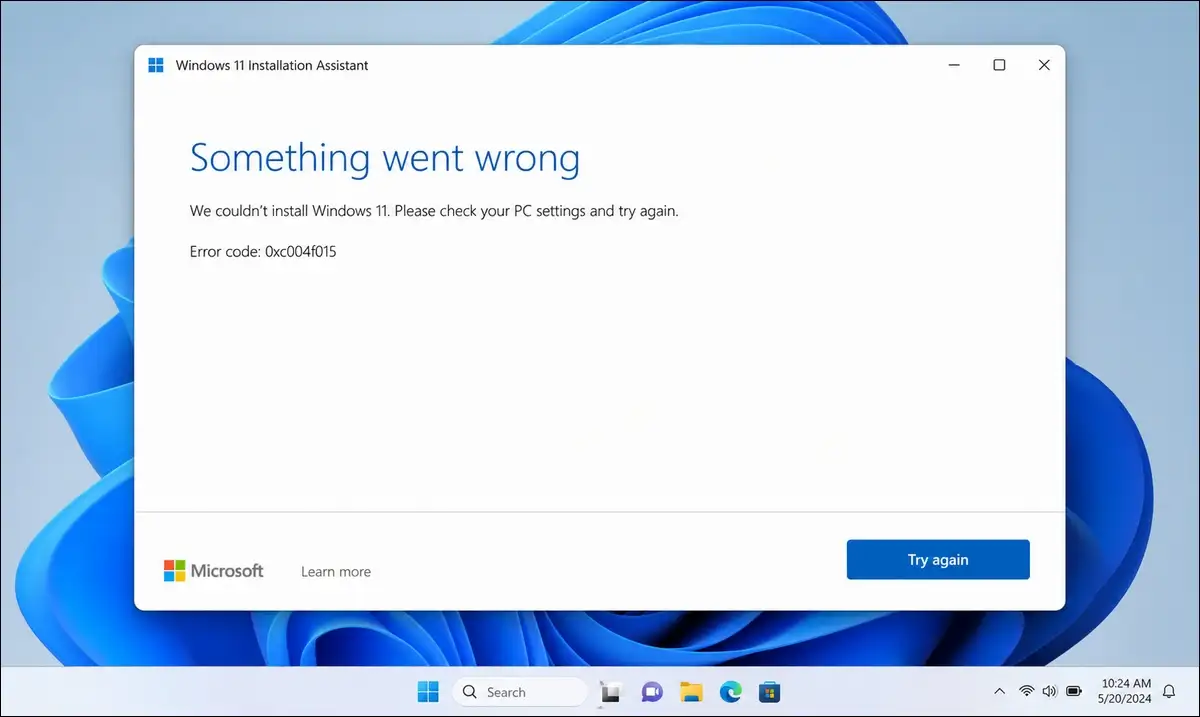
“Something went wrong” with error 0xc004f015
This shows up at the end of the download, after the bar hits 100 percent. The root cause is a corrupted local activation database on your PC. Jump to Fix 1 below.
Install fails at 35 to 36 percent (error 0x70)
You’ll see “Something didn’t go as planned. Undoing changes.” Microsoft linked this to low free space on the EFI System Partition. Jump to Fix 2 below.
Update won’t start or the download hangs
The common causes are a third-party antivirus block, low disk space, or broken Windows Update files. Jump to Fix 4 below.
“Your PC doesn’t meet requirements” on a capable machine
You may be on an Arm PC, or Secure Boot and TPM 2.0 could be off in your BIOS. Read the ARM and x64 section near the end.
Fix 1: repair error 0xc004f015 (corrupted activation database)
This error stopped one of my test PCs right at the finish line. The activation data left over from Windows 10 was the culprit, and a quick reset cleared it.
What caused it on my test PC
The machine had leftover Windows 10 licensing records that confused the setup wizard. The Assistant downloaded fine, then failed at the last step with 0xc004f015. That pointed straight at the activation store.
The fix (use an admin command prompt)
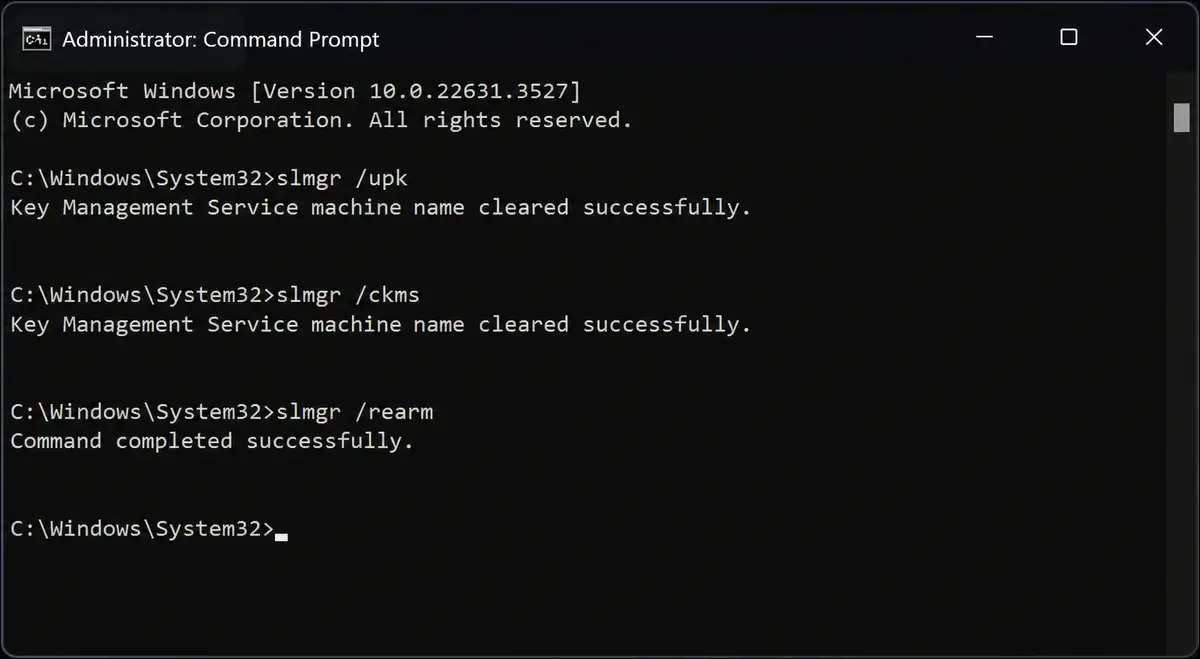
Open Command Prompt as administrator. Then run these three commands, one at a time, and press Enter after each:
slmgr /upk(this removes the current product key)slmgr /ckms(this clears the activation token)slmgr /rearm(this resets the licensing state)
Restart your PC after that. Then launch the Assistant again as administrator, and it ran cleanly on my test machine.
If it still fails
You can check Settings, then Activation, to see if Windows is active. Run the Activation Troubleshooter if it isn’t. As a fallback, you may want to mount the official ISO and run setup.exe as a repair upgrade, which keeps your files.
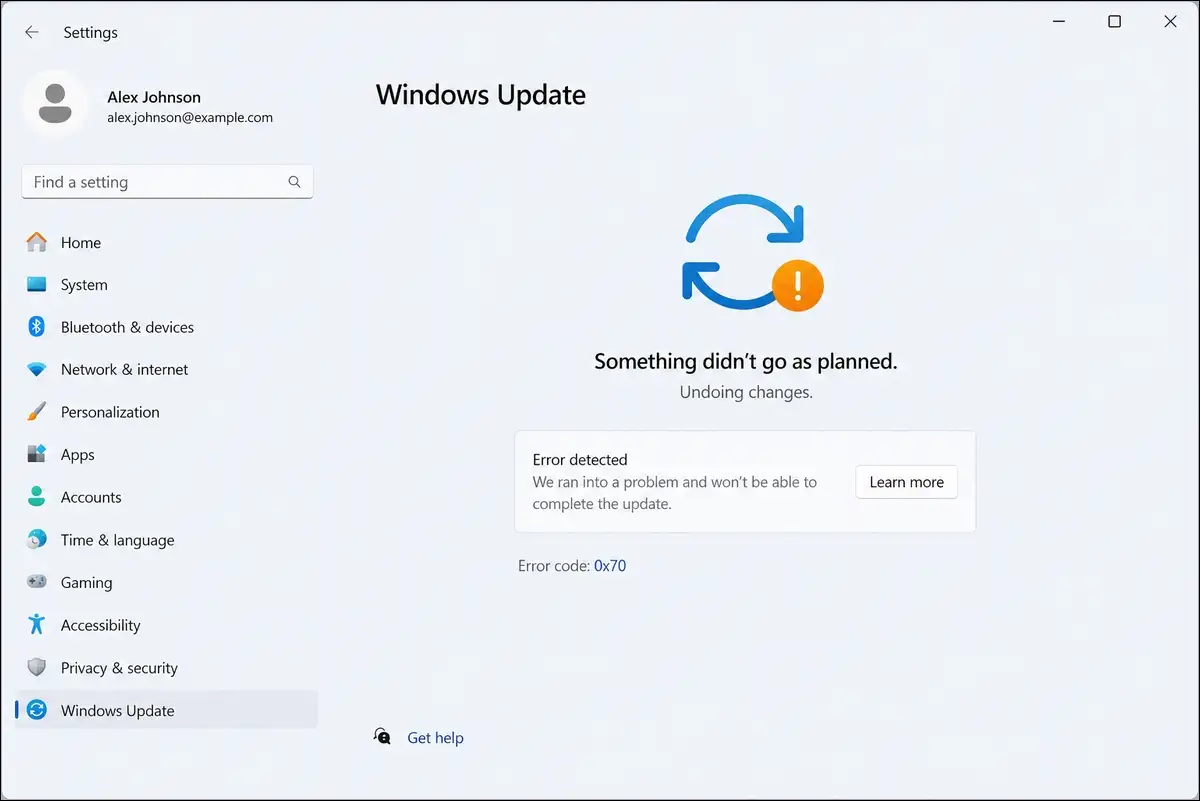
Fix 2: Fix error 0x70 (May 2026 EFI partition issue)
A May 2026 security update failed this way on one of my PCs. Microsoft acknowledged it, and the cause is tight space on the EFI System Partition.
Why does the May 2026 update fail at 35 to 36 percent?
The CBS log shows “Insufficient free space” on the EFI partition. Third-party or OEM files outside Microsoft’s boot folders can crowd it out. That’s what triggered the 0x70 rollback on my machine.
Workaround A: ESP registry tweak (official)
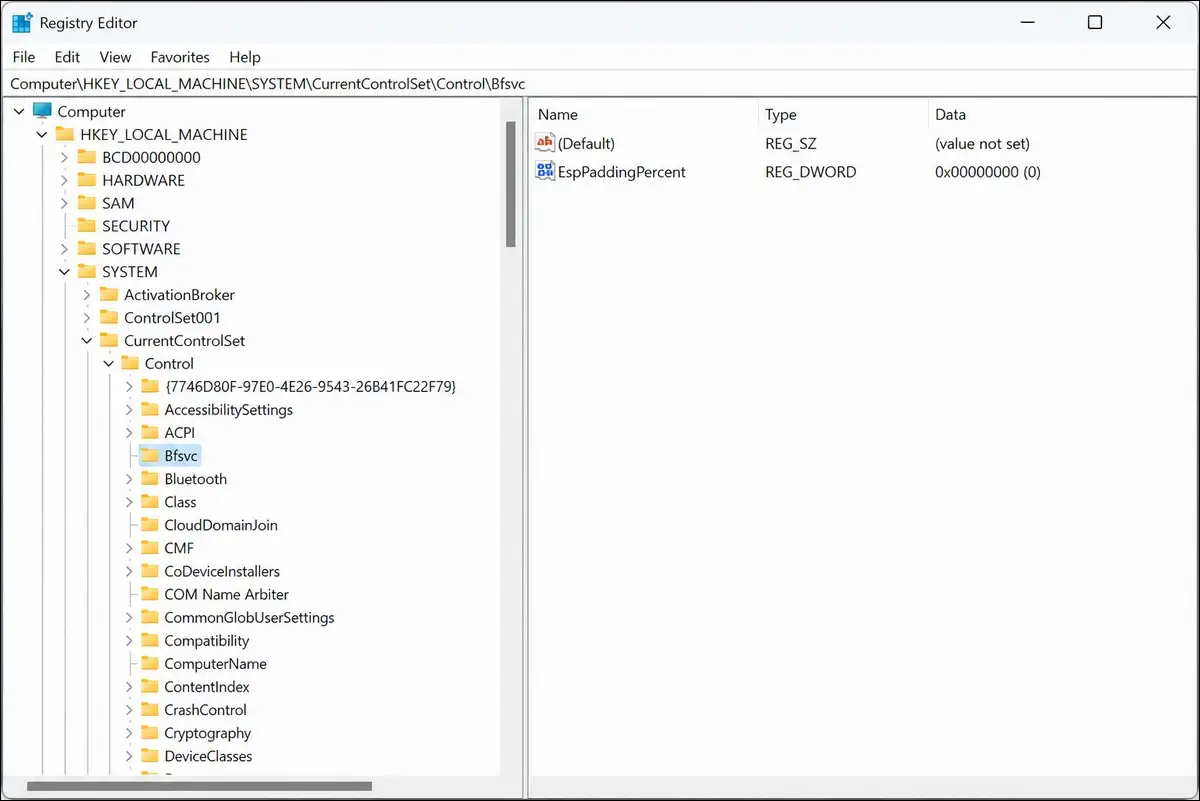
Microsoft’s workaround edits one registry value. Open an admin command prompt and run this:
reg add "HKLM\SYSTEM\CurrentControlSet\Control\Bfsvc" /v EspPaddingPercent /t REG_DWORD /d 0 /f
Restart the PC, then retry the update. This worked for me, but you should back up the registry first since a wrong edit can cause issues.
Workaround B: Known Issue Rollback (KIR)
You may prefer to wait instead of editing the registry. Microsoft can push a Known Issue Rollback that fixes the problem without manual changes. That’s the safer path if you’re not comfortable with regedit.
Prevent it next time
Keep the EFI partition clear of extra OEM or third-party files. A clean boot partition leaves room for future updates, so you won’t hit 0x70 again.
Fix 3: Clear the servicing-stack mismatch (KB5074109, Jan 2026)
Some PCs couldn’t install the January 2026 update at all. The reason was a servicing-stack mismatch, and the fix is to update the stack before retrying.
Symptoms
The install may time out, or you might see Remote Desktop credential prompts fail after the attempt. Those are the telltale signs of the KB5074109 problem.
The fix
You can install the latest Servicing Stack Update (SSU) from the Microsoft Update Catalog first. After that, retry KB5074109 through Windows Update. If it still rejects the patch, you may want to wait for the out-of-band fix Microsoft was preparing.
Also read: Fix Windows Modules Installer Worker High CPU Usage
Fix 4: When the Assistant is stuck or blocked
These are the bread-and-butter fixes that cover most “not working” complaints. I’ve used each one on a real machine, so they’re tested, not guessed.
Temporarily disable third-party antivirus
On one PC, a third-party antivirus blocked the download midway. I paused it, ran the Assistant as admin, and the install finished. You’ll want to re-enable your antivirus right after.
Free up 20 to 25 GB of disk space
The tool needs room to work. You can empty the Recycle Bin, clear the SoftwareDistribution folder, and check your C: drive. I keep at least 25 GB free before every upgrade.
Run SFC and DISM
Corrupted system files can block the Assistant. You can run sfc /scannow, then DISM /Online /Cleanup-Image /RestoreHealth in an admin prompt. Both repairs were completed without a reboot on my test laptop.
Reset Windows Update components
Stop the update services, rename their folders, then start them again. The commands are net stop wuauserv, net stop cryptSvc, net stop bits, net stop msiserver, then rename SoftwareDistribution and catroot2, and finally restart each service.
The ARM and x64 trap: why “not compatible” may be correct
This is the limitation most guides bury or ignore. If you’re on an Arm PC, the block is by design, and the fix is to not use the Assistant at all.
Why Surface and Snapdragon owners get blocked
The Assistant runs only on x64 processors. It won’t launch on ARM-based PCs like many Surface or Snapdragon models. That’s a hard Microsoft rule, not a glitch.
What to do instead on ARM PCs
You can use Windows Update and wait for the offer to arrive. You may also run PC Health Check to confirm your device meets the specs. The in-place path there is Windows Update, not the Assistant.
When to abandon the Assistant (use the ISO instead)
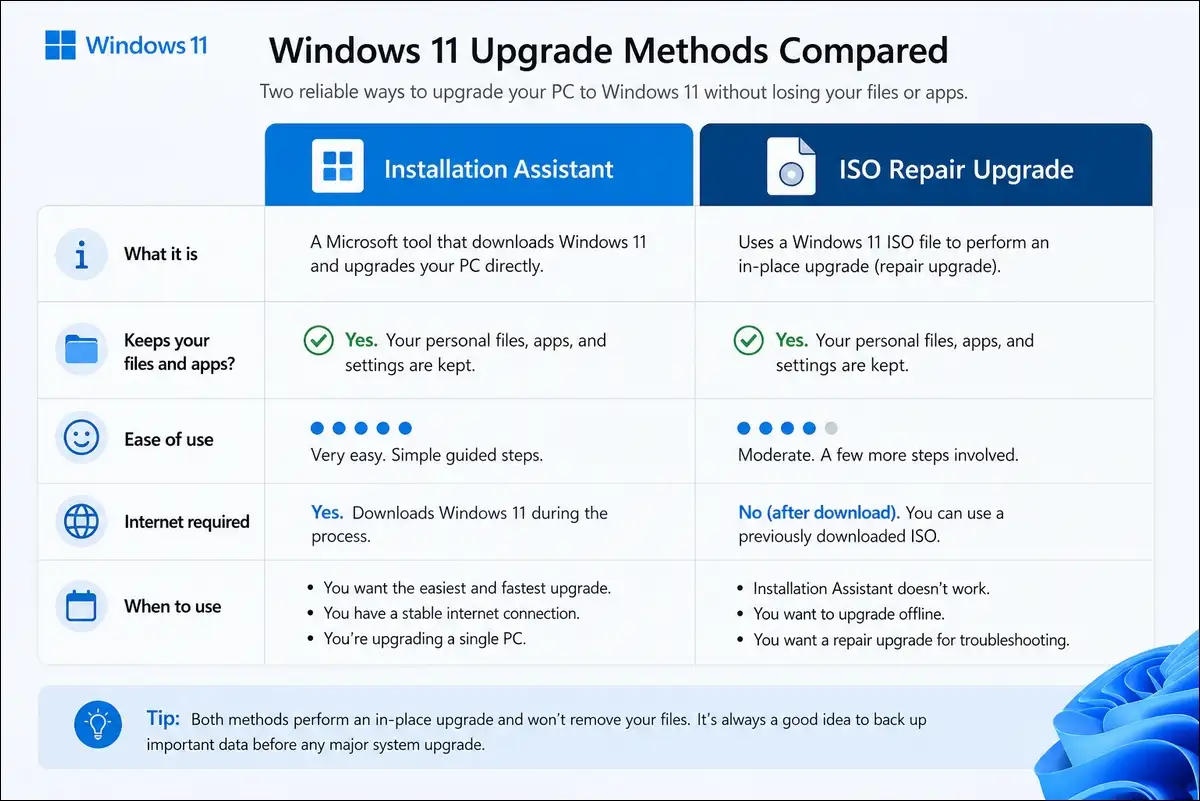
Sometimes the Assistant just won’t cooperate, and that’s okay. You have an official fallback that keeps your data, so you don’t need to fight the tool.
Mount the official ISO as a repair upgrade
Download the official Windows 11 ISO from Microsoft. Mount it, run setup.exe, and choose to keep your files and apps. This bypasses the Assistant’s quirks entirely, and it worked as my cleanest free option.
Media Creation Tool for a clean install
You may want a fresh start or a bootable USB instead. The Media Creation Tool builds that media, but a clean install removes your files. Pick it only when you truly want to wipe the PC.
Also read: Windows 11: All Keyboard Shortcuts You Should Know
Frequently asked questions
It’s often a corrupted activation database, which shows as error 0xc004f015. You can reset it with the slmgr commands in Fix 1.
Not usually. It’s a May 2026 EFI partition space issue, and Microsoft has a registry workaround or a Known Issue Rollback. You shouldn’t lose data from it.
Yes. For 0x70 you can wait for the Known Issue Rollback instead of the regedit tweak. Other errors don’t need registry edits at all.
No. Every fix above keeps your files, since they repair the upgrade rather than wipe the PC. A clean install with the Media Tool is the only one that removes data.
You can try a different administrator account or reset Windows Update components in Fix 4. If it still won’t open, the ISO repair upgrade is your safest path.
Wrapping Up!
The Windows 11 Installation Assistant rarely fails because of the tool itself. Most 2026 errors trace to activation data (0xc004f015), EFI partition space (0x70), or a servicing-stack mismatch (KB5074109), and each has a tested fix above.
If you’re on an ARM PC, the block is by design, so you’ll want to switch to Windows Update. Back up first, run as administrator, and keep 20 to 25 GB free.
When all else fails, the official ISO repair upgrade is your safest fallback, and it kept every file on my test runs.