10 Best Pippit AI Alternatives: Hands-on Testing And Verdict
There are several tools now that match or exceed Pippit AI for different needs. Some deliver smoother motion, whereas others give you stronger avatars or lower long-term costs.
So, I’ve tested ten tools with real prompts for marketing videos, avatar explainers, and short product clips. This guide shares what worked, what didn’t, and how you can choose based on your workflow.
Pippit AI works well for quick prompt-to-video tasks. It’s got an agent style that turns simple descriptions into clips with avatars and basic edits. Many creators like the speed of its Seedance-powered generations. But in some tests I’ve run, the avatars felt a bit repetitive in their movements, and credits can burn faster than you’d expect on paid plans.
Pippit AI: Quick Overview from Direct Testing
Pippit AI lets you type a prompt or upload a link or image, and it builds a video or image set from there. I’ve tested it with a 15-second marketing script for a coffee brand. It created a basic avatar video in under two minutes, and the voice synced reasonably well. Background options stayed pretty limited, though.
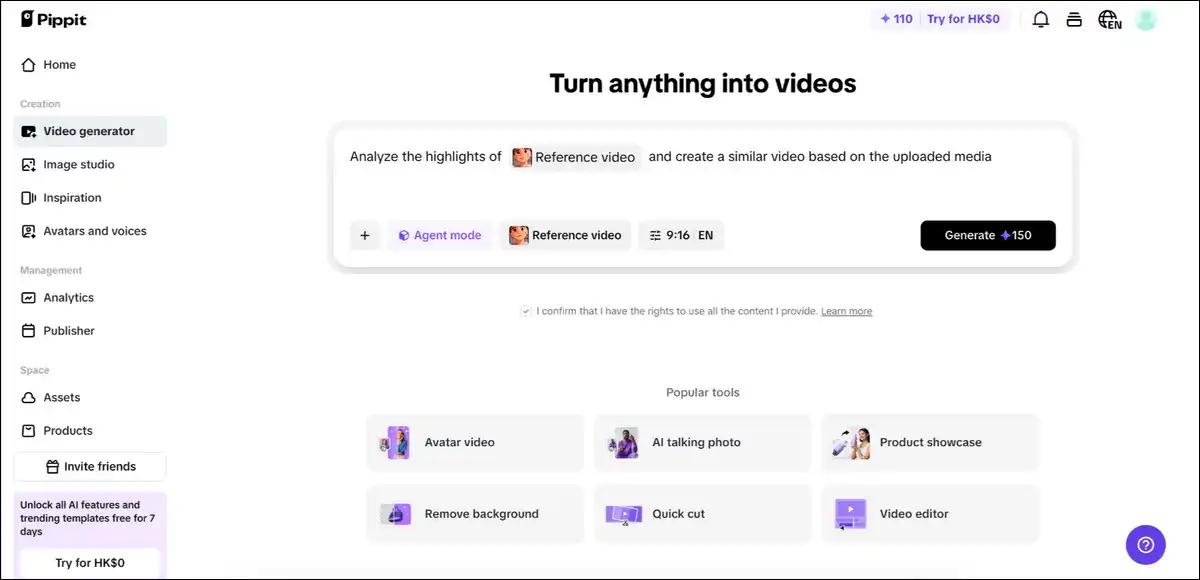
You can use key features like the Video Agent for ads and shorts, or the Image Agent with different style choices. You also have the option to work with digital avatars, and it supports multiple languages plus different aspect ratios. If you want, you can remix clips by chatting with the agent.
Pippit AI Price And Plans
The free plan gives you about 150 credits weekly.
That’s roughly two minutes of video and 75 images. Paid plans start around 20 to 26 dollars per month, or 193 to 250 dollars yearly after discounts. Higher tiers can add credits for about 30 minutes of video per month in some reports.
Pros
- Fast agent workflow that’s easy for beginners.
- Good mix of avatars with general video creation.
- Reasonable speed on the Seedance models.
- Free tier lets you test things out properly.
Cons
- Avatars can look a bit stiff in longer takes.
- Credit limits hit heavy users pretty quickly.
- Advanced editing stays basic compared to full suites.
- Some users mention inconsistent feature access.
My testing takeaway
Pippit works fine for light weekly content creation. It falls short, though, when you need polished motion or you want to scale without watching credits so closely. That’s why a lot of teams are testing alternatives for better quality or value.
AI Video Market Context in 2026
Speaking of the bigger picture, the AI video generator market reached roughly 717 million dollars in 2025.
It’s expected to hit 847 million dollars in 2026 and grow to 3.35 billion dollars by 2034 at an 18.8 percent CAGR, according to Fortune Business Insights. Other reports show similar upward trends, and that’s mostly driven by marketing and training content needs.
You see this growth in practice all the time. Brands are creating more short ads and personalized clips. Tools that cut down on manual work are picking up users fast. Pippit came in with simple agent tools, and competitors have responded with stronger motion models and specialized avatar systems.
How I’ve Evaluated These Alternatives
I’ve used consistent prompts across all the tools. One example was a 20-second UGC-style ad for wireless earbuds. Another was a 45-second avatar explainer for a SaaS dashboard. A third one tested short narrative consistency with two characters.
Here’s what I scored each tool on:
- How easy it is to start from a prompt or reference.
- Avatar naturalness and lip sync.
- Motion smoothness and physics.
- Total time from prompt to usable export.
- Credit or cost efficiency for ten similar clips.
- How well it fits mobile or desktop workflows.
You’ll find the results in the sections below. All tests were run on the current plans.
Avatar-Focused Alternatives
These tools really shine when talking-head or character videos are your main focus. If that’s what you’re after, you may want to start here.
1. HeyGen
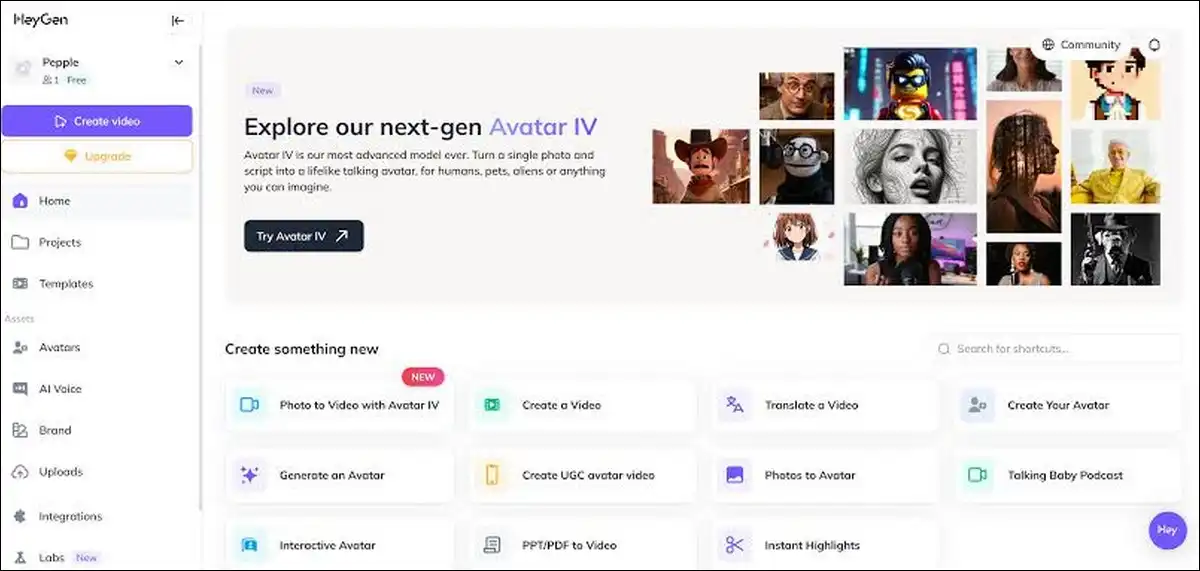
HeyGen focuses on realistic avatars and templates for business videos. You may want to try it first if natural speaking presence is your top priority. I’ve tested it with a 30-second script explaining a new app feature. The avatar spoke clearly with natural head turns and hand gestures, and lip sync stayed tight even on longer sentences.
You can use a large avatar library, voice cloning, instant templates for marketing and training, plus easy multilingual output. If you like, you can upload a script and generate it in minutes. Custom avatar creation from photos works well when you want brand consistency.
Pros
- Avatars look professional and consistent in my tests.
- Templates speed up common marketing formats.
- Strong voice options and translation tools.
- Good export quality for social and internal use.
Cons
- Less flexible for wild creative motion or effects.
- Credit system still applies on higher plans.
- Custom avatars can cost extra in some tiers.
Pricing
The Creator plan starts at 29 dollars monthly or 24 dollars yearly. It includes set credits for videos up to certain lengths. Business plans begin around 89 to 149 dollars per seat with more capacity.
My testing takeaway
HeyGen delivered more natural gestures than Pippit in my direct comparison. It costs more for heavy volume, but it saves time on polished results. You may want to choose it when avatar quality is a key driver to your work.
2. Synthesia
Synthesia specializes in professional avatar videos with strong enterprise features. It often works best for training and internal communication. I’ve run a test script for employee onboarding, and the avatar delivered clear explanations with good eye contact and minimal stiffness.
You can work with over 200 avatars, get support for 140 languages, use script assistance, and access API features on higher plans. If you need them, there are templates for common business formats and easy collaboration tools.
Pros
- Excellent for consistent corporate-style videos.
- Strong language and translation support.
- Reliable export and sharing options.
- Good for teams that need brand control.
Cons
- Creative or cinematic motion stays limited.
- The free tier offers very few minutes per month.
- Higher plans can add up if you’re creating frequently.
Pricing
Starter plan costs about 29 dollars monthly or 18 to 19 dollars yearly for roughly 10 minutes of video. Creator plan runs near 89 dollars monthly or 64 dollars yearly for 30 minutes. Enterprise pricing is custom.
My testing takeaway
Synthesia gives more reliable avatars than Pippit for business scripts. It trades some creative flexibility for professional polish. You may want to consider it for training content that needs consistency.
Pro Video Generators with Strong Motion
If motion quality matters more to you than avatars, here are some strong options that often beat Pippit on movement and physics.
3. Kling AI
Kling AI produces strong motion and object interaction. It often wins on realistic movement in short clips. I’ve tested a prompt for a product unboxing clip with hand movements and object handling. The physics looked more natural than Pippit results, and background elements stayed stable across frames.
You can use text-to-video and image-to-video, and it has good prompt adherence. Daily free credits let you test things out. Paid plans increase output volume and remove watermarks if you need that.
Pros
- Superior motion smoothness in movement tests.
- Strong value on paid plans for quality.
- Daily free credits help with experimentation.
- Good for stylized or realistic storytelling.
Cons
- Interface feels less agent-like than Pippit.
- Free tier limits resolution and adds watermarks.
- Credit use rises with longer or complex clips.
Pricing
Free tier gives you about 66 credits daily. Standard plan starts near 7 to 10 dollars monthly. Pro plan costs around 26 dollars monthly with thousands of credits.
My testing takeaway
Kling delivered better hand and object handling than Pippit in my unboxing test. The free daily credits make it easy to try before committing. You may want to pick it when motion quality is your main concern.
4. Runway
Runway offers advanced controls like motion brush and editing tools. It gives you more precise results than Pippit, but it does require more time and budget per clip.
I’ve used it for a short narrative scene with camera moves, and the output showed precise direction over movement that Pippit couldn’t match easily.
You can access multiple models and use image-to-video, inpainting, and post-generation editing. It suits users who want filmmaker-level tweaks after the initial generation.
Pros
- High control over camera and motion.
- Strong editing suite built in.
- Access to newer models in higher plans.
- Good for polished marketing sequences.
Cons
- Credit costs rise quickly on complex work.
- Steeper learning curve than simple prompt tools.
- Free tier stays very limited.
Pricing
Standard plan starts at around 12 to 15 dollars monthly with 625 credits. Pro plan runs about 28 to 35 dollars monthly with 2,250 credits. Higher tiers add more capacity or explore modes.
My testing takeaway
Runway fits creators who like to edit after generation. Test the free credits first to see if it fits your workflow. It gives more precise results than Pippit, but at higher effort and cost.
5. Luma AI Dream Machine
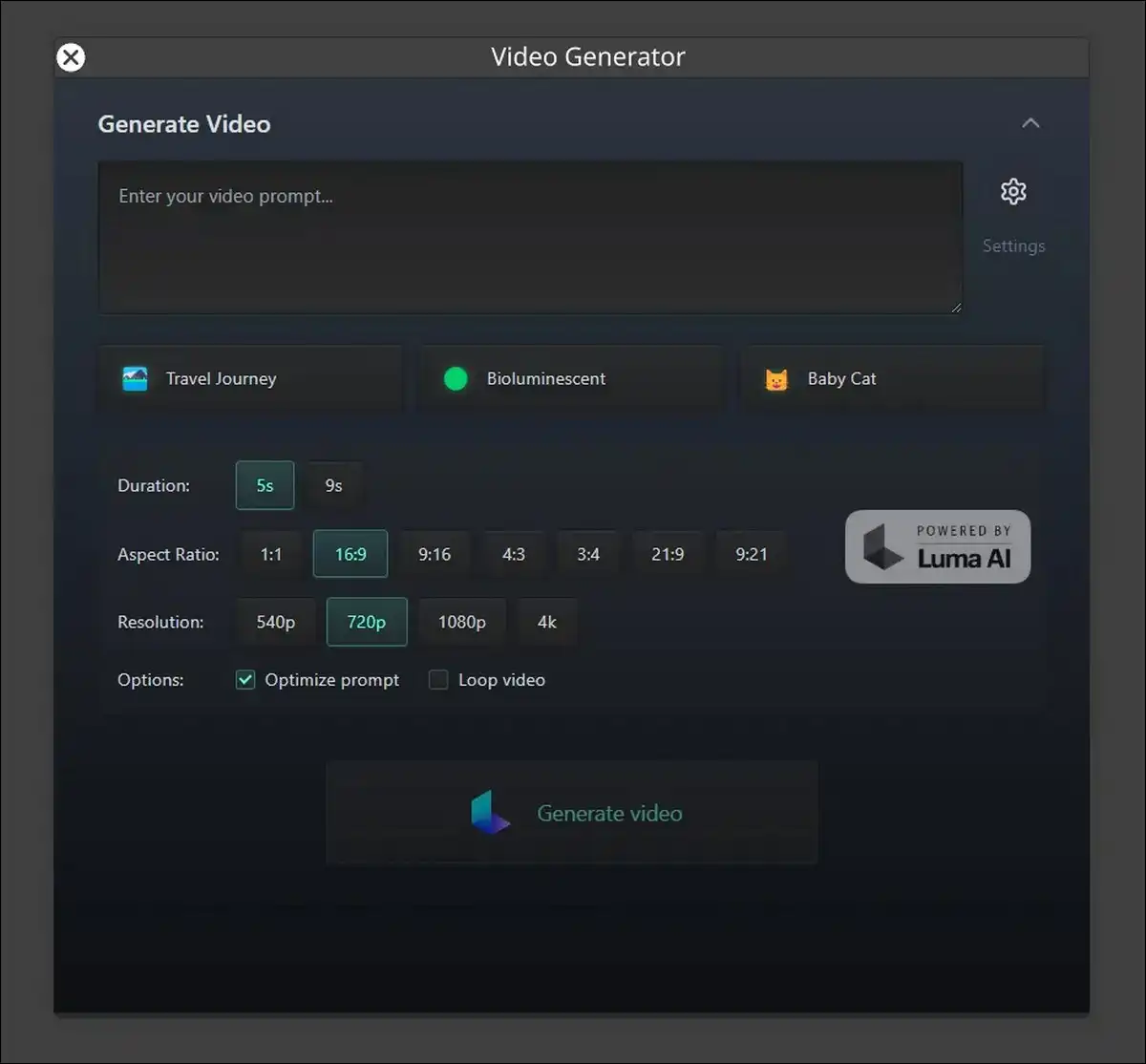
Luma excels at cinematic and 3D-aware motion. It surpassed Pippit on visual quality in atmosphere tests. I’ve tested a prompt for an environment shot with moving elements, and the lighting and depth felt more believable than basic Pippit outputs.
You can focus on high-fidelity generation from text or images. It supports creative exploration with good consistency in longer takes if that’s what you need.
Pros
- Strong visual quality and atmosphere.
- Useful for concept and product atmosphere clips.
- Good consistency in multi-shot tests.
- Appeals to users wanting premium looks.
Cons
- Less emphasis on quick avatar or template work.
- Pricing follows credit models that can add up.
- Workflow feels more experimental than production-focused.
Pricing
Plans use credits or subscriptions. Free or trial access exists for testing. Paid tiers scale with usage volume.
My testing takeaway
Use Luma when visual quality and atmosphere drive the project. It offers less built-in marketing templates or avatar ease than Pippit.
Fast and Social-First Tools
These prioritize speed for short-form content, so they’re great if you’re posting often.
6. Pika Labs
Pika delivers quick iterations with fun effects. It works well alongside Pippit for quick social experiments. I’ve tested trend-style short clips, and generation happened fast with playful motion options that Pippit handled more plainly.
You can use image-to-video, effects, and social-optimized outputs. It suits rapid experimentation for platforms like TikTok or Reels.
Pros
- Very fast generation cycles.
- Creative effects for viral-style content.
- Easy to iterate on ideas quickly.
- Good entry point for social creators.
Cons
- Less suited for professional long-form or training.
- Avatar options stay basic compared with specialists.
- Quality can vary more on complex prompts.
Pricing
It’s credit-based with free and paid tiers. Paid plans increase speed and limits.
My testing takeaway
Pika wins on speed and playful results but trails on structured avatar or business video needs. You may want to use it for rapid social content tests.
7. Canva Magic Studio
Canva combines generation with its full design suite. It offers easier overall design flow than Pippit alone for many users. I’ve created a short ad by mixing AI video with existing brand elements, and the process felt familiar if you already use Canva.
You can work with text-to-video, image tools, templates, and easy publishing across channels. It lowers the barrier for non-video specialists.
Pros
- Seamless with existing Canva projects.
- Strong templates and stock assets.
- Easy export and scheduling options.
- Generous free tier for light use.
Cons
- Advanced motion quality stays behind dedicated video tools.
- Avatar features remain limited.
- Best for simple marketing rather than complex stories.
Pricing
Free tier covers many needs. Pro plan costs about 13 dollars monthly or less yearly for full Magic AI access and more stock.
My testing takeaway
Canva suits teams already inside its ecosystem. It works well for simple marketing but offers less raw video power for demanding clips.
Full Editors with AI Layers
These add generation inside broader editing environments, which can be handy if you like to tweak things afterward.
8. CapCut
CapCut provides a full editor with AI generation, effects, and templates. It gives you more control than Pippit at a lower ongoing cost for many users. I’ve imported a Pippit-style prompt result and refined it with auto-captions and transitions, and the mobile app performed smoothly.
You can use AI tools, stock library, effects, and strong export for social platforms. Its ByteDance connection offers some ecosystem overlap with Pippit if that helps.
Pros
- Powerful post-generation editing.
- Excellent mobile experience.
- Large template and effect library.
- Affordable Pro upgrade.
Cons
- Generation step feels less agent-driven than Pippit.
- Requires more manual steps for full videos.
- Free version includes watermarks on some exports.
Pricing
It’s free with in-app purchases. Pro subscription stays affordable, often under $8 per month.
My testing takeaway
CapCut serves as a strong companion or replacement when you want editing power after generation. You may want to try it if mobile workflow matters to you.
9 &10. VEED.io and Descript
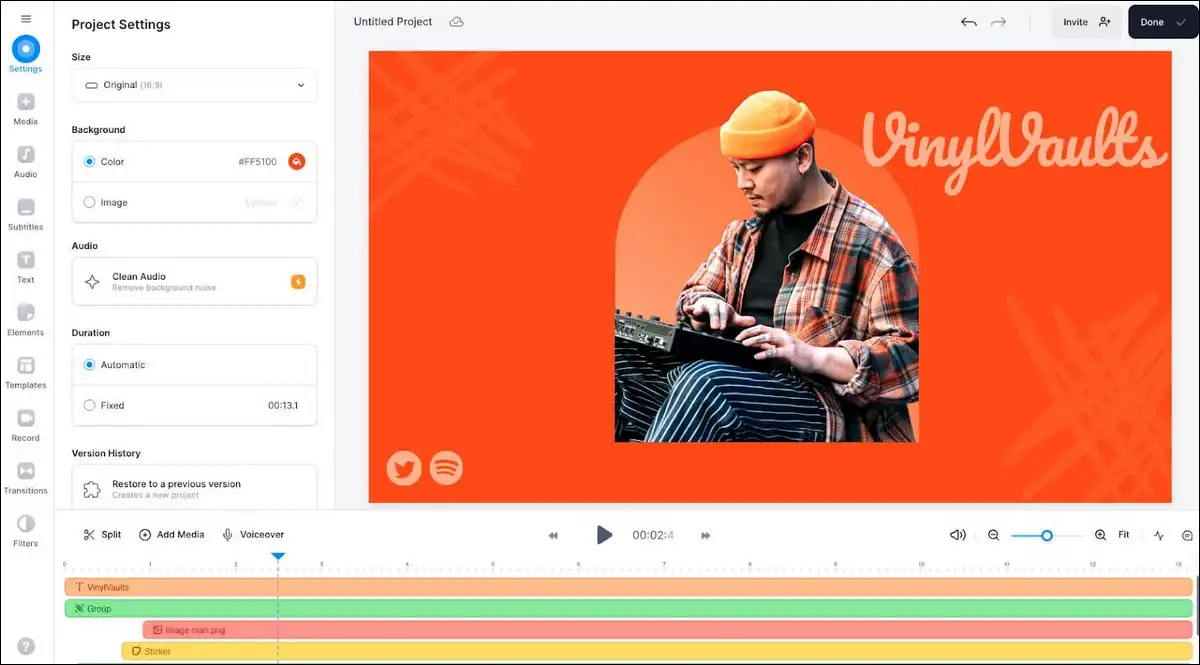
VEED offers online editing with AI subtitles, cuts, and some generation tools. Descript excels at text-based editing and voice tools. Both handle talking-head refinement well. I’ve tested Descript by editing a generated clip, and changing words in the transcript updated the video cleanly.
Pros (combined)
- Fast text or subtitle edits.
- Good for podcast or explainer refinement.
- Collaboration features in both.
- Lower cost entry than pure generation suites.
Cons
- Generation power stays secondary to editing.
- Less ideal for starting from zero with complex visuals.
- Credit or plan limits apply to advanced AI.
Pricing
Both offer free tiers. Paid plans range from 12 to 30 dollars monthly, depending on features and minutes.
My testing takeaway
Use these when you generate elsewhere and edit here. They complement Pippit by fixing pacing and voice issues after initial creation.
Pricing and Cost Comparison
This table is optimized for quick scanning on mobile. Scroll horizontally if needed on smaller screens. For mobile readers, most tools offer free tiers for testing. Paid plans start from under 10 dollars for basic use up to 30 dollars or more for advanced features.
| Tool | Starting Monthly Price | Free Tier Notes | Best Value For |
|---|---|---|---|
| Pippit AI | 20-26 dollars | 150 credits weekly | Light weekly marketing clips |
| HeyGen | 29 dollars | Limited videos | Professional avatar videos |
| Synthesia | 29 dollars | Few minutes monthly | Training and corporate content |
| Kling AI | 7-10 dollars | 66 credits daily | Motion-heavy short clips |
| Runway | 12-15 dollars | Very limited credits | Controlled cinematic work |
| CapCut | Under 8 dollars (Pro) | Generous with limits | Full editing plus generation |
| Canva Pro | 13 dollars | Strong free tier | Design-integrated simple videos |
You can calculate the rough cost per minute by dividing the plan price by the typical output. Subscription tools often win for steady volume. Credit tools suit burst projects.
Best Alternatives by Common Use Cases
Here’s how the tools line up with common needs so you can match them to your main output type.
- Marketing ads and UGC clips: Kling AI or similar motion-focused tools often win on realism. HeyGen helps with consistent spokespeople. It’s worth testing a sample prompt in two tools before you commit.
- Training and internal videos: Synthesia or HeyGen deliver reliable avatars and templates. You get faster results than building everything in Pippit then editing elsewhere.
- Short social and viral content: Pika or CapCut, speeds up iteration. Canva works if you already design there. These reduce friction for daily posts.
- Narrative or short drama clips; Runway or Luma, provide better multi-shot consistency. Add Descript for dialogue polish. Pippit handles simple stories but struggles with complex character continuity in longer tests.
- Product demonstration videos: CapCut or VEED, let you generate and then refine with captions and zooms. Kling adds natural object handling during demos.
Decision Framework and Migration Tips
Start with your top priority. Rank these three: avatar quality, motion smoothness, or total monthly cost.
If avatars matter most, test HeyGen or Synthesia first. Their free or low tiers let you compare directly with Pippit outputs.
If motion and physics lead your needs, try Kling AI or Runway. Run a side-by-side test with the same prompt you use in Pippit.
For budget and volume, CapCut or Canva often deliver lower cost per finished minute once you factor in editing time.
Simple migration steps I’ve followed
- Export your best prompts and reference images from Pippit.
- Recreate the prompt in the new tool and note differences in one test clip.
- Adjust for the new tool strengths, such as adding a motion brush in Runway.
- Compare export quality and total time for five similar clips.
- Switch volume work to the better value option while keeping Pippit for quick experiments.
There are many creators who run two or more tools together. Pippit handles fast drafts. A specialist tool finishes high-priority pieces.
Emerging Trends and Practical Outlook
Agent-style platforms like Pippit continue to grow. At the same time, raw model quality in Kling, Runway, and Luma families improves monthly. Multi-model access through one interface appears in more tools these days.
You’ll likely see tighter integration between generation and editing. Voice cloning and consistent characters already work well in several options. Ethical questions around avatar likeness and training data remain important, so it’s always good to review platform terms before creating content for clients.
Test any new tool with your actual prompts. Free tiers and trials exist for most. Spend one afternoon comparing two or three options against your current Pippit workflow. The right fit often becomes clear after ten real clips.
Final thoughts
Pippit AI remains useful for simple, fast content. Stronger motion, better avatars, or lower costs now exist in specialized tools. HeyGen and Synthesia lead for professional talking videos in my tests. Kling and Runway win on movement quality.
CapCut and Canva offer practical value for many daily needs. Match the tool to your main output type and test with your prompts before scaling.
Frequently Asked Questions
What is the best free alternative to Pippit AI right now?
Kling AI offers daily free credits that reset. CapCut provides a generous free tier with solid editing. Both allow meaningful testing without immediate payment.
How does HeyGen compare to Pippit for avatar videos?
HeyGen produced more natural gestures and consistent lip sync in my tests. Pippit works for quick drafts. HeyGen suits finished marketing or training pieces that need a human-like presenter.
Is Kling AI cheaper than Pippit for regular use?
Kling paid plans often start lower and deliver strong motion per credit in short clips. Pippit credits cover mixed image and video work. Compare your typical clip length and volume to decide.
Can I combine Pippit with another tool?
Yes. A lot of people generate initial drafts in Pippit then refine motion or subtitles in CapCut, Descript, or Runway. This hybrid approach balances speed and quality.
Which tool handles short drama or story clips best?
Runway and Luma gave better multi-shot consistency in narrative tests. Add character reference features where available. Pippit manages simple stories but shows limits on complex continuity.
Do these tools work well on mobile?
CapCut leads with a full-featured mobile app. Pippit and some others offer mobile access but with fewer advanced controls. Test the apps with your typical prompts.
How do I avoid high credit costs across these platforms?
Start with free tiers to refine prompts. Use shorter clips during testing. Subscription plans with rollover credits often beat pure pay-per-use for steady weekly output. Track your actual minutes produced versus plan limits for one month.