What Is Picofme.io? The Free AI Profile Picture Maker
If you’ve ever Googled “free profile picture maker,” you’ve probably run into the same frustration I have. Half the results want your email before you can download anything. The other half stamp a watermark on the finished image. A few say “free” until you’re three clicks deep, then ask for a credit card.
So when Picofme.io kept popping up in those results, I was skeptical. It makes a suspiciously clean promise. No signup, no watermark, no ads, completely free AI profile pictures, with your photo deleted right after processing.
I tested it for 30 days as part of a longer review, so I’ve spent real time with it. After all that clicking and uploading, I wanted to put together a plain-English answer to the simple question. What exactly is Picofme.io, and how does it work?
Before we go further, heads up. This isn’t a scored review with pros and cons and head-to-heads. I’ve written that separately if that’s what you’re after. Instead, my goal here is to explain the product clearly for people who’ve never opened it, so you can decide in about five minutes whether it’s even worth a click.
The Short Answer: Picofme.io Is a One-Job AI Photo Tool for Profile Pictures
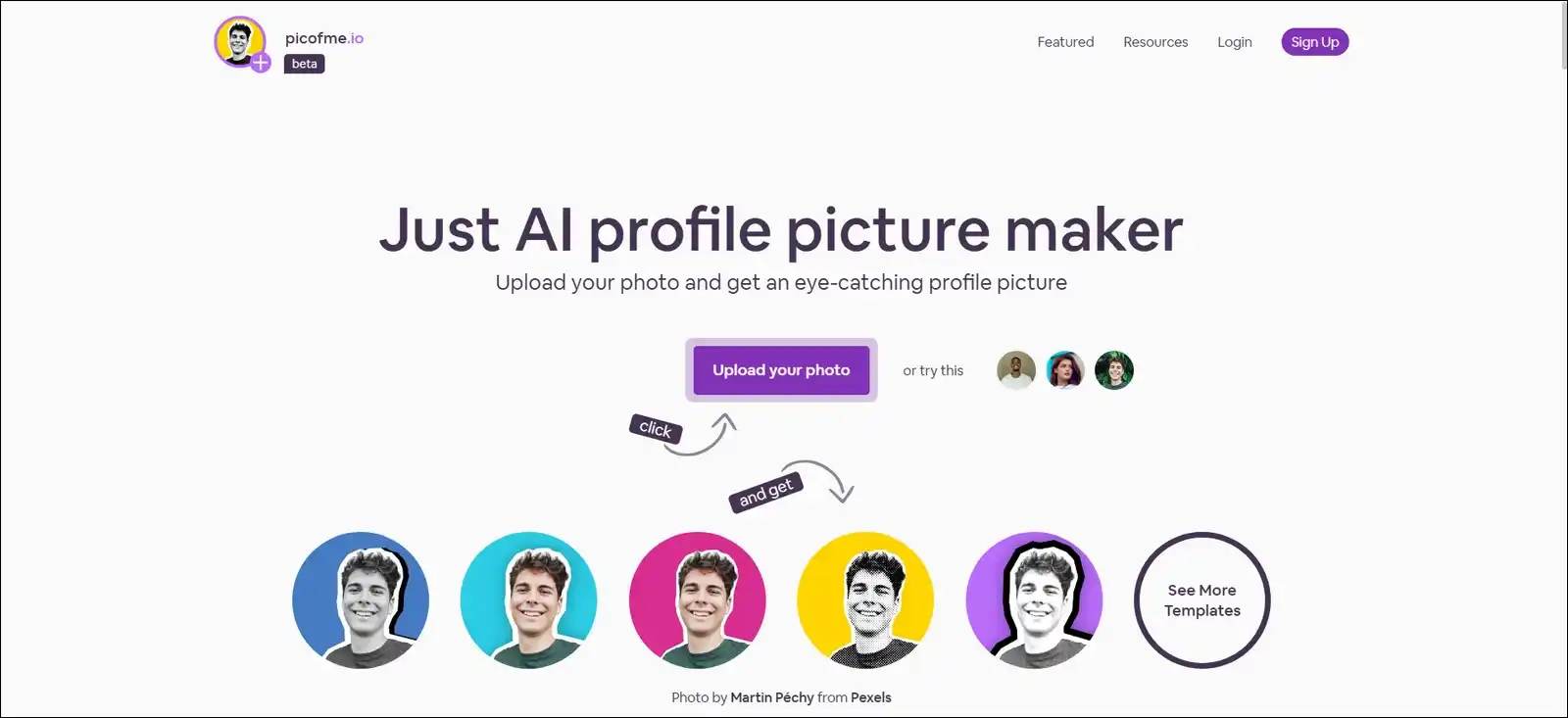
In one sentence, here’s what it is. Picofme.io is a free, browser-based tool that removes the background from any photo of a person and lets you turn that cutout into a polished profile picture, or PFP, for sites like LinkedIn, Instagram, Discord, Slack, TikTok, and Zoom. It does this with AI in seconds, right in your web browser, and you don’t install anything, create an account, or pay a cent.
To put that in perspective, the broader AI image generation market is projected to grow from $9.1 billion in 2025 to $272.8 billion by 2035 (Market.us, December 2025).
The narrower AI headshot slice alone crossed $420 million in 2025 (ProShoot, April 2026). So we’re talking about a crowded, noisy space. In all that noise, Picofme.io does one small thing, and that narrow focus is basically why it stands out.
It’s not Canva or Photoshop or an AI art generator like Midjourney either. It’s specifically built to take a photo of you and give you something that looks good as a small circular avatar on the internet. That is the whole product.
Who Built It, and Why That Actually Matters
Picofme.io is made by Mixilab, a small indie software team based in Ukraine. If you’ve used lightweight Windows media tools before, you might recognize some of their other products, which they link to from a “recommended tools” section.
Those include Animotica, a Windows video editor, CropiPic, ScreenMix, a screen recorder, and a handful of smaller image and video utilities.
Now, why am I telling you that? Because it tells you something about what to expect. The team describes Picofme.io as a product built to “scratch their own itch,” and honestly, that framing matches the product experience pretty well. It feels like something a small group made for themselves, then polished up and shared.
As far as I can tell, it’s not venture-backed. It’s not a giant SaaS company trying to upsell you into a $29 per month subscription. The monetization seems to come from affiliate links to their own sister tools rather than from ads in the editor or from selling user data.
For a bit of context, SimilarWeb snapshots from mid-2026 put Picofme.io at roughly 90,000 to 180,000 monthly visits, with the largest share of traffic coming from India and the United States.
On top of that, about 63 percent of visitors arrive from Google organic search, which totally makes sense for a tool like this. People search for a specific problem, land on the upload page, use it, and leave.
Also read: EzRemove AI vs Remove.bg vs PhotoRoom
The Core Idea: Upload, Cut Out, Style, Download
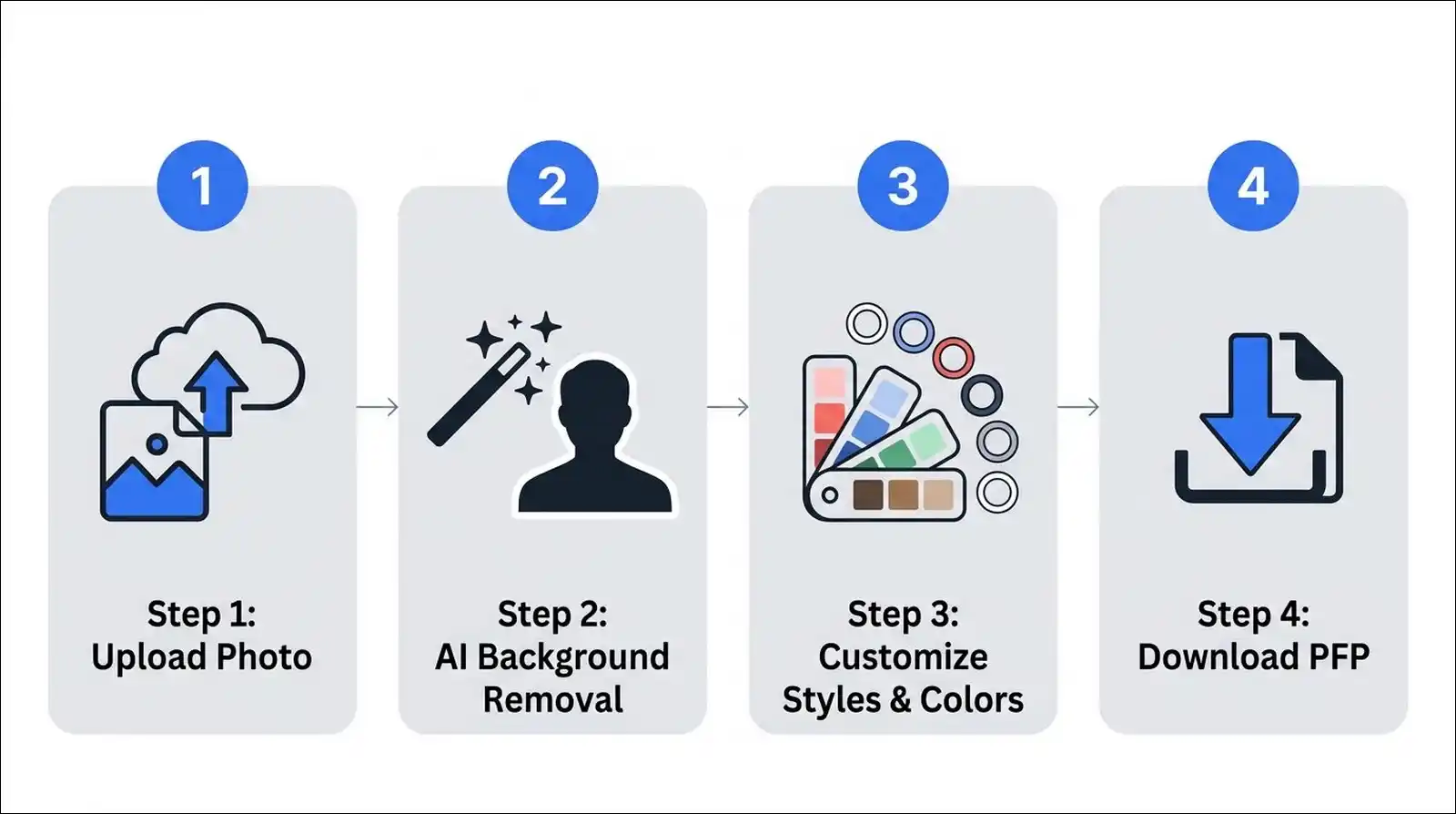
At its core, Picofme.io works in four steps. That’s basically the whole interface, no hidden menus or dashboards to hunt through. Let me walk through what happens at each step, because it’s simpler than most people expect.
- You upload a photo. You can drag and drop an image or click the upload button. The tool supports 10 common formats, and I’ll list those in a second.
- The AI removes the background. This happens automatically, usually in about 5 to 10 seconds. You don’t draw masks or click around your subject at all.
- You pick a style or customize layers. You can choose from auto-generated variations, or open an editor to change the background color, add an outline or shadow, adjust a border, and even add text.
- You download the result. You get a PNG file at or near your original image resolution, and then you can upload it wherever you want.
That really is the core loop. There’s no dashboard, no “my images” library, no settings page, and no account menu. The product is essentially one single page with an upload box and an editor.
What It Actually Does, Feature by Feature
Now that you’ve got the basic flow, let me break down each piece of the product in plain terms, based on what I saw in testing. I want to keep this concrete instead of leaning on generic words like “powerful” or “easy,” because those don’t really tell you anything.
AI background removal
This is the heart of the whole tool, so I’ll start here. When you upload a photo, a computer vision model identifies the person in the frame and cuts them out from everything behind them.
On well-lit selfies with a reasonably plain background, the results are honestly clean. On busier photos with foliage, hair strands, or strong shadows, you may see minor edge artifacts, but those are usually hidden if you apply an outline or a solid background.
The nice part is how little work you do. You don’t need to draw around your subject. You don’t need a green screen. You don’t need to label anything. You just upload and wait a few seconds.
Backgrounds and styling
Once the background is gone, you can replace it with whatever fits the look you’re going for. Your options include:
- Solid colors from a wide palette.
- Gradients between two colors.
- Preset themed backgrounds, which include things like office looks, abstract colors, and simple patterns.
For professional sites like LinkedIn, you may want to stick with a neutral grey or soft blue. For Discord or Twitch, you may prefer bolder gradients or dark backgrounds with a bright ring. It’s really up to you.
Outlines, borders, and shadows
You also have the option to add a few finishing touches:
- A colored outline ring around your cutout, often called a “glow” or “ring” PFP.
- A border layer around the edge of the image.
- A soft shadow behind the subject for a bit of depth.
- A segmented outline, which is a partial ring effect that’s been popular on social media in 2026.
These sliders are intuitive, and you can see every change in real time as you drag them. In my own tests, adding a 6 to 10 pixel outline was the easiest way to cover up any imperfect background edges around hair or shoulders.
Template builder (the most underrated feature)
There’s also a separate flow called the Create PFP Template tool, and honestly, it’s the part I wasn’t expecting to like as much as I did. It lets you build a reusable PFP template from five stacked layers.
- Background layer
- Picture layer
- Border layer
- Segmented outline layer
- Text or picture overlay layer
This is way more flexible than a simple preset. You can design a branded ring for a company Slack, a country flag frame, a holiday overlay, a gamer tag with text, or a cause-awareness ribbon, and then save or share that template.
The existing Picofme.io resource library already includes examples for things like Stalker 2 fandom, Christmas, Valentine’s Day, Taylor Swift themes, Halloween, and Pride-style frames.
Just to test it, I built a branded company PFP with a blue ring and a small logo mark in about two minutes flat. You honestly don’t need design experience to pull that off.
Supported file formats
When it comes to uploads, you can bring in photos in 10 formats: JPG, JPEG, PNG, PJP, GIF, WEBP, BMP, JFIF, TIF, and TIFF. That’s broader than most free tools in this category, which usually only support JPG and PNG, so that’s a nice surprise.
On the download side, the file you get is always a PNG. PNG is the right call here because it supports transparent backgrounds, which is exactly what you want when you’re adding a custom colored or gradient background in the tool.
Platform compatibility
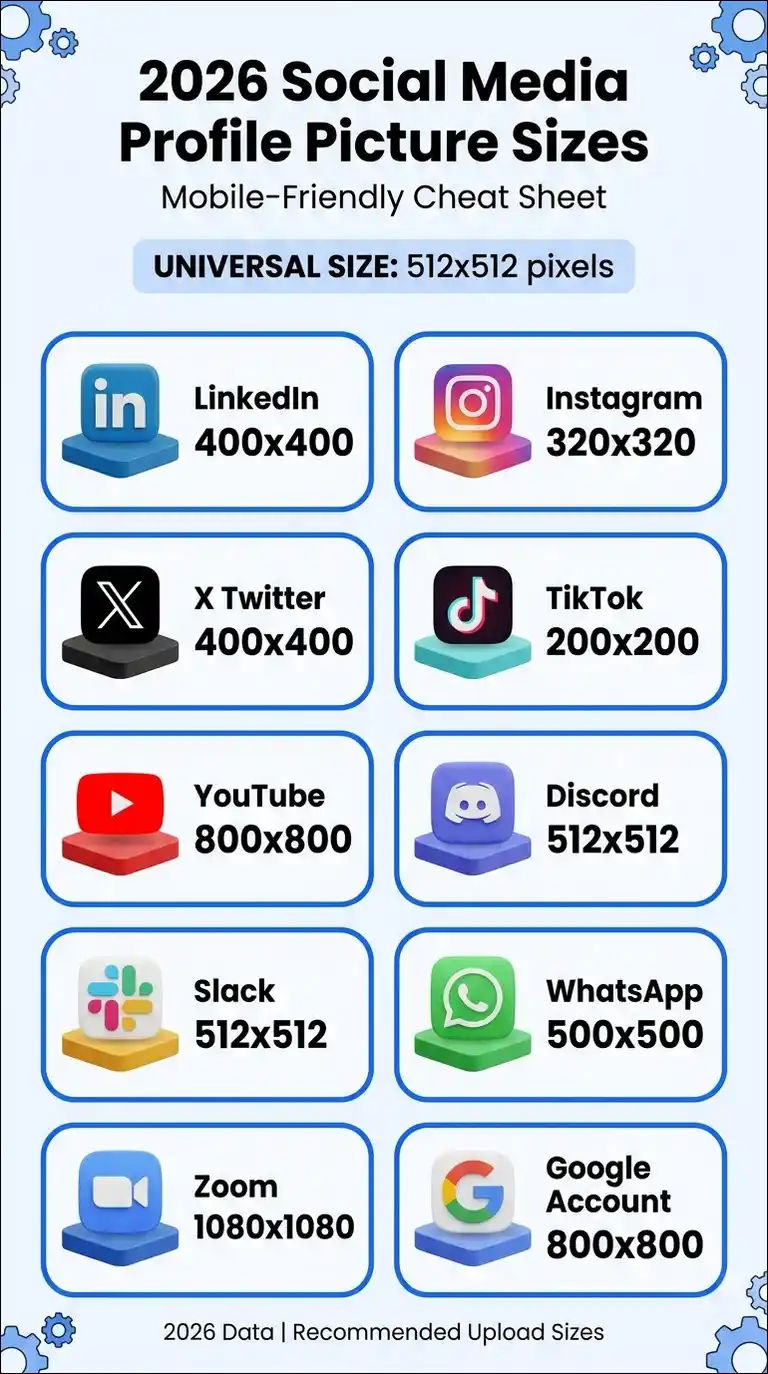
Because it exports a clean square PNG, outputs from Picofme.io can be used basically anywhere a profile picture is accepted. The most common targets are below, with the sizes you’ll want to aim for.
| Platform | Recommended upload | Display shape |
|---|---|---|
| 400 × 400, 1024 × 1024 safer | Circle | |
| 320 × 320 | Circle | |
| X (Twitter) | 400 × 400 | Circle |
| TikTok | 200 × 200, 720 × 720 better | Circle |
| YouTube | 800 × 800 | Circle |
| Discord | 512 × 512 | Circle |
| Slack | 512 × 512 | Rounded square |
| 500 × 500 | Circle | |
| Zoom | 1080 × 1080 | Circle |
| Google account | 720–800 × 800 | Circle |
If you only want to export one file and use it everywhere, a 512 × 512 square is the most universal size. Every major platform accepts it and downscales it cleanly.
And of course, you can always upload a higher-resolution source photo to Picofme.io to preserve quality.
Also read: Nectar AI Image Prompt Pack
How Your Photo Is Handled: The Privacy Model
Out of everything on this page, privacy is probably the biggest reason people specifically search for Picofme.io, so it’s worth explaining clearly.
When you upload a face photo to any online tool, you’re sending biometric information over the internet, and that’s not something to take lightly.
What Picofme.io says it does with your photo
According to the homepage FAQ and the public privacy policy, which was last updated September 20, 2023:
- Your photo is sent to Picofme.io’s backend only to perform background removal.
- The company says it does not track, measure, store, or collect face data.
- All uploaded photos are automatically deleted after processing.
- You don’t create an account, so there’s no user profile your photo could ever be attached to.
What that means in practice
So in plain terms, you don’t have to hand over an email, a phone number, or a password just to use the product. After your PFP is generated, your source photo isn’t kept on their servers, at least according to their stated policy.
On top of that, you retain full copyright over your output, and the FAQ explicitly allows commercial use.
A few honest caveats
That said, there are three small things worth knowing so you’re not surprised later:
- The privacy policy hasn’t been updated since September 2023, which is getting a little old. It’d be good to see it refreshed.
- The policy does disclose the use of third-party cookies from advertising and affiliate link partners. In my testing, I didn’t see ad networks load during uploads, but the policy does allow them.
- As of July 2026, the homepage shows a “reCAPTCHA Enterprise free quota exceeded” banner. The tool still works fine, but the banner looks a bit unpolished and can confuse first-time visitors.
For comparison, a lot of competitors either require an account, store uploads, or claim pretty broad rights to use your photos in their terms of service. So even with those caveats, Picofme.io’s stated approach is still toward the privacy-first end of the category.
Pricing: It’s Actually, Truly Free
Okay, this is the part I was most skeptical about going in, so I want to state it plainly. As of July 2026, Picofme.io is 100 percent free to use, no strings I could find.
- No free trial. There’s no clock running on your usage.
- No watermark. Every download I tested came out clean.
- No credit card required. There’s literally no payment page on the site.
- No paid tier. Right now, there isn’t even a premium plan, though the Firmsuggest directory notes one may be added later.
- No ads in the editor. I used the tool daily for a month and never once saw an ad inside the editing experience.
The site does link to sister products like Animotica and CropiPic, and the privacy policy mentions affiliate link partners. But those links live in separate resource or recommendation sections, not in the middle of the PFP editing flow.
In practical terms, you can upload a photo, edit it, download it, and close the tab without ever seeing a pay prompt.
| Pricing question | Answer |
|---|---|
| Is Picofme.io free to use? | Yes, 100% free |
| Do you need to enter a credit card? | No |
| Is there a watermark on downloads? | No |
| Do you need to create an account? | No |
| Can you use the output commercially? | Yes |
| Is there a paid Pro tier? | Not as of July 2026 |
| Are there ads in the editor? | No in-editor ads observed |
What Picofme.io Is Not
Okay, so we’ve talked about what it is. It’s also useful to be clear about what it isn’t, because that’s where a lot of frustration with tools like this comes from. These aren’t flaws, necessarily. They’re just boundaries the product has chosen to stay within.
- It’s not an AI headshot generator like Aragon or HeadshotPro. Those tools take several selfies and generate synthetic studio portraits with suits, backgrounds, and lighting. Picofme.io edits the photo you give it. It doesn’t invent new outfits or poses.
- It’s not an AI art generator. You can’t turn yourself into an anime character, a cartoon, or a fantasy avatar with it.
- It’s not a full photo editor. You can’t smooth skin, remove blemishes, whiten teeth, or adjust lighting in any real detail. If you want those edits, you may want to use Snapseed or Lightroom first, then upload the edited photo to Picofme.io.
- It doesn’t support 3D or animated avatars. Everything you get is a 2D still image.
- It has no batch processing. If you need 50 employee PFPs for a company directory, you’ll have to do them one at a time, or use a template and have each employee upload their own photo.
- It has no mobile app as of 2026. The site works well in mobile browsers, but there’s no iOS or Android app to install.
- It expects a person in the photo. If you upload a pet, a car, a landscape, or a group photo, the AI will either fail or cut out only one person.
Knowing these boundaries will save you a frustrating upload, so it’s worth going in with the right expectations.
A Quick Walkthrough: Making Your First PFP
If you want to try the tool yourself after reading this, the whole process takes less than a minute. You can follow these simple steps.
- Pick a good source photo. Use a well-lit, shoulders-up photo of just you, ideally with a plain background a few feet behind you. Natural window light honestly works best.
- Go to picofme.io and click the upload button. You may want to use a high-resolution photo of at least 500 by 500 pixels, ideally 1024 by 1024 or more.
- Wait for the background removal. It usually takes 5 to 10 seconds, and you’ll see yourself pop up on a transparent checkerboard background.
- Choose a variation or open the editor. You can click an auto-generated style on the side, or open the layer controls to set your own background, outline, border, shadow, and text.
- Preview at a small size. A zoomed-out or thumbnail view is actually a better test than the full-screen preview, because PFPs are seen tiny in practice.
- Download the PNG. Save it to your computer or phone.
- Upload it to the platform of your choice. If you need a JPG for X or Twitter specifically, you can convert the PNG, because X has a 2 megabyte file cap.
That really is the whole product. If you make a mistake, you can just re-upload and try again, because there’s no limit on attempts.
Who Picofme.io Is a Good Fit For
Based on what the tool actually does, I think it serves a few specific audiences especially well.
- Job seekers on a budget. If you need a clean LinkedIn photo and can’t afford a $29 to $75 AI headshot session or a $200 photographer, you can get a polished result for free.
- Students and recent graduates. Building a first LinkedIn, Handshake, or internship profile often happens before people have professional photos, and this fills that gap nicely.
- Freelancers and solopreneurs. You can make matching avatars for Upwork, Fiverr, Twitter, a portfolio, and an email signature all in one sitting.
- Gamers and community members. For Discord, Twitch, or forum PFPs, a high-contrast ring outline on a dark background looks sharp.
- Privacy-conscious users. If you don’t want to create yet another online account or hand your face to a company that stores it, this is one of the few options that really fits.
- Teams without a design budget. You can design a branded template and share it with employees to create matching Slack or Microsoft Teams avatars.
For context, ProShoot’s 2026 headshot statistics found that 47% of professionals say LinkedIn is the single biggest reason they need a headshot, and profiles with a photo get 21 times more views than profiles without one.
That’s basically the core use case Picofme.io is built for.
Who May Want a Different Tool
Of course, it’s not for everyone. Some people will be better served by a different product, and that’s totally normal.
- If you want a synthetic studio headshot with professional suits and office backgrounds, you may want a paid generator like Aragon AI, HeadshotPro, or ProShoot. Those usually cost $29 to $75 and produce multiple AI variations.
- If you want a cartoon or anime PFP, you may prefer Fotor, NewProfilePic, Lensa, or an AI art generator like Midjourney or Stable Diffusion.
- If you want to edit skin, lighting, or retouch details, you may want Photoshop, Lightroom, Snapseed, or Facetune first, then upload the edited photo to Picofme.io.
- If you need batch processing for 50 or 100 photos, you may want Canva Teams, Pixelbin, or a tool with an API.
- If you want a native mobile app, Photoroom or Pixelcut may be smoother on a phone.
- If you want 3D or animated avatars, Ready Player Me or AI Ease are built for that.
Frequently Asked Questions
These are the questions I see most often pop up around the web, answered as directly as I can.
PFP stands for “profile picture,” especially in social media, gaming, and forum contexts. The term is also used in NFT and crypto communities for profile picture collections like CryptoPunks or Bored Apes.
No. PFPMaker, at pfpmaker.com, is a separate and much larger competitor. It offers free basic profile picture editing plus paid AI headshot plans from $9 to $35 per month, and it has more template variety and AI features. But it also has a more complex pricing structure.
According to the privacy policy and FAQ, no. Photos are processed only for background removal and deleted afterward, and there’s no language in the policy claiming rights to train on user content.
No. I tested dozens of downloads across 30 days and never saw one.
No. You can upload and download without providing any personal information.
Yes. The FAQ explicitly states that users retain all copyright and may use their outputs for any purpose, including commercial use.
Most failures happen when the photo is too dark, too blurry, has multiple people, shows a pet or object instead of a person, or has a very cluttered background. A single well-lit person against a plain wall will give you the best results.
Because no account is created and no photo is stored, the privacy posture is relatively safe for casual use. But as with any online tool, minors should probably use it with a parent or guardian’s awareness.
Verdict: A Single-Purpose Tool That Delivers on Its Promise
So here’s the bottom line. Picofme.io is a simple, free, web-based AI profile picture maker. It takes a photo of you, removes the background in seconds, and gives you styling controls to produce a clean PFP that works on LinkedIn, Discord, Instagram, Slack, TikTok, Zoom, and almost any other site you can think of. You don’t have to sign up, you don’t have to pay, and your photo isn’t stored after processing.
What makes it unusual, honestly, is what it doesn’t do. It doesn’t try to be a full design suite. It doesn’t chase every AI avatar trend. It doesn’t hide its core feature behind a paywall either. In a category full of freemium tricks, that simplicity is kind of refreshing.
You may want to look elsewhere if you need synthetic AI headshots, cartoon avatars, batch editing, or advanced retouching. But if what you need is a fast, free, private way to turn a regular selfie into a polished profile picture, Picofme.io is one of the cleanest options available right now. It does one job, and from what I saw in testing, it does it well.
If you want to try it, you can open picofme.io and upload a photo in seconds. You don’t need to download anything or create a password.
You might like to read these too: