UltraViewer: Download, Safety, Pricing & How to Use It (2026)
UltraViewer is quite an affordable Windows remote-desktop tool for technical support. It can provide attended control, file transfer, chat, and unattended access.
The official public download currently serves version 6.6.124. However, UltraViewer’s changelog lists newer builds through 6.6.131 Beta.
The software can be legitimate, but remote access always carries risk. You should only connect with someone you have independently verified.
Key findings: UltraViewer is cheap, Windows-focused, and trust-dependent
- The official download serves UltraViewer 6.6.124. The changelog lists newer beta builds through 6.6.131.
- UltraViewer’s homepage claims more than 40 million downloads. That figure remains a vendor-reported number without independent auditing.
- The native application currently focuses entirely on Windows computers. Official pages don’t confirm released Mac or Linux applications.
- UltraViewer Free currently has no stated expiration date. However, another official page says capacity isn’t guaranteed.
- Paid plans cost $47.88 to $95.88 yearly. UltraViewer says those paid prices already include applicable tax.
Verdict: UltraViewer offers trusted, Windows-only support at low cost
UltraViewer may suit solo technicians, families, and Windows-only small businesses. Its setup can remain simpler than many managed support platforms.
Professional provides the strongest value for frequent one-session support. Premium may fit one user managing several concurrent Windows sessions.
UltraViewer isn’t the strongest choice for every organization. Mixed-platform teams may need broader device and identity support.
Also read: OneFinOps Review
| Use case | Practical choice | Important limit |
|---|---|---|
| Occasional family help | Free | Capacity isn’t guaranteed |
| Frequent Windows support | Professional | One concurrent session |
| Several active sessions | Premium | One active licensed user |
| Several active technicians | Additional licenses | Confirm license count first |
| Mac or Linux support | Another product | No current native release |
| Regulated business support | Formal product review | Public controls remain limited |
UltraViewer is a Windows remote-support application
To understand that verdict, start with UltraViewer’s basic role. It can let one Windows computer control another through shared credentials.
You can use it for support, family help, training, or remote work. Its official homepage claims more than 40 million downloads.
UltraViewer connects computers through an ID and a password
Both Windows computers can run UltraViewer before connecting. The person receiving help shares the displayed ID and password.
The helper enters those credentials and selects Connect. The host can then watch mouse and keyboard activity.
UltraViewer works best for simple Windows support
The product may fit organizations with uncomplicated Windows support needs. Freelancers can contact customers without managing a large enterprise platform.
Families may also use it for occasional technical help. Small repair businesses can use Professional for unlimited remote endpoints.
UltraViewer isn’t a complete enterprise management platform
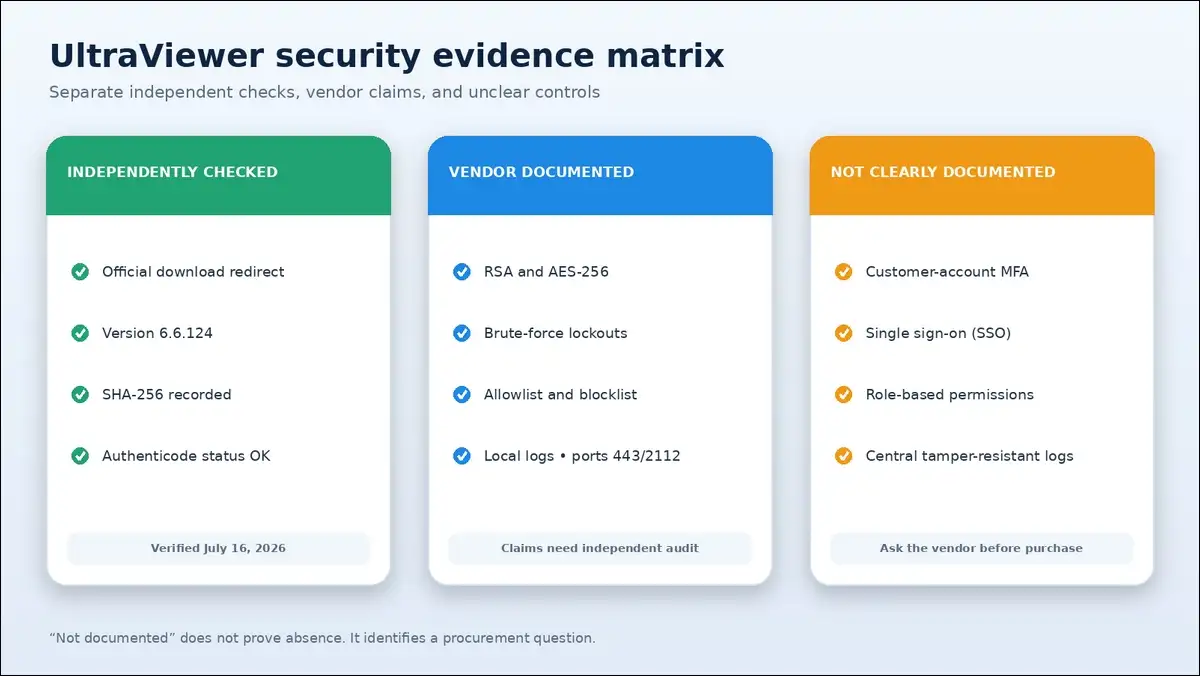
Larger organizations may need controls that UltraViewer doesn’t document clearly. These include customer MFA, SSO, roles, and centralized audit retention.
You may also need service-level agreements or compliance reports. Those requirements should shape your decision before price does.
The official UltraViewer download currently serves version 6.6.124
Once you’ve confirmed the fit, verify the download source. You should use only UltraViewer’s official ultraviewer.net domain.
I’ve downloaded the installer again on July 16, 2026. The official link redirected to dl2.ultraviewer.net.
The official domain reduces download-source confusion
The vendor’s main website uses the ultraviewer.net domain. You can access downloads, pricing, support, and documentation there.
Avoid installer links supplied by unknown or unsolicited support callers. You may also avoid search advertisements using a different domain.
The public download and changelog show different versions
The download page currently labels 6.6.124 as the public build. The official changelog lists several newer version entries and betas.
| Version | Official label | Date or source |
|---|---|---|
| 6.6.124 | Public stable download | Current during research |
| 6.6.125 | Changelog release | August 3, 2025 |
| 6.6.127 | Beta | January 25, 2026 |
| 6.6.129 | Beta | February 26, 2026 |
| 6.6.131 | Latest listed beta | April 21, 2026 |
Several directories present 6.6.127 as the latest version. However, UltraViewer’s own changelog labels that release as Beta.
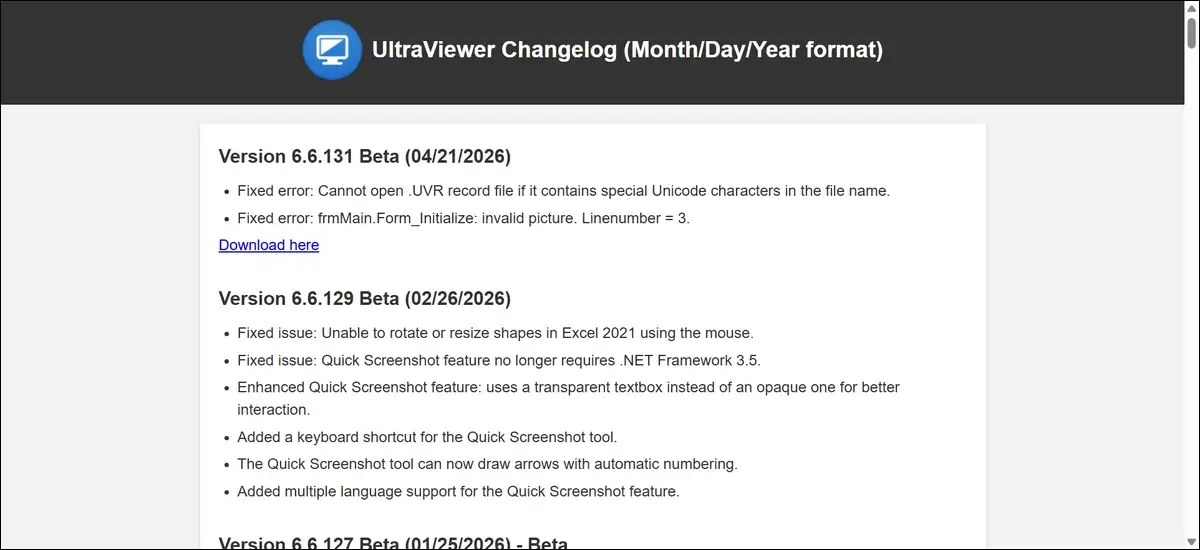
The checked installer matched version 6.6.124
My file inspection confirmed the public installer’s declared product version. I inspected the executable without running a remote session.
The verified research snapshot was:
- Download source: Official UltraViewer download link
- Final host:
dl2.ultraviewer.net - File size: 3,648,408 bytes
- Product version: 6.6.124
- Architecture: PE32, Intel i386
- SHA-256:
020aac79a14717e316a593155ca778dd3e253b888bf62633b174838d35df7f41 - Authenticode result: OK
- Signer:
DUC FABULOUS CO.,LTD - Certificate chain: SSL.com EV Code Signing
- Signing timestamp: July 18, 2025, 09:21:05 UTC
A checksum only identifies one exact installer file. Future updates should produce a different SHA-256 value.
A valid signature confirms integrity, not session trust
Windows can verify whether a signed file changed after signing. It can also display the certificate’s identified publisher.
That check cannot verify a caller or support company. A scammer may ask you to install legitimately signed software.
The vendor’s signing documentation appears outdated
UltraViewer’s security article says its software uses Sectigo signatures. The installer I inspected used an SSL.com EV certificate chain.
That mismatch suggests stale documentation, not an invalid signature. The inspected file still passed the Authenticode integrity check.
Windows can verify the UltraViewer signature directly
You can inspect the signature before opening the installer. These steps use standard Windows file properties and signature details.
- Right-click the downloaded UltraViewer installer inside Windows File Explorer.
- Select Properties from the file’s standard Windows context menu.
- Open the Digital Signatures tab inside the Properties window.
- Select the listed publisher signature shown inside that tab.
- Choose Details to view the signature’s current validation status.
- Confirm Windows reports a valid signature for the selected publisher.
UltraViewer can be installed and used in several minutes
With the installer verified, you can move to setup. The attended workflow needs UltraViewer on both Windows computers.
I’ve verified this workflow against UltraViewer’s current official documentation. However, I haven’t executed a live Windows session here.
Install the full EXE on both Windows computers
The official EXE can provide UltraViewer’s complete feature set. The download page labels the portable ZIP as unsupported and limited.
You may prefer the installer for ordinary customer support. Business deployments should still test installation and update behavior first.
The host shares the current ID and temporary password
The person receiving help can read the displayed credentials aloud. A trusted chat or support portal may also work.
The random password changes automatically after UltraViewer restarts. You shouldn’t publish IDs or passwords inside unblurred screenshots.
The helper enters the credentials and selects Connect
The helper can enter the host’s ID and password. Selecting Connect should start the requested remote-control connection process.
The host can watch the helper throughout the session. You may end access whenever the work becomes unexpected.
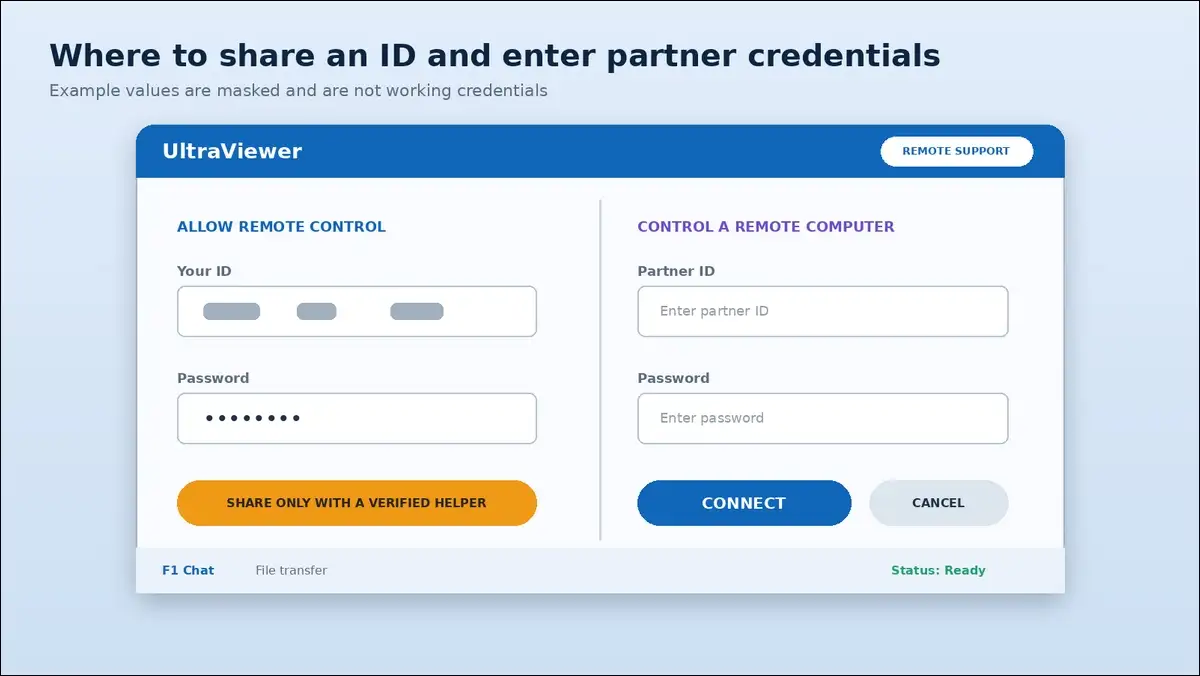
The host can watch and regain control
UltraViewer says hosts can observe remote mouse and keyboard activity. The host may move the mouse to interrupt unwanted control.
Closing UltraViewer should end the current attended connection normally. If control continues, you can disconnect the computer’s network.
F1 can open chat during the session
The default F1 shortcut can toggle UltraViewer’s chat window. That chat may reduce confusion during silent support sessions.
Users can change the configured chat hotkey when needed. Businesses may prefer recording support instructions inside an approved ticketing system.
Files can be transferred through the chat window
UltraViewer supports two-way file transfer during remote sessions. Paid file ceilings depend on the selected plan.
You should still verify every transferred file’s purpose. Signed remote software doesn’t automatically make transferred files safe.
Closing UltraViewer ends normal attended access
You can close UltraViewer when the agreed task finishes. Afterward, review settings that may allow later access.
A short post-session checklist can include:
- Close the UltraViewer application completely after support finishes.
- Confirm nobody secretly created a fixed unattended-access password.
- Confirm Windows startup access remains disabled after support.
- Review the local UltraViewer connection log for unfamiliar activity.
- Remove unnecessary transferred files from both involved computers.
- Record the completed work inside your approved support ticket.
UltraViewer covers essential Windows support features
Once connected, UltraViewer can cover essential Windows support tasks. Paid plans may add larger files, address management, sound, and recording.
I’ve verified these entitlements through current pricing and support pages. However, I haven’t benchmarked them inside live remote sessions.
Attended access can support one-off customer sessions
Temporary credentials can limit access to the current support window. Restarting UltraViewer changes the displayed temporary random password automatically.
The helper needs the updated password for another session. That behavior reduces reuse of an old temporary password.
Unattended access can use a fixed password
UltraViewer allows users to create a fixed access password. That option can help with personal computers or managed endpoints.
A fixed password also increases long-term access risk. The unattended section below explains safer configuration choices.
Premium can keep several remote sessions open
The Premium pricing page lists concurrent sessions as unlimited. That entitlement applies to one active licensed user.
I haven’t measured practical multi-session capacity under load. Computer resources, screen activity, and network routes may affect responsiveness.
File-transfer ceilings depend on the paid plan
Lite, Professional, and Premium use different per-file limits. The official pricing page doesn’t clearly document Free’s ceiling.
| Plan | Individual file ceiling |
|---|---|
| Free | Not clearly documented |
| Lite | 2 GB |
| Professional | 4 GB |
| Premium | 8 GB |
Avoid assigning Lite’s 2 GB limit to Free without confirmation. You may ask UltraViewer support when large files matter.
Clipboard controls can reduce accidental sharing
UltraViewer can disable or limit clipboard synchronization during sessions. Its official clipboard guide documents several available sharing options.
You can choose among:
- Disable clipboard sharing entirely when the workflow doesn’t require it.
- Share only the controller’s clipboard when one-way access is sufficient.
- Filter copied text containing two characters or fewer.
- Disable clipboard sharing among several controlled computers when unnecessary.
These settings can protect copied passwords and customer records. They may also prevent tokens from crossing between active sessions.
Local logs can record who connected
UltraViewer documents local connection logging on the host computer. Logs may include an ID, computer name, and connection time.
Newer releases can also record the partner’s WAN address. Local files aren’t equivalent to centralized, tamper-resistant business logs.
UltraViewer uses ports 443 and 2112
The vendor’s security page documents ports 443 and 2112. It also suggests allowing *.ultraviewer.net through a firewall.
A wildcard firewall rule can create unnecessarily broad network access. Businesses may limit that rule to approved systems and monitored support workflows.
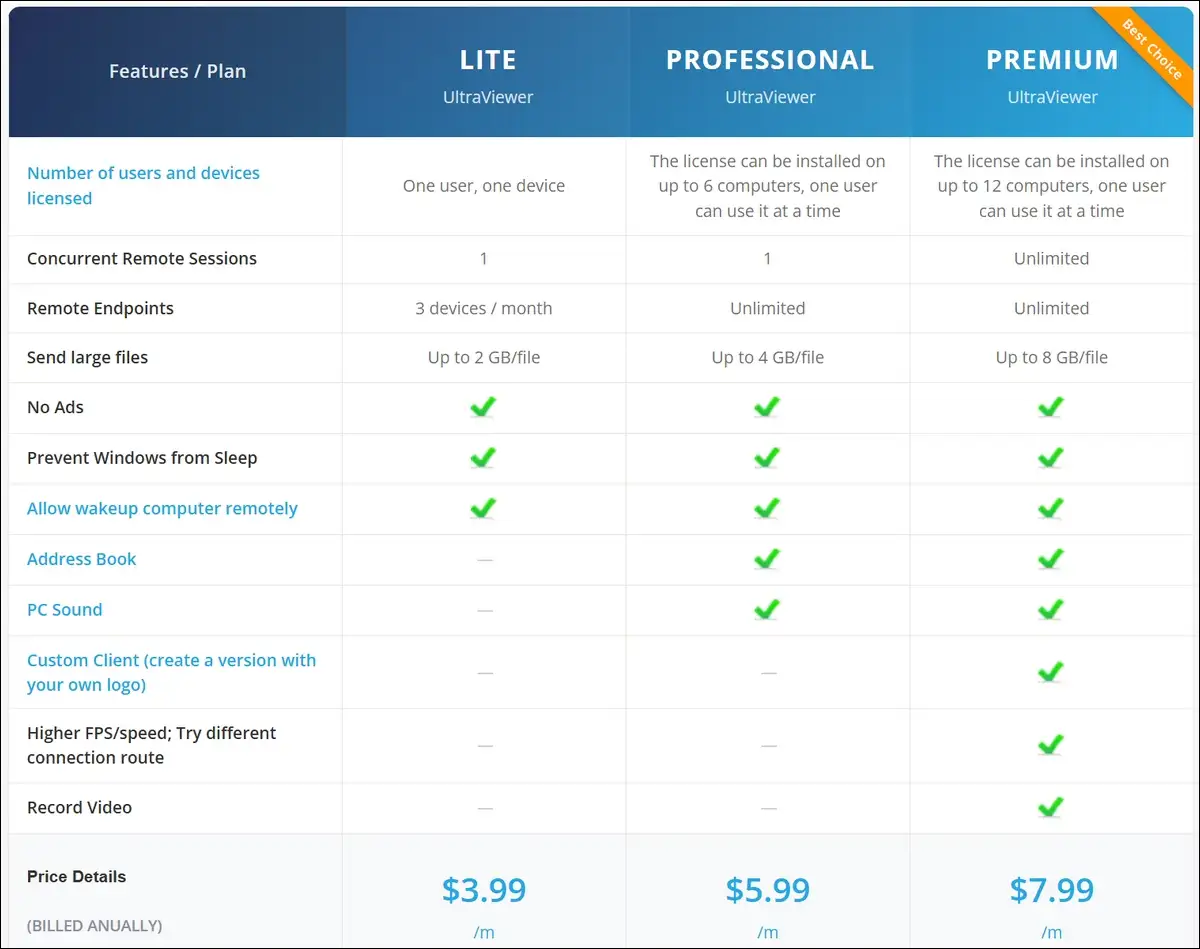
UltraViewer pricing ranges from Free to $95.88 yearly
After reviewing features, pricing becomes the next practical question. UltraViewer’s plans differ by endpoints, sessions, files, and installations.
I’ve checked the official pricing page on July 16, 2026. UltraViewer says its listed paid prices include tax.
Free has no stated expiry, but capacity isn’t guaranteed
UltraViewer’s English comparison page says Free can support commercial use. It also says sessions don’t carry a time limit.
However, the Vietnamese product page adds a service caveat. Heavy demand may affect bandwidth, time, or computer counts.
The most accurate summary is straightforward:
Free may be allowed commercially, but its capacity isn’t guaranteed.
Lite costs $47.88 yearly
The Lite plan may fit one user accessing three repeat endpoint IDs. It includes one local installation and one concurrent session.
Lite can provide:
- Three new remote endpoints monthly
- Files reaching 2 GB each
- An ad-free interface
- Windows sleep prevention
- Remote wake-up
Lite’s endpoint count uses unique remote UltraViewer IDs. Reconnecting to the same IDs doesn’t create new endpoints immediately.
Professional costs $71.88 yearly
The professional plan offers the strongest value for most solo technicians. It removes Lite’s endpoint limit for $24 more yearly.
The professional plan provides:
- Up to six local installations
- One active licensed user
- One concurrent session
- Unlimited remote endpoints
- Files reaching 4 GB each
- Address Book access
- Remote PC sound
- Ad removal, sleep prevention, and remote wake-up
Six installations don’t create six active technician accounts. They allow one licensed user across approved local computers.
Premium costs $95.88 yearly
The premium plan may fit one user managing several active remote sessions. Premium costs exactly $24 more yearly than Professional.
Premium can provide:
- Up to twelve local installations
- One active licensed user
- Unlimited listed concurrent sessions
- Unlimited remote endpoints
- Files reaching 8 GB each
- Local session recording
- A custom branded client
- Higher FPS and speed settings
- Alternate connection-route options
- Address Book and PC sound
Unlimited sessions don’t mean unlimited active technician user accounts. Teams may need additional licenses for simultaneous staff.
Paid plans use annual billing and include tax
The displayed monthly amounts only represent annual-billing equivalents. You’ll pay $47.88, $71.88, or $95.88 for one year.
UltraViewer’s official terms provide a 15-day money-back period. I haven’t tested the paid checkout or refund process.
Professional is the strongest default plan
Professional fits frequent Windows support with one active session. Premium may justify its extra cost when several sessions remain open.
A simple decision guide is:
- Free may suit occasional, noncritical Windows support sessions.
- Lite may fit three repeat remote endpoint IDs monthly.
- Professional may fit frequent one-session Windows customer support.
- Premium may fit one user handling several sessions.
- Additional paid licenses may support several active technicians simultaneously.
Also read: Our full comparision on UltraViewer Pricing: Free vs Lite vs Professional vs Premium
UltraViewer’s security controls cover common remote-access risks
Price alone can’t establish business suitability or safety. The inspected installer was signed and unchanged after signing.
That finding supports file integrity, not universal software safety. UltraViewer also documents encryption, lockouts, allowlists, and local logs.
The vendor claims RSA and AES-256 session encryption
UltraViewer’s security summary describes RSA keys and AES-256 encryption. It says private encryption keys remain with individual users.
The vendor also says its servers cannot decode session traffic. I didn’t independently capture or audit the encrypted protocol.
Brute-force controls can block repeated password attempts
UltraViewer says repeated password failures can trigger temporary access blocks. Its examples start with 15 minutes and increase after continued attempts.
The system may also use CAPTCHAs and risk checks. Exact private thresholds aren’t fully published for security reasons.
Allowlists and blocklists can restrict connections
Users can allow or reject specific IDs and IP addresses. That option may reduce access from unknown controllers.
Businesses can test rules before relying on unattended access. Incorrect allowlists may also block legitimate emergency support.
Sensitive settings can require administrator rights
UltraViewer documents administrator checks for sensitive configuration areas. These include fixed passwords and Windows startup behavior.
That safeguard may prevent standard users from changing critical settings. It doesn’t replace account MFA or role-based permissions.
Customer-facing MFA and SSO remain unclear
The reviewed UltraViewer pages don’t document end-user MFA or SSO. They also don’t describe centralized, tamper-resistant log retention.
UltraViewer’s privacy page mentions MFA for data-center infrastructure. That statement doesn’t confirm MFA for customer accounts.
NVD returned no exact UltraViewer records during research
An exact NVD API search returned zero matching records. The result was checked during this research period.
That absence doesn’t prove the product has no vulnerabilities. NVD coverage can be incomplete or use different product naming.
UltraViewer and UltraVNC are different products
UltraViewer shouldn’t inherit vulnerability records assigned to the separate UltraVNC product. The products use similar names but have different vendors.
Always match a CVE’s vendor, product, and affected version. Name similarity alone can’t establish product vulnerability exposure accurately.
UltraViewer can be legitimate while still enabling scams
Technical controls can’t verify the person requesting access. A legitimate remote-control tool can help either technicians or criminals.
That’s why user verification remains essential during every session. CISA’s RMM advisory warns legitimate remote tools may avoid antivirus detection.
Social engineering creates the largest practical risk
A scammer may call unexpectedly and claim urgent computer problems. The caller then asks the victim to install remote software. CERT-In describes this same virus claim and remote-access tactic.
Once connected, the criminal may open banking or payment sites. The victim granted access, so malware detection may not help.
FBI data shows rising tech-support fraud losses
The FBI recorded 47,794 Tech/Customer Support complaints during 2025. Reported losses reached $2,134,675,818 that year.
Tech-support complaint counts increased 32.8 percent from 2024. Losses increased 45.7 percent during the same period.
Those figures come from the FBI’s 2025 IC3 report. Those reported losses aren’t attributed specifically to UltraViewer.
Older adults reported $159 million in 2024 losses
The FTC reports particularly high losses among older adults. Adults aged 60 and older reported $159 million during 2024.
The figure comes from the FTC’s older-adult fraud report. That FTC figure covers tech-support scams across all tools.
Five checks can reduce remote-access scam risk
You can reduce risk before sharing any connection credentials. These five checks cover the most common failure points.
- Verify the helper using an official callback number.
- Download remote-control software only from the vendor’s official domain.
- Close banking, email, and password-management applications before connecting.
- Watch every action throughout the active remote-support session.
- Remove unattended access immediately after the support session finishes.
Cold calls and payment requests are major warnings
Unexpected support calls should never receive immediate remote access. Urgency often prevents victims from checking the caller’s identity.
Common warning signs include:
- Claims of viruses without supporting evidence
- Demands to open a banking website
- Requests for OTPs or payment credentials
- Instructions to hide or blacken the screen
- Pressure to transfer money immediately
- Orders to ignore family, bank staff, or police
A suspicious session requires immediate containment
You can stop further access by closing UltraViewer. Disconnect the network if the controller still appears active.
Then follow this sequence:
- Call your bank from a separate, clean device immediately.
- Freeze affected cards or payment accounts as quickly as possible.
- Preserve relevant messages, IDs, logs, screenshots, and payment records.
- Change exposed passwords from a separate, clean device immediately.
- Revoke active email and financial sessions from account settings.
- Remove fixed passwords and automatic startup access settings.
- Scan the computer using current and trusted security tools.
- Consider a clean operating-system reinstall after administrator-level access.
- Monitor financial and identity accounts carefully after the incident.
Indian users can report financial fraud through 1930
India’s cyber-fraud helpline operates through the number 1930. Complaints can also be completed through the National Cybercrime Reporting Portal.
RBI also warns against unknown remote-access applications and credential sharing. Its consumer guidance covers banking-related remote access fraud.
Unattended access needs stronger safeguards
One-time support ends quickly, but unattended access can remain active. It can create a longer-lived path into the computer.
UltraViewer can use a fixed password for this workflow. You’ll want to remove that access when it becomes unnecessary.
UltraViewer unattended access uses a fixed password
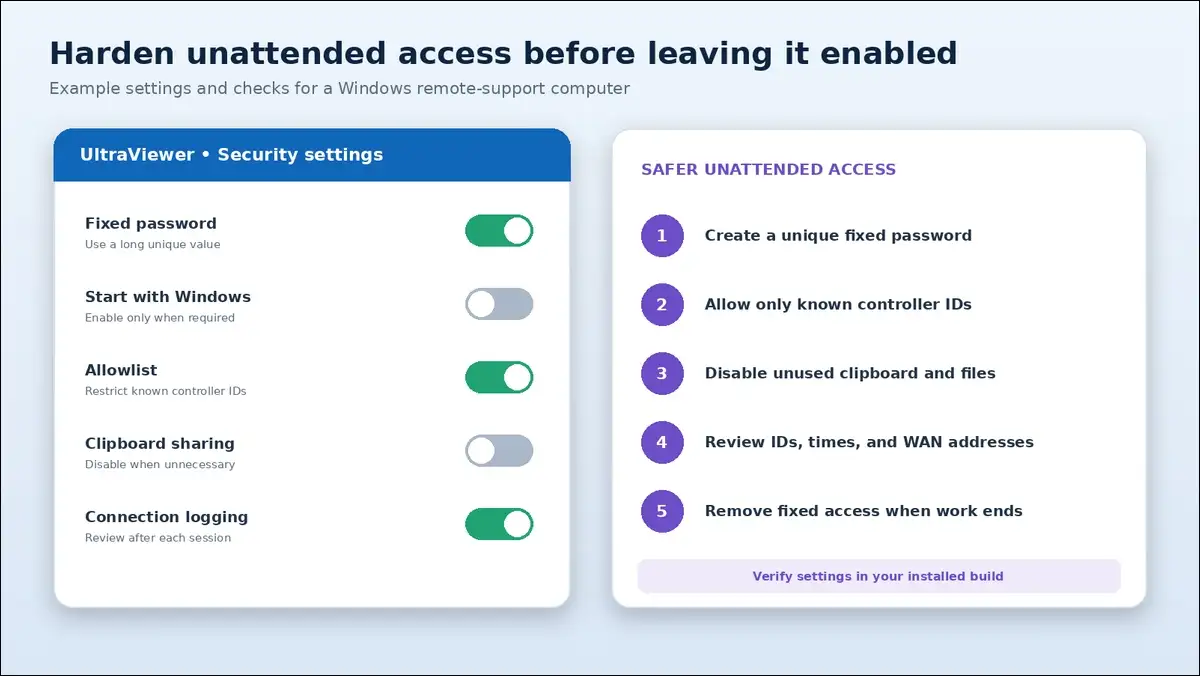
The official unattended guide uses a straightforward setup. You can select the gold key inside password settings.
The documented flow is:
- Install UltraViewer on both supported Windows computers before connecting.
- Open password settings on the remote Windows computer first.
- Select the gold key icon inside UltraViewer’s password settings.
- Create a strong and unique fixed password for access.
- Connect using the remote computer’s fixed ID and password.
A long unique password reduces credential reuse
Your fixed password should differ from every other account password. A password manager can create and store a longer value.
Avoid names, birthdays, repeated numbers, and reused password patterns. A compromised email password shouldn’t open your remote computer.
An allowlist can restrict which controllers connect
You may permit only known IDs or IP addresses. This control can reduce access attempts from unknown systems.
Test the rule before leaving the remote computer unattended. Incorrect allowlist entries could prevent legitimate recovery access later.
Clipboard and file transfer can remain disabled
Unneeded sharing features can increase accidental data exposure. You may disable clipboard synchronization when it isn’t required.
Businesses may also restrict transferred files through internal policy. UltraViewer’s public controls aren’t a substitute for endpoint monitoring.
A standard Windows account may reduce exposure
Routine remote work may not require permanent administrator access. A standard account can limit some system-level changes.
Technicians can request administrative elevation only when a task requires it. That approach may reduce damage after credential misuse.
Logs can reveal unexpected connections
Review connection logs for unknown IDs and unusual times. Newer versions may also record the partner’s WAN address.
Rejected connection attempts can provide useful early warning signs. Local logs should still be collected before uninstalling UltraViewer.
Fixed access should be removed when unnecessary
You can disable fixed passwords after remote work finishes. Also review Windows startup and unattended service settings.
Unused remote-management tools can create avoidable long-term access paths. Businesses may inventory and remove every unapproved remote tool.
UltraViewer currently supports Windows, not every major platform
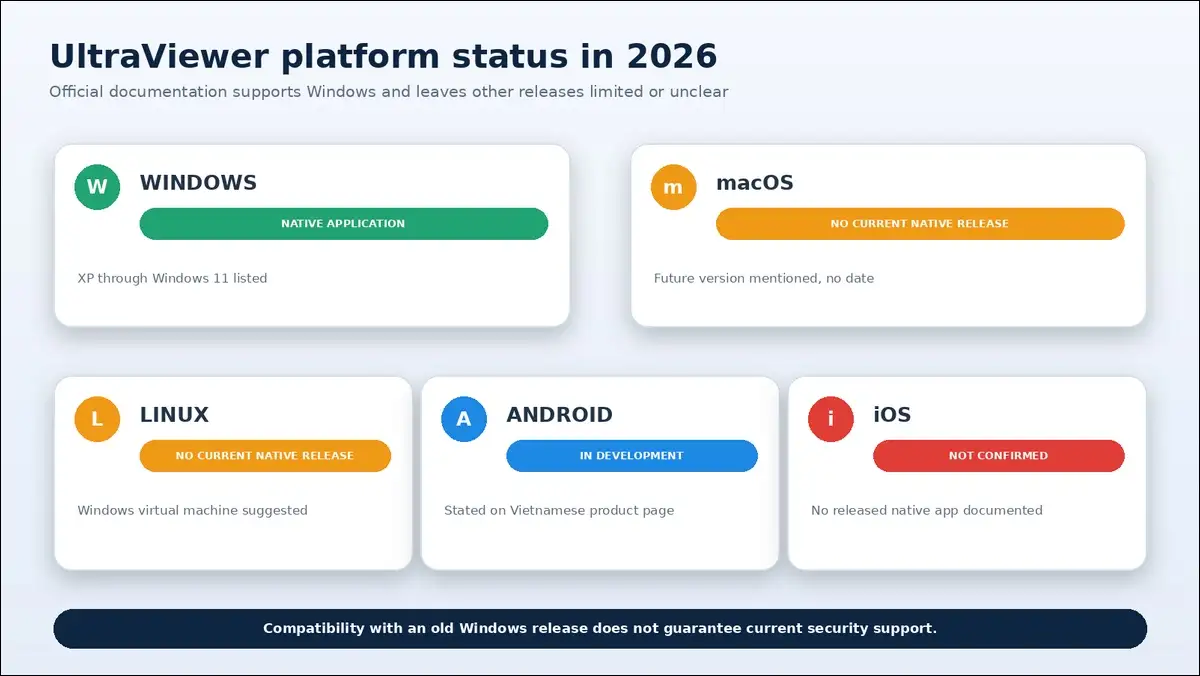
Even hardened access can’t solve unsupported platform requirements. Official pages currently describe UltraViewer as a native Windows application.
Several third-party pages incorrectly claim broader platform support. A low license price can’t control an unsupported device.
Windows compatibility reaches back to Windows XP
UltraViewer says the application can run from XP through Windows 11. UltraViewer also lists compatibility with several Windows Server releases.
Compatibility doesn’t mean every operating system remains secure. Unsupported Windows versions stop receiving normal security fixes.
Windows XP support ended in 2014
Microsoft’s XP lifecycle ended extended support during 2014. Internet-connected remote access increases the importance of current patches.
Organizations should avoid exposing unsupported systems where possible. Legacy compatibility shouldn’t become a security recommendation for businesses.
Standard Windows 10 support ended in October 2025
Microsoft ended listed Windows 10 support on October 14, 2025. Its lifecycle notice recommends moving toward supported migration paths.
Eligible systems may use applicable extended security options. Businesses should confirm their exact edition and support status.
No native Mac application is currently documented
UltraViewer’s FAQ says the product runs only on Windows. It mentions a future Mac version without a date.
Don’t rely on directory pages claiming a released Mac application. Check the official download page before planning support coverage.
No native Linux application is currently documented
UltraViewer’s official Linux article confirms no native Linux release. It suggests using a Windows virtual machine instead.
A virtual machine is a workaround, not Linux support. It also adds licensing, resource, and maintenance requirements.
Mobile support claims require careful verification
Reviewed English pages don’t document released Android or iOS applications. The Vietnamese product page says Android remains under development.
Some directories claim mobile applications or web control. Businesses should verify those functions directly before purchasing.
UltraViewer’s privacy documentation covers common account data
Platform support answers only part of a business review. UltraViewer’s privacy page explains several collection and security practices.
Still, some enterprise privacy details remain broad or missing. Encryption claims don’t answer every retention or residency question.
UltraViewer says servers don’t record remote session video
The privacy page says sessions aren’t recorded or stored by servers. Premium users may still record remote sessions locally when needed.
Those are different activities and should remain separate. Local recordings need retention, access, and deletion policies.
Account registration can collect personal information
The privacy page lists common account and payment information. Examples include names, emails, phone numbers, and preferred languages.
It also mentions cookies, payment processing, notifications, and promotions. Businesses should decide which staff may create accounts.
The vendor claims encrypted storage and transmission
UltraViewer says personal data receives transit and storage encryption. It also describes controlled access and periodic security reviews.
I didn’t independently audit those internal privacy safeguards. Treat them as vendor statements requiring procurement review.
Retention and subprocessors need clearer documentation
The public policy doesn’t provide every enterprise with privacy details. Retention periods and named subprocessors aren’t clearly centralized.
Buyers may request:
- Retention periods by data category
- Named subprocessors
- Specific data locations
- A data-processing agreement
- Independent audit reports
- Clear legal-controller details
UltraViewer, TeamViewer, and AnyDesk fit different businesses
Once you’ve reviewed privacy, competitors provide useful context. UltraViewer wins on price, while competitors cover broader environments.
I’ve checked official pricing for UltraViewer, TeamViewer, and AnyDesk. These plans aren’t direct feature or platform equivalents.
| Product and plan | Annual price | Main fit |
|---|---|---|
| UltraViewer Professional | $71.88, tax included | Low-cost Windows support |
| TeamViewer Remote Access | $298.80, tax excluded | Broader platform access |
| AnyDesk Solo | $346.80, tax excluded | Cross-platform managed access |
UltraViewer fits low-cost Windows-only support
A professional plan can support unlimited endpoints for one active session. Premium can add multiple sessions for one active licensed user.
UltraViewer costs much less than both compared entry plans. However, its platform and business-control documentation remains narrower.
TeamViewer fits managed, mixed-platform environments
TeamViewer can support Windows, macOS, Linux, and mobile platforms. It also documents deeper access and reporting controls.
Its higher price may make sense for managed organizations. Simple Windows-only users may not need that additional scope.
AnyDesk offers cross-platform access with connection-based licensing
AnyDesk Solo can provide one connection and 100 managed devices. Standard and Advanced can support larger account groups.
Concurrency remains connection-based and can increase total cost. Buyers should calculate simultaneous connection needs before purchasing licenses.
The cheapest product isn’t always the lowest-risk choice
Platform gaps and missing controls can create operational costs. Security review time and extra tools may erase subscription savings.
Choose the least expensive product meeting every requirement. Price should follow security, platform, and workflow needs.
UltraViewer has clear strengths and limitations
Taken together, UltraViewer’s business tradeoffs are fairly clear. It can offer an accessible Windows workflow at low prices.
| Strengths | Limitations |
|---|---|
| Low annual paid prices | Native Windows focus |
| Simple ID and password workflow | Conflicting Free capacity language |
| Chat and file transfer | Public version mismatch |
| Fixed-password unattended access | Limited documented customer identity controls |
| Premium multi-session entitlement | Local rather than central audit logs |
| Signed compact installer | No neutral public performance benchmark |
| Allowlists and brute-force protection | Broad privacy and retention details |
UltraViewer is worth considering for trusted Windows support
Those tradeoffs make the final business decision more focused. UltraViewer may be practical for verified Windows support.
Professional may fit most solo technicians needing unlimited endpoints. Premium may fit one user handling several active sessions.
Free may work when capacity guarantees aren’t necessary. Another product may fit a stronger platform or control requirements.
Test your real workflow before purchasing
A short internal trial can reveal practical limitations quickly. Test the exact plan, network, and endpoints you expect.
Your trial may cover:
- Connection stability
- Mouse and keyboard responsiveness
- File-transfer behavior
- Multi-monitor handling
- Reconnection after interruption
- Unattended startup
- Clipboard controls
- Local logging
I haven’t completed a controlled live performance benchmark. Therefore, this article doesn’t name a speed or latency winner.
Also read: UltraViewer vs TeamViewer vs AnyDesk
Frequently asked questions
If you’re still deciding, these answers cover common questions. They summarize evidence without replacing a formal business security review.
UltraViewer supports Windows remote control and technical assistance. It can also provide chat, files, and unattended access.
The inspected official installer was signed and intact. Session safety still depends on whom you authorize.
UltraViewer is a legitimate remote-control application for Windows support. However, scammers may abuse it through social engineering.
The official public download currently serves version 6.6.124. The changelog lists newer builds through 6.6.131 Beta.
Use the official ultraviewer.net page for secure downloads. You can also verify the installer’s Windows signature.
The English vendor page says Free supports commercial use. Another official page says Free capacity isn’t guaranteed.
Lite costs $47.88, Professional $71.88, and Premium $95.88 yearly. UltraViewer says those listed paid prices already include tax.
No current native Mac or Linux release is documented. The official FAQ currently describes UltraViewer as Windows-only.
Close UltraViewer to end the normal attended session. Disconnect the network immediately if suspicious remote control continues.
UltraViewer can use a fixed password for unattended access. You should remove fixed unattended access when it’s unnecessary.
The vendor documents network ports 443 and 2112. It also suggests allowing *.ultraviewer.net where approved.
No, UltraViewer and UltraVNC are completely different remote-access products. Their vulnerability records should never be mixed during assessment.
Final thoughts: UltraViewer works best for verified Windows support
UltraViewer combines a simple Windows workflow with low annual pricing. Professional offers the strongest value for most solo technicians.
I’ve confirmed the checked installer was signed and intact. However, signing can’t protect users who authorize a scammer.
You’ll want the official .net vendor domain for downloads. Verify every helper before sharing credentials or opening sessions.
Count users, installations, endpoints, and simultaneous sessions before purchasing. Then choose the lowest-cost plan meeting every requirement.