UltraViewer vs TeamViewer vs AnyDesk: Costs, Features, and Speed Claims Compared
UltraViewer costs the least among these three Windows support options. TeamViewer covers the widest business needs in this comparison. AnyDesk sits between them on price and platform support.
I’ve reached those conclusions from current official plans and documentation. I’ve also inspected UltraViewer’s official Windows installer without executing it.
Still, I can’t name an honest speed winner yet. We didn’t have controlled, cross-product benchmark data for this review.
That’s worth clarifying because vendor speed claims use different conditions. A fair test needs identical computers, networks, workloads, and repeated trials.
Research updated: July 15, 2026
Prices checked: United States pricing, billed annually
Independent file check: UltraViewer 6.6.124 official installer
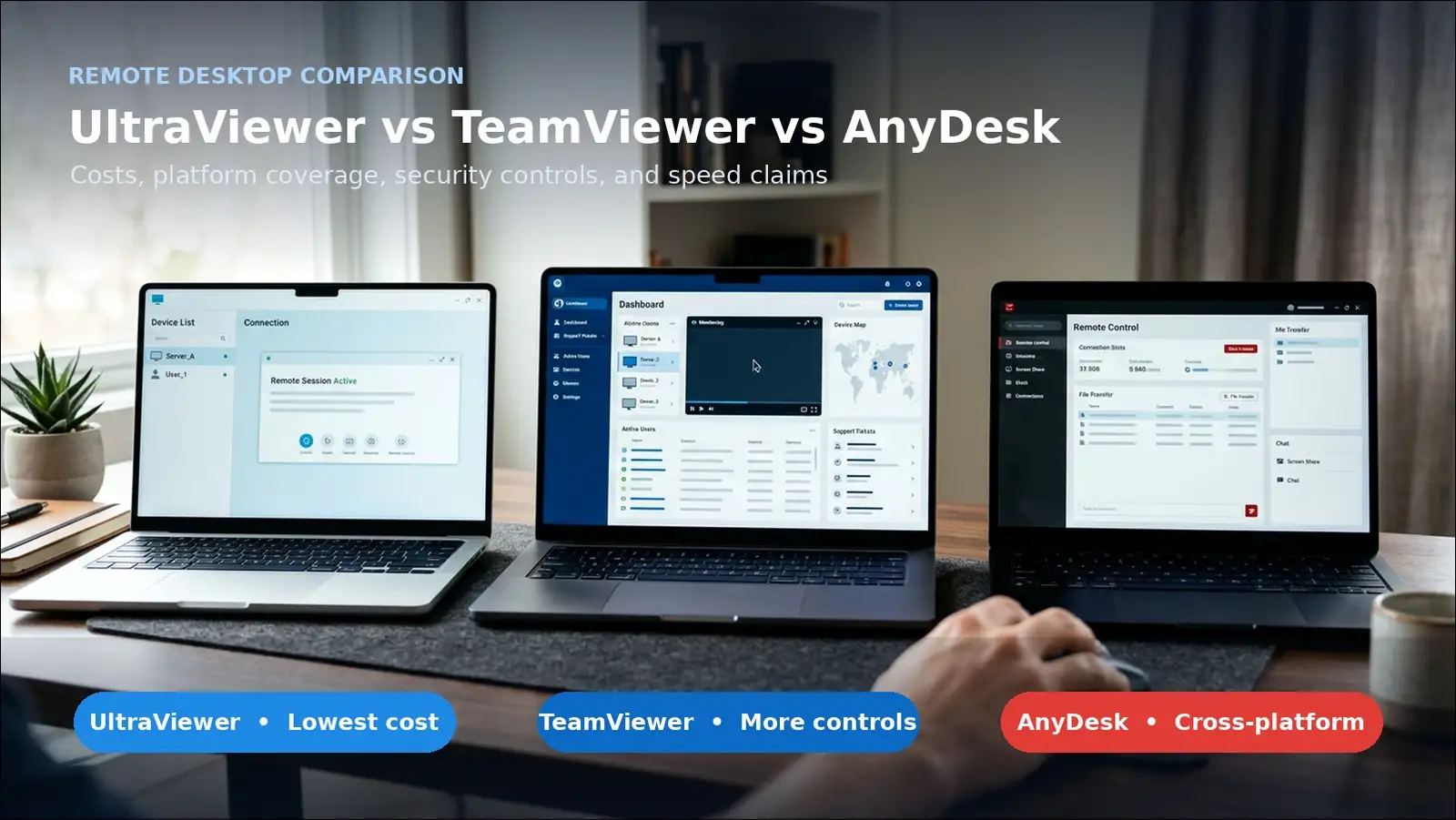
Key findings: UltraViewer wins on cost, not overall capability
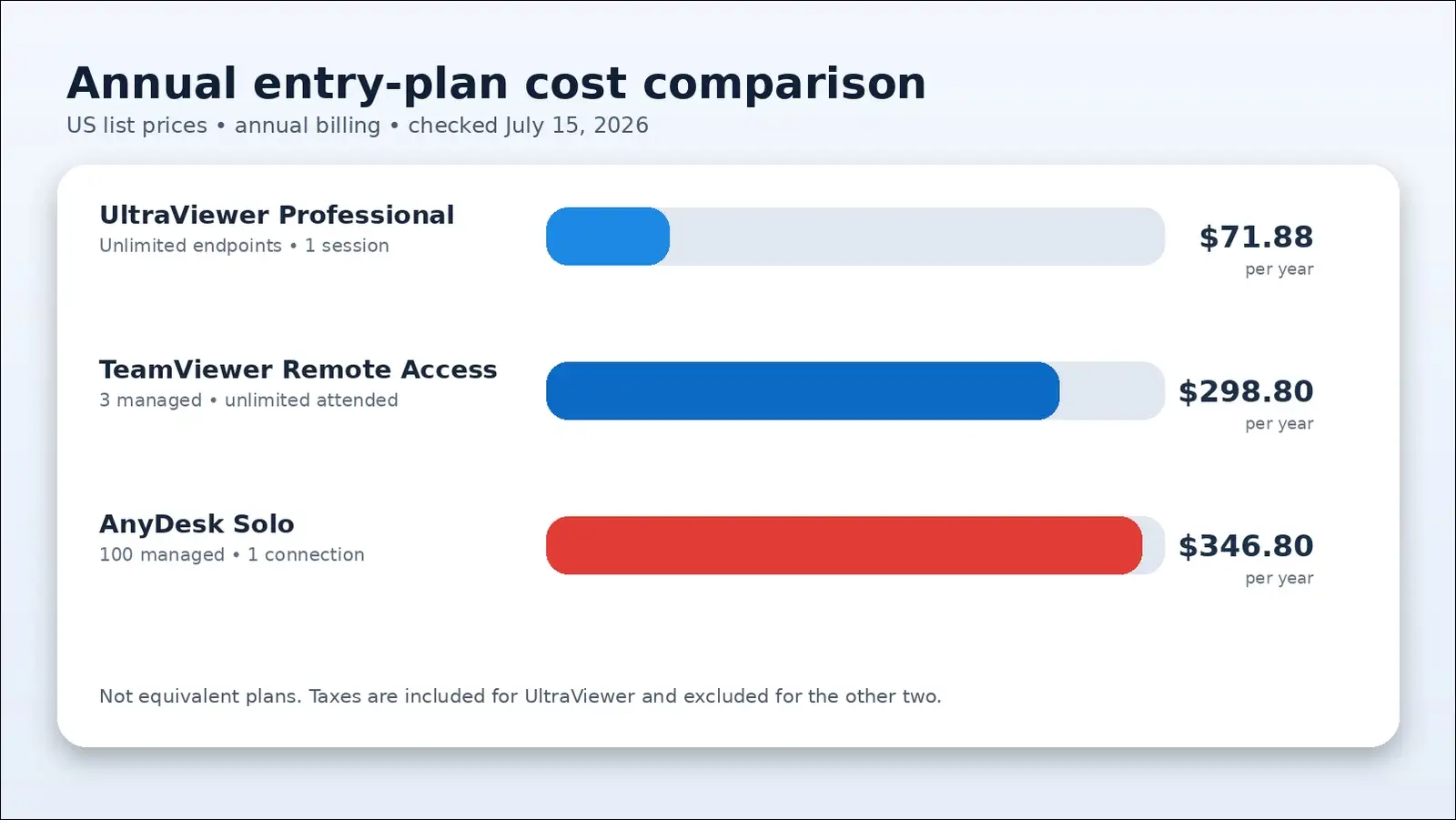
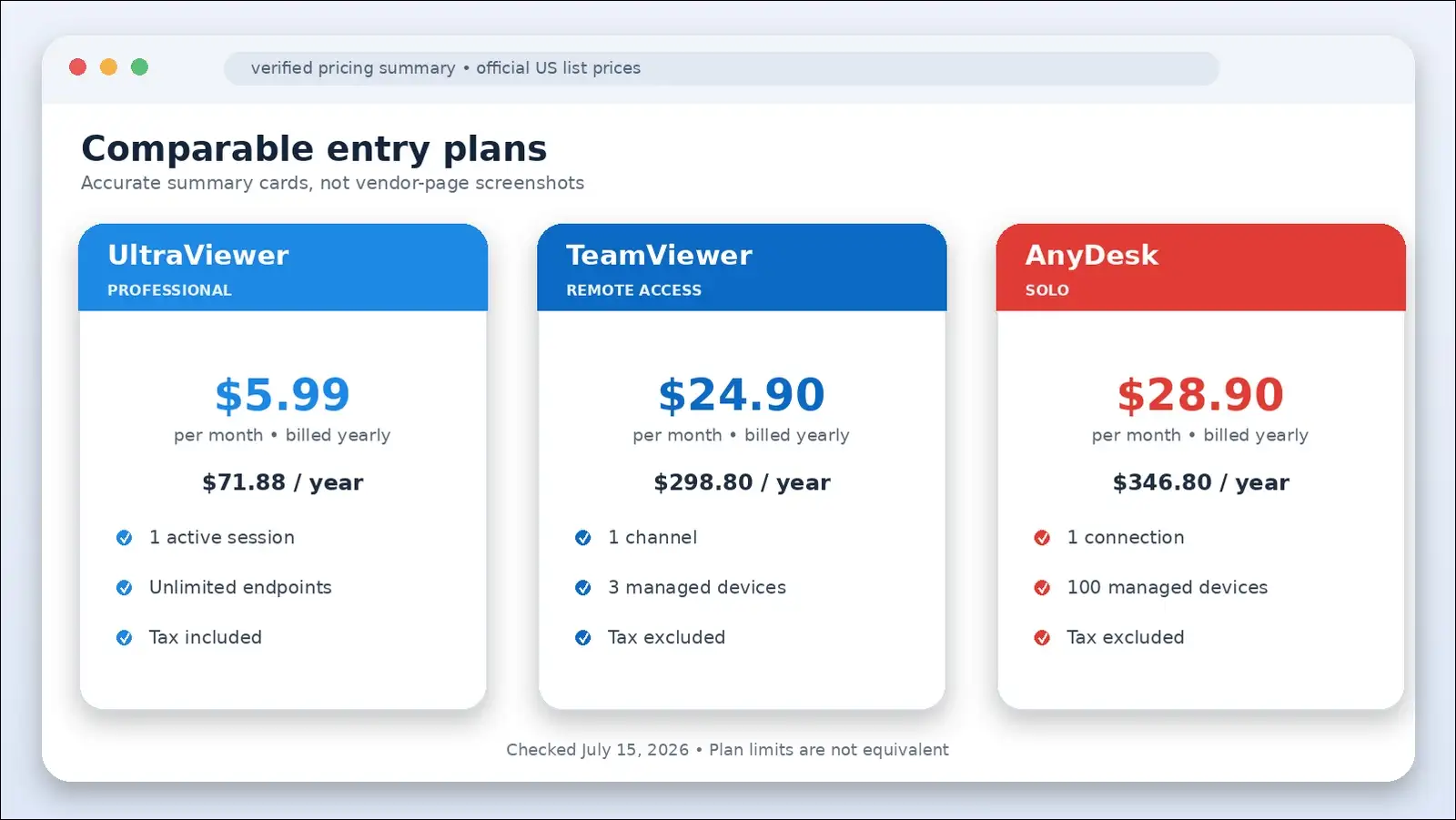
- UltraViewer Professional costs $71.88 yearly under the current annual billing. It can cover unlimited remote endpoints and one concurrent session.
- TeamViewer Remote Access costs $298.80 yearly before tax under annual billing. It can cover three managed devices and unlimited attended devices.
- AnyDesk Solo costs $346.80 yearly before taxes under annual billing. It can include one connection and 100 managed devices.
- UltraViewer supports Windows natively, according to its official documentation. That documentation lists no current Mac or Linux application.
- TeamViewer can cover major desktop and mobile platforms. Supported systems include Windows, macOS, Linux, Android, iOS, and ChromeOS.
- AnyDesk can provide similarly broad platform coverage across many devices. It also publishes clients for FreeBSD, Raspberry Pi, and Apple TV.
Also read:
Verdict: choose UltraViewer for price, TeamViewer for control, or AnyDesk for balance
- UltraViewer may suit you when every computer runs Windows. Its paid plans can cost much less than comparable entry plans.
- By contrast, TeamViewer may suit organizations needing broader controls. Its higher price can provide deeper management and documented security options.
- Meanwhile, AnyDesk may fit cross-platform work with moderate budgets. Its plans still cost considerably more than UltraViewer.
Whichever tool you’re considering, don’t trust speed claims alone. Reliability, permissions, logs, and license limits usually matter more.
| Best fit | Recommended option | Main reason | Main caution |
|---|---|---|---|
| Occasional personal help | Any free personal plan | No subscription needed | Verify each helper before connecting |
| Solo Windows technician | UltraViewer Professional | $71.88 yearly and unlimited endpoints | Windows-only native support |
| Small mixed-platform team | AnyDesk Standard | Cross-platform support and team accounts | One connection starts at $598.80 yearly |
| Managed business support | TeamViewer Business or higher | Detailed controls and platform coverage | Higher annual cost |
| Regulated organization | Evaluate TeamViewer, AnyDesk Ultimate, and others | Better-documented identity and audit controls | Complete a formal security review |
Current costs: UltraViewer is substantially cheaper
UltraViewer has the lowest listed commercial prices by a wide margin. Still, each vendor defines users, devices, and sessions differently.
I’ve checked each vendor’s official United States pricing page. Here’s how those monthly equivalents convert into annual charges.
Official annual prices show a large cost gap
UltraViewer already includes taxes in its listed plan prices. By comparison, TeamViewer and AnyDesk currently exclude taxes.
| Product and plan | Monthly equivalent | Annual charge | Included access |
|---|---|---|---|
| UltraViewer Lite | $3.99 | $47.88 | One session, three new endpoints monthly |
| UltraViewer Professional | $5.99 | $71.88 | One session, unlimited endpoints |
| UltraViewer Premium | $7.99 | $95.88 | Unlimited sessions, unlimited endpoints, one active licensed user |
| TeamViewer Remote Access | $24.90 | $298.80 | One channel, three managed devices |
| TeamViewer Business | $50.90 | $610.80 | One user, one channel, 200 managed devices |
| TeamViewer Premium | $120.90 | $1,450.80 | 15 users, one channel, 300 managed devices |
| TeamViewer Corporate | $245.90 | $2,950.80 | 30 users, three channels, 500 managed devices |
| AnyDesk Solo | $28.90 | $346.80 | One user, one connection, 100 managed devices |
| AnyDesk Standard | $49.90 | $598.80 | Up to 20 users, one starting connection, 500 managed devices |
| AnyDesk Advanced | $111.90 | $1,342.80 | Up to 100 users, two connections, 1,000 managed devices |
Sources: UltraViewer pricing, TeamViewer pricing, TeamViewer quotation page, and AnyDesk pricing.
UltraViewer Professional costs about 76 percent less than TeamViewer Remote Access
UltraViewer Professional can save $226.92 yearly against TeamViewer Remote Access. That’s a 75.9 percent reduction before tax.
It can save $274.92 yearly against the AnyDesk Solo plan. That’s 79.3 percent before applicable AnyDesk taxes.
These plans aren’t identical for most business users, though. AnyDesk Solo includes 100 managed devices and mobile platforms.
TeamViewer Remote Access includes three managed devices and unlimited attended connections. It also supports three sessions within one channel.
UltraViewer Lite only suits a small monthly endpoint count
UltraViewer Lite may feel restrictive after three new monthly endpoints. Each new UltraViewer ID can count for roughly 30 days.
If you’re helping many new customers, you may exceed that allowance. Professional can remove the limit for $24 more yearly.
Team plans require careful concurrency calculations
Team size doesn’t equal total simultaneous session capacity. That’s why many pricing comparisons can mislead readers.
AnyDesk Standard can support up to 20 users initially. However, you’ll start with only one active remote connection.
TeamViewer Premium can license 15 users but includes one channel. UltraViewer Premium may allow unlimited sessions for one active user.
Ask these six questions before comparing any subscription prices:
- How many technicians need named user accounts today?
- How many technicians need simultaneous remote connections daily?
- How many unattended devices will need ongoing management?
- How many new attended devices may appear each month?
- Will you need mobile device control during support sessions?
- Do you need recording, SSO, or centralized session logs?
Speed comparison: no independent winner has been proven
Price is easy to compare, but speed isn’t. No credible independent winner emerged from the available evidence.
I haven’t found a shared benchmark covering all three products. Most comparisons repeat vendor descriptions or personal impressions.
UltraViewer makes no useful public benchmark claim
UltraViewer may provide higher speed through its Premium plan. Its pricing page mentions higher FPS and alternate connection routes.
The vendor provides no latency, bandwidth, or frame-delivery results. Without them, we can’t compare that claim with measured competitors.
Meanwhile, UltraViewer’s official changelog mentions memory improvements for multiple sessions. It also records fixes for eight-monitor crashes and connection errors.
Those fixes suggest active performance work from the development team. They don’t establish a speed advantage by themselves.
TeamViewer describes low-bandwidth stability without comparable measurements
TeamViewer may provide stable, high-resolution remote support sessions. However, its current pages don’t provide a matching public test protocol.
You can use quality controls, multiple monitors, remote sound, and recording. However, those options can affect bandwidth and processor use.
So, a practical test should use matching image-quality settings. Otherwise, lower quality could appear unfairly faster during testing.
AnyDesk publishes measurable claims, but they remain vendor claims
AnyDesk claims latency below 16 milliseconds and 100 kbps bandwidth use. Its on-premises page links those figures with DeskRT.
Still, that page doesn’t provide a neutral three-product comparison. Network routes, image content, resolution, and hardware can change results.
So, I wouldn’t apply those figures to every internet session. They’d need neutral reproduction under clearly stated conditions.
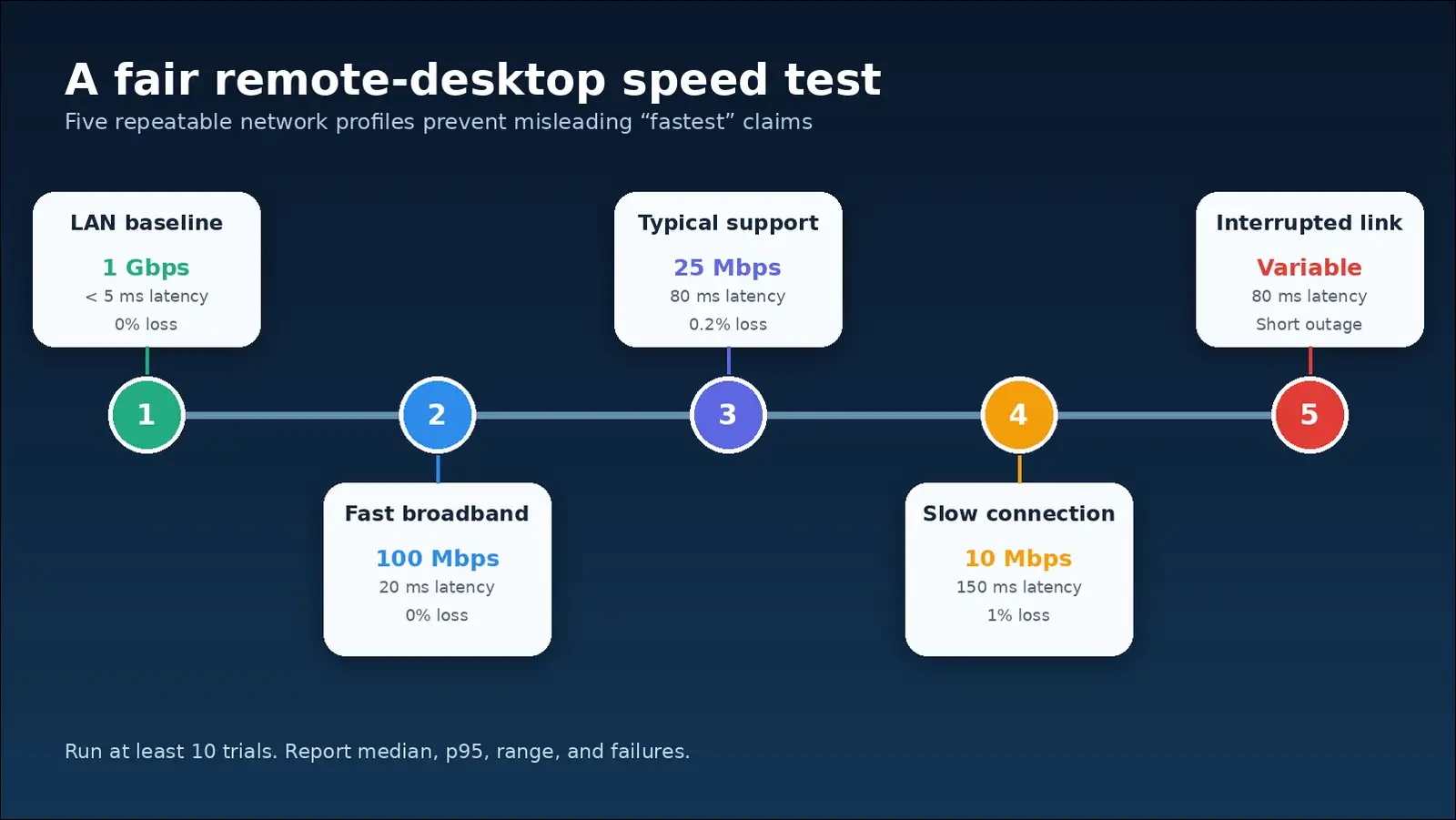
A fair speed test needs five controlled network profiles
You’ll need repeatable conditions before naming any speed winner. Here’s a five-profile method covering common support situations.
| Network profile | Bandwidth | Added latency | Packet loss | Purpose |
|---|---|---|---|---|
| Local baseline | 1 Gbps LAN | Under 5 ms | 0% | Shows software overhead |
| Fast broadband | 100 Mbps | 20 ms | 0% | Represents strong home internet |
| Typical support | 25 Mbps | 80 ms | 0.2% | Represents normal remote help |
| Slow connection | 10 Mbps | 150 ms | 1% | Tests adaptive quality |
| Interrupted link | Variable | 80 ms | Short outage | Tests reconnection behavior |
Each product should receive at least ten trials. You can then report medians, p95 values, ranges, and failures.
A proper test should measure these ten practical outcomes:
- Connection time from click to usable control
- Input-to-display latency during typing and dragging
- Frame delivery during scrolling and video
- Text clarity at matching bandwidth limits
- Average and peak network use
- Host and controller CPU usage
- Host and controller memory use
- Transfer time for 100 MB and 1 GB files
- Recovery after a short connection loss
- Multi-monitor switching and 4K readability
Also read: Perplexity vs Google Search: Which Is Better for Research
UltraViewer: the cheapest choice works best for Windows support
With those testing limits clear, UltraViewer may suit Windows support. Its simple ID-and-password process can help beginners start quickly.
To begin, the host can share a temporary ID and password. The helper can then enter both values and select Connect.
My installer check confirmed version 6.6.124 and a valid signature
I’ve downloaded UltraViewer from its official .net website. I’ve inspected the file during this research without running it.
The official link redirected to dl2.ultraviewer.net. The file measured 3,648,408 bytes and declared version 6.6.124.
My Authenticode check returned an intact signature during local verification. The signer appeared as DUC FABULOUS CO.,LTD through an SSL.com EV chain.
The checked file produced this full SHA-256 fingerprint:
020aac79a14717e316a593155ca778dd3e253b888bf62633b174838d35df7f41
That hash only identifies the exact checked installer file. A later vendor update should produce a different value.
The official stable version conflicts with newer changelog entries
UltraViewer’s public download page serves version 6.6.124. Its changelog lists version 6.6.125 and newer beta builds.
The newest listed beta was 6.6.131, dated April 21, 2026. Several download directories instead present 6.6.127 as current.
For normal support, I’d use the official stable installer. You may reserve beta builds for deliberate testing.
Suggested visual: Timeline comparing UltraViewer stable and beta version numbers.
SEO alt text: “UltraViewer 6.6.124 stable and 6.6.131 beta version timeline”
UltraViewer includes the essential support tools
UltraViewer can cover attended control, chat, files, and unattended access. Those options may handle many common Windows support jobs.
According to current documentation, you can use these main support features:
- ID-and-password remote control
- F1 chat window
- File transfer through chat
- Simultaneous control of multiple computers
- Fixed-password unattended access
- Local connection logs
- IP and ID allowlists or blocklists
- Clipboard sharing controls
- Wake-on-LAN on paid plans
- PC sound on Professional and Premium
- Session recording on Premium
I’ve verified these features through current official documentation. However, I didn’t execute live remote sessions during this review.
UltraViewer’s biggest limit is native platform coverage
If you need another platform, UltraViewer’s limit matters. The official English FAQ describes it as Windows-only.
The vendor’s Vietnamese product page says Android and macOS remain under development. It supplies no release date for either planned application.
Even so, some directories claim iOS and Linux support. Those claims conflict with the vendor’s current documentation.
UltraViewer’s free-service language contains an important conflict
The English comparison page says commercial use can remain free. It also says you won’t face a time limit.
However, UltraViewer’s Vietnamese product page adds an important condition. You won’t receive guaranteed bandwidth, duration, or computer counts.
Therefore, the vendor may limit resources during heavy demand. Businesses shouldn’t treat free service as guaranteed capacity.
TeamViewer: the broadest controls come with the highest prices
If UltraViewer’s platform limits matter, TeamViewer may suit you. Its official description documents deeper administration and broader device support.
I’ve reviewed TeamViewer’s current legal description and pricing pages. However, I didn’t conduct a live TeamViewer session.
TeamViewer supports major desktop and mobile systems
You can connect from Windows, macOS, Linux, Android, iOS, and ChromeOS. However, target support may vary by plan and add-on.
The free plan supports personal, noncommercial use under official terms. Business activity requires a commercial license under those same terms.
You can also use TeamViewer through supported modern browsers. That’s helpful when you’re working from a restricted computer.
TeamViewer Remote Access starts at $298.80 yearly
The lowest listed commercial plan costs $24.90 monthly, billed yearly. You’ll receive one user account and one concurrent channel.
You can manage three unattended devices under one account. You also have the option to support unlimited attended devices.
TeamViewer Business increases managed devices to 200 for one technician. Its annual cost rises to $610.80 before tax.
TeamViewer documents stronger account and session controls
TeamViewer can provide trusted devices, 2FA, allowlists, and access management. Higher products may add reporting and organizational features.
Its security statement documents RSA-4096 key exchange and AES-256 session encryption. Recent versions also use mutually authenticated TLS 1.3.
You can also access recording and device reports on qualifying plans. Still, you’ll need to verify each feature’s plan placement.
AnyDesk: cross-platform access costs less than many TeamViewer tiers
If TeamViewer feels expensive, AnyDesk may offer a middle path. Solo still costs more than TeamViewer Remote Access.
I’ve reviewed AnyDesk’s official pricing and security pages. However, I didn’t run a live AnyDesk connection.
AnyDesk Solo starts at $346.80 yearly
Solo can include one user, one connection, and 100 managed devices. You can also register three source devices for outgoing connections.
You can make unlimited interactive connections to users and devices. That’s separate from its 100-device unattended access allowance.
Standard costs $598.80 yearly before tax under annual billing. It starts with one connection and supports 20 users.
AnyDesk Standard scales through paid connection add-ons
You can add Standard connections for $29.90 monthly. That’s $358.80 yearly for each connection before tax.
Advanced begins with two connections for $1,342.80 yearly. It supports up to 100 users and 1,000 managed devices.
This structure may suit teams with many accounts but limited concurrency. However, busy help desks should calculate add-on connections carefully.
AnyDesk documents modern security and deployment options
AnyDesk can provide TLS 1.3, AES-256 encryption, and 2FA. Its security page also lists SSO and session logs.
You can use access lists, interactive settings, and privacy mode. Ultimate customers may also request on-premises deployment within their networks.
Because features can depend on your plan, check the contract carefully. You may want to confirm SSO, roles, and deployment terms.
Feature comparison: TeamViewer and AnyDesk cover more business needs
Now that we’ve reviewed each product, the feature gap is clearer. TeamViewer and AnyDesk can provide broader platform and management options.
| Feature | UltraViewer | TeamViewer | AnyDesk |
|---|---|---|---|
| Native Windows support | Yes | Yes | Yes |
| Native macOS support | No current release | Yes | Yes |
| Native Linux support | No current release | Yes | Yes |
| Android and iOS apps | Not currently documented as released | Yes | Yes |
| Attended access | Yes | Yes | Yes |
| Unattended access | Yes | Yes | Yes |
| File transfer | Yes | Yes | Yes |
| Chat | Yes | Yes | Yes |
| Remote sound | Professional and Premium | Yes | Yes |
| Session recording | Premium | Plan-dependent | Standard and above |
| Remote printing | Not documented | Yes | Plan-dependent |
| Central user management | Limited documentation | Yes | Standard and above |
| Customer-facing 2FA | Not documented | Yes | Yes |
| SSO | Not documented | Higher business products | Documented, plan-dependent |
| On-premises option | Not documented | No standard self-hosted option | Ultimate |
| Local allowlist | Yes | Yes | Yes |
| Concurrent capacity | Plan-dependent | Channel-dependent | Connection-dependent |
Here, “not documented” doesn’t always mean a feature is unavailable. It means I haven’t found supporting official documentation for it.
Also read: SimilarWeb: 10 Best Ways To Use This Tool
Security comparison: TeamViewer and AnyDesk document more controls
Features and pricing aren’t enough for a safe choice. TeamViewer and AnyDesk publish more detailed business security options.
All three vendors claim strong session encryption
UltraViewer’s security summary says sessions can use RSA keys and AES-256 encryption. It also says servers can’t decode session traffic.
TeamViewer documents RSA-4096 and AES-256 encryption for protected session traffic. Newer builds add mutually authenticated TLS 1.3 and forward secrecy.
AnyDesk documents TLS 1.3 and AES-256 transport encryption. It uses RSA key exchange to verify connections.
These statements come from each vendor’s official documentation. I haven’t independently audited their underlying network protocols.
UltraViewer documents brute-force protection and local logs
UltraViewer can block repeated password attempts by IP and ID. Its examples begin with 15-minute blocks that may increase.
Local logs can record IDs, computer names, and connection times. Newer versions may also include the remote WAN address.
The controller can’t delete logs while UltraViewer runs. However, those files aren’t centrally stored, tamper-resistant records.
TeamViewer and AnyDesk better suit centralized administration
Both vendors can provide customer-facing identity and management controls. Those controls matter when several technicians share access.
TeamViewer lists trusted devices, 2FA, access controls, and reporting. Enterprise Tensor adds deeper conditional access and auditing.
AnyDesk lists 2FA, SSO, session logs, and role management. Plan placement still requires careful checking before any purchase decision.
Legacy Windows support shouldn’t influence your security choice
Running on an old system doesn’t make that system safe. UltraViewer advertises support back to Windows XP on compatible systems.
Microsoft’s XP lifecycle ended support in 2014 after extended maintenance expired. Standard Windows 10 support ended on October 14, 2025.
Use a supported operating system whenever remote control is enabled. Unpatched systems increase risk for every remote tool.
Scam risk: the person requesting access matters most
Even strong controls can’t verify the person requesting access. Criminals may persuade victims to approve legitimate remote-control connections.
- The FBI recorded 47,794 tech-support complaints during 2025. Reported losses reached $2.1347 billion that year.
- That loss increased 45.7 percent from 2024. The figures come from the FBI’s 2025 IC3 report.
- The FTC reported $159 million in 2024 tech-support losses among adults over 60. Its older-adult fraud report shows the group’s higher risk.
- CISA warns that legitimate remote tools may avoid antivirus alerts. Its RMM guidance suggests approved-tool inventories, logging, and application controls.
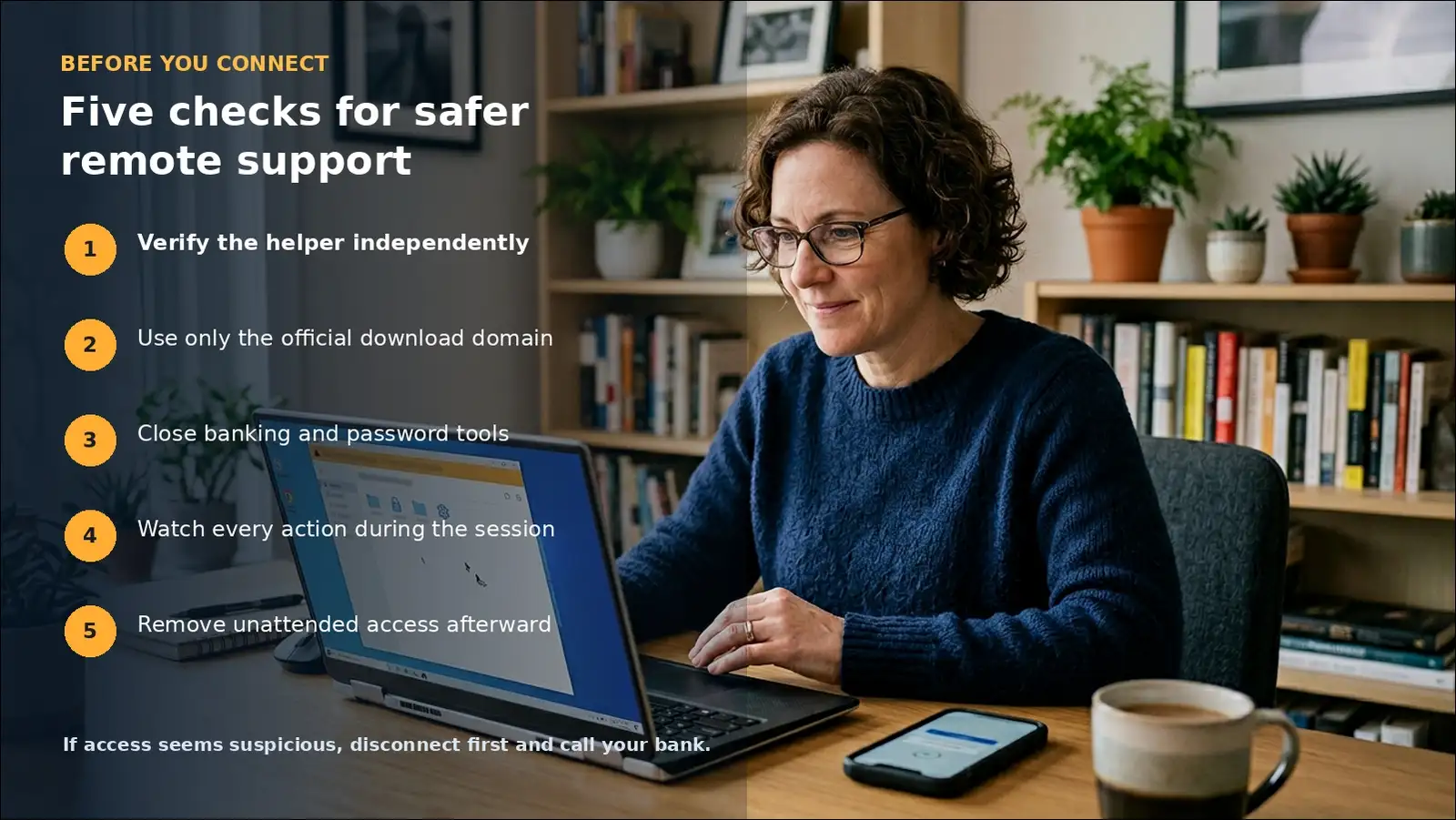
Use this five-step safety check before connecting
- Verify the helper independently by calling their organization’s official number.
- Use the official download domain, not links from unsolicited callers.
- Close banking and password tools before starting any support session.
- Watch every action and end access after the agreed task.
- Remove unattended access afterward, then review logs and startup settings.
If a stranger gained access, disconnect the computer immediately. Contact your bank from a clean device and report suspicious transactions immediately.
Indian users can report financial cyber fraud through 1930. The National Cybercrime Reporting Portal also accepts complaints.
Which tool should you choose for each common situation?
With those costs and risks clear, here’s the practical choice. Your operating systems and session count should come first.
Choose UltraViewer for simple Windows-only support
UltraViewer may suit one technician supporting many Windows PCs. Professional can remove Lite’s three-endpoint monthly limit entirely.
Premium may suit one technician handling several simultaneous sessions. You’ll still want to test performance on your network.
Choose TeamViewer for managed and mixed-device environments
TeamViewer may suit businesses needing desktop and mobile access. You can also get deeper access and reporting controls.
Its price may feel justified when those controls matter. Still, it’s expensive for simple one-person Windows support.
Choose AnyDesk for cross-platform access with flexible team accounts
AnyDesk Standard can support several accounts but one starting connection. That may suit teams taking turns on support work.
Additional connections raise the cost quickly for growing support teams. Calculate concurrency carefully before purchasing either Standard or Advanced.
Keep free plans for legitimate personal use
You can use TeamViewer and AnyDesk free for personal use. However, commercial support requires paid licenses from both vendors.
UltraViewer’s English page says commercial use can remain free. However, another official page says free capacity isn’t guaranteed.
Limitations: this comparison doesn’t contain a live speed benchmark
Before you decide, it’s worth restating this article’s limits. It compares verified costs, documented features, and vendor speed claims.
I’ve checked UltraViewer’s official installer, version, hash, and signature. However, I haven’t run three products across matched Windows computers.
That means we can’t name a measured speed winner today. It also keeps this comparison honest and reproducible.
Pricing can change because vendors revise their plans frequently. Taxes, currencies, discounts, and contracts may change your final cost.
Relay locations can also change performance across countries and providers. That’s why a Delhi result may differ elsewhere.
UltraViewer, TeamViewer, and AnyDesk FAQs
These answers summarize current pricing, platform support, security documentation, and speed evidence.
Is UltraViewer faster than TeamViewer?
No independent test supports a universal winner. UltraViewer publishes no comparable latency or bandwidth benchmark. A fair comparison needs matched hardware, network shaping, quality settings, and repeated trials.
Is AnyDesk faster than UltraViewer?
AnyDesk publishes latency and bandwidth claims, but they remain vendor claims. Neutral tests must reproduce them under controlled conditions. UltraViewer provides no matching public measurements.
Which product is cheapest for commercial support?
UltraViewer is cheapest at current US list prices. Professional costs $71.88 yearly and supports unlimited endpoints. TeamViewer Remote Access costs $298.80 yearly, while AnyDesk Solo costs $346.80 yearly. TeamViewer and AnyDesk exclude tax.
Which tool supports the most operating systems?
TeamViewer and AnyDesk cover major desktop and mobile systems. UltraViewer’s current official documentation describes native Windows support only. Its Mac and Android versions remain under development.
Which tool has the strongest business security controls?
TeamViewer documents the deepest enterprise controls in this comparison. AnyDesk also lists 2FA, SSO, session logs, roles, and on-premises options. UltraViewer documents encryption, allowlists, brute-force protection, and local logs.
Can I use these tools free for business?
TeamViewer and AnyDesk reserve free plans for personal use. UltraViewer’s English page claims free commercial use, but another official page says free capacity is not guaranteed. Businesses should confirm current terms before deployment.
Are UltraViewer and UltraVNC the same product?
No, UltraViewer and UltraVNC are separate products. Similar names can confuse vulnerability searches, so CVEs must match the correct vendor and product.
Final thoughts: UltraViewer gives the lowest cost, not the broadest solution
Taken together, UltraViewer offers the clearest Windows-only price advantage. Its Professional plan costs under one-quarter of TeamViewer Remote Access.
TeamViewer can provide broader platforms and stronger documented administration. Meanwhile, AnyDesk may offer similar flexibility at mid-range prices.
We can’t name a measured speed winner from current evidence. You’ll want to test each shortlisted tool on your network.
Start with platforms, concurrency, and practical security requirements. Then you can choose the lowest-cost qualifying plan.