Restore Cable for iPhone: Understanding Its Meaning and How to Resolve It
If you’ve ever connected your iPhone to a computer and noticed a display showing a cable pointing toward a computer or laptop, you’re likely encountering the Restore Cable for iPhone screen. While this message can initially seem concerning, it doesn’t always mean your device is permanently damaged. In most cases, it simply indicates that your iPhone needs to be updated or restored through a special mode called recovery mode.
What Is the Restore Cable for iPhone Screen?
The restore cable for the iPhone screen appears when your iPhone enters recovery mode. Instead of starting up normally with iOS, the device prompts you to connect it to a computer. This usually happens when iOS fails to start correctly or if a software update was interrupted.
Recovery Mode is a built-in feature designed to help users reinstall or repair the operating system on their iPhone.
Why Does This Screen Appear?
There are several reasons why your iPhone might display the Restore Cable screen, such as:
- An interrupted iOS update
- A failed software installation
- Corrupted system files
- Boot loop problems
- Unsuccessful jailbreak attempts
- Issues during an iPhone restore process
In many cases, the problem is related to software rather than hardware, which means your device may be recoverable with the correct steps.
How to Fix the Restore Cable Screen
1. Check the USB cable
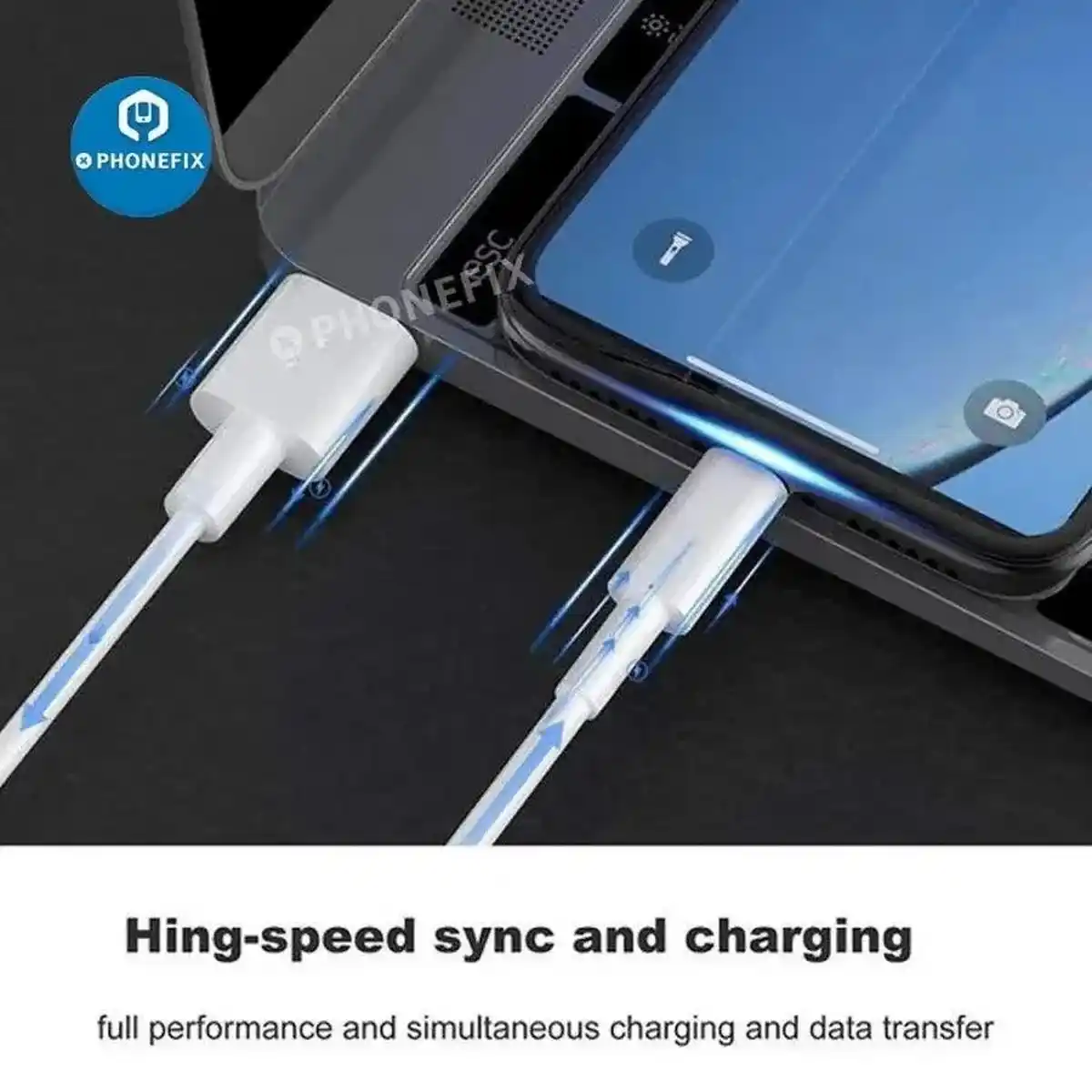
Start by using a certified Lightning or USB-C cable, depending on your iPhone model. A faulty or damaged cable can disrupt the connection between your iPhone and your computer.
2. Update Finder or iTunes
If you’re using a Mac running macOS Catalina or later, use Finder. For Windows or older macOS versions, make sure iTunes is up to date before attempting a restore.
3. Connect the iPhone
Attach your iPhone to the computer using the cable displayed on the Recovery Mode screen. Your computer should detect the device in Recovery Mode and offer options to update or restore it.
4. Choose “Update” first
Whenever possible, select Update instead of Restore. The Update option tries to reinstall iOS without deleting your personal data. If the update fails, a restore may be necessary.
When You Need a DFU Recovery Tool
In some situations, Recovery Mode may not fix deeper software issues. In those cases, a DFU Recovery Tool can help place your iPhone into Device Firmware Update (DFU) mode for more advanced firmware restoration.
DFU mode bypasses the regular operating system and connects directly with the device’s firmware. It is typically used when an iPhone is stuck in Recovery Mode, has ongoing boot failures, or cannot complete a normal restore. However, DFU mode should be used carefully because restoring through DFU usually erases all data. Always back up your device before proceeding.
Tips to Prevent Future Recovery Issues
To reduce the chances of seeing the Restore Cable screen, follow these best practices:
- Keep your iPhone updated with the latest iOS version.
- Use reliable charging and data cables
- Avoid disconnecting the device during software updates.
- Ensure your computer has a stable internet connection when downloading iOS updates.
- Regularly back up your iPhone using iCloud or your computer.
These simple steps can help prevent interrupted updates and software issues.
When to Contact Apple Support
If your iPhone keeps returning to the Recovery Mode screen even after multiple restore attempts, the problem might involve hardware rather than software. In such cases, it’s recommended to contact Apple Support or visit an authorized service provider for professional assistance.
FAQs
It means your iPhone is in Recovery Mode and needs to be connected to a computer for an update or restore.
Yes, choosing Restore usually erases your data unless you have a backup.
A DFU recovery tool helps restore an iPhone when standard recovery mode doesn’t solve the problem.
Common causes include failed updates, software corruption, or boot issues.
Final Thoughts
Seeing the restore cable for an iPhone screen can be frustrating, but it’s often a recoverable software issue. Start with the least invasive solution: update your device through Finder or iTunes. If standard methods fail, using a DFU recovery tool may provide a deeper system restoration. Regular backups and adherence to best practices can help protect your iPhone and minimize downtime during unexpected software issues.