MonStream Explained: Set Up and Optimize Live Video Grids with Ease
MonStream is a streaming application for live video display on dedicated monitors. It supports unicast or multicast sources in MPEG2, MPEG4, H.264, and Motion JPEG formats. Streams can be arranged in grids like 2×2 or 2×3.
If you’re managing a control room, security setup, or traffic monitoring system, MonStream could be a game-changer. As someone who’s explored video streaming tools extensively, I find its open-source design and flexibility refreshing.
In this guide, I’ll walk you through what MonStream does, how to set it up, and why it’s worth your attention. Whether you’re overseeing multiple camera feeds or displaying real-time data, MonStream offers a reliable solution. Let’s get into an action and see how it can simplify your video monitoring tasks.

What Is MonStream?
To start, MonStream is a specialized tool for showing live video on dedicated monitors. It’s built for professional settings like security offices or traffic control centers, where you need to monitor multiple feeds simultaneously. Unlike typical streaming apps, it handles unicast or multicast sources with ease.
Why does this matter? Well, MonStream lets you display several streams in a grid, such as 2×2 or 2×3, on one screen. This setup helps you keep everything in view without switching monitors. Built on GStreamer, a robust multimedia framework, it ensures smooth playback of formats like H.264 or Motion JPEG.
Moreover, MonStream is open-source. This means you can customize it to fit your needs without breaking the bank. It’s not for casual streaming at home but excels in environments where reliability is critical. For example, if you need low-latency video for real-time decisions, MonStream delivers.
Also read: Is 4K 350 FPS Really Worth It?
How MonStream Works
So, how does MonStream function? Essentially, it pulls video from network sources and displays it on your monitor. It supports unicast for one-to-one connections and multicast for group viewing, which saves bandwidth in larger setups.
Here’s a quick breakdown:
- Video Input: You connect to a stream via a URL, like from a camera or server.
- Processing: MonStream uses GStreamer to decode formats like MPEG2 or H.264.
- Grid Display: You arrange streams in a grid, such as 2×2, for easy monitoring.
- Control: You send UDP commands to switch streams or tweak the layout.
Additionally, MonStream supports hardware acceleration. This uses your GPU to handle high-definition video smoothly, reducing strain on your system. For instance, in a busy control room, this keeps feeds running without lag. You can also control it remotely, which adds flexibility for large operations.
Why Choose MonStream?
Now, you might wonder why MonStream stands out. It’s not here to replace Netflix; it’s designed for specific, professional tasks. Let’s explore what makes it special.
Reliable Performance
First, MonStream ensures low-latency streaming. In a control room, even a second’s delay can be critical. Its multicast support reduces network strain, so your feeds stay stable even during heavy use.
Flexible Grids
Next, the grid feature lets you organize multiple streams on one screen. For example, a 2×3 grid can show six camera feeds at once. This is perfect for security teams or traffic operators who need a clear overview.
Open-Source Advantage
Moreover, MonStream is open-source. You can tweak the code to match your setup, unlike proprietary tools that limit your options. The GitHub community keeps it updated, so you’re not stuck with outdated software.
Hardware Efficiency
Finally, MonStream supports VA-API for GPU acceleration. This means smoother playback without overloading your CPU, especially in long-running setups where overheating is a concern.

Setting Up MonStream
Ready to try MonStream? Setting it up is straightforward, even if you’re not a tech expert. It runs on Linux systems like Fedora or Ubuntu. Here’s how to get started:
- Install Dependencies: First, you need GStreamer libraries. On Fedora, enable the Cisco OpenH264 repository and use DNF to install Git, GCC, Make, and GStreamer plugins. Ubuntu users can use APT.
- Clone the Repository: Next, download MonStream from →GitHub. Navigate to the folder and run Make to build the app.
- Set Up a User: For security, create a “monstream” user. Assign ownership of the app’s directories to this user.
- Run the App: Finally, launch MonStream with the –port flag (default 7001) for UDP control. Use –no-gui for headless setups or –stats for error logs.
Once installed, connect your monitors and test a sample stream. For multi-monitor setups, ensure your display server (X11 or Wayland) supports full-screen output. Also, check your firewall to allow UDP traffic, or you might face connection issues.
Also read: What Is CRDOWNLOAD File Extension In Google Chrome?
Configuring Grid Displays
MonStream’s grid feature is a highlight. You can show multiple streams on one screen in layouts like 2×2 or 2×3. Here’s how to set it up:
- Define the Grid: Use the command line or a config file to set your grid size. For example, “grid 2×2” creates four sections.
- Assign Streams: Specify each stream’s URL, unicast or multicast. MonStream arranges them in order, like top-left to bottom-right.
- Adjust for Bezels: If using a video wall, add padding for monitor edges to keep the display seamless.
To get the best results, match stream resolutions to your monitor. A 1080p feed in a 2×2 grid should fit cleanly. If you see lag, enable VA-API for GPU support. You can also script grid changes via UDP to automate switching, which is great for cycling through feeds.
Before going live, test your setup. For instance, in a security hub, ensure all feeds sync without jitter. If streams misalign, check your network or lower stream quality.
Supported Video Formats
MonStream supports four key video formats, each with unique strengths:
- MPEG2: Used in older broadcast systems. It’s reliable but needs more bandwidth.
- MPEG4: Offers better compression, ideal for general HD streaming.
- H.264: The top choice for modern setups. It balances quality and low bandwidth, perfect for multicast.
- Motion JPEG: Provides minimal latency but high bandwidth. It’s best for real-time security feeds.
Here’s a comparison table:
| Format | Use Case | Bandwidth | Latency |
|---|---|---|---|
| MPEG2 | Legacy systems | High | Medium |
| MPEG4 | General HD streaming | Medium | Medium |
| H.264 | Surveillance, traffic control | Low | Low |
| Motion JPEG | Real-time security | Very High | Very Low |
For most setups, H.264 is the way to go due to its efficiency. Ensure your sources match these formats, or transcode upstream. Always test formats to confirm they work with your network.
Integrating with Control Systems
MonStream integrates smoothly with systems like IRIS, used in traffic management. IRIS sends UDP commands to control MonStream, letting you switch streams or update grids remotely. Here’s how it works:
- Set Up Communication: Point IRIS to MonStream’s IP and port (default 7001). Each monitor becomes a virtual device in IRIS.
- Handle Commands: IRIS sends text messages to change streams or layouts. MonStream responds within 2000 milliseconds to avoid timeouts.
- Automate Playlists: Use IRIS to cycle through feeds, like switching between road cameras during incidents.
To keep things secure, set firewall rules to block unauthorized UDP access. Log integration activity to catch issues, like missed commands. This setup makes MonStream a powerful part of larger control systems, streamlining video management.
Also read: OSI Model And It’s 7 Layers: Explained
Using Unicast and Multicast Streams
MonStream handles two stream types: unicast and multicast. Unicast sends video to one device, ideal for a single camera feed. Multicast sends one stream to multiple devices, saving bandwidth in group setups.
For unicast, enter the stream’s URL, like an RTP feed over UDP. For multicast, configure your network for IGMP and specify the group address. MonStream joins the group automatically when commanded.
Use unicast for small setups and multicast for larger ones, like control rooms with multiple monitors. Ensure your network prioritizes video packets to avoid jitter. Tools like Wireshark can help diagnose multicast routing issues.
Optimizing Performance
To keep MonStream running smoothly, optimize your setup:
- Enable Hardware Acceleration: Use VA-API to offload decoding to your GPU. This cuts CPU usage significantly.
- Monitor Stats: Run with –stats to log errors. Check /var/lib/monstream for details if streams drop.
- Tune Network: Set QoS policies to prioritize video traffic. For multicast, ensure switches support IGMP.
- Reduce Load: Lower stream resolution if large grids lag, especially on older hardware.
If issues pop up, restart MonStream as the dedicated user to clear errors. Keep GStreamer plugins updated to avoid format problems.
Advanced Features for Control
MonStream offers controls to boost usability:
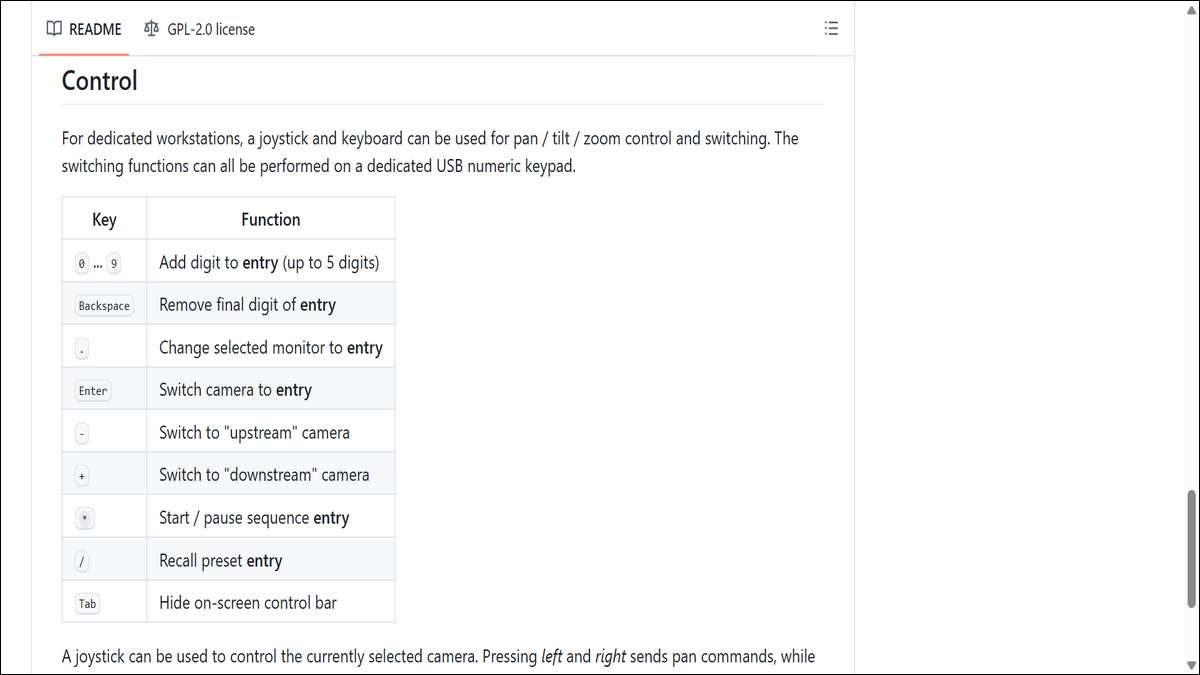
- Joystick Support: Map inputs for pan-tilt-zoom on cameras. USB keypads work for quick stream switches.
- Playlists: Automate feed cycling with dwell times, controlled via UDP or IRIS.
- Custom Sinks: Use XVIMAGE as a fallback if VA-API isn’t available.
These features make MonStream adaptable for complex setups, like surveillance hubs needing dynamic controls.
Real-World Use Cases
MonStream excels in professional settings. Here are some examples:
- Traffic Management: Display 2×3 grids of road cameras, integrated with IRIS for incident response.
- Security: Use 3×3 grids for camera feeds, with Motion JPEG for instant alerts.
- Broadcast: Show MPEG4 feeds on monitor walls for production oversight.
- Education: Stream unicast lectures to control room displays for monitoring.
Each case uses MonStream’s low latency and grid flexibility to improve operations.
Hardware and Best Practices
For MonStream, use a Linux PC with an Intel i5 or better and a dedicated GPU. Large HDMI monitors work best for grids. Ensure Gigabit Ethernet for multicast setups.
Best practices include:
- Back up configurations regularly.
- Segment your network for security.
- Test under load to confirm stability.
- Monitor hardware temps for 24/7 use.
These steps keep your system reliable and efficient.
Troubleshooting Tips
If MonStream hits a snag, try these fixes:
- Stream Drops: Check UDP ports and firewall settings. Verify multicast routing.
- Laggy Grids: Lower stream resolution or enable VA-API.
- Format Errors: Update GStreamer plugins or transcode sources.
- Control Issues: Review IRIS logs for missed UDP commands.
Check logs in /var/lib/monstream for clues. Restarting as the monstream user often resolves minor issues.
Also read: RDP Tuning: Tips for Low-Latency Sessions
Why MonStream Matters
In summary, MonStream is a reliable, open-source tool for live video monitoring. Its grid displays, format support, and integration with systems like IRIS make it ideal for control rooms or surveillance. You get low-latency streaming and customizable layouts without the cost of proprietary tools.
Give MonStream a try if you need to monitor multiple feeds efficiently. It’s not for every scenario, but for real-time video tasks, it’s a solid choice. Check out its GitHub page or community forums to get started and connect with other users.
FAQ: MonStream for Live Video Monitoring
A. MonStream is an open-source application for displaying live video on dedicated monitors. It supports unicast and multicast streams in formats like MPEG2, MPEG4, H.264, and Motion JPEG, with customizable grid layouts like 2×2 or 2×3.
A. It’s ideal for professionals in control rooms, security, traffic management, or broadcast settings. If you need to monitor multiple live video feeds reliably, MonStream is a great fit.
A. MonStream handles MPEG2 for legacy systems, MPEG4 for HD streaming, H.264 for efficient modern setups, and Motion JPEG for low-latency security feeds.
A. Install it on a Linux system (like Fedora or Ubuntu) with GStreamer libraries. Clone the GitHub repository, build with Make, and run as a dedicated user. Configure grids and streams via command-line options or UDP controls.
A. Yes, it supports multi-monitor setups with grid layouts like 2×3 or 3×3. Ensure your display server (X11 or Wayland) supports full-screen output for best results.
A. Unicast sends video to one device, ideal for single feeds. Multicast sends one stream to multiple devices, saving bandwidth in group setups like control rooms.
A. It pairs with systems like IRIS for traffic management, using UDP commands to switch streams or adjust grids remotely, making it versatile for enterprise use.
A. Its open-source nature, low-latency streaming, and flexible grids make it cost-effective and reliable for professional monitoring, unlike proprietary tools with higher costs.
A. Enable VA-API for GPU acceleration, prioritize video traffic with QoS policies, and use H.264 for efficient streaming. Monitor logs to troubleshoot issues.
A. Check the GitHub repository (mnit-rtmc/monstream) or community forums for tutorials, updates, and support. The IRIS documentation also offers insights for integration.