Fix ERR_CONNECTION_RESET: 15+ Solutions for Windows, Mac, Android & Server-Side
You’re trying to open a website, and instead of that page, you see this error: “This site can’t be reached. The connection was reset.”
It’s annoying, right? Well, this error is called ERR_CONNECTION_RESET, and it basically means your browser tried to connect to a server, but something cut the connection before it could finish. The good news is that you can fix it in most cases within a few minutes.
Now, in this guide, we’ve put together every known fix across Windows, Mac, Android, iOS, and Chromebook. We’ve also included solutions for website owners and developers who need to troubleshoot from the server side.
So, whether you’re a casual user or running a business site, you’ll find what you need to fix this error here, right in this comprehensive guide.
What ERR_CONNECTION_RESET Actually Means
ERR_CONNECTION_RESET happens when a TCP RST packet terminates an active connection.
To put it simply, your browser started talking to the server, and then something sent a reset signal to terminate the connection. That’s different from a timeout, where no one answers at all.
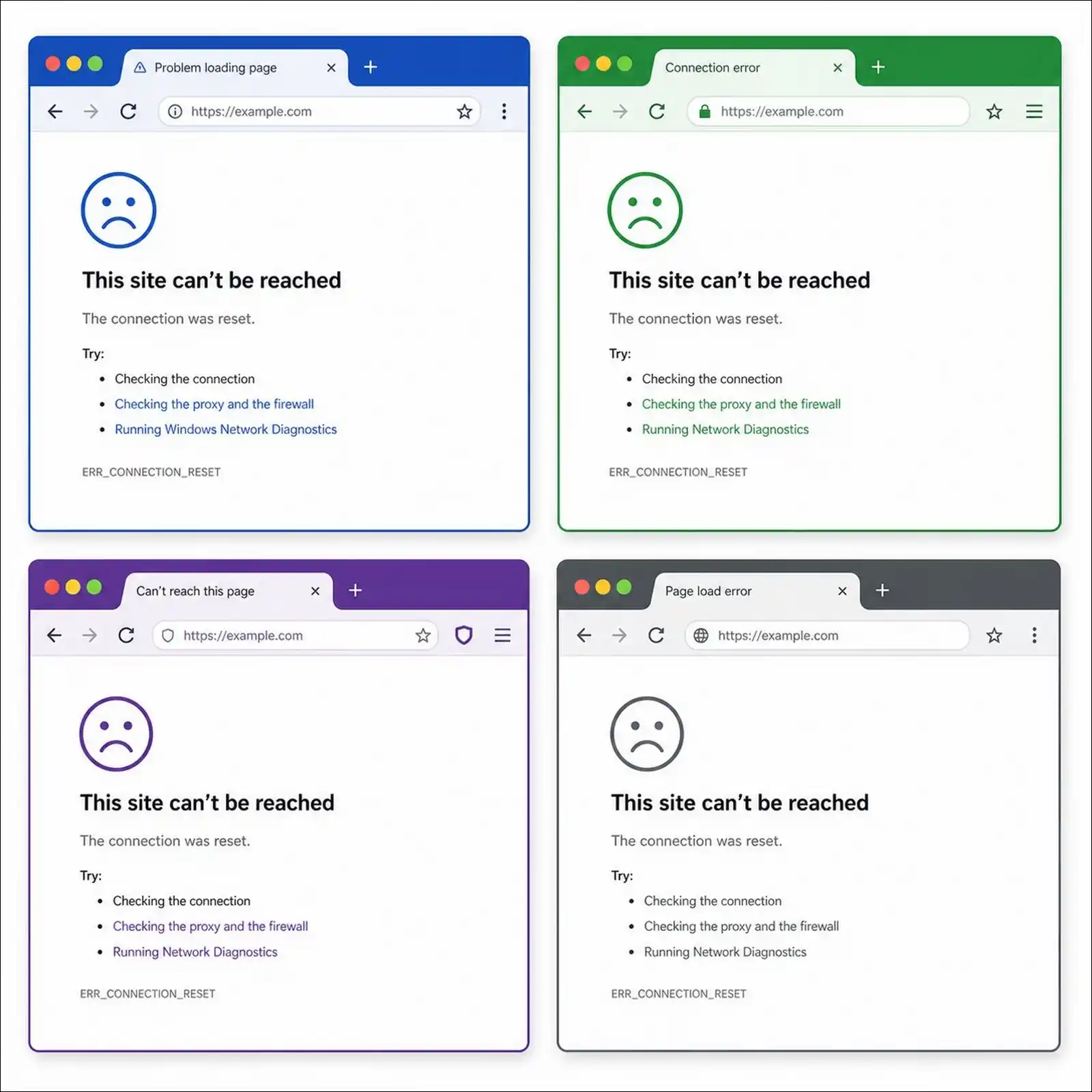
So, how does it look? Well, the error shows up differently depending on your browser:
| Browser | Message You See | Error Code |
|---|---|---|
| Chrome | “This site can’t be reached” | ERR_CONNECTION_RESET or NET::ERR_CONNECTION_RESET |
| Edge | “Hmmm… can’t reach this page” | ERR_CONNECTION_RESET |
| Firefox | “The connection was reset” | PR_CONNECT_RESET_ERROR |
| Safari | “Safari can’t establish a secure connection to the server” | No numeric code shown |
Why the Reset Happens
It usually happens because something actively refused your connection.
More specifically, the most common sources are your firewall, antivirus, VPN, proxy, ISP, or the website’s server itself. The reset is a deliberate action, not a random failure.
Also read: How to Fix ERR_CACHE_MISS
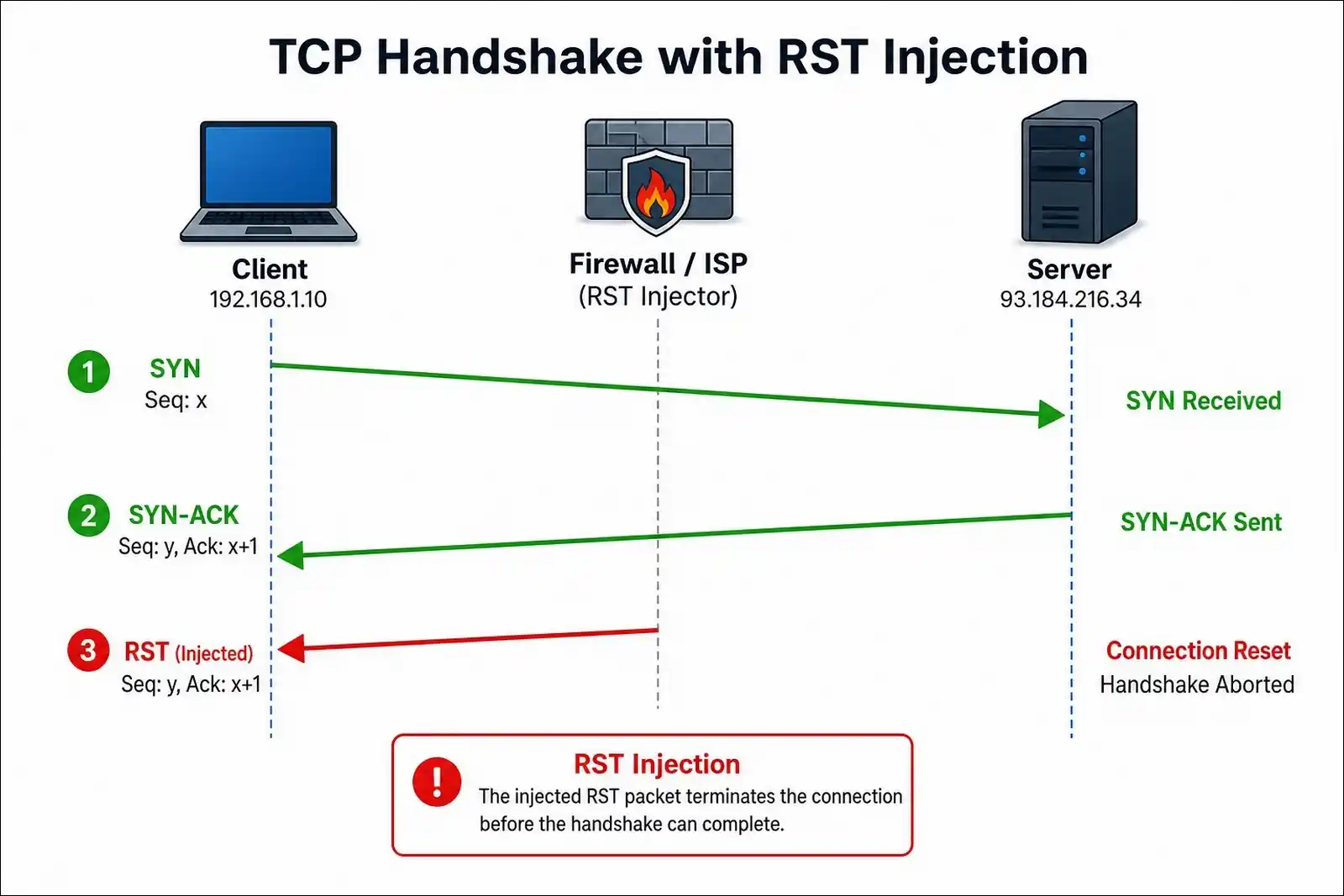
Here’s an important detail, though: your data isn’t exposed by a connection reset. The TCP RST tears down the connection but doesn’t decrypt or intercept your traffic.
However, ISPs that use SNI-based filtering can see the hostname during the TLS handshake, but the encrypted content stays private. So, this is a connectivity event, not a security breach.
Quick Fixes You Should Try First
There are simple steps to resolve ERR_CONNECTION_RESET that work about 80% of the time.
So, before you try anything advanced, it’s worth starting here. You might be surprised how often the basics work.
1. Refresh the Page and Wait
Sometimes the simplest fix does the trick. Here’s what you can try:
- Press Ctrl + R on Windows or Cmd + R on Mac to refresh.
- If that doesn’t work, wait 30 to 60 seconds and try again.
- You can also press Ctrl + Shift + N (Chrome) or Cmd + Shift + N (Safari) to open an incognito or private window.
- Try loading the page in that private window.
If the page loads in incognito mode, the problem is likely your browser cache or an extension. In that case, you can move on to clearing your cache below.
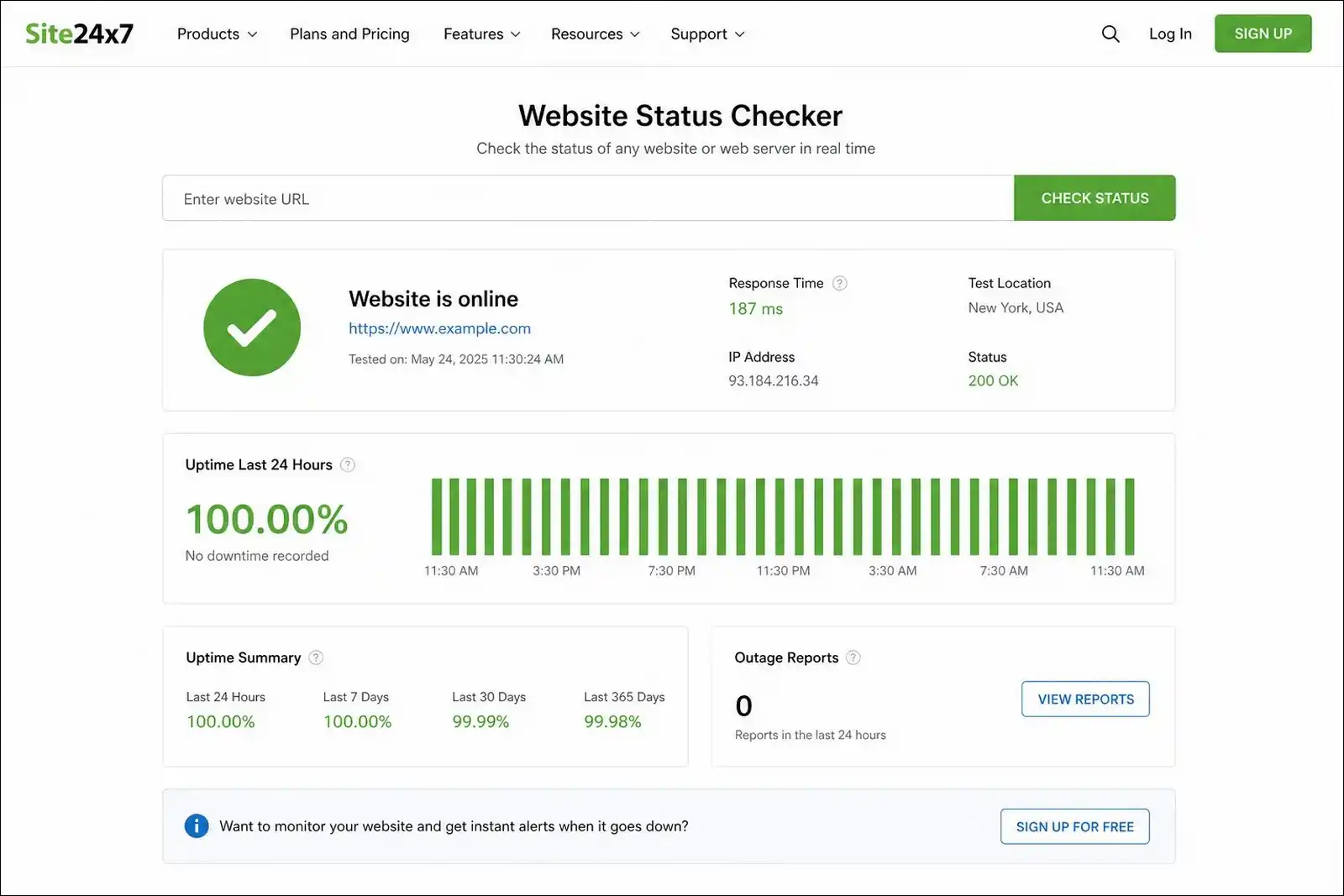
2. Check if the Website Is Down for Everyone
Before you move to troubleshooting, it’s worth checking whether the problem is even on your end. Sometimes it’s the website itself that’s having issues.
- Visit downdetector.com or isitdownrightnow.com.
- Enter the website URL.
- If the site reports outages, the issue is on the server side. Unfortunately, you can only wait for them to fix it.
3. Restart Your Router and Device
This works when you find that the website is up and working on other networks.
Performing a router restart clears temporary data stored in RAM and resets network conflicts. It’s a quick fix that works more often than you’d think.
- Power off your router or modem.
- Wait at least 30 seconds.
- Turn it back on and wait for it to reconnect.
- Restart your computer or phone as well.
- Try loading the page again.
If you can, it’s a good idea to test the same website on a different device connected to the same network. That way, you’ll know whether the problem is your device or the network itself.
4. Clear Your Browser Cache and Cookies
Corrupt or outdated cached files are one of the most common causes of ERR_CONNECTION_RESET. So, clearing them forces your browser to fetch fresh data from the server.
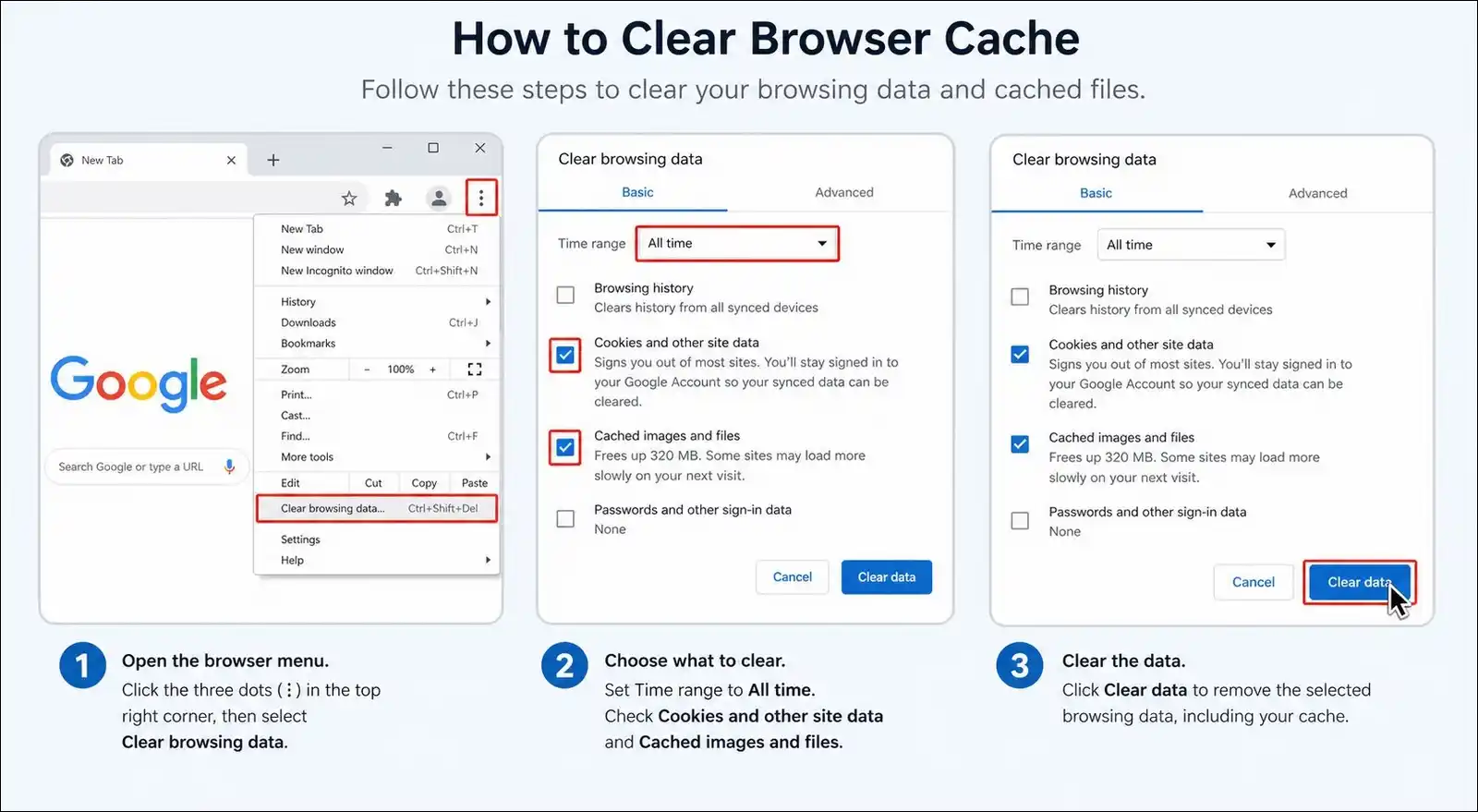
Google Chrome:
- Click the three-dot menu in the top right corner.
- Select Delete Browsing Data.
- Set the time range to All time.
- Check the boxes for Cookies and other site data and Cached images and files.
- Click Delete data.
Microsoft Edge:
- Click the three-dot menu, then Settings.
- Go to Privacy, search, and services.
- Under Clear browsing data, you can click Choose what to clear.
- Set time range to All time and select all categories.
- Click Clear now.
Firefox:
- Click the menu button and select Settings.
- Go to Privacy & Security.
- Under Cookies and Site Data, click Clear Data.
- Check both boxes and click Clear.
Safari:
- Click Safari in the menu bar.
- Select Clear History.
- Choose All History and click Clear History.
One thing to keep in mind: This will sign you out of all websites. However, your bookmarks and saved passwords will stay intact.
Network and Connection Fixes
If the quick fixes didn’t work, the problem is likely in your network settings.
Don’t worry though; the steps below address the most common network-level causes, and they’re not as complicated as they look.
5. Disable VPN or Proxy Temporarily
VPNs and proxies can cause ERR_CONNECTION_RESET in two ways.
Their servers might be overloaded, or the encrypted tunnel might break mid-connection. That said, a VPN can also fix the error if your ISP is throttling specific sites. So, it’s worth testing both with and without.
- Disconnect from your VPN app completely. Don’t just pause it.
- If you’re using a VPN browser extension, you can disable it at
chrome://extensionsor the equivalent in your browser. - Reload the page.
- If the page loads, the VPN was the cause. You might want to try a different server location or contact your VPN provider.
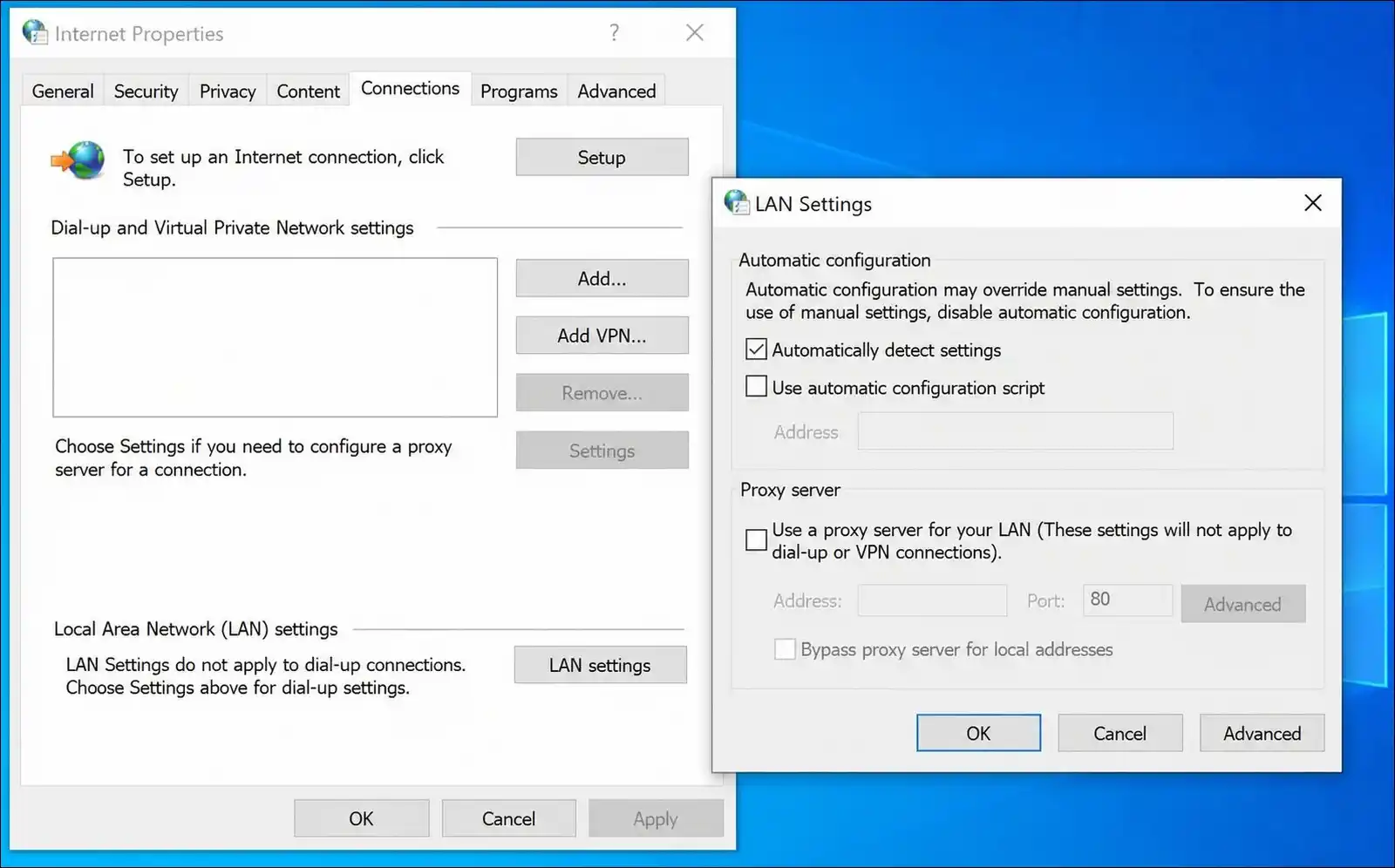
To disable a proxy on Windows:
- Press Win + R, type
inetcpl.cpl, and press Enter. - Go to the Connections tab and click LAN settings.
- Uncheck Use a proxy server for your LAN.
- Make sure Automatically detect settings is checked.
- Click OK and restart your browser.
To disable a proxy on Mac:
- Open System Settings and click Network.
- Select your active connection and click Details.
- Click Proxies and turn off all proxy options.
- Click OK.
6. Flush DNS and Reset TCP/IP
A corrupted DNS cache or TCP/IP stack can break connections to specific websites.
When that happens, flushing both forces your system to rebuild them from scratch.
According to Microsoft’s networking documentation, this is one of the most effective ways to resolve persistent connection issues.
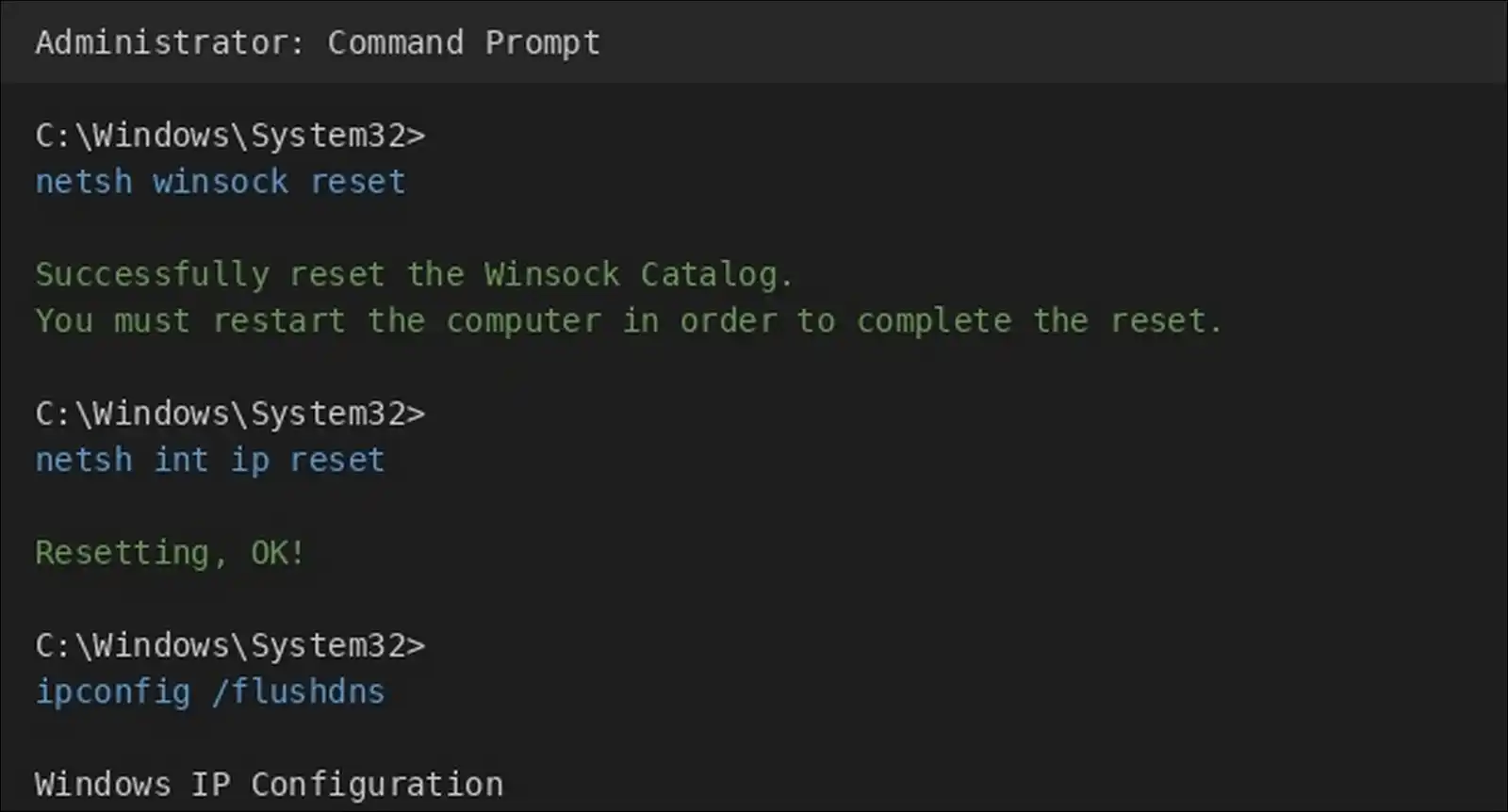
On Windows (run Command Prompt as Administrator):
- Press Win + S, type
cmd. - Right-click Command Prompt and select Run as administrator.
- Run these commands one at a time, pressing Enter after each:
netsh winsock reset
netsh int ip reset
ipconfig /release
ipconfig /renew
ipconfig /flushdns- Restart your computer.
On Mac (run Terminal):
- Open Terminal from Applications > Utilities.
- Run these commands:
sudo dscacheutil -flushcache
sudo killall -HUP mDNSResponder- Enter your admin password when prompted.
- Restart your computer.
On Linux/Ubuntu:
- Open Terminal with Ctrl + Alt + T.
- Run these commands:
sudo dhclient -r
sudo dhclient- Restart your computer.
When should you use this fix? It’s most effective when ERR_CONNECTION_RESET affects all websites, not just one.
7. Change Your DNS Server
Your ISP’s default DNS server might be slow, outdated, or even blocking certain domains. That’s why switching to a public DNS server often resolves the issue.
| Provider | Primary DNS | Secondary DNS |
|---|---|---|
| 8.8.8.8 | 8.8.4.4 | |
| Cloudflare | 1.1.1.1 | 1.0.0.1 |
| OpenDNS | 208.67.222.123 | 208.67.220.123 |
On Windows:
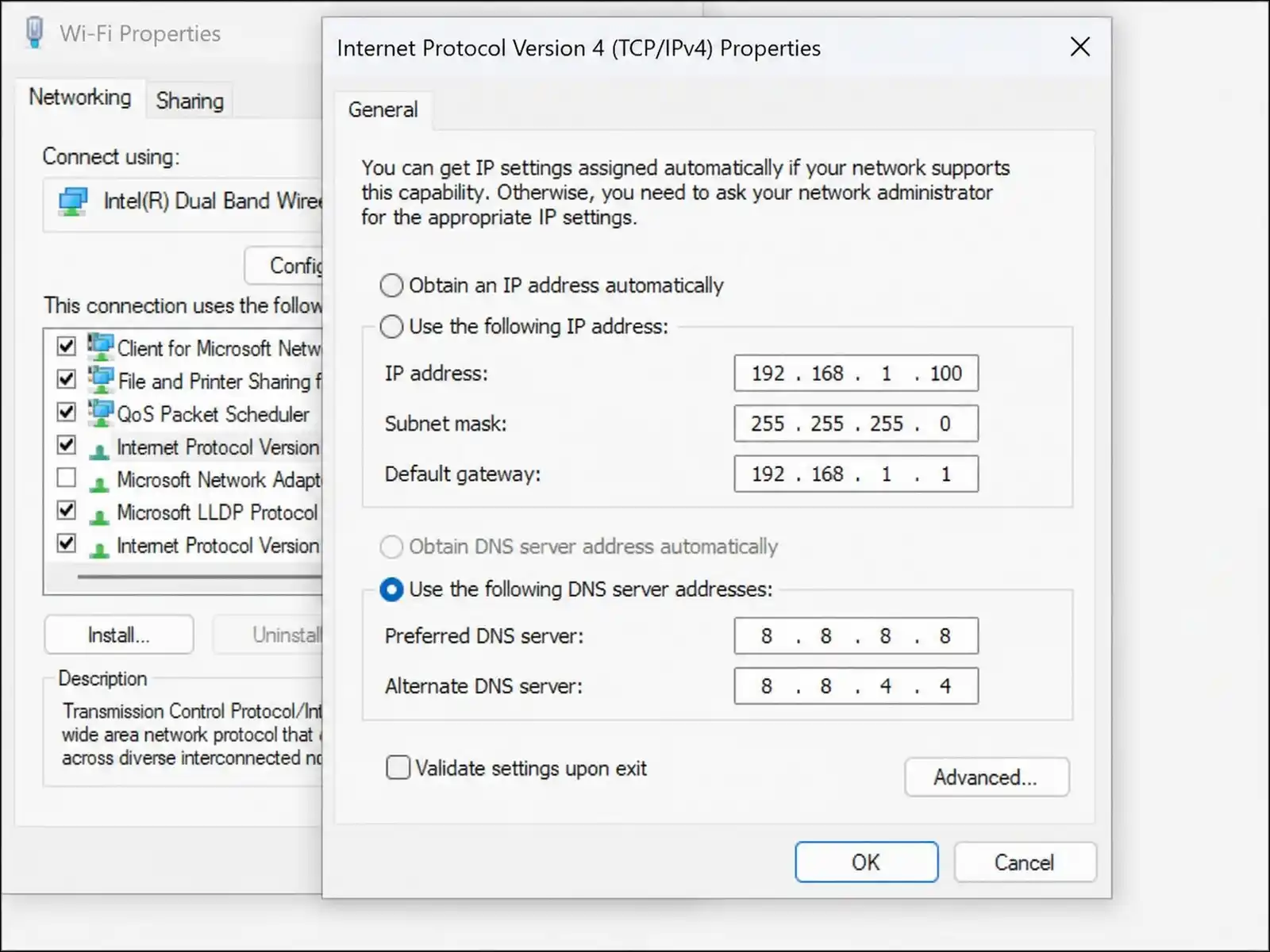
- Press Win + R, type
ncpa.cpl, and press Enter. - Right-click your active network adapter and select Properties.
- Select Internet Protocol Version 4 (TCP/IPv4) and click Properties.
- Select Use the following DNS server addresses.
- Enter the primary and secondary DNS from the table above.
- Click OK and restart your browser.
On Mac:
- Open System Settings > Network.
- Select your connection, click Details, then DNS.
- Click the + button and add the DNS addresses.
- Click OK.
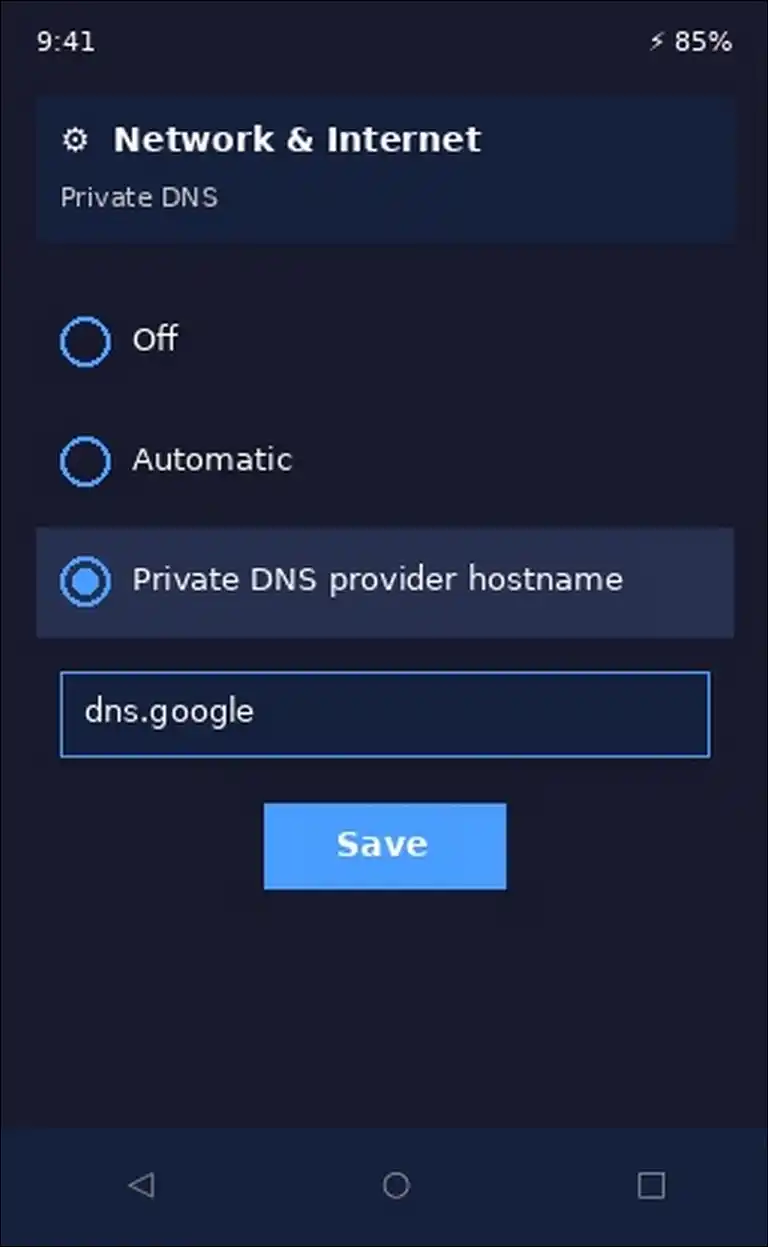
On Android:
- Go to Settings > Network & Internet > Private DNS.
- Select Private DNS provider hostname.
- Enter
dns.googleorone.one.one.one. - Tap Save.
On iOS:
- Go to Settings > Wi-Fi.
- Tap the (i) icon next to your network.
- Tap Configure DNS > Manual.
- Remove existing entries and add the new DNS addresses.
8. Temporarily Disable Firewall and Antivirus
Your firewall or antivirus might be blocking connections it mistakenly identifies as unsafe.
You can test this by turning them off to see if that’s the issue.
Windows Defender Firewall:
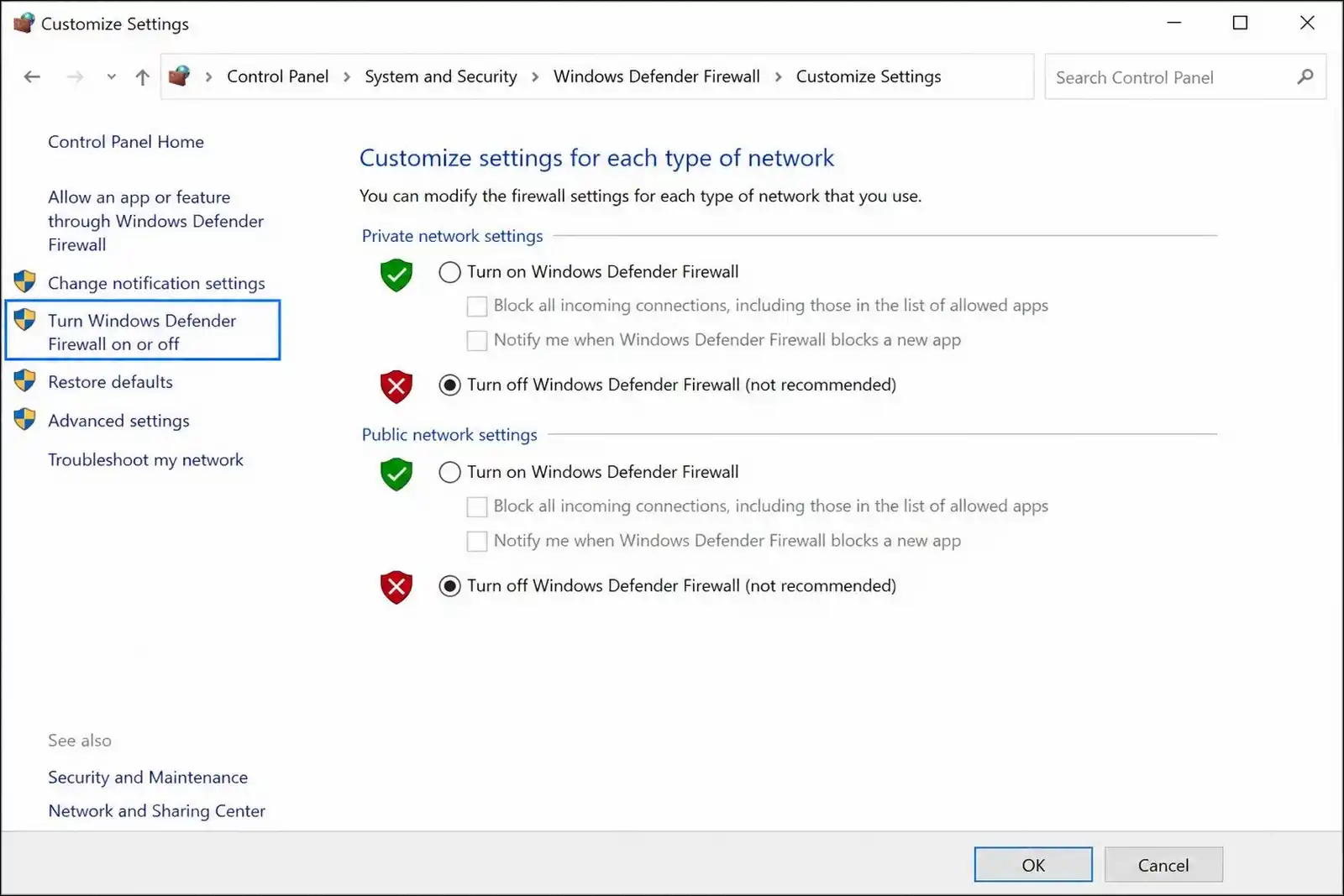
- Press Win + R, type
firewall.cpl, and press Enter. - Click Turn Windows Defender Firewall on or off on the left.
- Select Turn off Windows Defender Firewall for both Private and Public networks.
- Click OK and test the website.
Third-party antivirus (Avast, Norton, McAfee, Kaspersky):
- Open your antivirus application.
- Find the web shield or firewall module.
- You can disable it temporarily.
- Test the website.
Important: You should turn your firewall and antivirus back on immediately after testing. If disabling them fixed the error, the better approach is to add the website as an exception in your security software instead of leaving protection off.
Advanced Fixes for Persistent Issues
The fixes below address less common but stubborn causes.
If the above solutions didn’t resolve the error, these are worth trying next. They’re a bit more technical, but we’ve broken them down step by step.
9. Disable IPv6
Some ISPs don’t properly support IPv6, which can cause connection resets on Chromium-based browsers in return.
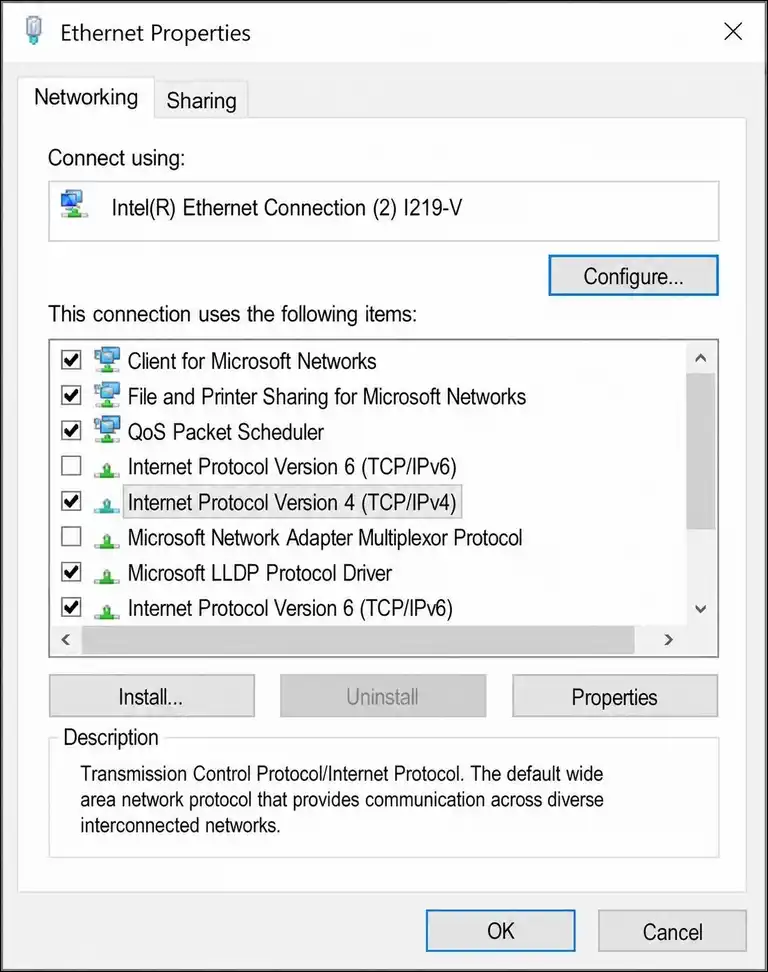
For instance, users on Brave community forums reported that disabling IPv6 fixed ERR_CONNECTION_RESET on both Brave and Edge.
- Press Win + R, type
ncpa.cpl, and press Enter. - Right-click your active network adapter and select Properties.
- Uncheck Internet Protocol Version 6 (TCP/IPv6).
- Click OK and restart your browser.
10. Adjust MTU (Maximum Transmission Unit) Size
If ERR_CONNECTION_RESET only happens during large file downloads or video streaming, the MTU size is likely the problem.
Small requests succeed, but full-size packets get dropped by a middlebox device. As a result, the connection resets mid-transfer.
- Open Command Prompt as Administrator.
- Find your active network connection name by going to Settings > Network & Internet > Ethernet or Wi-Fi.
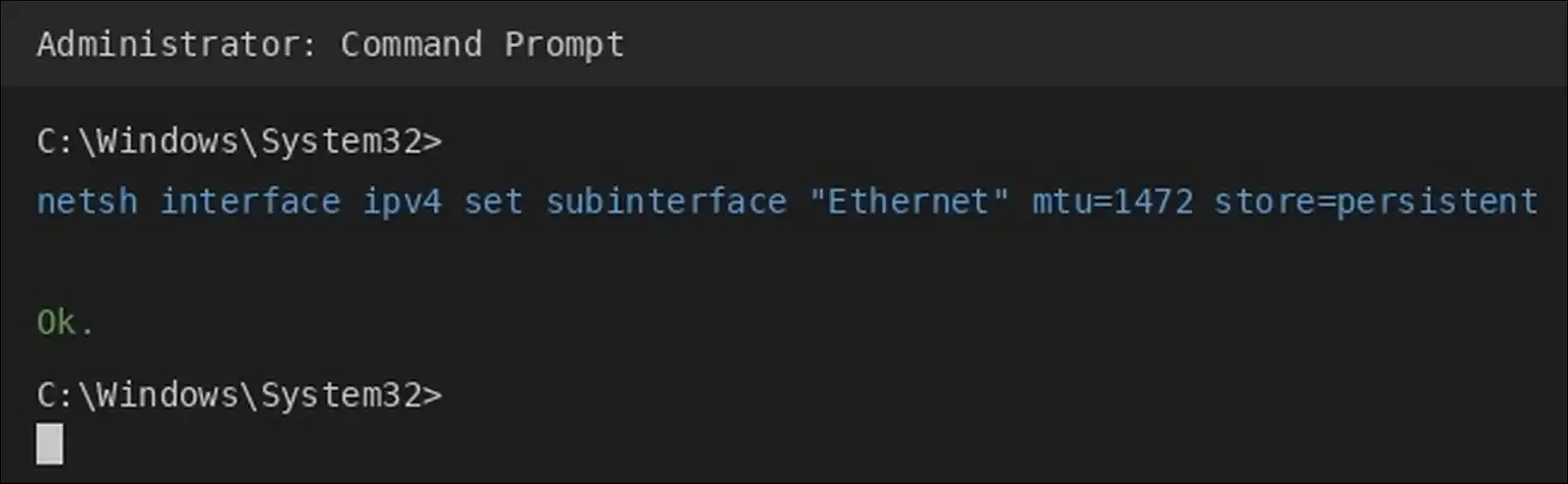
- Run this command, replacing “Ethernet” with your connection name:
tnetsh interface ipv4 set subinterface "Ethernet" mtu=1472 store=persistent
- Restart your computer and test again.
11. Disable TCP Offload Engine (After Windows 11 KB5086672 Update)
A Windows 11 update released in April 2026 (KB5086672) introduced incompatibilities with TCP Offload Engine (TOE) features on some network adapters.
Because of this, many users started seeing ERR_CONNECTION_RESET errors out of nowhere, as reported in multiple Microsoft community threads.
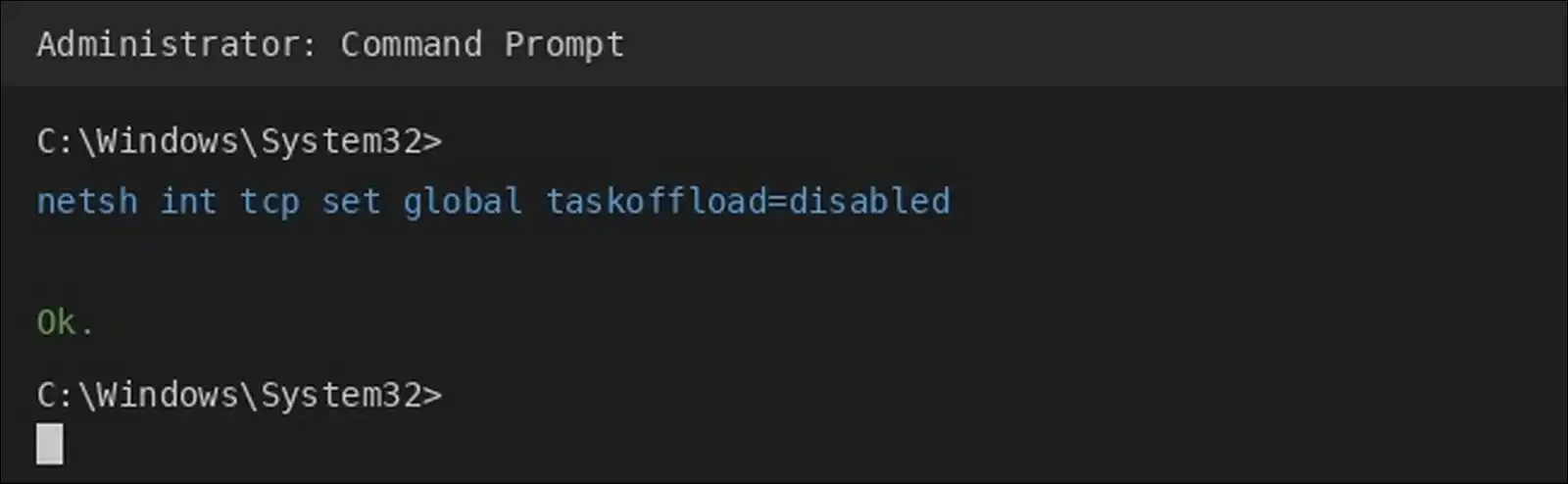
Now, high-end network interface cards use TOE to handle network processing on the hardware chip. The KB5086672 patch conflicts with this feature, which is why disabling it can help.
- Open Command Prompt as Administrator.
- Run this command:
netsh int tcp set global taskoffload=disabled- Restart your computer.
You might also want to disable network adapter power management:
- Open Device Manager.
- Expand Network adapters.
- Right-click your adapter and select Properties.
- Go to the Power Management tab.
- Uncheck Allow the computer to turn off this device to save power.
- Click OK.
If the error persists after this, you can uninstall the KB5086672 update:
- Go to Settings > Windows Update > Update history.
- Scroll to Related settings and click Uninstall updates.
- Find KB5086672 and click Uninstall.
Also read: Reinstall/Repair Windows 11 25H2 Without Losing Files
12. Disable ECNCapability
Some ISPs drop packets marked with ECN (Explicit Congestion Notification), which causes ERR_CONNECTION_RESET.
This is a bit of a hidden issue, but it’s well documented.
For example, a user on Appuals reported that this fix resolved the issue across 250+ server systems running Windows Server 2012 and 2016, specifically on the Windstream ISP network.
- Open Command Prompt as Administrator.
- Run this command:
netsh int tcp set global ecncapability=disabled- Restart your computer.
13. Adjust TCP Autotuning Level
If you’ve disabled TCP autotuning in the past, it might be causing throttling that leads to connection resets. Setting it to experimental mode can resolve this, and it’s a fix that’s been verified by my users.
- Open Command Prompt as Administrator.
- Run this command:
netsh interface tcp set global autotuninglevel=experimental- Restart your computer.
A quick warning: You shouldn’t set autotuninglevel to “disabled.” That can actually make throttling worse, which is the opposite of what you want.
14. Perform a Full Network Reset
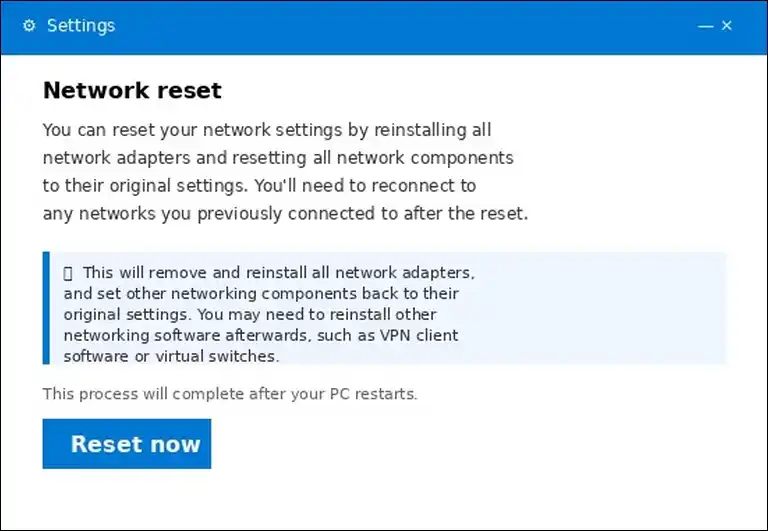
Basically, a network reset removes all network adapters and resets every setting to default.
It’s the most aggressive client-side fix, so you’d want to try the other steps first. But if nothing else has worked, this is your best bet.
On Windows 11:
- Go to Settings > Network & Internet.
- Click Advanced network settings.
- Click Network reset.
- Click Reset now and confirm.
- Your PC will restart.
On Windows 10:
- Go to Settings > Network & Internet > Status.
- Scroll down and click Network reset.
- Click Reset now and confirm.
On Mac:
- Open System Settings > Network.
- Select your connection, click Details, then TCP/IP.
- Click Renew DHCP Lease.
- Click OK.
One thing to note: After a network reset, you’ll need to reconnect to all Wi-Fi networks and re-enter passwords. VPN clients and virtual switches might need reinstallation too.
Also read: FixWindows 0xc004f015, 0x70 Issues
Browser-Specific Solutions
If ERR_CONNECTION_RESET only happens in one browser, the issue is browser-specific. In that case, you can try the steps below for your particular browser.
Google Chrome
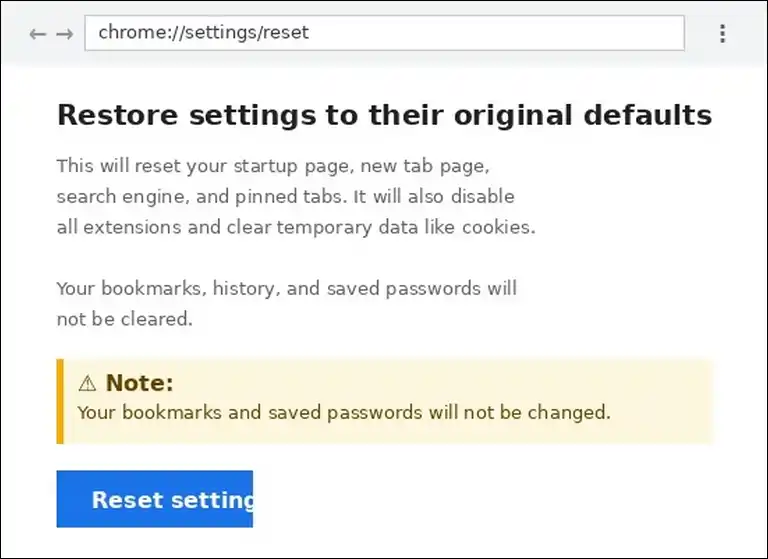
You can reset Chrome settings to default, which often resolves browser-specific connection issues:
- Type
chrome://settings/resetin the address bar and press Enter. - Click Restore settings to their original defaults.
- Click Reset settings to confirm.
You can also clear Chrome’s internal DNS cache:
- Type
chrome://net-internals/#dnsin the address bar. - Click Clear host cache.
If you suspect an extension is causing the problem, here’s how to check:
- Type
chrome://extensionsin the address bar. - Toggle off all extensions.
- Test the website.
- Re-enable extensions one by one to find the one causing the problem.
What gets reset: Extensions are disabled, temporary data is cleared, settings return to defaults.
What stays intact: Bookmarks, saved passwords, and browsing history.
Microsoft Edge
- Press Ctrl + Shift + N to open an InPrivate window.
- Test the website in InPrivate mode.
- If it works, type
edge://extensionsin the address bar. - Disable all extensions and test again.
- Re-enable extensions one by one to identify the problematic one.
Mozilla Firefox
- Type
about:supportin the address bar. - Click Refresh Firefox on the right side.
- Confirm the refresh.
This removes extensions and restores default settings while keeping bookmarks and passwords.
Safari
- Click Safari in the menu bar, then Settings.
- Go to the Extensions tab and uncheck all extensions.
- Test the website.
- Go to Privacy and click Manage Website Data.
- Click Remove All and confirm.
Mobile Device Solutions (Android and iOS)
ERR_CONNECTION_RESET on mobile devices happens for the same reason as on desktop, but the methods to fix it are different.
So, here are the specific steps for each platform.
Android
Step 1: Isolate the problem by switching networks.
- Turn off Wi-Fi and switch to mobile data.
- Try loading the website.
- If it works on mobile data, your Wi-Fi network is the problem. You can restart your router.
- If it fails on both, the issue is with your device.
Step 2: Clear Chrome cache and data.
- Go to Settings > Apps > Chrome > Storage.
- Tap Clear Cache first.
- If that doesn’t work, tap Clear Data (this signs you out of Chrome).
Step 3: Reset network settings.
- Go to Settings > System > Reset Options.
- Tap Reset Wi-Fi, mobile & Bluetooth.
- Confirm and restart your device.
For Samsung devices:
- Go to Settings > General Management > Reset.
- Tap Reset Network Settings.
- Confirm and restart.
Step 4: Check for Private DNS.
- Go to Settings > Network & Internet > Private DNS.
- If it’s set to a custom hostname, change it to Automatic.
- Test the website again.
iOS and iPadOS
Step 1: Clear Safari data.
- Go to Settings > Safari.
- Tap Clear History and Website Data.
- Confirm.
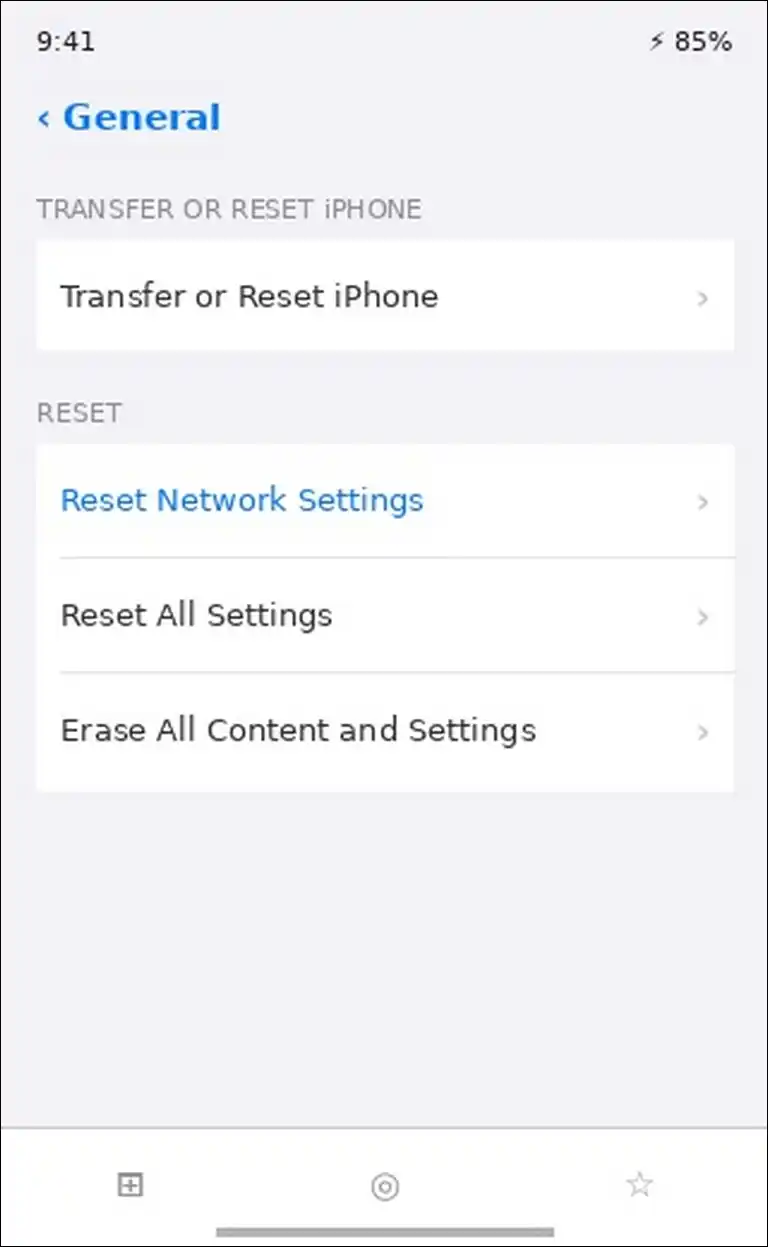
Step 2: Reset network settings.
- Go to Settings > General > Transfer or Reset iPhone.
- Tap Reset > Reset Network Settings.
- Enter your passcode and confirm.
- Your device will restart.
Step 3: Check VPN configuration.
- Go to Settings > General > VPN & Device Management.
- If a VPN is connected, you can disconnect it.
- Test the website.
Step 4: Verify Date & Time.
- Go to Settings > General > Date & Time.
- Make sure Set Automatically is turned on.
Chromebook Solutions
Chromebook users can fix ERR_CONNECTION_RESET by resetting Chrome settings or performing a Powerwash.
Here’s how you can do that:
You can reset Chrome settings like this:
- Type
chrome://settings/resetin the address bar. - Click Restore settings to their original defaults.
- Click Reset settings.
If that doesn’t work, a Powerwash (factory reset) is your last resort:
- Sign out of your Chromebook.
- Press and hold Ctrl + Alt + Shift + R.
- Click Restart.
- In the box that appears, click Powerwash and then Continue.
One important thing: Powerwash removes all local data. So, make sure your files are backed up to Google Drive before you proceed.
Server-Side Fixes for Website Owners and Developers
Now, for website owners and developers, the following fixes are really helpful ones.
If visitors report ERR_CONNECTION_RESET on your website, the problem might be on your server. Here’s how you can diagnose and fix it.
How to Tell If Your Server Is Causing the Reset
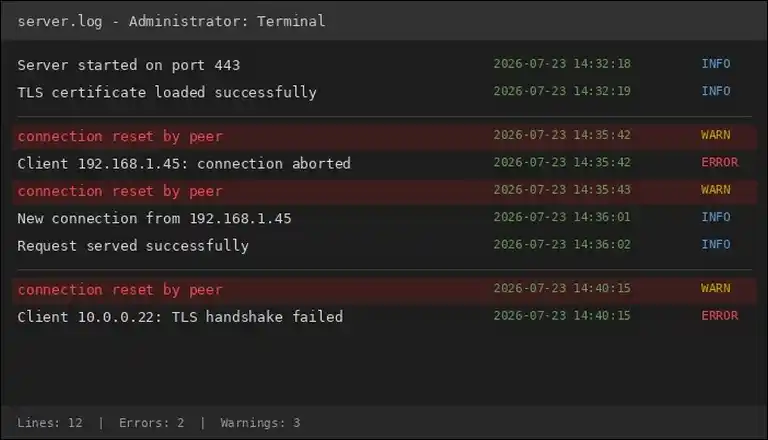
The first thing to check is your server logs for “connection reset by peer” entries. If you can match the timestamps to user-reported failures, that’s a strong indicator the issue is server-side.
You can test from outside your server using these commands:
curl -v https://yourdomain.com
ping yourdomain.com
traceroute yourdomain.com
The curl output will show if the connection is being reset during the TLS handshake or after data transfer begins. That distinction tells you whether the problem is at the firewall level or the application level.
Just like the following screenshot:
IIS and ASP.NET Fixes
If you’re running IIS, here’s what you can check first:
- Open services.msc and verify that World Wide Web Publishing Service (W3SVC) is running.
- Open IIS Manager and confirm that your website and its application pool are both in the Started state.
- Review your web.config file for application configuration errors.
- Check that your SSL certificate is valid, matches the domain, and uses modern encryption protocols.
One common mistake: If you access your server by IP address without an SSL certificate, HTTPS connections will fail. You’d want to use HTTP or set up a domain with a proper certificate.
Load Balancer and CDN Configuration
Firewalls, rate-limiting rules, and CDN settings can all cause ERR_CONNECTION_RESET for visitors. So, it’s worth reviewing each of these:
- Firewall rules: You can review them for over-blocking that rejects legitimate traffic.
- Rate limiting: Make sure thresholds aren’t too aggressive for normal browsing.
- SSL/TLS and SNI: Confirm the configuration is correct and certificates are valid.
- MTU and keepalive settings: Middleboxes might reset idle connections if keepalive intervals are too long.
Monitoring Recommendations
It’s a good idea to use an external uptime monitoring service to detect ERR_CONNECTION_RESET from multiple geographic locations.
Services like UptimeRobot, Pingdom, or Pulsetic can alert you when connections start failing or resetting, including resets that only affect certain regions.
ISP and Network Provider Issues
Your Internet Service Provider can cause ERR_CONNECTION_RESET in several ways. Understanding how they do it helps you find the right fix.
How ISPs Cause Connection Resets
- SNI-based filtering: During the TLS handshake, the hostname is sent in cleartext as part of the SNI (Server Name Indication) field. Some ISPs read this field and inject a TCP RST packet to block domains on their blocklist. This happens without decrypting the actual content, as explained in Cloudflare’s SNI documentation.
- Traffic throttling: Some ISPs throttle specific websites or services during peak hours. Because of this, you might see incomplete data transfers that trigger connection resets.
- ECN packet dropping: As mentioned in the advanced fixes section, some ISPs drop ECN-marked packets. The Appuals community documented this affecting Windstream ISP users across hundreds of systems.
- Routing problems: ISP routing issues to specific destinations can cause intermittent connection resets that come and go.
How to Test for ISP Issues
- Switch networks: Try mobile data instead of Wi-Fi. If the website loads on mobile data, your home network or ISP is the problem.
- Use a VPN: If the site loads through a VPN, your ISP is likely blocking or throttling it.
- Ask someone on a different ISP: Have a friend on a different internet provider test the same website.
- Change your DNS: Switch to Google DNS (8.8.8.8) or Cloudflare DNS (1.1.1.1) instead of your ISP’s DNS.
If your ISP is the cause, here are your options:
- You can keep a VPN active for the affected sites.
- You might want to contact your ISP to report the issue.
- Switching to a different ISP is a last resort, but sometimes it’s the only real fix.
ERR_CONNECTION_RESET vs Similar Errors
These errors look similar in the browser, but they have different causes and fixes. Knowing which one you have can cut your troubleshooting time in half.
| Error | What Happened | Cause | Who Fixes It |
|---|---|---|---|
| ERR_CONNECTION_RESET | Connection opened, then killed with TCP RST | Firewall, VPN, ISP blocking, server abort | User or website owner |
| ERR_CONNECTION_TIMED_OUT | No response at all; packets silently dropped | Server offline, firewall DROP rule, network failure | User or website owner |
| ERR_CONNECTION_REFUSED | Server actively rejected the connection | Nothing listening on port, firewall REJECT rule | Usually website owner |
| ERR_NAME_NOT_RESOLVED | DNS could not resolve the domain name | DNS misconfiguration, unregistered domain | User or website owner |
| ERR_CONNECTION_ABORTED | Connection dropped after data started flowing | Mid-transfer interruption | User or website owner |
Here’s a quick shortcut to remember:
- Timeout means silence. No one answered.
- Refused means a fast rejection. Something said no immediately.
- Reset means the connection started but was killed mid-transfer.
How to Prevent ERR_CONNECTION_RESET from Coming Back
If you want to prevent this error from happening again, there are simple maintenance tips that you could follow. It doesn’t take much time, and it can save you from dealing with the same problem again.
Regular Maintenance Schedule
| Frequency | Task |
|---|---|
| Weekly | Clear browser cache and cookies |
| Monthly | Flush DNS cache (ipconfig /flushdns on Windows) |
| Quarterly | Update network adapter drivers |
| As needed | Update router firmware, update browser |
| Annually | Review firewall and antivirus exceptions |
Best Practices
VPN configuration:
- You can use a reputable VPN provider with multiple server locations.
- Consider configuring split tunneling so trusted sites bypass the VPN.
- It’s a good idea to keep VPN software updated.
Antivirus and firewall:
- You might want to add frequently visited and trusted websites as exceptions.
- You shouldn’t leave protection disabled permanently.
DNS settings:
- You can use a fast public DNS like Google or Cloudflare.
- Consider enabling DNS-over-HTTPS for additional privacy.
Network adapter:
- You have the option to disable power management for your network adapter (Device Manager > Network Adapters > Properties > Power Management).
- It’s worth keeping network drivers updated through Windows Update or the manufacturer’s website.
For website owners:
- You can monitor server uptime with external monitoring services.
- It’s helpful to review server logs monthly for connection reset patterns.
- Consider auditing firewall and CDN rules quarterly.
- You might want to set up SSL certificate expiration alerts.
Frequently Asked Questions
Is ERR_CONNECTION_RESET caused by a virus or malware?
No, the error itself isn’t caused by malware. However, malware can modify network settings that contribute to the problem. If you suspect an infection, you can run a full system scan with a reputable antivirus tool.
Can my ISP cause ERR_CONNECTION_RESET?
Yes, absolutely. ISPs can cause this error through SNI-based filtering, traffic throttling, ECN packet dropping, or routing problems. You can test by switching to mobile data or using a VPN. If the website loads through a different connection, your ISP is likely involved.
Why does the website work on mobile data but not on Wi-Fi?
A device on your Wi-Fi network is actively resetting the connection. This could be your router, a parental control tool, or your ISP’s home connection throttling. Restarting your router is the first step. If that doesn’t help, you can check for firmware updates or contact your ISP.
Will resetting Chrome delete my saved passwords and bookmarks?
No, it won’t. Chrome reset preserves bookmarks and saved passwords. It disables extensions, clears temporary data, and restores settings to their original defaults.
Is ERR_CONNECTION_RESET the same as “connection reset by peer” in server logs?
Yes, they’re two views of the same TCP RST event. The browser displays ERR_CONNECTION_RESET. The server, curl, or a proxy logs “connection reset by peer” when the remote end sends the RST. Matching timestamps confirms which side initiated the reset.
Why does ERR_CONNECTION_RESET only happen on certain websites?
Something in your configuration blocks or interferes with connections to those specific servers. Common causes include VPN or firewall rules blocking specific IP addresses, cached data specific to that site, outdated DNS records for that domain, or your ISP blocking those domains.
Can browser extensions cause ERR_CONNECTION_RESET?
Yes, they can. Ad blockers, security extensions, and VPN or proxy extensions can intercept requests and terminate connections. You can test by opening the website in an incognito window where extensions are disabled. If the page loads, re-enable extensions one by one to find the one causing the problem.
Does ERR_CONNECTION_RESET mean my data was intercepted?
No, it doesn’t. A TCP RST tears down the connection but doesn’t expose or decrypt your traffic. The SNI hostname is visible during the TLS handshake, but the encrypted payload remains private. So, a reset is a connectivity event, not a confidentiality breach.
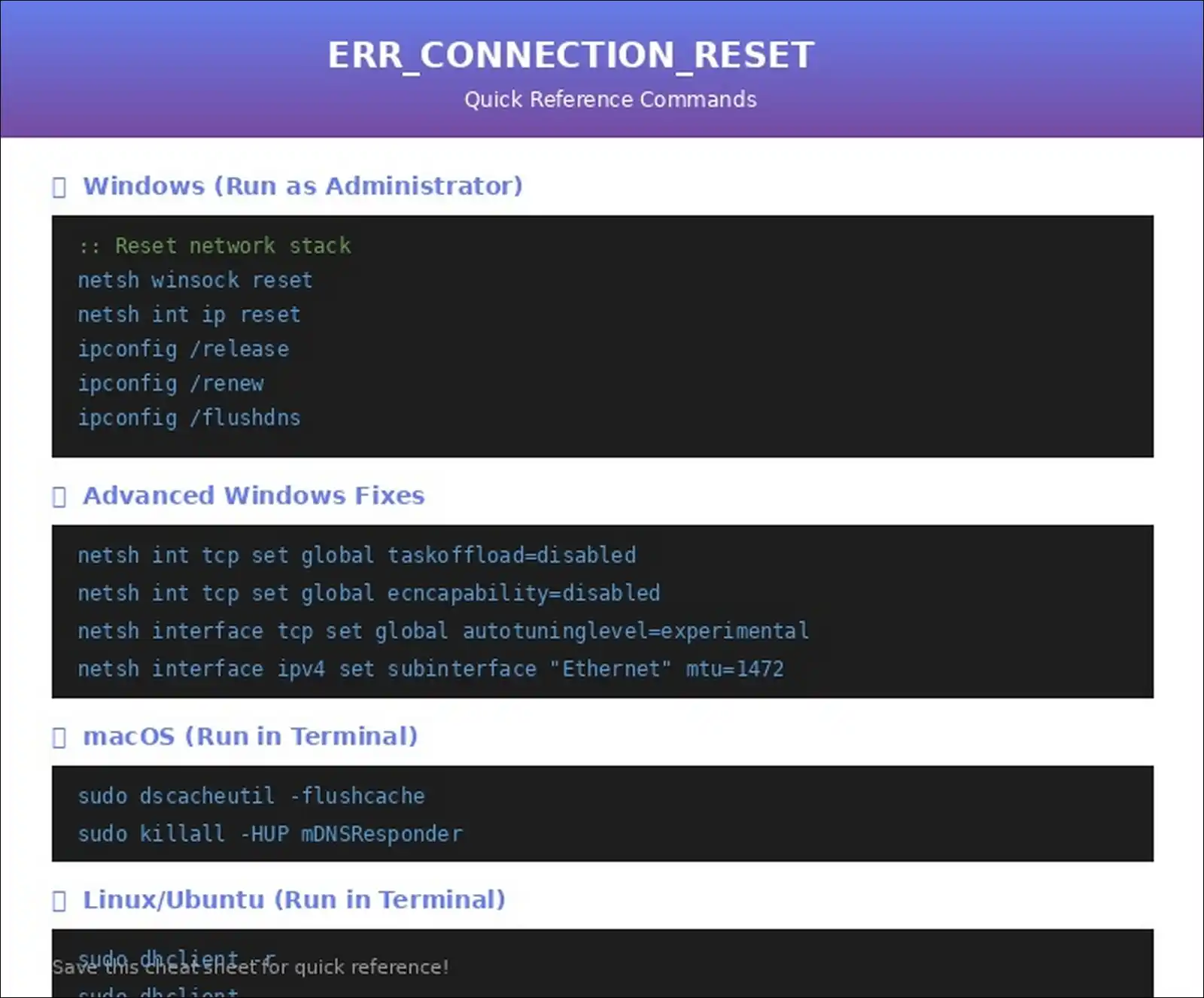
Quick Reference: All Commands in One Place
Windows (run Command Prompt as Administrator):
netsh winsock reset
netsh int ip reset
ipconfig /release
ipconfig /renew
ipconfig /flushdns
netsh int tcp set global taskoffload=disabled
netsh int tcp set global ecncapability=disabled
netsh interface tcp set global autotuninglevel=experimental
netsh interface ipv4 set subinterface "Ethernet" mtu=1472 store=persistent
Mac (run Terminal):
sudo dscacheutil -flushcache
sudo killall -HUP mDNSResponder
Linux/Ubuntu (run Terminal):
sudo dhclient -r
sudo dhclient
Chrome quick links:
chrome://settings/reset
chrome://net-internals/#dns
chrome://extensions
This article was last updated on July 23, 2026. If you’ve found a fix that worked for you and isn’t listed here, we’d love to hear about it. You can share it in the comments to help other readers.