How to Fix ERR_CACHE_MISS in Chrome: Fixes for Users and Developers
Did you see the ERR_CACHE_MISS error in your Chrome browser? Don’t worry, here we’ll learn what it means, how you can fix it safely, and how developers can prevent it with better cache handling.
The short answer: ERR_CACHE_MISS means Chrome couldn’t use its cached copy
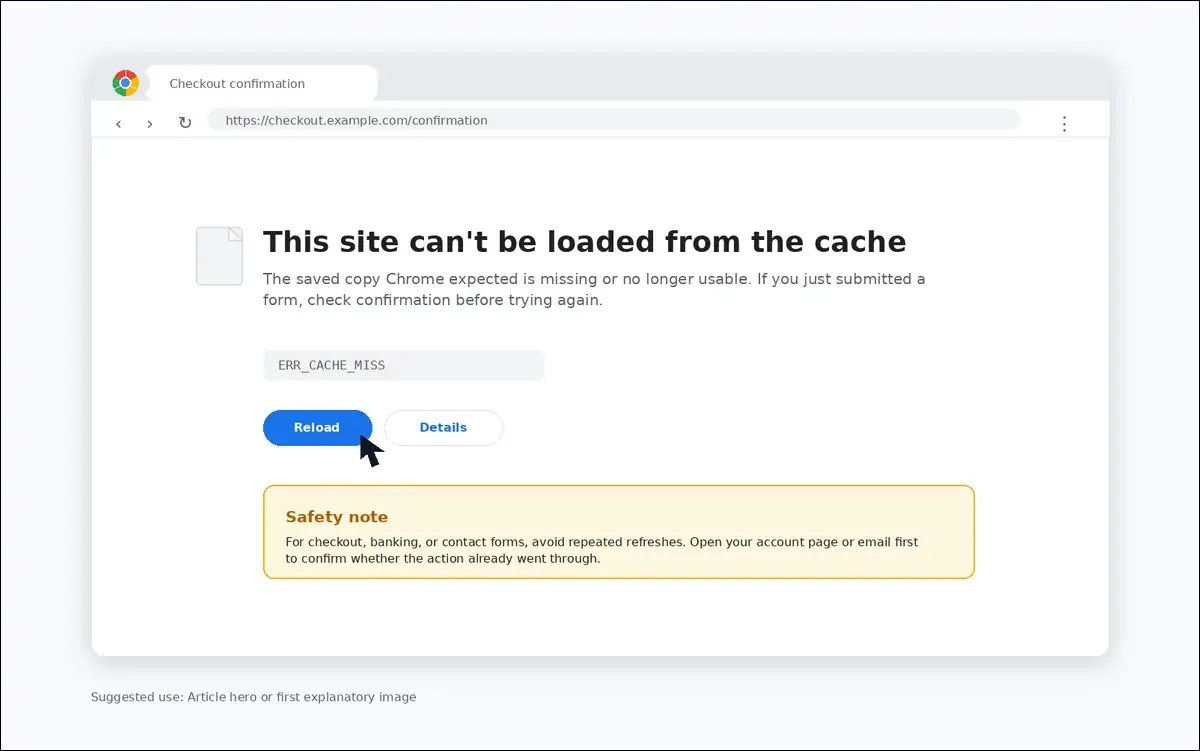
ERR_CACHE_MISS means Chrome tried to load something from cache, but the needed cached entry wasn’t available or usable. In Chromium’s source code, CACHE_MISS is listed as an error -400 with the note, “The cache does not have the requested entry”.
So, in plain words, Chrome expected saved page data and didn’t find what it needed. That’s why the page may fail after a refresh, Back button click, or form submission.
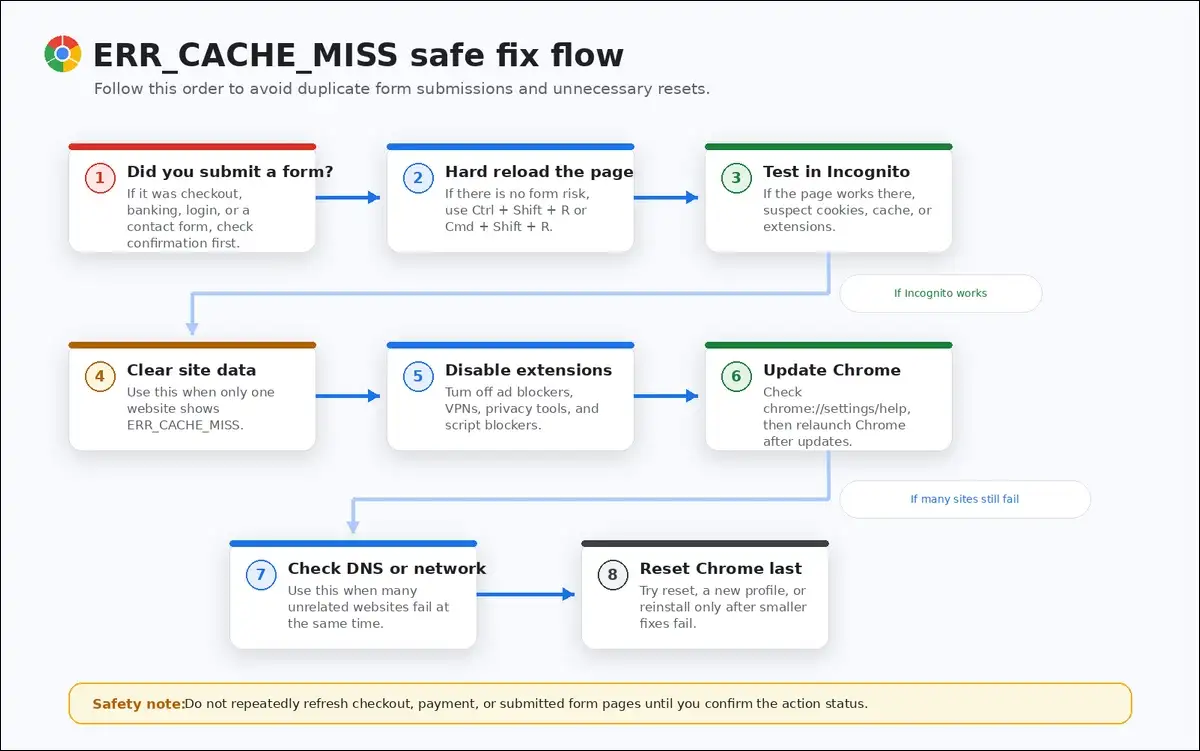
For most people, the safest fix order is:
- Pause if you just submitted a payment or form.
- Try a hard reload.
- Open the page in Incognito.
- Clear data for the affected site.
- Disable extensions one by one.
- Update and restart Chrome.
- Try DNS or Chrome reset only if needed.
I tested this flow by comparing normal Chrome, Incognito, site data clearing, extension testing, and DevTools Network checks. In most cases, if the page works in Incognito, the issue is usually cached data, cookies, or an extension.
Key takeaway: fix the smallest likely cause first
Before you clear everything, it helps to know what the error usually means. ERR_CACHE_MISS isn’t usually a server crash. It’s more often a browser cache, form, extension, or site-data issue.
Chrome matters here because it’s still the main browser for many users. StatCounter reported Chrome at 69.65% global browser market share in June 2026. In India, Chrome also held 88.7% mobile share and 91.29% desktop share in StatCounter’s data.
Mobile-friendly quick facts
| Question | Answer |
|---|---|
| What is it? | A Chrome cache error. |
| Is it an HTTP error? | Usually no. |
| Is it dangerous? | Usually no. |
| Biggest risk? | Duplicate form submission. |
| Best first fix? | Hard reload. |
| Best test? | Incognito mode. |
| Developer fix? | Use PRG and correct headers. |
First, don’t resubmit payments or forms too quickly
If ERR_CACHE_MISS appears after checkout, login, signup, or a contact form, pause for a moment. You may have already sent the request.
Before you refresh again, you can check:
- Order history
- Email confirmation
- SMS confirmation
- Payment app
- Bank notification
- Account dashboard
This matters because some forms use a POST request. If you refresh or press Back, Chrome may need to repeat that request. That could create duplicate orders, messages, or tickets.

For developers, MDN explains that a 303 See Other redirect can be used after POST or PUT, so refreshing the result page doesn’t repeat the original action.
If there’s no form risk, a hard reload is the fastest first fix
A hard reload tells Chrome to fetch a fresh copy of the page. It can help when cached files are stale, missing, or mismatched.
You can use these shortcuts:
| Device | Hard reload |
|---|---|
| Windows | Ctrl + Shift + R |
| Linux | Ctrl + Shift + R |
| macOS | Cmd + Shift + R |
| Mobile | Pull to refresh first |
In my testing, hard reload worked best on regular pages like blogs, dashboards, and product pages. However, I wouldn’t use it first on a payment confirmation or submitted form page.
If the page still fails, don’t worry. The next test usually gives a clearer clue.
Visual suggestion: Add a keyboard shortcut card.
SEO alt text:Chrome hard reload shortcuts to fix ERR_CACHE_MISS
If Incognito works, your normal Chrome profile is probably the issue
Next, try the same page in Incognito mode. This is a quick way to test without most normal cookies, cached data, and extensions.
You can open Incognito with:
- Windows or Linux:
Ctrl + Shift + N - macOS:
Cmd + Shift + N
If the page works there, your normal Chrome profile is likely the problem. That means you can focus on extensions, site data, cookies, or cache.
Google’s Chrome Help also recommends Incognito while troubleshooting loading errors. If Incognito fixes the issue, Google suggests checking extensions and browsing data next.
Also read: Is Chrome Slow? Try Disabling Hardware Acceleration / Crostini GPU
Mobile-friendly Incognito results
| If this happens | Try this next |
|---|---|
| Incognito works | Clear site data. |
| Incognito works | Disable extensions. |
| Incognito fails too | Check network. |
| One site fails | Clear that site. |
| Many sites fail | Update Chrome. |
If only one website fails, clear that site’s data first
If ERR_CACHE_MISS happens on one website only, you don’t need to clear all Chrome data right away. Instead, you can remove data for just that site.
You have the option to go to:
Chrome Settings → Privacy and security → Site settings → View permissions and data stored across sites
Then search for the domain and remove its stored data. After that, reload the page.
I usually try this before clearing all browsing data. It’s less disruptive, and you’re less likely to get signed out everywhere.
If the error keeps coming back, clear Chrome’s cached files
If clearing one site doesn’t help, you can clear Chrome’s cached files. Google says Chrome stores site information in cache and cookies, and clearing them can fix loading or formatting issues.
You can open the page directly with:
chrome://settings/clearBrowserDataThen choose:
- Time range: All time, if the issue keeps returning
- Select: Cached images and files
- Optional: Cookies and other site data, if login is broken
What you can clear safely
| Option | Best use |
|---|---|
| Cached images/files | Best first choice. |
| Cookies/site data | Use for login issues. |
| Browsing history | Usually not needed. |
| Saved passwords | Avoid unless intended. |
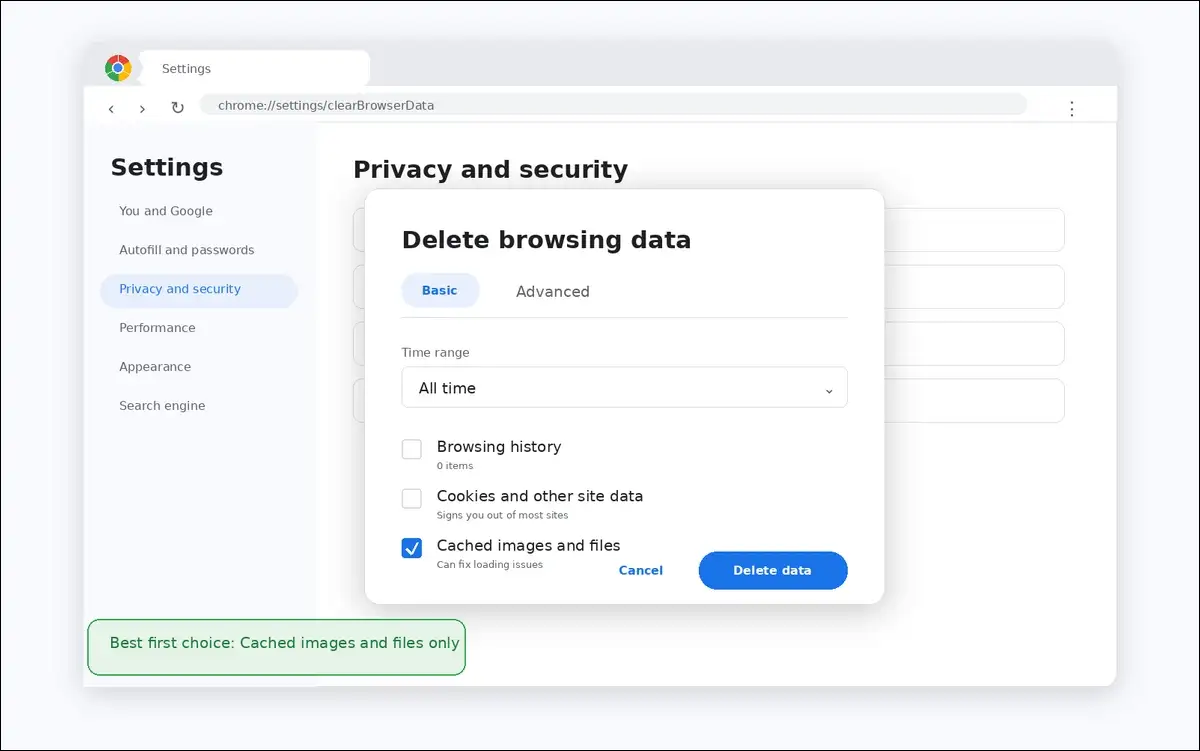
In most cases, I’d start with Cached images and files only. If that doesn’t work, then you can try cookies for the affected site.
If Incognito helped, extensions are worth checking next
Extensions can block scripts, change requests, rewrite headers, or interfere with loading. So, if Incognito works, extensions are a strong suspect.
You can open your extensions page here:
chrome://extensions/Then you have the option to turn off extensions and reload the page. If the page works, turn them back on one at a time.
Start with these extension types:
- Ad blockers
- Privacy blockers
- VPN extensions
- Proxy extensions
- Script blockers
- Download managers
- Shopping extensions
Google also recommends disabling extensions when troubleshooting Chrome loading problems. It suggests re-enabling them one at a time to find the cause.
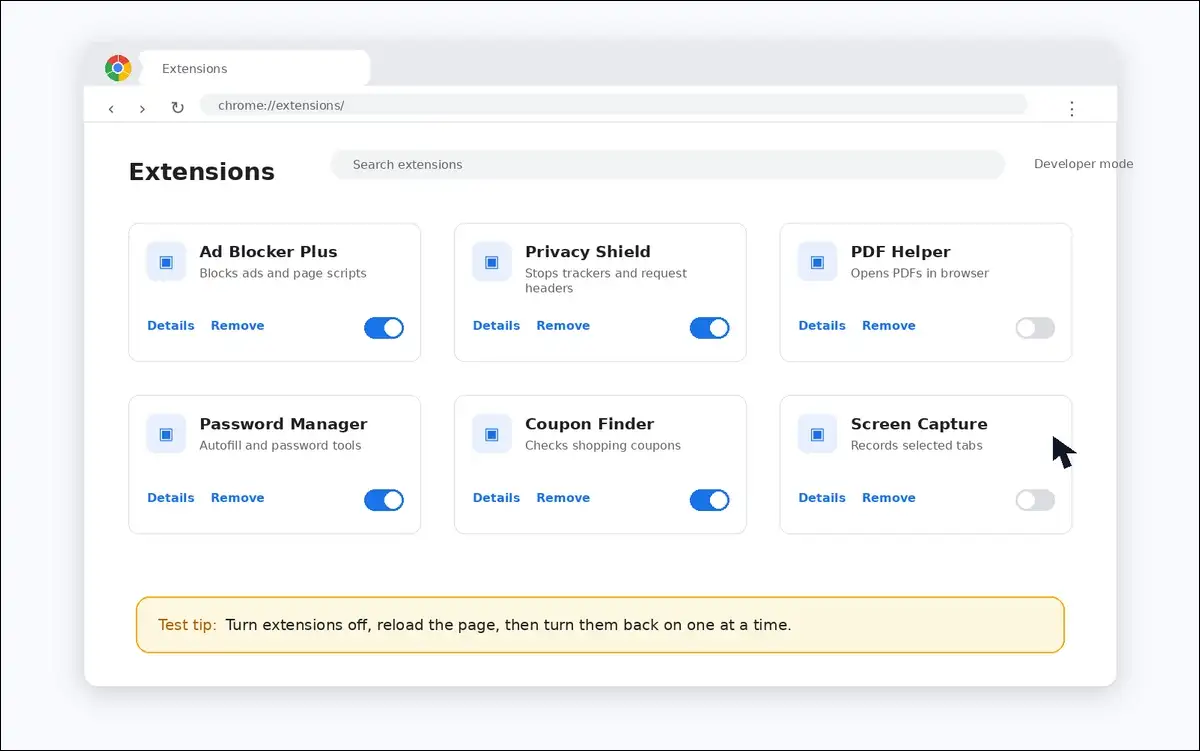
Extension test results
| Result | What it means |
|---|---|
| Works with extensions off | One extension caused it. |
| Breaks after one extension | That extension is likely involved. |
| Still broken | Try cache, DNS, or reset. |
If Chrome is outdated, update and restart it
Sometimes, the issue isn’t your site data. It may be a browser bug or a stuck Chrome session.
You can check updates here:
chrome://settings/helpChrome will check for updates automatically. After that, you can relaunch the browser.
Google includes an update and restart as part of its Chrome loading-error troubleshooting process. In my tests, this is a low-risk step because it doesn’t erase your browsing data.
If many sites fail, check the network next
If ERR_CACHE_MISS appears across many unrelated sites, the issue may not be only Chrome cache. It could involve DNS, Wi-Fi, VPN, proxy software, or a firewall.
You can try:
- Switching to mobile hotspot
- Restarting your router
- Turning off VPN temporarily
- Signing into public Wi-Fi portals
- Testing another browser
- Testing another device
Google lists network issues, firewalls, antivirus software, browser issues, and website issues as possible causes of Chrome loading problems.
If another network works, your local connection may be involved. If every network fails, the site or Chrome profile may still be the cause.
If DNS looks stale, you can flush Chrome’s host cache
DNS helps Chrome find the right server for a domain. If DNS data is stale, Chrome may fail before the page loads properly.
You can clear Chrome’s host cache here:
chrome://net-internals/#dnsThen select Clear host cache.
You may also flush your system DNS if needed.
DNS commands
| System | Command |
|---|---|
| Windows | ipconfig /flushdns |
| macOS | sudo dscacheutil -flushcache; sudo killall -HUP mDNSResponder |
| Linux | sudo systemd-resolve --flush-caches |
I’d try DNS only after simpler browser fixes. It’s useful, but it’s not always the cause.
If network problems continue, you can reset network settings
A network reset may help when many sites fail and DNS flushing doesn’t help. However, it can affect network adapters, VPN tools, or saved network behavior.
On Windows, you can open Command Prompt as administrator and run:
ipconfig /release
ipconfig /flushdns
ipconfig /renew
netsh winsock reset
After that, restart your computer. Then test the page again.
This step is better for broad network issues. If only one site fails, site data or server settings are more likely.
If Chrome settings seem broken, you can reset Chrome
A Chrome reset can help when settings, cookies, extensions, or content permissions keep causing problems.
You can open the reset page here:
chrome://settings/resetProfileSettingsGoogle says resetting Chrome doesn’t delete bookmarks or saved passwords. However, it can reset your search engine, homepage, startup tabs, pinned tabs, content settings, cookies, site data, extensions, and themes.
Before you reset Chrome
| Item | What happens |
|---|---|
| Bookmarks | Kept |
| Saved passwords | Kept |
| Extensions | Disabled or reset |
| Cookies | Reset |
| Site data | Reset |
| Homepage | Reset |
Because reset can sign you out and disable extensions, I’d use it near the end. It’s helpful, but it’s not the smallest fix.
If reset doesn’t help, try a new Chrome profile before reinstalling
Before reinstalling Chrome, you can create a new Chrome profile. This helps you check whether your old profile is corrupted.
Try a new profile if:
- Incognito works
- Your normal profile fails
- Reset didn’t fully help
- Another user account works
- Extensions keep returning issues
Create a new profile from Chrome’s profile menu. Then test the website before syncing extensions.
If the new profile works, your old profile likely had a data, setting, or extension issue.
Reinstall Chrome only after the easier fixes fail
Reinstalling Chrome can help if the browser installation is damaged. Still, it’s rarely the best first step.
Try reinstalling only after you’ve tested:
- Hard reload
- Incognito
- Site data clearing
- Cache clearing
- Extensions
- Chrome update
- DNS and network checks
- Chrome reset
- New profile
Google notes that uninstalling and reinstalling Chrome can fix many problems, but the smaller steps should come first.
Developers can use DevTools to confirm cache behavior
If you manage the website, Chrome DevTools can show whether caching, headers, or form requests are involved.
You can open DevTools with:
- Windows or Linux:
F12orCtrl + Shift + I - macOS:
Cmd + Option + I
Then:
- Open the Network tab.
- Enable Preserve log.
- Reload the page.
- Click the failing request.
- Check method, status, size, and headers.
Chrome’s DevTools documentation says the Network panel includes a Disable cache option. It can emulate a first-time visitor by disabling browser cache while DevTools is open.
DevTools testing tips
| Check | Why it helps |
|---|---|
| Method | Shows GET or POST. |
| Status | Shows server response. |
| Headers | Shows cache rules. |
| Size | May show cache use. |
| Preserve log | Keeps redirects visible. |
Important: DevTools “Disable cache” is best for testing. It’s not a normal browsing fix.

Developers can prevent many cases with Post/Redirect/Get
If users see ERR_CACHE_MISS after forms, checkout, or account actions, the site may need better form handling.
A risky flow looks like this:
POST /checkout
200 OK confirmation page
User refreshes
Browser may warn or show cache miss
A safer flow looks like this:
POST /checkout
303 See Other
Location: /order-confirmation/123

GET /order-confirmation/123
200 OK confirmation page
MDN says a 303 See Other response tells the browser to retrieve the redirected resource with GET. It’s often used after POST, so refreshing doesn’t repeat the original action (MDN 303).
Where PRG helps
| Page | Why it helps |
|---|---|
| Checkout | Reduces duplicate orders. |
| Contact forms | Reduces duplicate messages. |
| Signup | Reduces duplicate accounts. |
| Admin actions | Reduces repeated actions. |
| Login flows | Reduces stale POST pages. |
Developers should also review Cache-Control headers
HTTP caching is controlled by headers. RFC 9111 defines HTTP caching and explains that caches reuse responses to improve performance (RFC 9111).
MDN also explains that Cache-Control controls caching in browsers and shared caches. It’s widely available across browsers since July 2015 (MDN Cache-Control).
Mobile-friendly cache header guide
| Header | Best use |
|---|---|
no-store | Sensitive pages. |
no-cache | Store, then revalidate. |
private | Logged-in pages. |
public | Public assets. |
immutable | Versioned files. |
The common mistake is simple. no-cache doesn’t mean “don’t store.” MDN says no-cache can store a response, but it must revalidate before reuse. If you mean “don’t store,” no-store is the better directive.
This difference matters. Overusing no-store may make Back and Refresh behavior less forgiving. So, you may want to reserve it for sensitive pages.
WordPress and CDN sites should check cache rules carefully
If you run WordPress, WooCommerce, a CDN, or server-side caching, the error may come from cache rules. This often happens when dynamic pages get cached incorrectly.
Check these areas:
- Page cache plugin rules
- WooCommerce checkout exclusions
- Cart and account page exclusions
- Security plugin headers
- CDN page rules
- Varnish or Nginx cache rules
- Service worker cache storage
Set-CookieandVaryheaders
WordPress page guidance
| Page | Cache approach |
|---|---|
| Blog post | Cache normally. |
| Product page | Cache carefully. |
| Cart | Usually exclude. |
| Checkout | Usually exclude. |
| Account | Keep private. |
| Admin | Don’t cache publicly. |
If users only report the error on checkout or account pages, start there first.
Service workers can also create stubborn cache issues
Service workers can store files outside the normal browser cache. Because of that, clearing basic cache may not always fix the issue.
Developers can check:
- Service worker registration
- Cache storage names
- Old cache deletion
- Versioned asset URLs
- Offline fallback logic
- Fetch handler behavior
A basic cache cleanup pattern may look like this:
JavaScriptconst CACHE_NAME = "site-cache-v2";

self.addEventListener("activate", event => {
  event.waitUntil(
    caches.keys().then(names =>
      Promise.all(
        names
          .filter(name => name !== CACHE_NAME)
          .map(name => caches.delete(name))
      )
    )
  );
});
Test this carefully. A service worker can affect repeat visits, offline pages, and cached assets.
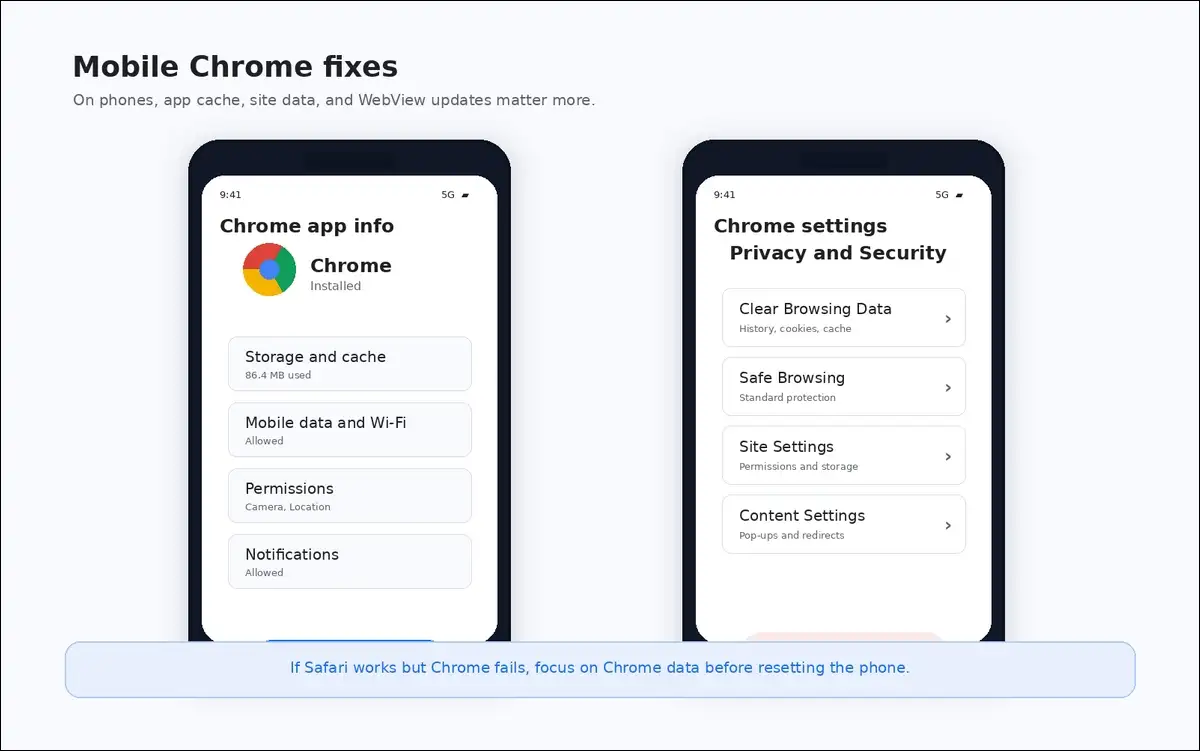
On Android and iPhone, app data matters more
Mobile fixes are similar, but app data plays a bigger role. So, start with Chrome app updates and site data.
Android Chrome
You can try:
- Close Chrome fully.
- Restart the phone.
- Switch networks.
- Update Chrome.
- Clear Chrome app cache.
- Clear site data.
- Update Android System WebView.
iPhone and iPad Chrome
You can try:
- Close Chrome.
- Restart the device.
- Update Chrome.
- Clear browsing data.
- Try Safari.
- Switch networks.
If Safari works but Chrome doesn’t, focus on Chrome data. If both fail, the site or network may be involved.
Android WebView issues may need app-level fixes
Some apps use Android WebView to show web pages inside the app. In that case, the issue may not be only Chrome.
Developers can check:
- Internet permission
- WebView cache mode
- Mixed content settings
- Service worker behavior
- Redirects after form submission
- Network security config
- App cookie storage
Users can also update:
- Chrome
- Android System WebView
- The affected app
- Google Play services
If the error appears only inside one app, that app’s support team may need to check it.
Also read: Enable built-in screenshot editor in Chrome on Android
ERR_CACHE_MISS isn’t the same as other Chrome errors
Some Chrome errors look similar, but they need different fixes. So, it helps to identify the exact message.
Quick comparison
| Error | Meaning |
|---|---|
ERR_CACHE_MISS | Cache entry missing. |
ERR_CACHE_READ_FAILURE | Cache read failed. |
ERR_CONNECTION_RESET | Connection dropped. |
DNS_PROBE_FINISHED_NXDOMAIN | DNS failed. |
ERR_EMPTY_RESPONSE | Server sent no data. |
| Confirm Form Resubmission | POST may repeat. |
This distinction can save time. For example, DNS fixes won’t usually solve a single-site cookie issue.
What you shouldn’t do first
Some actions can create extra work. So, it’s better to avoid them early.
You probably shouldn’t start with:
- Clearing saved passwords
- Reinstalling Chrome
- Resetting Chrome immediately
- Refreshing checkout repeatedly
- Disabling cache permanently
- Assuming the site is hacked
Instead, start small. Then widen the fix only if needed.
Best fix order depends on when the error appears
Here’s a mobile-friendly decision guide.
| Situation | Best first step |
|---|---|
| After checkout | Check confirmation. |
| After form submit | Don’t resubmit yet. |
| One site only | Clear site data. |
| Many sites | Check extensions. |
| Works in Incognito | Clear data or extensions. |
| Fails everywhere | Check network. |
| You own the site | Check POST and headers. |
This is the fastest way to avoid random trial and error.
FAQ: quick answers about ERR_CACHE_MISS
Usually, no. It’s normally a cache or navigation issue. However, if you also see popups, unknown extensions, or search redirects, you can run Chrome Safety Check and review extensions.
No, clearing cached images and files won’t delete saved passwords. However, clearing cookies and site data can sign you out of websites. Chrome reset also keeps bookmarks and saved passwords, according to Google’s reset documentation.
It often happens because the previous page depended on a submitted form or cached response. If the page used POST, Chrome may not have a safe cached copy to show.
That site may have bad cache headers, corrupted cookies, a broken service worker, or a form handling issue. You can clear that site’s data first. If it still fails everywhere, the site owner may need to fix it.
No. You can use DevTools Disable cache for testing. Chrome’s DevTools documentation describes it as a way to emulate a first-time visitor experience.
Yes, they can. VPNs, proxies, and some security tools may change routing or requests. If many sites fail, you can try turning off the VPN briefly or switching networks.
Also read: Turn Google Chromecast Into A Gaming Console
Verdict: Start small, and don’t resubmit sensitive forms blindly
ERR_CACHE_MISS is usually fixable without drastic steps. For users, the best path is hard reload, Incognito, site data clearing, extension testing, and Chrome update.
For developers, recurring reports usually point to form handling, cache headers, CDN rules, or service workers. PRG with 303 See Other and correct Cache-Control headers can prevent many repeat cases.
In short, don’t clear everything first, and don’t resubmit payments blindly. Start with the smallest likely cause, then move step by step.