16 Best Stirling PDF Alternatives in 2026: Self-Hosted, Offline, and Professional PDF Tools Compared
Stirling PDF can be a great fit for self-hosted PDF work, but it isn’t the best option for everyone. The right alternative depends on where you want your files to stay, what you need to do with them, and how much setup you’re comfortable with.
Keeping that in mind, in this list, we compare 16 Stirling PDF alternatives for self-hosting, offline work, OCR, editing, forms, redaction, and everyday PDF jobs. We solely focus on practical differences, so you can narrow your shortlist without getting lost in feature checklists.
TL;DR: What Is the Best Stirling PDF Alternative?
BentoPDF is the closest privacy-first alternative, PDF24 Creator is a strong Windows toolbox, PDFsam Basic is ideal for offline page work, and Adobe Acrobat Pro fits advanced professional workflows.
So, your best choice comes down to the work you do most often.
A team handling confidential contracts won’t need the same thing as someone who only merges invoices every few weeks.
Choose the PDF tool that matches your workflow
Start with where your files need to stay. Then compare the tools that fit your editing, OCR, and privacy needs.
| Tool | Self-hosted | Offline | Text editing | OCR | Best fit |
|---|---|---|---|---|---|
| BentoPDF | ✓ Yes | ✓ Yes | ◐ Varies | ✓ Yes | Privacy-first browser workflows |
| PDF24 Creator | — No | ✓ Yes | ◐ Basic | ✓ Yes | Free Windows PDF tasks |
| PDFsam Basic | — No | ✓ Yes | — No | — No | Split, merge, and page organization |
| Adobe Acrobat Pro | — No | ✓ Desktop | ✓ Yes | ✓ Yes | Professional PDF workflows |
| Foxit PDF Editor | — No | ✓ Desktop | ✓ Yes | ✓ Yes | Business editing and signing |
| PDF-XChange Editor | — No | ✓ Yes | ✓ Yes | ✓ Yes | Advanced Windows editing |
Here’s the thing: The best Stirling PDF alternative usually isn’t the tool with the most features. It’s the one that handles your files in the right place and makes your regular jobs easier.
Why People Look for Stirling PDF Alternatives
Most people look for Stirling PDF alternatives because they want simpler offline use, deeper editing, stronger business controls, or a different privacy setup.
Stirling PDF can serve several audiences at once. It may work as a self-hosted utility suite, a browser-based workspace, or a team platform with integrations.
That flexibility is useful. Still, it can bring extra setup, especially if you’re managing containers, authentication, storage, updates, and internal access.
Others simply need deeper PDF features. They may want better OCR, fillable forms, document comparison, e-sign workflows, or stronger redaction tools.
Then there’s the local-use question. Some people don’t want to maintain a server or upload confidential files to a third-party service.
Stirling PDF’s Current Positioning Matters
While this tool remains capable, but its user limits and plan-based organizational features are worth checking before you standardize on it.
Stirling PDF’s official plan information says the Free tier supports five users. The Team tier supports 100 users before additional user blocks are added.
At the same time, its plan breakdown separates basic PDF tools from larger-organization features. External databases, clustering, S3 or database storage, and Prometheus monitoring are not included in every plan.
Enterprise also adds capabilities such as SAML2, audit logging, usage analytics, backup notifications, and offline activation. So, the right Stirling setup may depend as much on operations as PDF features.
Important Finding: Open-source visibility and day-to-day suitability aren’t the same thing. A tool can be popular and still be more infrastructure than your team wants to manage.
What an Alternative Needs to Replace
A good Stirling PDF alternative should match your actual PDF jobs, not just offer a long list of tools.
You can start by listing the tasks that take up most of your time. That may include merging, splitting, scanning, OCR, filling forms, signing, redacting, or converting documents.
From there, it helps to ask where your files need to be processed. Your answer might be a local desktop app, a browser, a cloud service, an internal server, or an air-gapped network.
You may also want to consider document sensitivity. A public worksheet, supplier invoice, legal contract, and medical record probably shouldn’t follow the same workflow.
Self-Hosted, Offline, Browser-Local, and Cloud Tools Are Not the Same
Self-hosted, offline, browser-local, and cloud PDF tools can all feel private, but they handle files in very different ways.
Many comparisons blend these terms. That can make it harder to tell whether a tool actually suits your privacy, compliance, or deployment needs.
A cloud tool usually sends your file to a provider’s servers. By contrast, a local desktop app generally processes the file on your own computer.
There’s another option, too. A browser-local tool may process files in your browser, although the app itself can still depend on externally delivered assets or updates.
If you need more control, a self-hosted tool can run on infrastructure you manage. Still, self-hosting alone doesn’t automatically make a setup air-gapped or compliance-ready.
| Processing model | Where the PDF is processed | Best for | Main thing to check |
|---|---|---|---|
| Vendor cloud | Provider infrastructure | Occasional convenience tasks | Upload, retention, and account policies |
| Browser-local | Your browser and device | Privacy-conscious individual work | External assets or dependencies |
| Local desktop | Your computer | Offline and local-only work | Device security and updates |
| Self-hosted server | Your own infrastructure | Team control and integrations | Authentication, backups, and maintenance |
| Air-gapped deployment | Isolated internal environment | Highly sensitive workflows | Local dependencies, updates, and licensing |
Browser-Local Processing Isn’t Automatically Air-Gapped
Browser-local tools can keep PDF processing on your device, but true isolation requires you to control the whole delivery setup.
As BentoPDF’s self-hosting documentation explains, its tools can process files locally in the browser and can also run on your own infrastructure through Docker or Podman.
Here’s the important part: BentoPDF’s documentation says Office conversion needs SharedArrayBuffer, cross-origin isolation, and a secure HTTPS context for networked access.
So, “files stay local” and “the environment is air-gapped” are related, but they’re not identical claims.
Note: “No upload” describes document handling. “Air-gapped” describes the broader environment. It’s worth checking both before you make a privacy promise.
Offline Desktop Tools Keep Things Simpler
Offline desktop tools may be the easiest route when you want local processing without running a server.
With a desktop tool, you usually don’t need to manage containers, reverse proxies, SSO, databases, backups, or user accounts.
That said, a simpler setup can mean fewer team controls. A desktop app may not offer centralized access management, audit trails, shared automation, or organization-wide reporting.
For individuals and small teams, that trade-off may be perfectly reasonable. For regulated teams, though, centralized controls may still matter more.
Self-Hosting Gives You Control, Not Automatic Security
Self-hosting can give you more control over files and settings, but your team also takes on the operational work.
A self-hosted PDF service may need authentication, encrypted traffic, backups, updates, logs, role controls, and clear file-retention rules.
From there, it helps to check how temporary files, original documents, OCR data, logs, and backups are handled.
Stirling PDF’s plan structure shows why this matters. Larger-team features, including clustering, external databases, monitoring, SAML2, and audit logging, can be tied to specific plan levels.
Comparison Table: 16 Stirling PDF Alternatives
The best comparison is task-based, because “editing a PDF” can mean adding a note, changing text, creating a form, running OCR, or permanently redacting information.
| Tool | Best for | Deployment style | Local or offline use | Self-hosting | Main strength | Main limitation |
|---|---|---|---|---|---|---|
| BentoPDF | Privacy-first PDF work | Browser-local and self-hosted | Yes | Yes | Broad local-processing toolkit | Advanced deployment takes care |
| PDF24 Creator | Free Windows toolbox | Desktop and web | Yes | No | Everyday PDF tasks and conversion | Windows-focused desktop use |
| PDFsam Basic | Page organization | Desktop | Yes | No | Split, merge, rotate, extract | Not a full editor |
| Adobe Acrobat Pro | Professional PDF workflows | Desktop and cloud ecosystem | Yes, for desktop work | No | Forms, OCR, comparison, redaction | Can be more than simple jobs need |
| Foxit PDF Editor | Business document workflows | Desktop, web, and mobile | Yes, depending on edition | No | Editing, forms, OCR, e-sign | Feature sets vary by plan |
| PDF-XChange Editor | Advanced Windows editing | Desktop | Yes | No | OCR, editing, forms, annotation | Windows-only |
| PDFgear | Free desktop editing | Desktop and browser | Yes | No | Existing-text editing and page tools | Browser and desktop tools differ |
| iLovePDF Desktop | Familiar daily PDF tasks | Desktop, web, and mobile | Yes | No | Offline conversion, merge, split, edit | Not a self-hosted platform |
| Smallpdf | Simple browser-first work | Cloud and apps | Depends on product | No | Easy everyday PDF tools | Not ideal for local-only policies |
| ONLYOFFICE PDF Editor | Team collaboration | Self-hosted and cloud | Depends on deployment | Yes | PDF work inside an office suite | May be more than standalone users need |
| Sejda Desktop | Polished local utilities | Desktop and cloud | Yes | No | Easy page work and editing | Free-use limits may apply |
| LibreOffice Draw | Occasional visual changes | Desktop | Yes | No | Open-source object-level edits | Layout fidelity can vary |
| Xournal++ | Handwriting and markup | Desktop | Yes | No | Stylus annotation and review | Not a full PDF editor |
| PDF Arranger | Visual page organization | Desktop | Yes | No | Reorder, crop, merge, rotate | Narrow feature set |
| Wondershare PDFelement | All-in-one paid editing | Desktop, mobile, and cloud | Yes, on desktop | No | Editing, forms, OCR, conversion | Proprietary licensing |
| ABBYY FineReader PDF | OCR-focused work | Desktop | Yes | No | Scan recognition and conversion | More specialized than basic tools |
Now, let’s discuss each tool thoroughly, and start with the best contender in our list, i.e BentoPDF.
1. BentoPDF: Best Closest Privacy-First Alternative
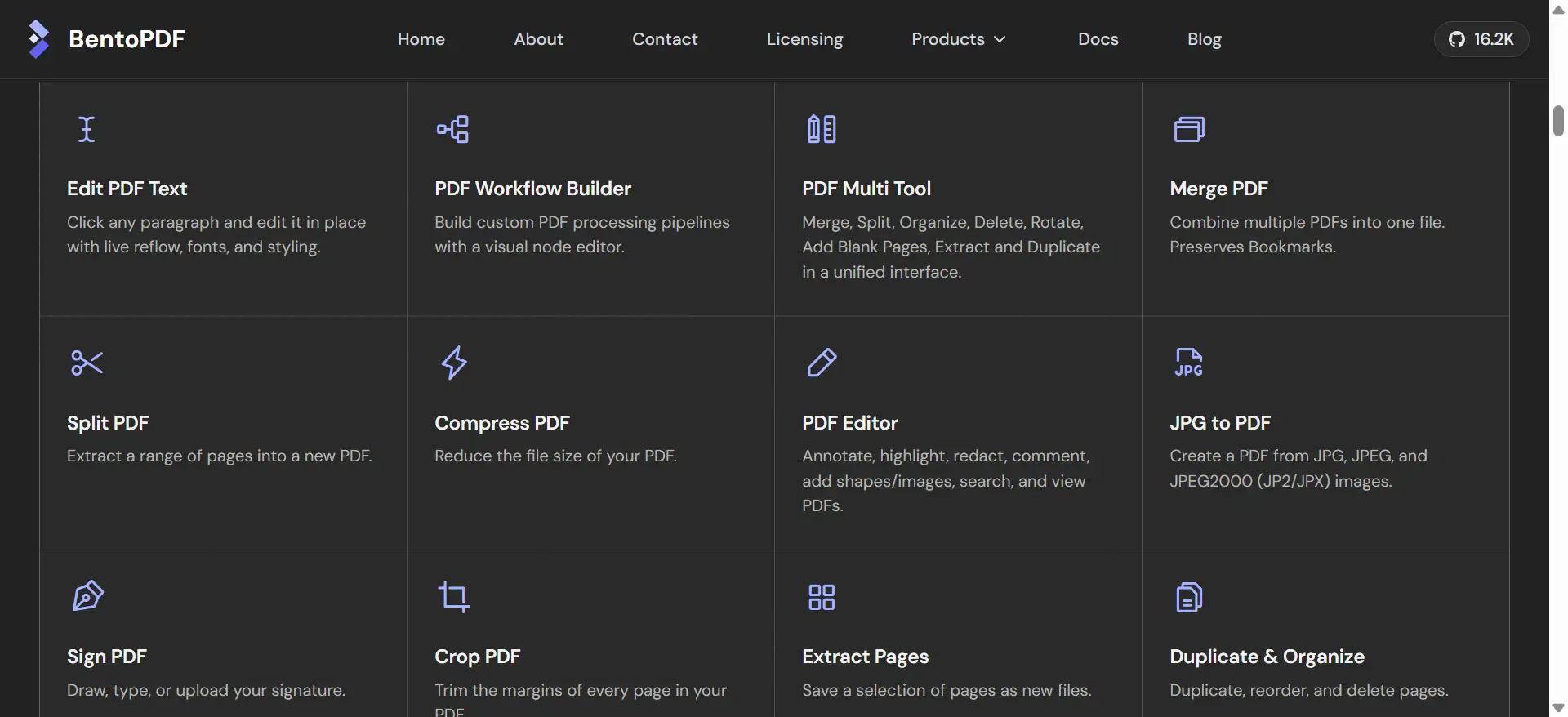
BentoPDF may be the closest option if you want a broad PDF toolkit, local browser processing, and the option to self-host.
This tool can handle a wide range of PDF work in the browser. Its self-hosted build includes tools for merging, splitting, editing, signing, OCR, and Office conversion.
It also gives you the option to run the self-hosted build internally. According to BentoPDF’s documentation, this build keeps the PDF tools while removing public-site features that aren’t needed for internal use.
Why BentoPDF May Feel Familiar to Stirling PDF Users
BentoPDF may feel familiar because it covers many document jobs while still giving you privacy-focused deployment options.
Like Stirling PDF, it can go beyond simple page work. You may use it for conversion, editing, signing, OCR, and document organization from one workspace.
On top of that, self-hosting can make it more appealing than cloud-only tools when your team needs greater control over document processing.
What to Check Before Deploying BentoPDF
BentoPDF may need a little more care when you want LAN access, Office conversion, or an air-gapped environment.
Its deployment documentation explains that Office conversion in a networked setup needs HTTPS and cross-origin isolation. That matters when people access the tool through a local IP address or hostname.
So, BentoPDF may be a strong fit for technical users, internal portals, and privacy-focused teams. Still, it may be less suitable if you want a polished native desktop app with no deployment work.
Three ways to use a privacy-first PDF toolkit
The right setup depends on how much control you need over files, infrastructure, dependencies, and network access.
Browser-local
Process files on the user’s device through the browser.
Self-hosted
Run the tool on your own server for more internal control.
Air-gapped
Host assets and dependencies within an isolated environment.
2. PDF24 Creator: Best Free Windows PDF Toolbox
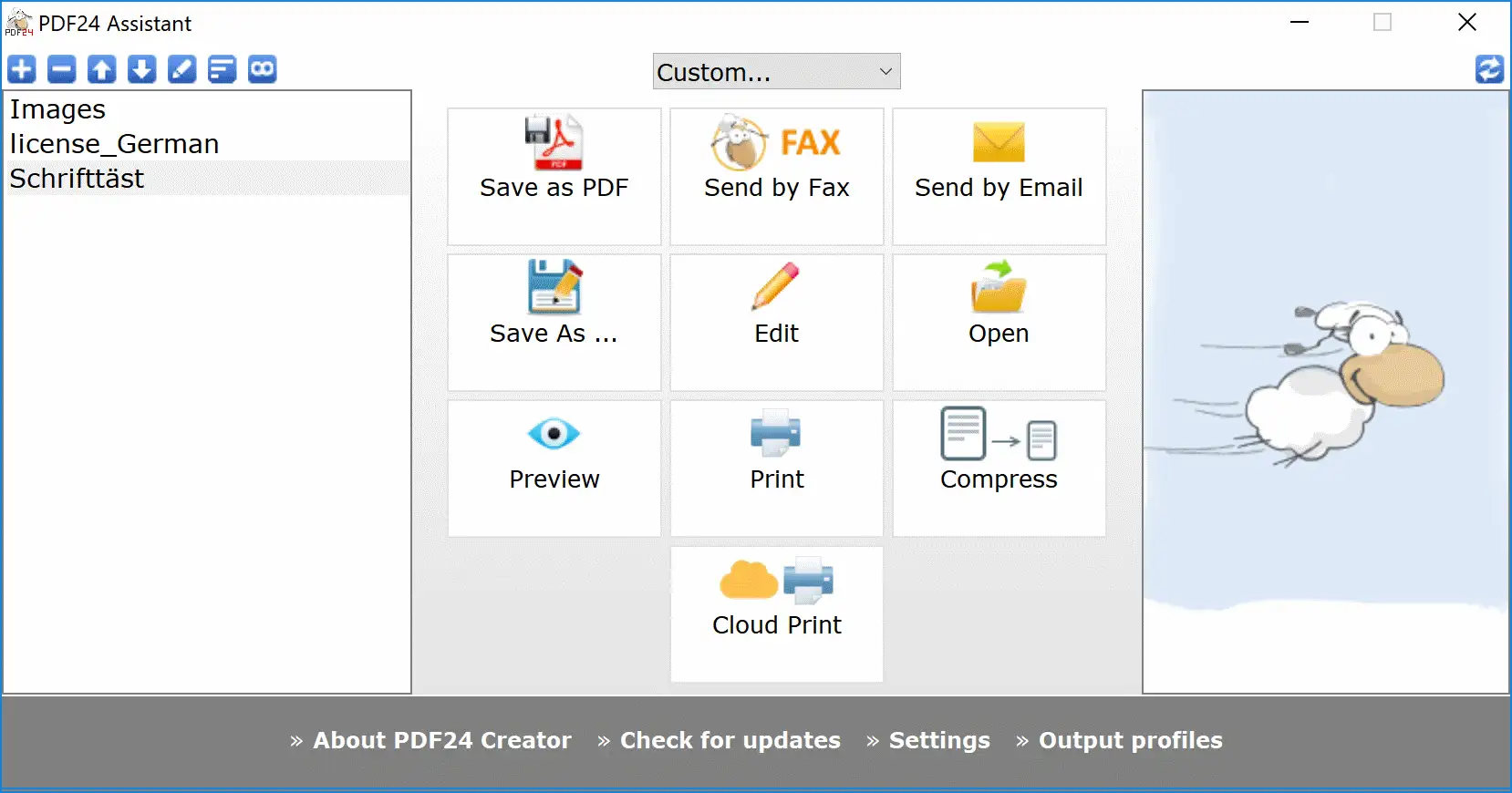
PDF24 Creator may suit Windows users who want a broad local PDF toolbox without the work of maintaining a server.
It can be useful for everyday jobs such as merging, splitting, converting, compressing, organizing pages, and working with scanned documents.
Its desktop-first setup keeps routine work straightforward. You can install the app, work locally, and avoid the overhead of a self-hosted environment.
PDF24 also has online tools. Still, the desktop Creator app is the better match when you want a Windows-based offline workflow.
Where PDF24 Creator May Fit Best
PDF24 Creator may work well when you handle lots of small PDF tasks and want one practical Windows app.
For example, you may use it to combine invoices, split reports, rotate scanned pages, compress attachments, or create PDFs from printable applications.
That makes it a handy option for administration, education, freelancing, and small-business paperwork.
Where It May Fall Short
PDF24 Creator may be less suitable if you need cross-platform use, self-hosting, deep form creation, or enterprise governance.
Mac and Linux users may want to look at PDFsam Basic, LibreOffice Draw, Xournal++, or browser-based tools instead.
Likewise, teams with strict audit, redaction, or identity-management needs may want to compare Adobe Acrobat Pro, Foxit, or a self-hosted platform.
Six focused tools for page-level PDF work
PDFsam Basic focuses on organizing PDF pages instead of trying to become a full text editor.
3. PDFsam Basic: Best Open-Source Tool for Splitting and Merging
PDFsam Basic may be the best choice if you only need reliable offline page management, not full PDF editing or OCR.
According to PDFsam Basic’s official product page, it is a free, open-source desktop app for Windows, macOS, and Linux that processes files locally and doesn’t need an internet connection.
Its core tools include merging, splitting, mixing, rotating, extracting, and inserting PDF pages. That focused scope is a big part of its appeal.
What PDFsam Basic Can Do Well
PDFsam Basic can make routine page jobs much easier without burying you in advanced editing tools.
You can merge several PDFs, split a long file by page number or bookmarks, rotate scanned pages, and extract selected pages.
If you need more control, its mix tool can interleave odd and even pages. That can help when you’re combining single-sided scans or rebuilding a double-sided document.
What PDFsam Basic Doesn’t Replace
PDFsam Basic may not be the right fit if you need text editing, OCR, forms, signing, or secure redaction.
It’s excellent for page-level work. However, it isn’t designed to rewrite existing paragraphs or build advanced document workflows.
So, PDFsam Basic may be ideal if your PDF work begins and ends with page structure. For deeper editing, you may want PDF-XChange Editor, Foxit, Acrobat Pro, or PDFgear.
4. Adobe Acrobat Pro: Best for Professional PDF Authoring and Compliance
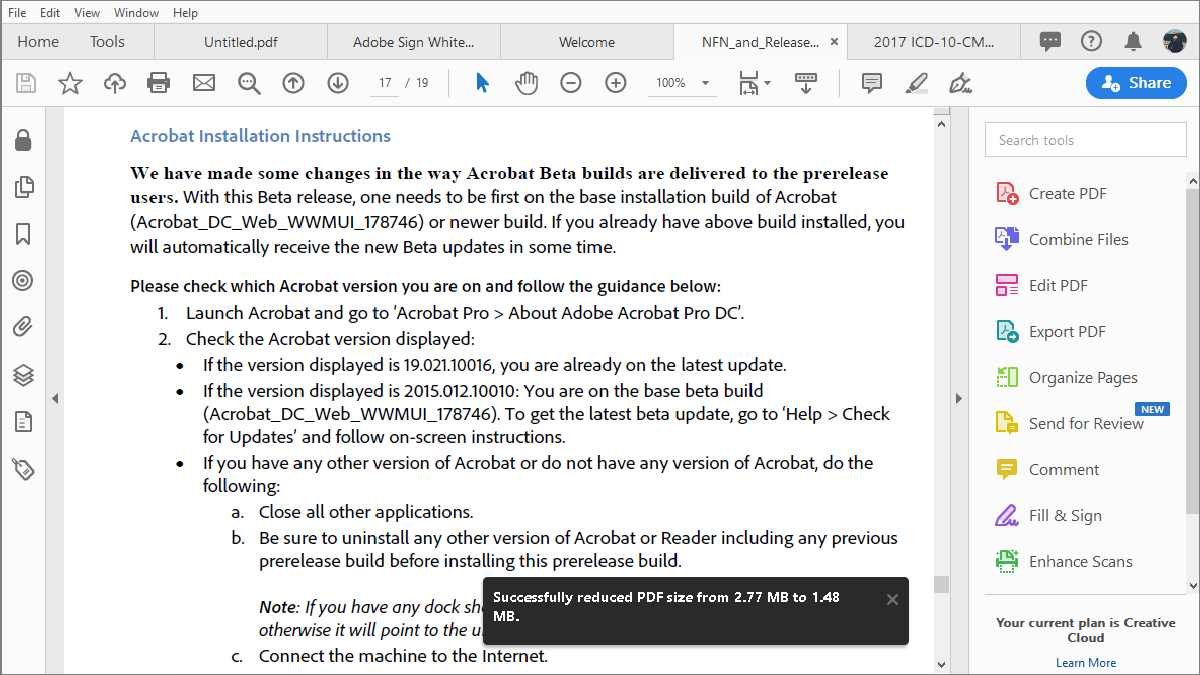
Adobe Acrobat Pro may suit teams that need advanced editing, forms, OCR, document comparison, redaction, and e-sign workflows.
It isn’t a self-hosted replacement for Stirling PDF. Instead, it’s a professional PDF platform for organizations that need deeper document production and review tools.
That depth can matter when your team handles contracts, forms, policy documents, regulated records, or repeated document workflows.
Why Acrobat Pro May Be Worth Considering
Adobe Acrobat Pro can be useful when basic PDF tools no longer cover your editing, review, or compliance needs.
Simple tools can add text boxes or rearrange pages. Acrobat Pro may go further by supporting document comparison, OCR, form creation, automation, and advanced document protection.
For example, its comparison tools can help reviewers see changes between versions. That may be useful for contracts, policies, submissions, and collaborative edits.
Redaction and Sanitization Need Extra Care
Adobe Acrobat Pro may be useful when you need permanent redaction rather than a visual cover-up.
As Adobe’s official redaction and sanitization guidance explains, redaction removes selected visible information, while sanitization can remove hidden data such as metadata, comments, attachments, and concealed content.
That difference matters. A black rectangle can hide text visually, but it may not remove the underlying content.
Visual cover-up, redaction, and sanitization are different
If sensitive data is involved, it helps to match the action to the protection you actually need.
Add a black shape
The text may only be hidden visually. Underlying content can still remain.
Redact visible content
Selected text or images are removed from the document permanently.
Sanitize hidden data
Remove metadata, comments, attachments, hidden layers, and related data.
Important Note: A tool shouldn’t be called a secure-redaction tool just because it can draw black boxes. The real test is whether the content is permanently removed and the finished file has been checked.
5. Foxit PDF Editor: Best Business-Focused Acrobat Alternative
Foxit PDF Editor may be a good option if you need professional editing, OCR, forms, document security, and signing tools outside Adobe’s ecosystem.
According to Foxit’s official PDF Editor pricing and feature page, its lineup includes editing, conversion, OCR, forms, document comparison, protection, redaction, and e-sign options across different products and plans.
Foxit also offers desktop, web, mobile, server, API, and e-sign products. So, it may suit businesses with broader document workflows.
What Foxit May Do Well
Foxit may work well when your team needs more than basic PDF utilities but doesn’t need to self-host its PDF editor.
Its PDF Editor can support editing, conversion, OCR, forms, document comparison, security, redaction, and signing workflows, depending on the plan and product configuration.
Beyond OCR, Foxit also highlights workflows for permanently removing sensitive information and sending documents for signature.
What to Check Before Choosing Foxit
Foxit may offer a broad feature set, but you’ll want to confirm the exact edition before relying on a specific capability.
That’s especially important for businesses comparing desktop, web, e-sign, server, and API products.
So, Foxit may be a strong option for teams that want professional tools without choosing Acrobat Pro. It may be less suitable when your priority is local-only or air-gapped document handling.
Foxit PDF Editor and Adobe Acrobat Pro at a glance
Both tools can support serious PDF work. The better fit may come down to your plan, workflow, budget, and team preferences.
| Workflow | Adobe Acrobat Pro | Foxit PDF Editor |
|---|---|---|
| Existing-text editing | ✓ Available | ✓ Available |
| OCR workflows | ✓ Available | ✓ Available |
| Forms and fields | ✓ Available | ✓ Available |
| Redaction and protection | ✓ Available | ✓ Available |
| Self-hosted desktop editor | — No | — No |
6. PDF-XChange Editor: Best Windows Power-User PDF Editor
PDF-XChange Editor may be one of the best choices for Windows users who want detailed editing, annotation, OCR, and form options.
It’s a Windows desktop editor with a technical, feature-rich approach. That may appeal if you spend a lot of time inside PDFs and want more control than a simple browser tool gives you.
Its features include editing, annotation, OCR, forms, and digital signing. Still, the exact tools available can vary by edition and licence.
Searchable OCR and editable OCR solve different problems
A searchable scan can help you find words. Editable OCR can help you correct, reuse, or extract text after recognition.
Searchable OCR
Adds a text layer so you can search and select words in a scanned PDF.
Best for archives Best for discoveryEditable OCR
Recognizes text and images in a form that can be edited or reused.
Best for reuse Best for correctionsPDF-XChange Explains OCR Better Than Most Tools
PDF-XChange Editor is especially useful because it separates searchable OCR from fully editable OCR output.
According to PDF-XChange’s official OCR guidance, its default OCR engine can place a searchable and selectable text layer over a scanned page without replacing the original image.
Its Enhanced OCR engine, available with Editor Plus, can create editable recognized text and images. That matters if you need to revise scanned content instead of simply searching it.
Who May Like PDF-XChange Editor
PDF-XChange Editor may suit detail-oriented Windows users who want control, settings, and deep local editing tools.
It can be helpful for technical professionals, researchers, administrators, and office users who work with PDFs every day.
On the flip side, the interface may feel like more than occasional users need. If you only merge files or add a few comments, PDF24 Creator or iLovePDF Desktop may feel simpler.
7. PDFgear: Best Free Desktop Editing Alternative
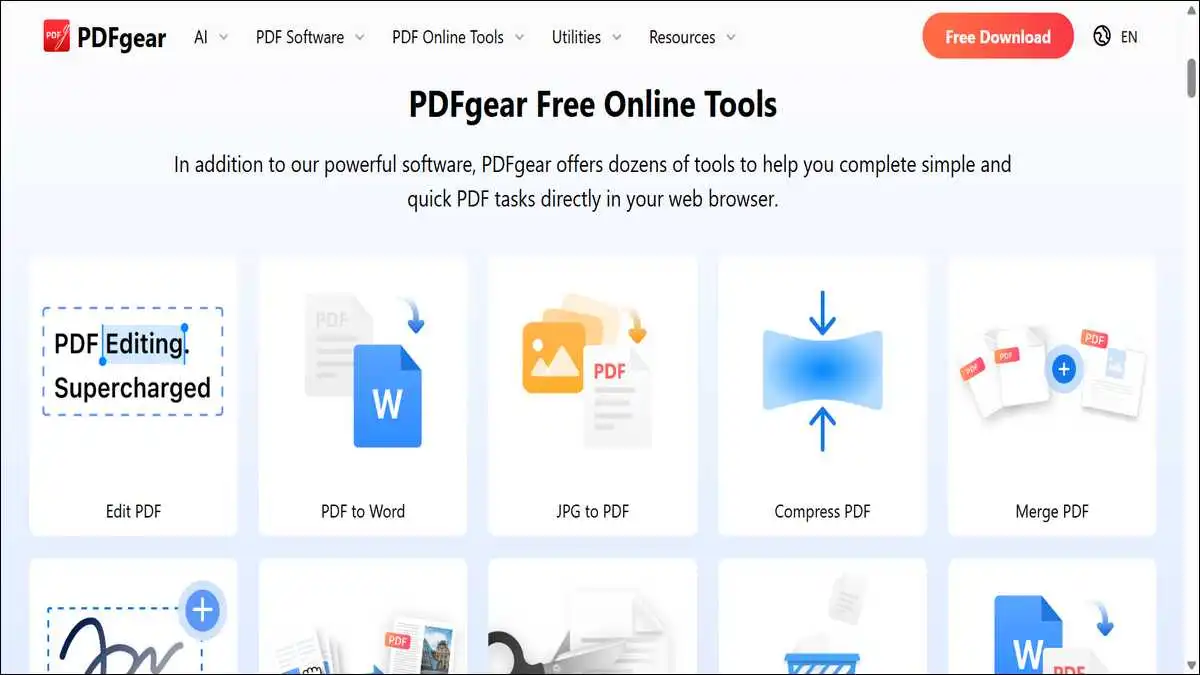
PDFgear may be worth trying if you want free desktop editing, annotations, and page tools without starting with a paid PDF suite.
This platform offers desktop and browser tools. As PDFgear’s official online editor page explains, the web editor processes PDF files locally in the browser rather than uploading them to a server.
Still, the browser editor and desktop editor don’t do the same things. That difference is worth keeping in mind.
Desktop and Browser Editing Work Differently
PDFgear Desktop may be the better choice if you need to change existing PDF text, not just add new text boxes.
PDFgear says its browser editor can add text boxes, forms, comments, shapes, and page changes. However, its documentation says replacing or changing existing PDF text is a desktop-app capability.
That’s a useful distinction. Adding a note to a PDF isn’t the same as editing the original paragraph.
Where PDFgear May Fit
PDFgear may work well for personal files, schoolwork, small-business documents, and everyday office edits.
According to PDFgear’s product information, its desktop editor supports text changes, formatting, annotations, signatures, and page-related tasks.
Still, if your team needs audited workflows, formal compliance controls, or air-gapped deployment, you may want a more specialized option.
8. iLovePDF Desktop: Best Familiar Cross-Device Toolkit
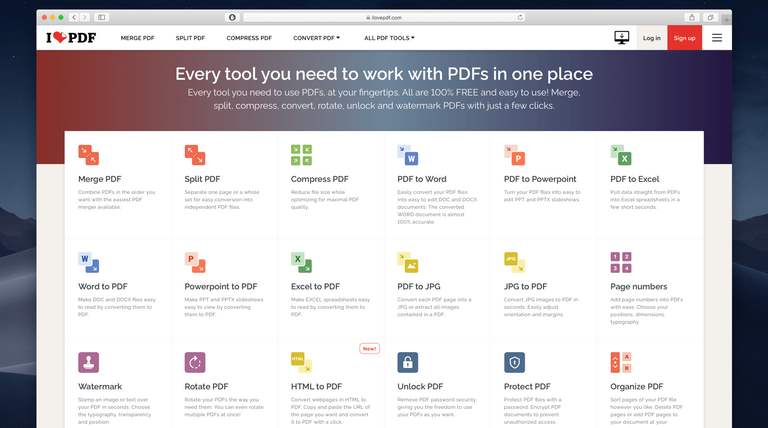
iLovePDF Desktop may suit you if you want familiar PDF tools that can process files locally on Windows or Mac.
As iLovePDF’s official features page reports, its Desktop app can compress, merge, split, convert, and edit PDFs offline while processing files directly on your computer.
That can be useful if you like the convenience of web tools but want a more local workflow for regular document tasks.
Where iLovePDF Desktop May Help
iLovePDF Desktop may be useful for everyday jobs that need to be quick, familiar, and easy to repeat.
You may use it for merging attachments, splitting reports, compressing files, converting Office documents, or organizing pages.
It also supports bulk work and local processing. So, it may help users who regularly manage groups of files.
Where It May Not Fit
iLovePDF Desktop may be less suitable if you need a self-hosted internal service or advanced compliance controls.
It can work well for local everyday tasks. However, it isn’t designed to replace a self-hosted PDF server with organization-wide governance.
Also read our list of the best 20+ Free iLovePDF Alternatives.
9. Smallpdf: Best Simple Browser-Based Toolkit
Smallpdf may be useful for simple browser-first PDF work, but it may not suit teams that need local-only or self-hosted processing.
It can be convenient for common jobs such as converting, compressing, merging, splitting, and signing documents.
That convenience can save time. Still, cloud-oriented workflows may not align with every organization’s privacy rules or document policies.
When Smallpdf May Make Sense
Smallpdf may fit low-risk, occasional document work where ease of use matters more than infrastructure control.
It can be useful when you need to finish a one-off conversion or combine a few files from different devices.
If that’s your situation, a browser-first tool may be all you need. You won’t have to install software or maintain a server.
When to Consider Something Else
Smallpdf may not be the right fit if your documents must stay on-device, on-premises, or inside an isolated environment.
For confidential files, it’s usually worth checking your organization’s rules before uploading anything to a cloud service.
If local handling is essential, desktop tools, browser-local tools, or self-hosted platforms may be a better match.
10. ONLYOFFICE PDF Editor: Best for Self-Hosted Office Collaboration
ONLYOFFICE PDF Editor may fit teams that already use a self-hosted office suite and want PDF work inside that wider environment.
Unlike a standalone PDF utility, ONLYOFFICE is part of a broader document collaboration system. It can bring PDFs, documents, spreadsheets, and presentations into the same workspace.
That can be helpful if your team already shares files internally. You may not need separate tools for every document format.
Keep PDF work inside a broader collaboration setup
ONLYOFFICE may make the most sense when PDFs are part of a wider workflow for shared files and office documents.
Shared workspace
Keep documents inside a central team environment.
PDF and office files
Work with PDFs alongside documents, sheets, and slides.
Managed access
Manage documents through a wider team workflow.
Where ONLYOFFICE May Work Best
ONLYOFFICE may be most useful when PDF editing is part of an ongoing team collaboration workflow.
For example, it can make sense for teams that already manage files, permissions, and office documents in a shared internal platform.
If your team needs self-hosted collaboration across several document types, that broader setup may be a benefit.
Where It May Feel Too Large
ONLYOFFICE may be more than you need if your main job is simply merging, splitting, or rotating PDFs.
For one-off page work, PDFsam Basic, PDF24 Creator, or PDF Arranger may feel quicker and lighter.
So, ONLYOFFICE may be best viewed as a document-collaboration choice rather than a simple Stirling PDF replacement.
11. Sejda Desktop: Best Polished Offline Utility Experience
Sejda Desktop may suit you if you want a friendly local PDF toolkit with more polish than many lightweight utilities.
It can be useful for common editing, conversion, compression, page organization, and document-preparation tasks.
That makes it a middle-ground option. It may feel more approachable than technical desktop editors while offering more range than a page-only utility.
What to Check First
Sejda Desktop may work well for lighter use, but it’s worth checking current limits before relying on its free version professionally.
Free-use terms can change. They may also differ between the desktop and online versions.
So, before you build a workflow around it, check the official product page for current limits, supported features, and licensing details.
Who May Prefer Sejda Desktop
Sejda Desktop may be a good fit if you value a clean experience and mostly handle routine PDF jobs.
It may be less suitable for heavy batch processing, advanced business controls, or strict self-hosted deployments.
12. LibreOffice Draw: Best for Occasional Open-Source Visual Edits
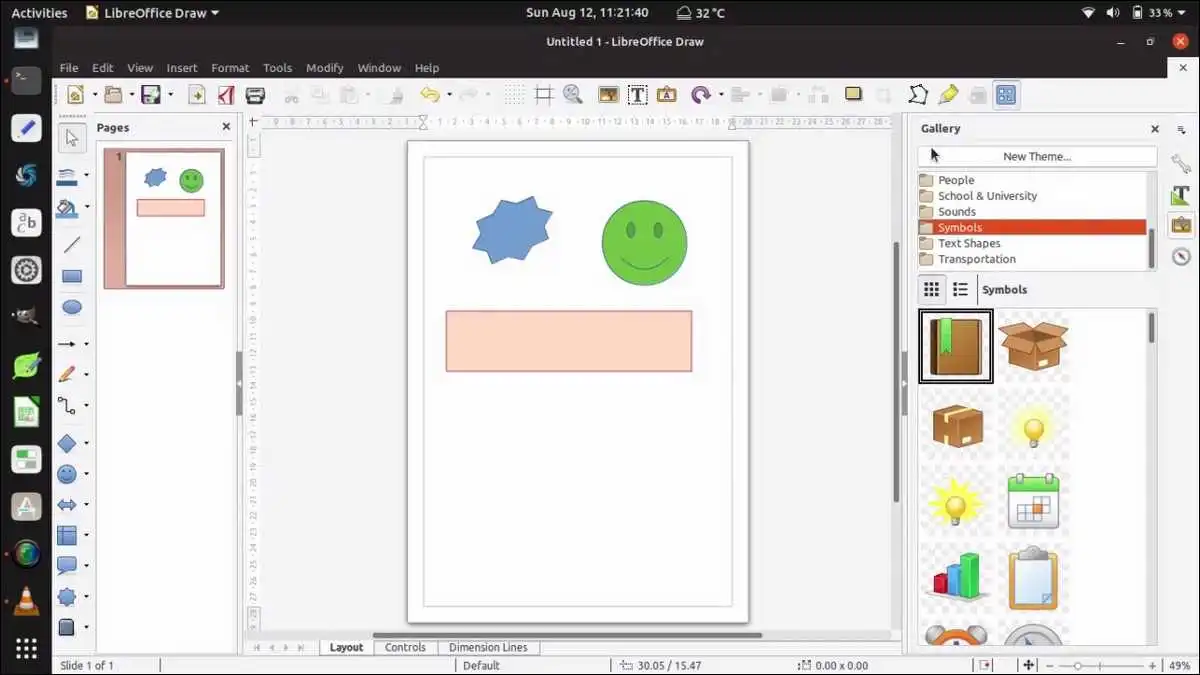
LibreOffice Draw may help with occasional visual PDF changes, but it isn’t a dedicated professional PDF editor.
It can open many PDFs and let you work with text boxes, images, shapes, and page elements.
That can be useful for simple changes. For example, you may use it to update a flyer, adjust a worksheet, or tweak a diagram-style PDF.
Why You Should Test Complex Files
LibreOffice Draw may handle simple files well, but complex PDFs can lose layout fidelity during import and export.
PDFs can contain embedded fonts, transparent layers, forms, links, and detailed structure. Those elements may not always transfer perfectly.
So, it’s worth checking page breaks, fonts, image placement, links, and print output before sharing the revised file.
Who May Prefer LibreOffice Draw
LibreOffice Draw may be helpful if you already use LibreOffice and need occasional open-source visual edits.
It may not be the best fit for detailed OCR, robust form creation, secure redaction, or complex document production.
13. Xournal++: Best for Handwriting, Markup, and Education
Xournal++ may be the best option if you mainly annotate PDFs with handwriting, sketches, highlights, and visual notes.
It’s built around digital ink rather than traditional document editing. That makes it particularly useful for students, teachers, researchers, and tablet users.
You can mark up PDFs with a stylus, write notes, highlight passages, and add visual feedback. That’s a different job from changing original PDF text.
Where Xournal++ May Shine
Xournal++ may feel especially natural when your work involves review, feedback, or handwritten comments.
It can be useful for coursework, paper reviews, design feedback, meeting notes, and annotated drafts.
If you prefer writing on a tablet over typing comments, it may offer a more comfortable workflow than a standard desktop editor.
Where It May Not Fit
Xournal++ may not be the right choice if you need OCR, conversions, form design, existing-text editing, or secure redaction.
It’s a specialist tool. That’s not a weakness, but it does mean it works best as part of a larger PDF toolkit.
Use handwritten markup when typed comments are not enough
Xournal++ may suit readers who review documents visually with a stylus, handwritten notes, and drawn feedback.
Handwritten notes
Add natural comments with a stylus or pen display.
Highlight key text
Mark passages, tasks, or sections needing attention.
Draw visual feedback
Sketch, circle, underline, or point to exact areas.
14. PDF Arranger: Best Minimal Page Reorganizer
PDF Arranger may be a simple fit if you only need to reorder, crop, rotate, merge, split, or delete PDF pages.
It focuses on visual page organization. You can work from thumbnails, which can make scanned bundles and mixed document packets easier to manage.
Its narrow focus can be helpful. You don’t have to work through a large editor when page order is the only thing you need to fix.
What PDF Arranger Can Help With
PDF Arranger may be useful for fixing scans, removing blank pages, cropping margins, and creating smaller document bundles.
For example, you may use it after scanning a packet in the wrong order. You can rotate pages, remove unwanted sheets, and rebuild the file visually.
That can be enough for many administrative, education, and home-document workflows.
What It Doesn’t Try to Do
PDF Arranger may not suit you if you need full text editing, OCR, advanced forms, signing, or document sanitization.
For those jobs, a more specialized PDF editor may be a better option.
15. Wondershare PDFelement: Best Polished Paid Consumer Editor
Wondershare PDFelement may be a useful paid option if you want editing, forms, OCR, and conversion in a more approachable desktop package.
It can appeal to people who want more than a free utility tool but don’t necessarily need a full enterprise PDF platform.
That can make it worth considering for freelancers, small businesses, and users who want an all-in-one editing workspace.
Where PDFelement May Fit
PDFelement may be helpful if you want broad PDF capabilities without a highly technical interface.
You may use it for editing, page organization, OCR, form-related work, annotation, and document conversion.
Still, plan terms, supported features, and device allowances can change. So, it’s worth checking the current official licensing details before you commit.
Where It May Not Fit
PDFelement may be less suitable if self-hosting, air-gapped processing, or enterprise governance are your main priorities.
For those needs, you may want to compare self-hosted platforms, professional compliance suites, or local-only tools more closely.
16. ABBYY FineReader PDF: Best for OCR-Heavy Workflows
ABBYY FineReader PDF may be worth considering when OCR and scanned-document conversion are central to your work.
OCR isn’t a minor feature for every team. If you process archives, invoices, forms, records, or scanned reports, OCR quality can shape the entire workflow.
A poor OCR result can create bad names, dates, totals, invoice numbers, legal clauses, and search results. That’s where an OCR-focused tool may help.
OCR Quality Needs Real Testing
No OCR tool is automatically best until you test it with your actual scans, languages, layouts, and documents.
Clean single-column scans are relatively easy. Faded receipts, handwriting, tables, columns, stamps, and mixed-language documents can be much harder.
So, it helps to test the same files in every shortlisted tool. Compare text errors, table accuracy, reading order, search quality, and editable output.
Important Note: OCR testing should focus on errors that affect your work. A wrong invoice number may matter much more than a missed decorative character.
Who May Prefer ABBYY FineReader PDF
ABBYY FineReader PDF may be a strong fit when scanned-document recognition is a core job rather than an occasional extra.
For basic merge, split, and annotation work, though, it may be more than you need. A simpler tool can be easier to use and easier to justify.
Test OCR with real documents before you commit
OCR quality may change based on scan quality, language, handwriting, tables, page layout, and the output you need.
Scanned source
Use invoices, forms, reports, receipts, or archive pages.
OCR output
Check names, totals, tables, reading order, and searchability.
Workflow result
Decide whether searchable or editable output is accurate enough.
OCR, Text Editing, and Redaction Are Different Features
Features like OCR, editing, annotation, redaction, and sanitization solve different problems, so it helps to separate them before choosing a tool.
Many comparison tables put all of these features in one column. That can make a tool look more capable than it really is for your specific job.
So, before comparing tools, it helps to identify what you actually need: searchable text, editable text, added comments, fillable forms, or permanently removed information.
| Task | What it means | Tools that may fit |
|---|---|---|
| Annotation | Add highlights, notes, shapes, or comments | Xournal++, PDF-XChange Editor, PDFgear |
| Existing-text editing | Change original text inside the PDF | Acrobat Pro, Foxit, PDF-XChange Editor, PDFgear Desktop |
| OCR | Turn scanned image text into searchable text | ABBYY FineReader PDF, Acrobat Pro, Foxit, PDF-XChange Editor |
| Editable OCR | Turn scans into text you can revise | OCR-focused or enhanced OCR tools |
| Form creation | Build fillable fields and workflows | Acrobat Pro, Foxit, PDFelement |
| Visual concealment | Cover content on screen | Many editors, but it may not be secure |
| Secure redaction | Permanently remove sensitive visible content | Acrobat Pro, Foxit, specialized tools |
| Sanitization | Remove hidden metadata and embedded information | Compliance-focused PDF tools |
Searchable OCR Isn’t Always Editable OCR
A searchable PDF lets you find and select text, but it may not let you edit that text cleanly.
PDF-XChange’s official documentation makes this difference clear. Its default OCR can create a searchable text layer without replacing the original scanned text image.
But if you need to reuse content, editable OCR matters more. Its Enhanced OCR engine can create editable recognized text and images.
Redaction Isn’t the Same as Drawing a Black Rectangle
Secure redaction removes content permanently, while a black rectangle may only hide the content visually.
Adobe’s official guidance distinguishes redaction from sanitization. Redaction removes selected content, while sanitization can remove hidden metadata, comments, attachments, and other concealed information.
So, it’s worth testing every redacted PDF. You can search for removed terms, copy text from redacted areas, inspect metadata, and check whether comments or attachments remain.
Put simply, don’t rely on screen appearance alone. A PDF can look safe while still containing hidden information.
Match the PDF action to the protection you need
Highlighting, visual cover-ups, permanent redaction, and metadata cleanup are different actions with different outcomes.
| Action | What it does | Best use | Security level |
|---|---|---|---|
| Annotation | Adds notes, highlights, or shapes. | Review and feedback. | Low |
| Visual cover-up | Places a shape over visible content. | Temporary presentation edits. | Low |
| Redaction | Permanently removes selected visible information. | Confidential visible content. | High |
| Sanitization | Removes hidden data, metadata, comments, and attachments. | High-risk or compliance-sensitive files. | Highest |
How to Choose the Right Stirling PDF Alternative
The easiest way to choose is to test real files, match tools to your privacy needs, and check how much setup you’re willing to manage.
You don’t need to start with a huge “best PDF editor” list. Instead, start with your regular jobs, document types, and internal requirements.
A small test process can prevent the wrong purchase or deployment. It can also reveal limitations that a feature checklist won’t show.
Step 1: List Your Real PDF Jobs
You can start by listing the three PDF tasks that take up the most time each week.
That might include splitting invoices, scanning paperwork, filling forms, preparing contracts, signing files, or merging reports.
Try to avoid broad labels like “editing PDFs.” For example, changing one sentence in a contract is very different from adding a comment.
Step 2: Classify Document Sensitivity
Next, you may want to classify your documents as public, internal, confidential, regulated, or highly sensitive.
Public files may work fine in browser-based tools. Confidential files may call for a local desktop workflow.
For more sensitive work, you may need internal hosting, access controls, audit logging, backups, and stricter network rules.
Step 3: Test the Same Sample Files
When you test shortlisted tools, it helps to use the same five to ten representative files every time.
Include a text-heavy PDF, a scanned document, a table, a form, a password-protected file, and a complex layout.
For OCR testing, include a low-quality scan. If it reflects your real work, add columns, stamps, small print, or multiple languages.
Step 4: Check the Finished File
When security matters, you can test the finished file rather than relying only on what the app shows on screen.
For redaction, search for removed words and try copying text from the redacted area.
For password protection, check whether the permissions actually meet your needs. PDF permissions don’t always equal strong access control.
For self-hosted tools, you can also review user roles, logs, temporary storage, backups, update procedures, and external network calls.
Step 5: Check Operational Requirements
Self-hosted PDF tools should be evaluated like internal services, not casual desktop apps.
First, consider who’ll maintain updates. Then, think about who’ll restore backups after a failure.
It also helps to ask whether you need SSO, audit logs, monitoring, storage integrations, or an external database. Those needs can shape your decision before editing features even enter the picture.
Best Stirling PDF Alternatives by Use Case
The right recommendation changes with the job, so matching a tool to your use case is more useful than naming one universal winner.
| Use case | Tool to consider | Why it may fit |
|---|---|---|
| Closest privacy-first alternative | BentoPDF | Browser-local processing and self-hosting options |
| Best free Windows toolbox | PDF24 Creator | Broad everyday desktop PDF utilities |
| Best open-source page management | PDFsam Basic | Local split, merge, rotate, mix, and extract tools |
| Best professional PDF platform | Adobe Acrobat Pro | Editing, forms, redaction, OCR, e-sign, and automation |
| Best business Acrobat alternative | Foxit PDF Editor | Broad professional document workflow tools |
| Best advanced Windows editor | PDF-XChange Editor | Detailed local tools and OCR options |
| Best free desktop editing option | PDFgear | Existing-text editing and practical page tools |
| Best familiar offline toolkit | iLovePDF Desktop | Local merge, split, convert, and compress workflows |
| Best for self-hosted collaboration | ONLYOFFICE PDF Editor | PDF work inside a wider collaboration stack |
| Best for OCR-heavy work | ABBYY FineReader PDF | Scanned-document recognition focus |
| Best for handwriting | Xournal++ | Stylus annotation and review |
| Best for page rearrangement | PDF Arranger | Lightweight visual page organization |
Frequently Asked Questions
These answers can help you choose a Stirling PDF alternative based on privacy, offline use, editing needs, OCR, and self-hosting requirements.
Is BentoPDF better than Stirling PDF?
BentoPDF may be better for browser-local privacy workflows, while Stirling PDF may be better for teams that need a self-hosted platform with plan-based organizational features.
BentoPDF focuses on local browser processing and self-hosting options. Meanwhile, Stirling PDF includes self-hosted tools, API access, OAuth2/OIDC, and tiered team features.
The better choice depends on your workflow. So, it is worth testing both tools with representative files before you commit.
What is the best free Stirling PDF alternative?
PDF24 Creator may be a great free Windows option, while PDFsam Basic is a strong free open-source choice for offline page management.
BentoPDF may also be worth considering for browser-local or self-hosted, privacy-focused work. Your operating system and required tasks can help narrow the choice.
What is the best self-hosted Stirling PDF alternative?
BentoPDF may be the closest direct alternative for self-hosted, browser-local PDF work, while ONLYOFFICE may fit broader collaboration needs.
Before deploying either option, it is worth checking authentication, HTTPS, updates, storage, backup plans, and any air-gapped deployment requirements.
Which Stirling PDF alternative works offline?
PDF24 Creator, PDFsam Basic, PDF-XChange Editor, Sejda Desktop, iLovePDF Desktop, Xournal++, LibreOffice Draw, and PDF Arranger can all support local desktop workflows.
Their capabilities vary widely. For example, PDFsam Basic focuses on page work, while PDF-XChange Editor may better suit deep editing and OCR needs.
Which alternative is best for editing existing PDF text?
Adobe Acrobat Pro, Foxit PDF Editor, PDF-XChange Editor, PDFelement, and PDFgear Desktop may be stronger options for changing existing PDF text.
It is still worth testing complex files. Fonts, scans, page layout, and embedded content can all affect editing quality.
Which Stirling PDF alternative is best for OCR?
ABBYY FineReader PDF may be a strong OCR-focused choice, while Adobe Acrobat Pro, Foxit, and PDF-XChange Editor may also suit OCR workflows.
The best option depends on your scan quality, languages, layouts, and whether you need searchable text or fully editable OCR output.
Is online PDF editing safe?
Online PDF editing may be fine for low-risk files, but sensitive documents deserve a closer look at processing, retention, and privacy practices.
For confidential work, local desktop apps or self-hosted tools may give you more control. Browser-local tools can also help when you understand their dependencies and deployment setup.
Does Stirling PDF still have a free plan?
Yes, Stirling PDF still has a Free self-hosted plan, but it supports up to five users as of October 28, 2026.
Its Team and Enterprise plans add further organizational capabilities and larger user allowances. Check Stirling PDF’s current plan details before choosing a deployment model.
Final Thoughts
Overall, the best Stirling PDF alternative depends less on feature count and more on where your files are processed, what you need to do with them, and how much control you need.
If privacy-first browser-local processing and self-hosting are your priorities, BentoPDF may be a strong place to start. Before deploying it, it’s worth reviewing its documented HTTPS and cross-origin-isolation requirements for advanced conversion workflows.
If you use Windows and want a practical local toolkit, PDF24 Creator may suit you well. If page organization is your main job, PDFsam Basic may be the simpler option.
Whereas if there are forms, OCR, redaction, document comparison, signatures, and professional workflows matter most, Adobe Acrobat Pro or Foxit PDF Editor may be worth a closer look.
And if you need advanced Windows editing, PDF-XChange Editor may be especially useful. If OCR quality is the main concern, ABBYY FineReader PDF may deserve a place on your shortlist.
The most useful recommendation isn’t “pick the most popular PDF tool.” It’s “pick the simplest tool that can safely handle your real document workflow.”
Before you switch, test real files. Check output quality, privacy expectations, OCR accuracy, redaction results, and the long-term work needed to keep the tool running.

![10 Most Secure Messaging Apps 2021 [ WhatsApp Alternatives]](https://techshali.com/wp-content/uploads/2021/06/best-whatsapp-alternatives-2021-390x220.jpg)