Fix ERR_NETWORK_CHANGED: 12+ Solutions for Windows, Mac, Android & iOS
It’s frustrating to see an ERR_NETWORK_CHANGED error while loading a page in Chrome, right? Especially when you’re in the middle of something important.
Basically, this error means Chrome detected that your network configuration changed while a page was loading. In other words, your device switched IP addresses, changed networks, or had a network interface change mid-connection.
You don’t have to worry much, as it can be fixed in most cases within a few minutes.
In this guide, we’ve put together 12+ solutions covering Windows, Mac, Android, and iOS. We’ve also included causes that most articles don’t mention, like the macOS Home app issue and Docker daemon conflicts.
So, whether you’re a casual user or a developer, you’ll find what you need here.
What ERR_NETWORK_CHANGED Actually Means
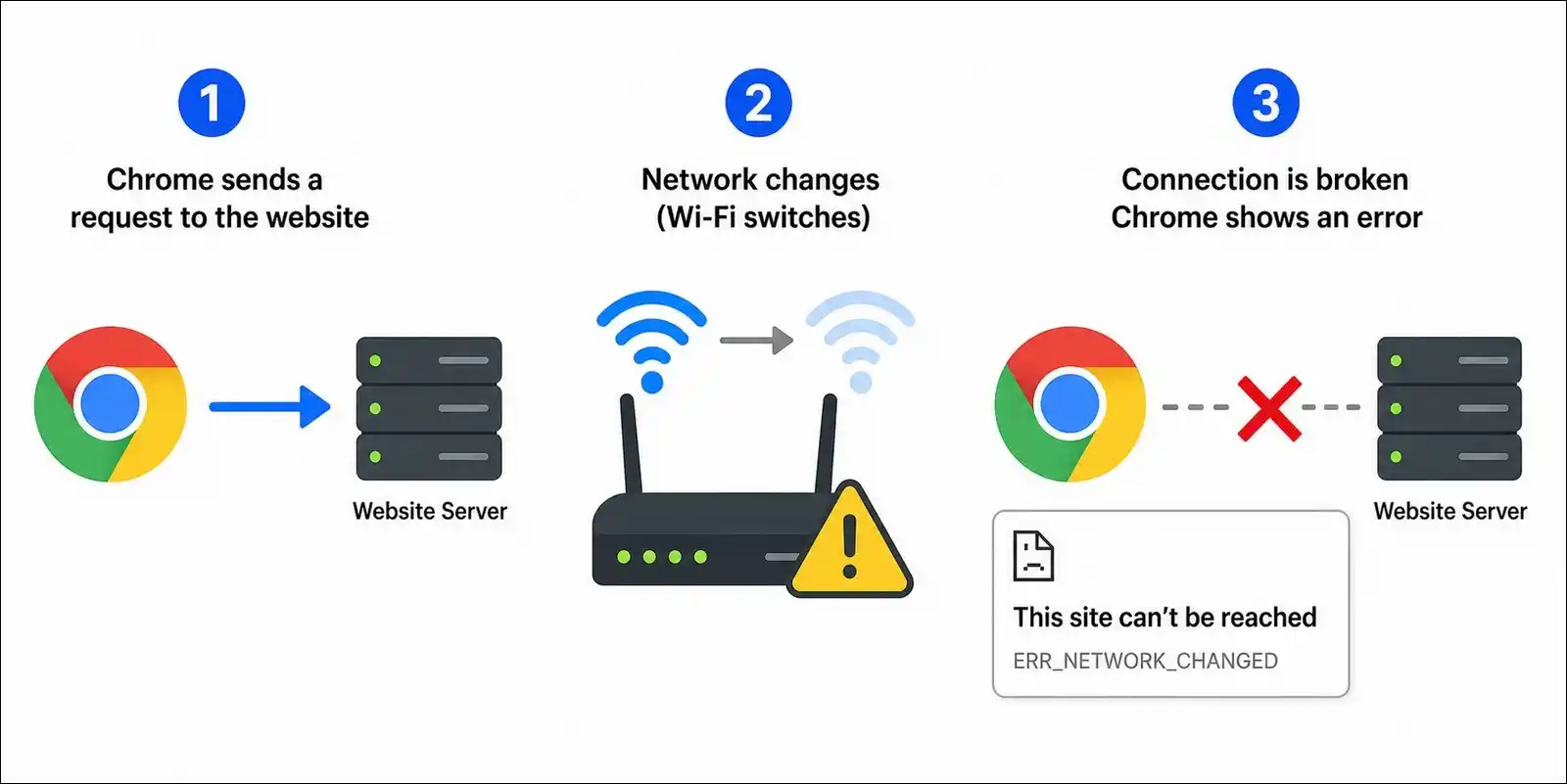
ERR_NETWORK_CHANGED happens when Chrome detects a network configuration change between initiating a request and receiving the response.
It’s like Chrome started talking to a server on one network and found itself on a different one mid-conversation.
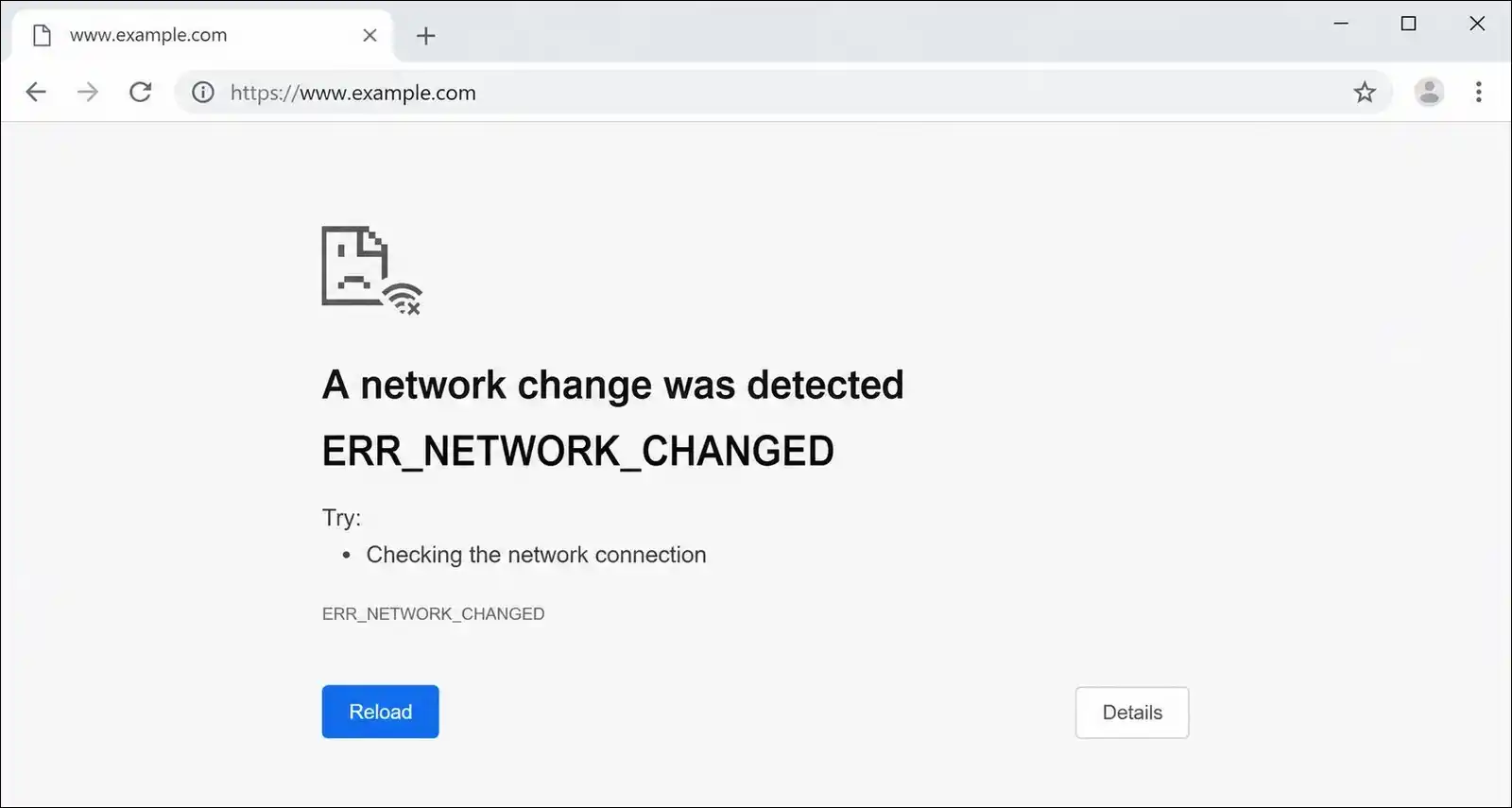
Now, this error is specific to Chromium-based browsers. So, you’ll see it in Chrome, Edge, Brave, and Opera. The error message usually says one of these:
- “Unable to access the network”
- “Your connection was interrupted”
- “A network change was detected”
- “ERR_NETWORK_CHANGED”
Why Chrome Shows This Error
While browsing, Google Chrome monitors the network state throughout a connection.
When something changes between the initial request and the server’s response, Chrome flags it as a potential security or reliability issue and stops the connection.
So, what actually triggers it? Here are the most common causes:
- IP address change: Your device got a new IP from the router or ISP
- Network switching: You moved from Wi-Fi to Ethernet, or between Wi-Fi networks
- VPN or proxy toggle: Your VPN disconnected and reconnected
- MAC address randomization: Your device’s MAC address changed
- DNS cache conflict: Old DNS entries are conflicting with current network state
Here’s a visual to understand it quickly:
Quick Fixes You Should Try First
These simple steps resolve ERR_NETWORK_CHANGED about 70% of the time. So, before you try anything advanced, it’s worth starting here. You might be surprised how often the basics work.
1. Refresh the Page and Restart Chrome
Sometimes the error is temporary, and a simple refresh does the trick.
- Press F5 or Ctrl + R (Windows) / Cmd + R (Mac) to refresh the page.
- If that doesn’t work, close Chrome completely.
- Reopen Chrome and try loading the page again.
If the error goes away and doesn’t come back, you’re good to go. If it keeps happening, though, you can move on to the next steps.
2. Restart Your Router and Device
A router restart clears temporary data and resets network conflicts. This is one of the most effective first steps for network issues.
- Power off your router or modem.
- Wait at least 30 seconds.
- Turn it back on and wait for it to fully reconnect.
- Restart your computer or phone.
- Try loading the page again.
If you can, we advise you to test the same website on a different device connected to the same network. That way, you’ll know whether the problem is your device or the network itself.
3. Toggle Wi-Fi Off and On
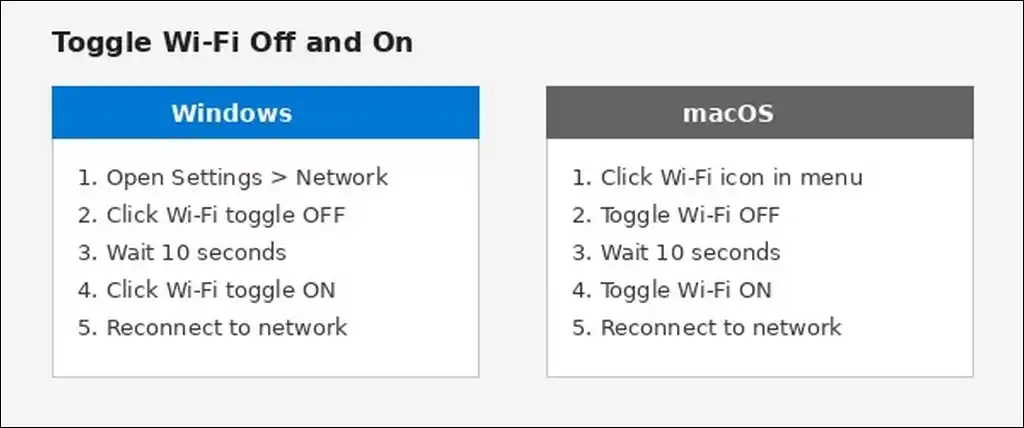
A quick Wi-Fi toggle can refresh your connection and resolve temporary glitches. It’s a simple step, but it works more often than you’d think.
- Turn off Wi-Fi on your device.
- Wait 10 seconds.
- Turn Wi-Fi back on.
- Reconnect to your network.
- Try loading the page again.
Network and Connection Fixes
If the quick fixes didn’t work, the problem is likely in your network settings. Don’t worry though; the steps below address the most common network-level causes, and they’re not as complicated as they look.
4. Disable VPN or Proxy Temporarily
VPNs and proxies can cause ERR_NETWORK_CHANGED when they disconnect and reconnect. This changes your IP address mid-connection, which Chrome detects as a network change.
- Disconnect from your VPN app completely. Don’t just pause it.
- If you’re using a VPN browser extension, you can disable it at
chrome://extensions. - Reload the page.
- If the page loads, the VPN was the cause. You might want to try a different server location or switch VPN protocols (like from WireGuard to OpenVPN).
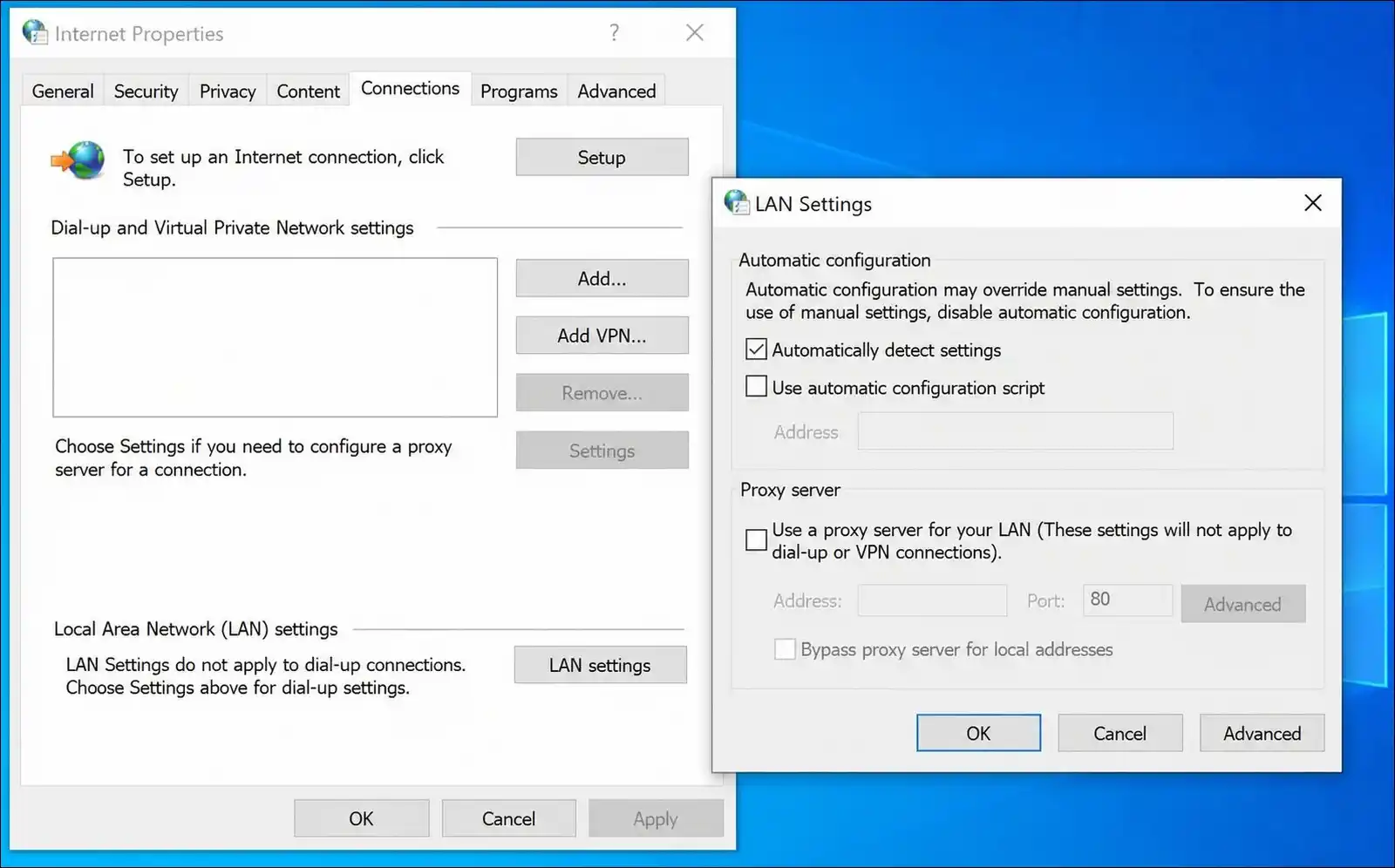
To disable a proxy on Windows:
- Press Win + R, type
inetcpl.cpl, and press Enter. - Go to the Connections tab and click LAN settings.
- Uncheck Use a proxy server for your LAN.
- Make sure Automatically detect settings is checked.
- Click OK and restart your browser.
To disable a proxy on Mac:
- Open System Settings and click Network.
- Select your active connection and click Details.
- Click Proxies and turn off all proxy options.
- Click OK.
5. Flush DNS Cache
A corrupted DNS cache can cause ERR_NETWORK_CHANGED by holding onto outdated network information. When that happens, flushing it forces your system to rebuild the cache from scratch.
On Windows:
- Press Win + S, type
cmd. - Right-click Command Prompt and select Run as administrator.
- Run this command:
ipconfig /flushdns- You should see “Successfully flushed the DNS Resolver Cache.”
On Mac:
- Open Terminal from Applications > Utilities.
- Run this command:
sudo killall -HUP mDNSResponder- Enter your admin password when prompted.
On Linux:
- Open Terminal with Ctrl + Alt + T.
- Run this command:
sudo dhclient -r && sudo dhclient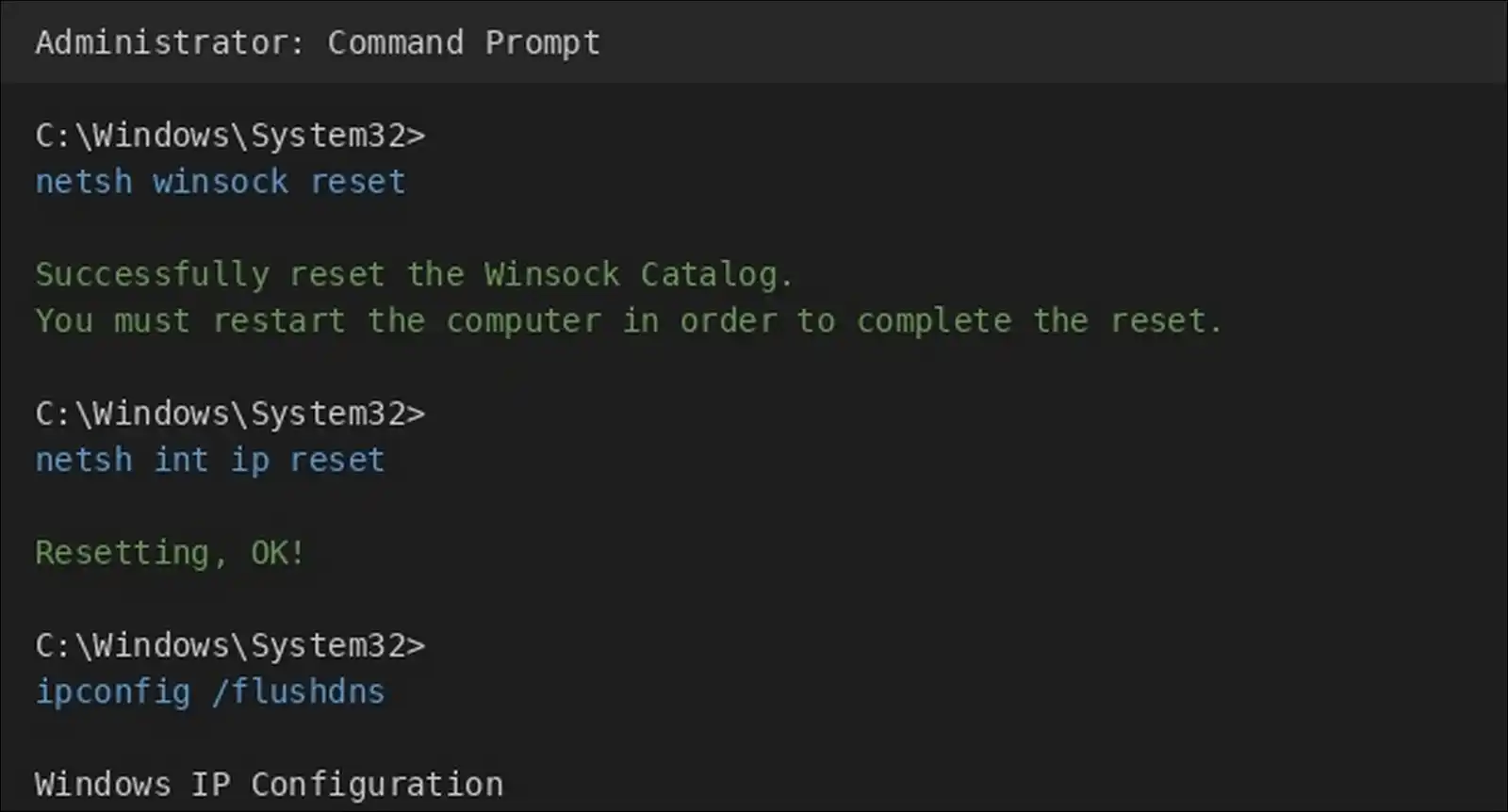
6. Reset TCP/IP and Winsock
Corrupted TCP/IP settings can cause persistent ERR_NETWORK_CHANGED errors. Resetting them restores default network behavior, which often resolves the issue.
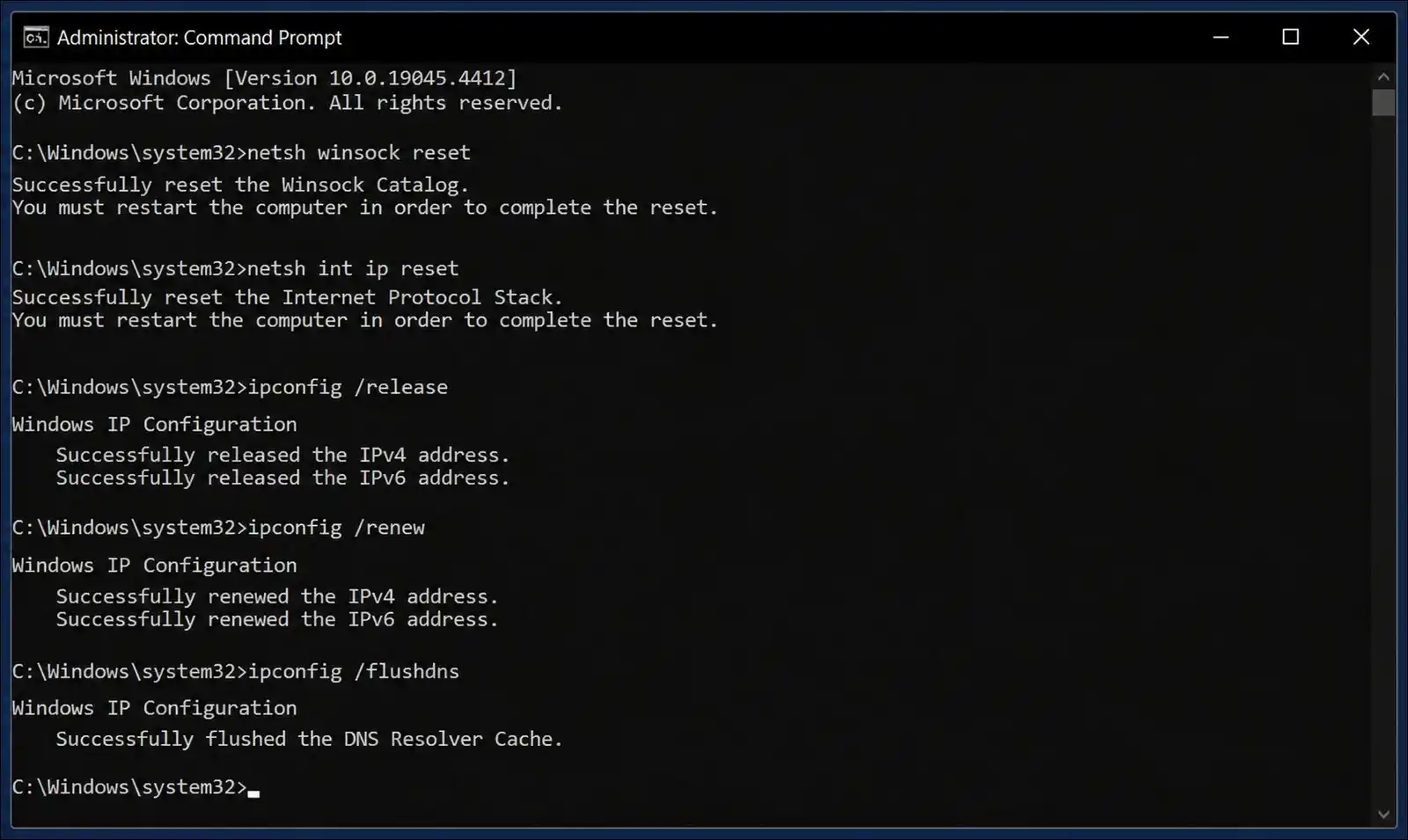
On Windows (run Command Prompt as Administrator):
- Run these commands one at a time, pressing Enter after each:
netsh winsock reset
netsh int ip reset
ipconfig /release
ipconfig /renew
ipconfig /flushdns- Restart your computer.
On Mac:
- Open System Settings > Network.
- Select your connection, click Details, then TCP/IP.
- Click Renew DHCP Lease.
- Click OK.
These commands rebuild the network stack from scratch. So, they’re quite effective for persistent issues.
7. Change DNS Server
Your ISP’s default DNS server might be causing conflicts. That’s why switching to a public DNS server often resolves the issue.
| Provider | Primary | Secondary |
|---|---|---|
| 8.8.8.8 | 8.8.4.4 | |
| Cloudflare | 1.1.1.1 | 1.0.0.1 |
| OpenDNS | 208.67.222.123 | 208.67.220.123 |
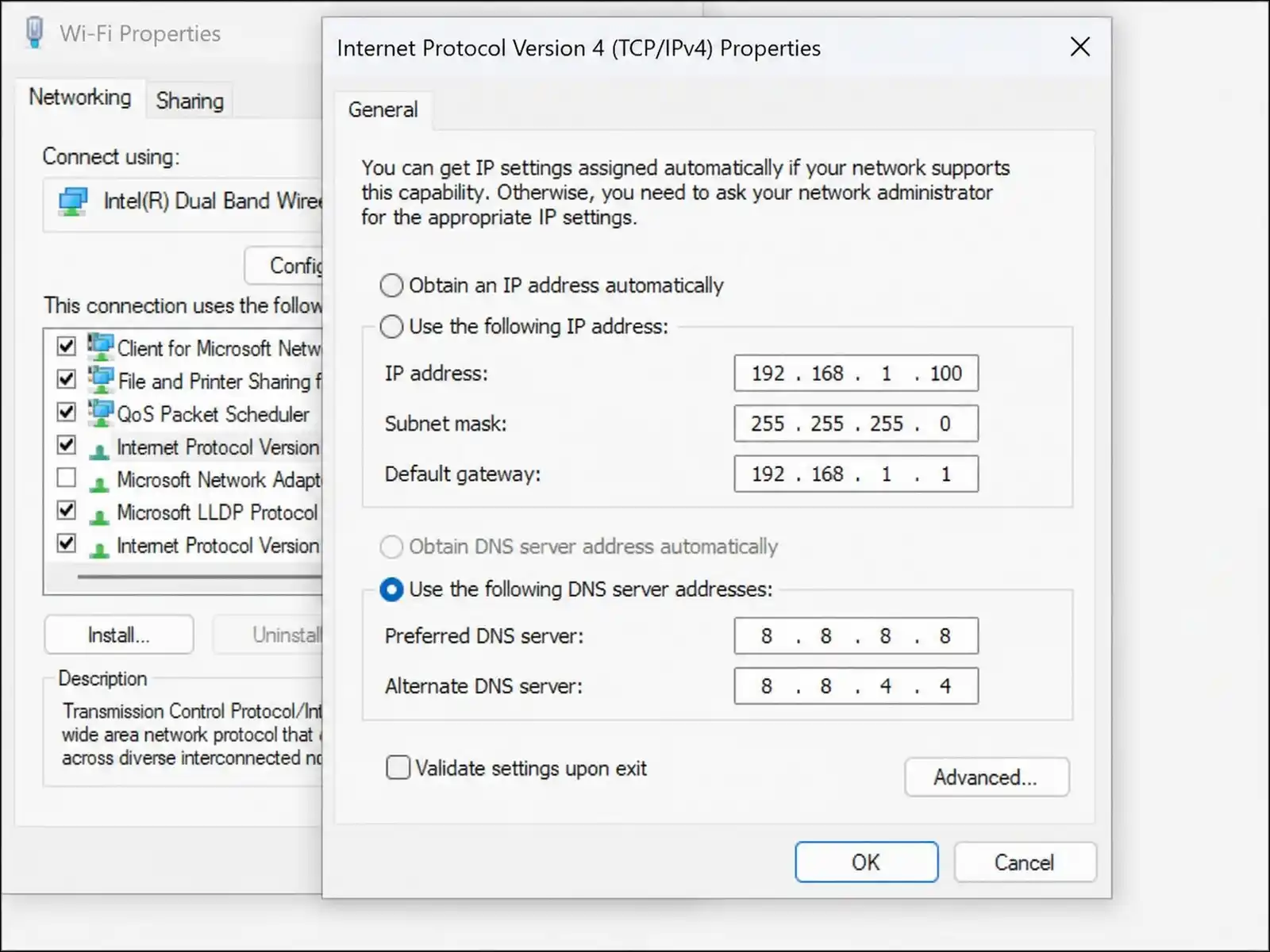
On Windows:
- Press Win + R, type
ncpa.cpl, and press Enter. - Right-click your active network adapter and select Properties.
- Select Internet Protocol Version 4 (TCP/IPv4) and click Properties.
- Select Use the following DNS server addresses.
- Enter the primary and secondary DNS from the table above.
- Click OK and restart your browser.
On Mac:
- Open System Settings > Network.
- Select your connection, click Details, then DNS.
- Click the + button and add the DNS addresses.
- Click OK.
Advanced Fixes for Persistent Issues
The fixes below address less common, but problematic persistent causes. If the above solutions didn’t resolve the error, these are worth trying next.
They’re a bit more technical, but we’ve broken them down step by step.
8. Disable MAC Address Randomization
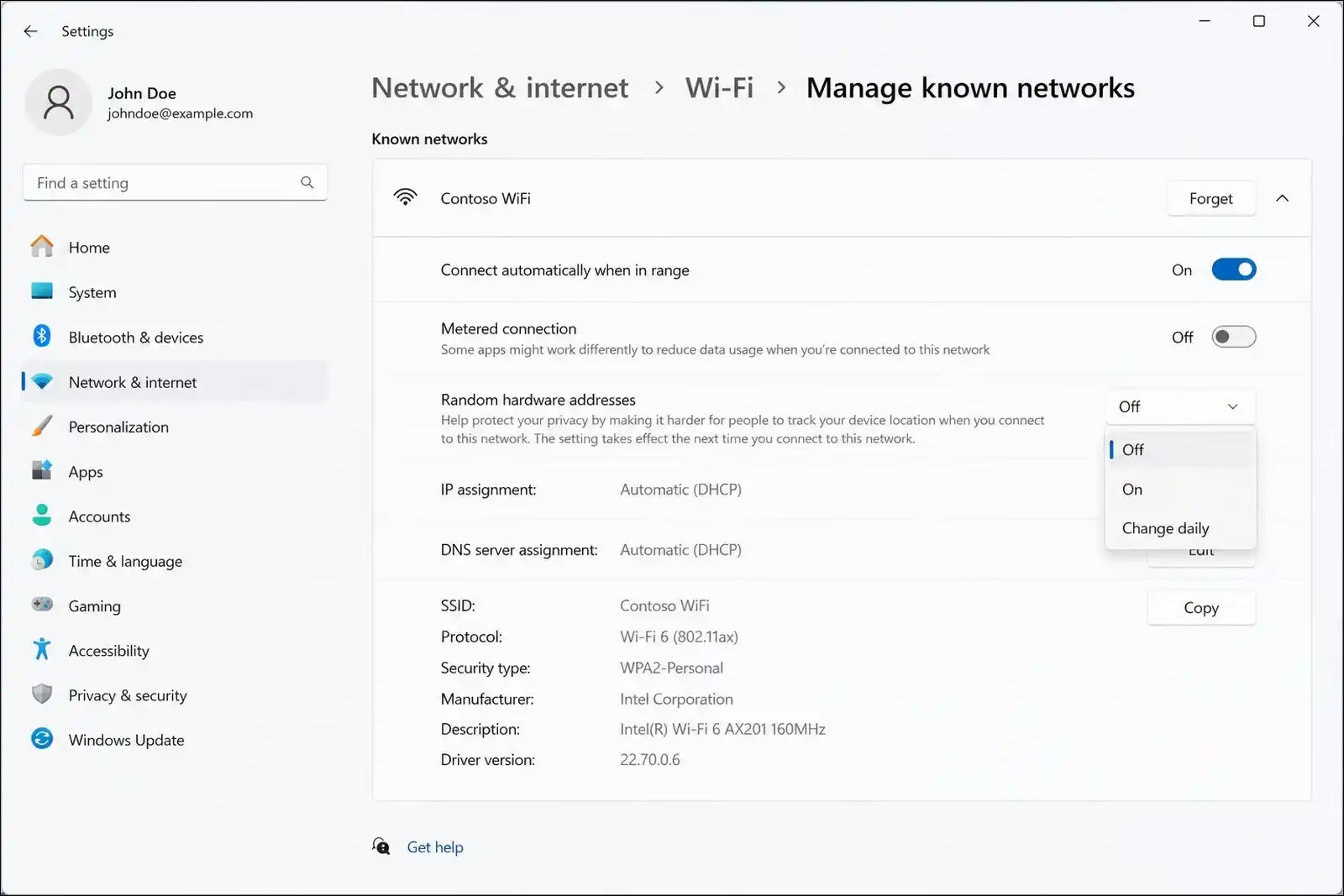
MAC address randomization is a privacy feature that can cause ERR_NETWORK_CHANGED. When your device randomizes its MAC address, Chrome detects it as a network change.
On Windows:
- Go to Settings > Network & Internet > Wi-Fi.
- Click Manage known networks.
- Select your network.
- Under Random hardware address, select Off.
On Mac:
- Open System Settings > Wi-Fi.
- Click the details icon (i) next to your network.
- Under Private Wi-Fi address, select Off.
On iOS:
- Go to Settings > Wi-Fi.
- Tap the (i) icon next to your network.
- Toggle Private Wi-Fi Address to off.
9. Disable IPv6
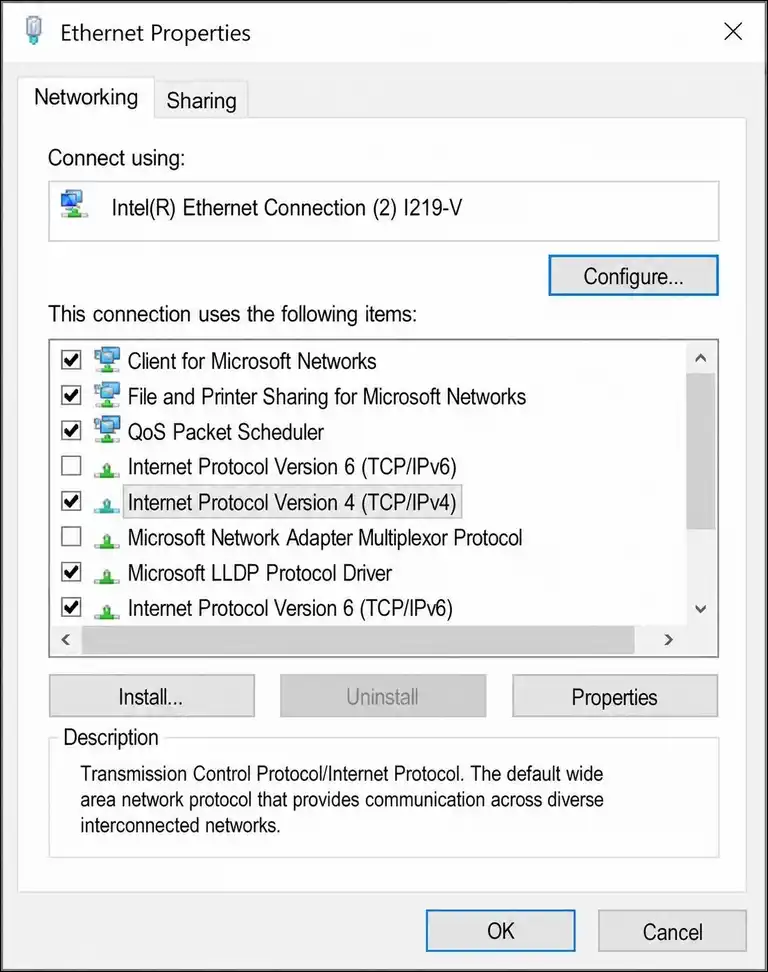
IPv6 configuration issues can cause ERR_NETWORK_CHANGED, especially when IPv6 is flapping between states. Users on SuperUser have confirmed that disabling IPv6 resolves the issue on multiple platforms.
On Windows:
- Press Win + R, type
ncpa.cpl, and press Enter. - Right-click your active network adapter and select Properties.
- Uncheck Internet Protocol Version 6 (TCP/IPv6).
- Click OK and restart your browser.
On Mac:
- Open System Settings > Network.
- Select your connection and click Details.
- Go to TCP/IP.
- Set Configure IPv6 to Link-Local Only.
- Click OK.
On Linux:
- Open Terminal.
- Run these commands:
textsudo sysctl -w net.ipv6.conf.all.disable_ipv6=1
sudo sysctl -w net.ipv6.conf.default.disable_ipv6=1
- To make it permanent, you can add these lines to
/etc/sysctl.conf.
10. Flush Chrome Socket Pools and DNS
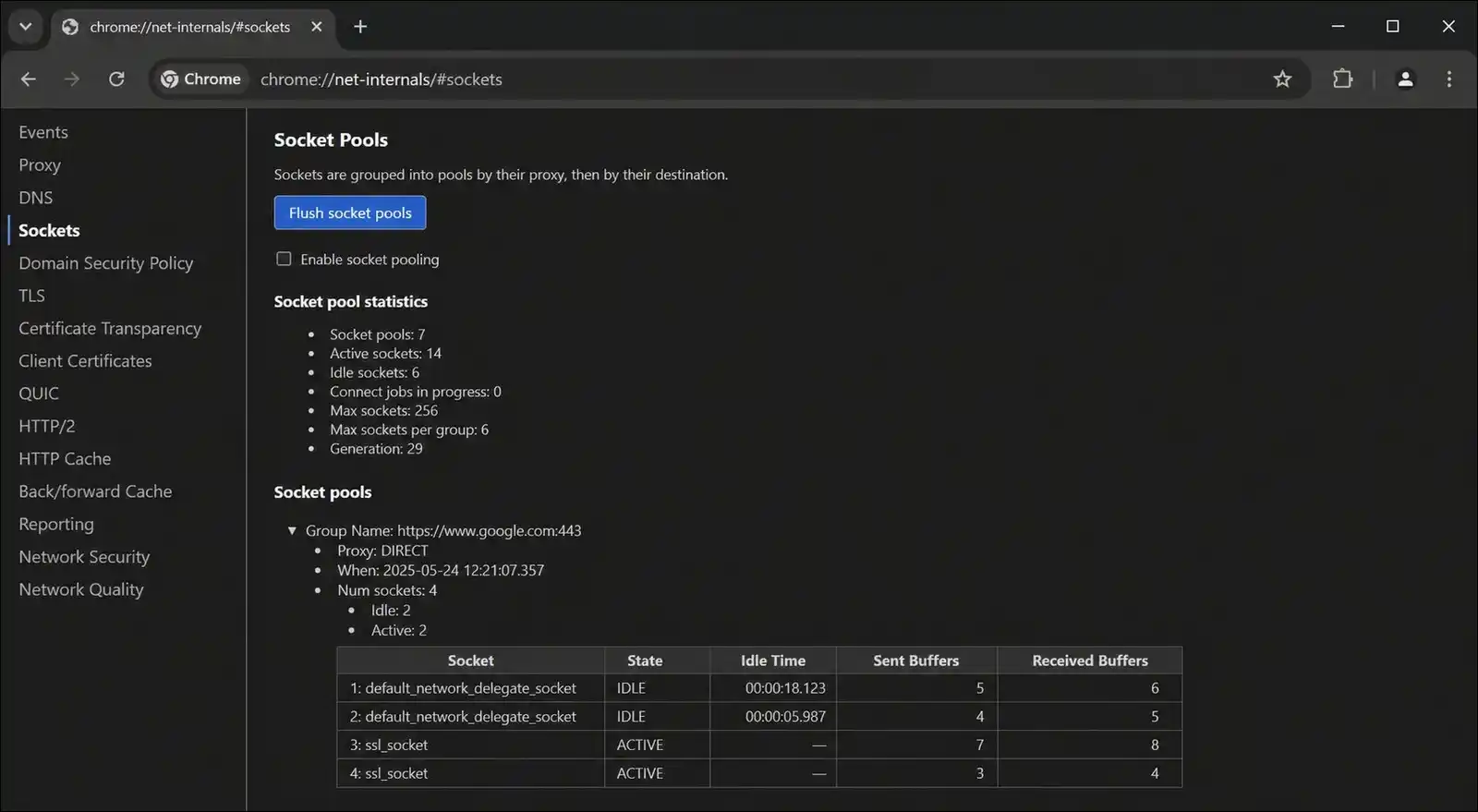
Chrome maintains its own internal socket pool that can become desynchronized from your OS network state. According to Zoer.ai’s technical analysis, flushing both the socket pool and DNS cache can resolve ERR_NETWORK_CHANGED when it appears on specific sites.
- Type
chrome://net-internals/#socketsin the address bar. - Click Flush socket pools.
- Type
chrome://net-internals/#dnsin the address bar. - Click Clear host cache.
- Restart Chrome and try the page again.
11. Disable Conflicting Network Adapters
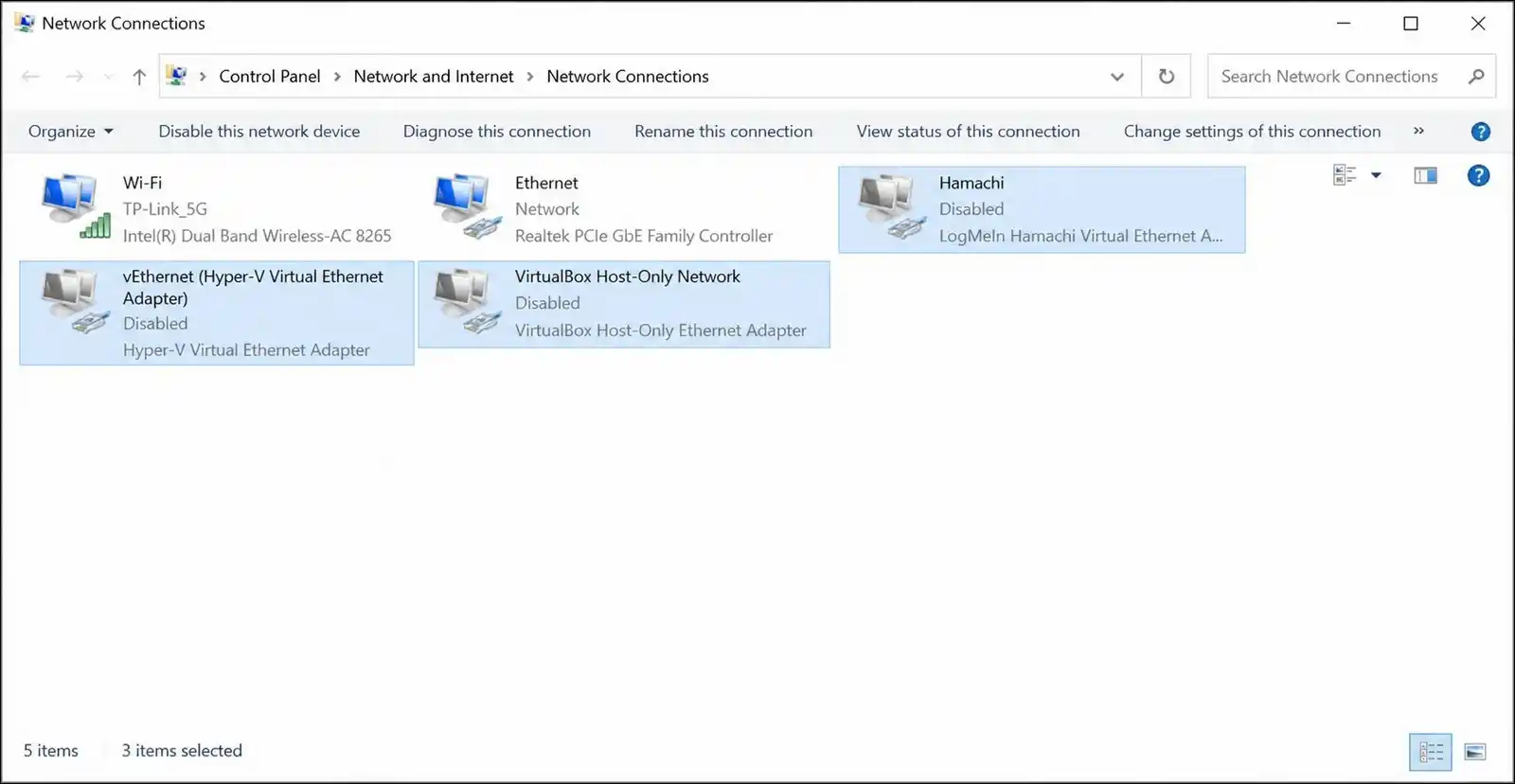
Virtual network adapters can cycle on and off, which Chrome detects as a network change. This is a common issue with Hamachi, Hyper-V, VirtualBox, and VPN adapters. So, if you have any of these installed, it’s worth checking.
- Press Win + R, type
ncpa.cpl, and press Enter. - Look for adapters you’re not actively using (virtual VPN adapters, Bluetooth PAN, Hamachi).
- Right-click each unused adapter and select Disable.
- Restart your browser.
If you’re using Hyper-V or VirtualBox, you might want to check if their virtual adapters are cycling. You can monitor this by watching the Network Connections window for adapters that enable and disable themselves.
12. Adjust Wireless Adapter Settings
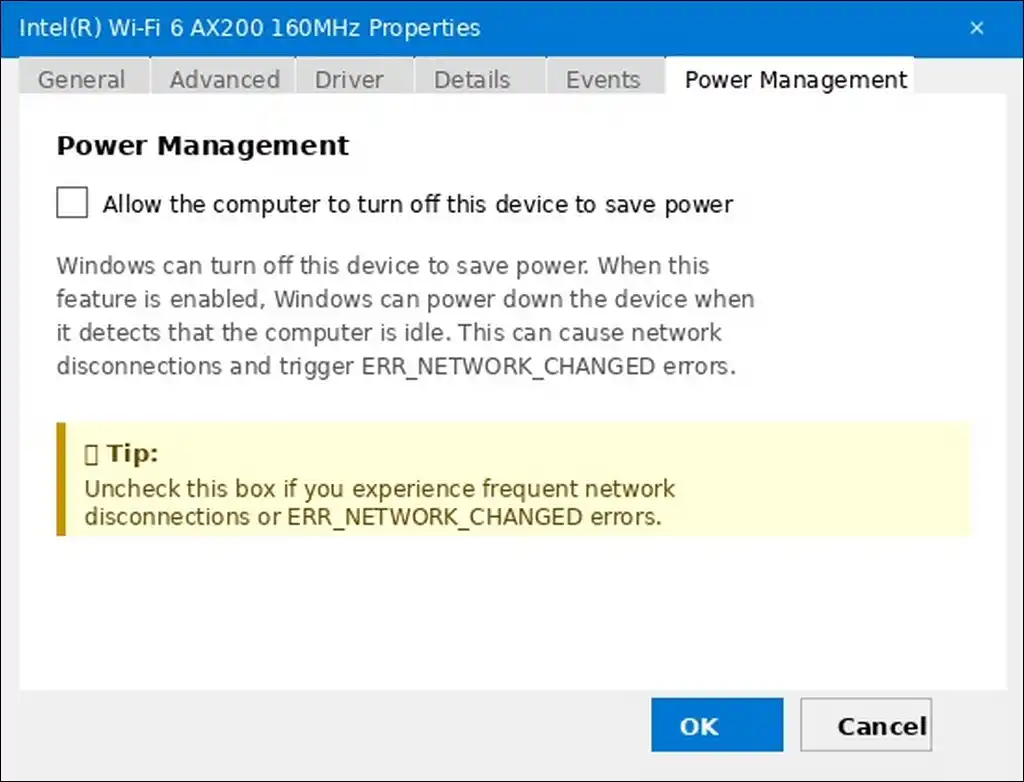
Advanced wireless adapter settings can cause ERR_NETWORK_CHANGED when they trigger network state changes. These settings are documented in Intel’s wireless adapter guide.
On Windows:
- Open Device Manager.
- Expand Network adapters.
- Right-click your wireless adapter and select Properties.
- Go to the Power Management tab.
- Uncheck Allow the computer to turn off this device to save power.
- Go to the Advanced tab.
- You can try these settings:
- U-APSD support: Disabled
- Packet Coalescing: Disabled
- Roaming Aggressiveness: Lowest
- Transmit Power: Medium, then back to Highest
Browser-Specific Solutions
If ERR_NETWORK_CHANGED only happens in one browser, the issue is browser-specific. In that case, you can try the steps below.
Chrome: Clear Cache and Extensions
- Type
chrome://extensionsin the address bar. - Toggle off all extensions.
- Test the website.
- Re-enable extensions one by one to find the one causing the problem.
You can also clear Chrome’s cache:
- Press Ctrl + H (Windows) or Cmd + H (Mac).
- Click Delete browsing data.
- Select Cookies and other site data and Cached images and files.
- Set time range to All time.
- Click Delete data.
Chrome: Reset Settings
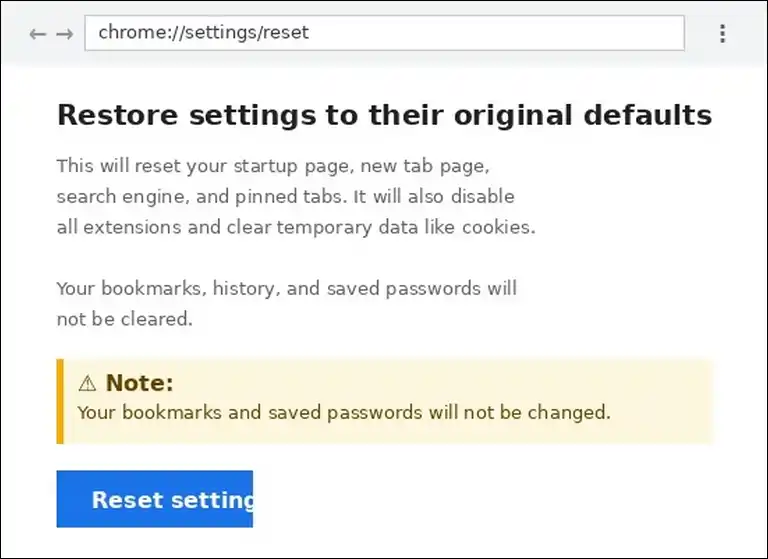
- Type
chrome://settings/resetin the address bar. - Click Restore settings to their original defaults.
- Click Reset settings to confirm.
- What gets reset: Extensions are disabled, temporary data is cleared, settings return to defaults.
- What stays intact: Bookmarks, saved passwords, and browsing history.
Mobile Device Solutions (Android and iOS)
If you find this ERR_NETWORK_CHANGED on a mobile phone, here are some working fixes for that:
Android
Step 1: Toggle Airplane Mode
- Swipe down from the top of your screen to open Quick Settings.
- Tap Airplane Mode to turn it on.
- Wait 10 seconds.
- Tap Airplane Mode again to turn it off.
- Reconnect to Wi-Fi and try the page.
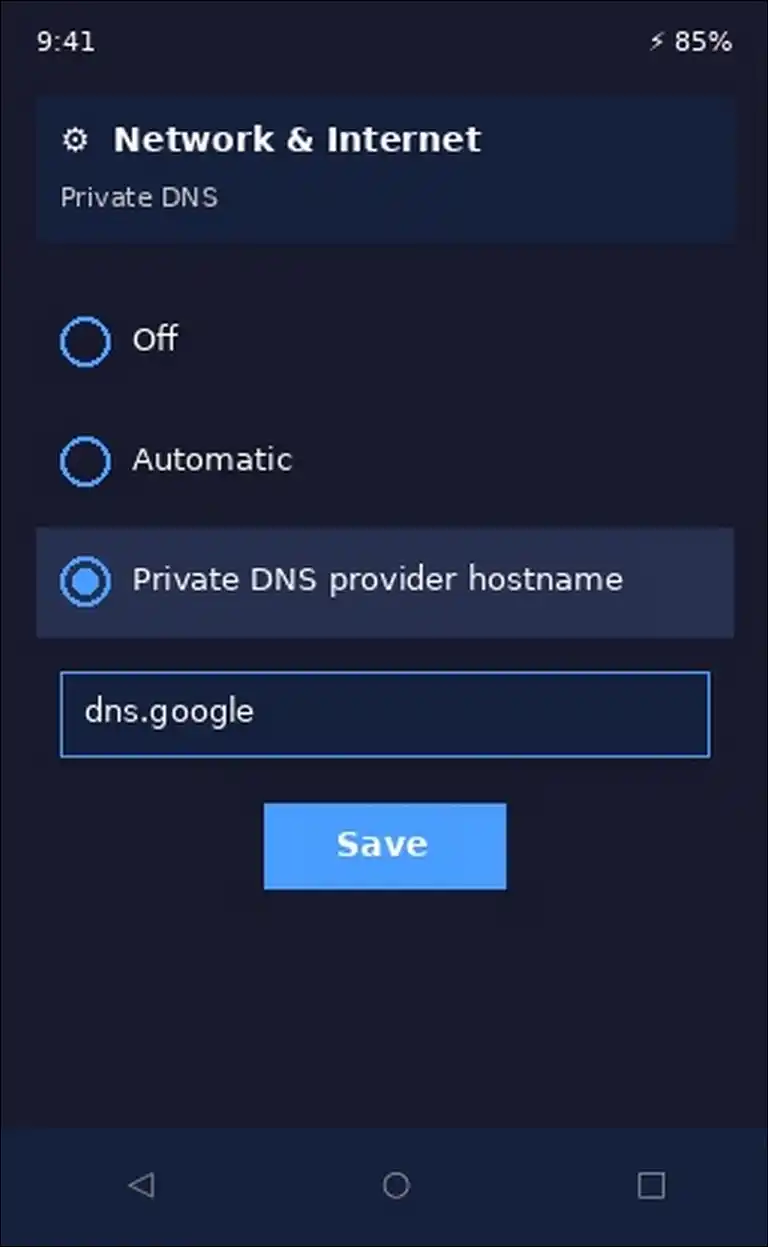
Step 2: Forget and Reconnect to Wi-Fi
- Go to Settings > Network & Internet > Wi-Fi.
- Tap your network name.
- Tap Forget.
- Reconnect to the network by entering your password.
Step 3: Reset Network Settings
- Go to Settings > System > Reset Options.
- Tap Reset Wi-Fi, mobile & Bluetooth.
- Confirm and restart your device.
iOS
Step 1: Forget This Network
- Go to Settings > Wi-Fi.
- Tap the (i) icon next to your network.
- Tap Forget This Network.
- Reconnect by entering your password.
Step 2: Disable Private Wi-Fi Address
- Go to Settings > Wi-Fi.
- Tap the (i) icon next to your network.
- Toggle Private Wi-Fi Address to off.
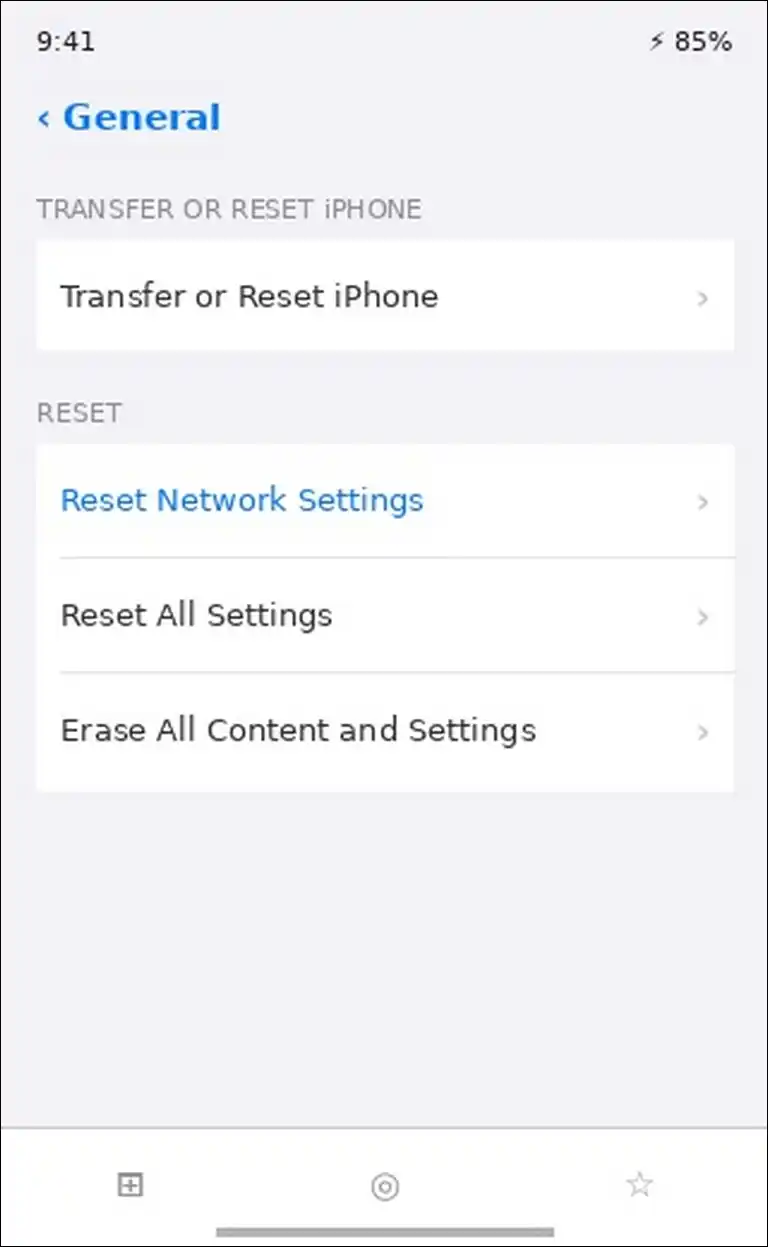
Step 3: Reset Network Settings
- Go to Settings > General > Transfer or Reset iPhone.
- Tap Reset > Reset Network Settings.
- Enter your passcode and confirm.
Platform-Specific Causes and Fixes
Some causes of ERR_NETWORK_CHANGED are specific to certain platforms. These are often overlooked by other guides, but they can be the root cause of persistent issues. So, it’s worth checking these if the general fixes didn’t work.
macOS: Close Apple Home, Notes, and Reminders
This is a well-documented but rarely covered cause. Multiple users on Reddit’s r/HomeKit have confirmed that the Apple Home app causes ERR_NETWORK_CHANGED on macOS. When you close the Home app, the issue disappears. When you open it again, the error returns.
The fix:
- Close the Home app completely (not just minimize it).
- Also close Notes and Reminders if they’re open.
- Test Chrome again.
Why this happens: These Apple apps interact with HomeKit devices on your network, which can cause network interface changes that Chrome detects.
macOS: Disconnect iPhone USB
If you have an iPhone connected to your Mac via USB, it can cause ERR_NETWORK_CHANGED. This is especially common with bad cables that cause rapid connect/disconnect cycles.
The fix:
- Unplug your iPhone from your Mac.
- If you’re using Xcode for development, you can close Xcode or disconnect the device from Window > Devices and Simulators.
- Test Chrome again.
Linux: Stop Docker Daemon
Docker creates virtual network interfaces that can trigger ERR_NETWORK_CHANGED. This is documented in multiple SuperUser and AskUbuntu threads. So, if you’re running Docker, this might be the cause.
The fix:
- Stop the Docker daemon:
sudo systemctl stop docker- Stop any running containers:
docker stop $(docker ps -q)- Test Chrome again.
If you need Docker running, you can try removing unused Docker networks:
docker network pruneWindows: Disable Virtual Network Adapters
Virtual network adapters like Hamachi, Hyper-V, and VirtualBox can cycle on and off. Chrome detects these cycles as network changes.
The fix:
- Press Win + R, type
ncpa.cpl, and press Enter. - Look for adapters named:
- Hamachi
- vEthernet (Hyper-V)
- VirtualBox Host-Only Network
- Right-click each unused adapter and select Disable.
- Test Chrome again.
For Developers and Power Users
If you’re a developer or power user, you might encounter ERR_NETWORK_CHANGED in specific scenarios. Here are some advanced solutions that go beyond the typical fixes.
Service Workers for Connection Resilience
If you’re building web applications, you can implement connection resilience to handle ERR_NETWORK_CHANGED gracefully.
- Exponential backoff: Retry failed requests with increasing delays
- navigator.onLine detection: Listen for online/offline events
- Service Workers: Queue failed requests and replay them when connectivity restores
Monitoring Network Interface Changes
You can monitor network interface changes to identify what’s causing ERR_NETWORK_CHANGED. This is especially helpful when the error happens intermittently.
On Linux:
- Open Terminal.
- Run this command:
watch -n 2 'ip address'- Look for interfaces that appear and disappear, or IPv6 addresses that change state.
On Mac:
- Open Console.app.
- Search for “network change notification”.
- Look for entries that correlate with the error timing.
ERR_NETWORK_CHANGED vs Similar Errors
These errors look similar in the browser, but they have different causes and fixes. Knowing which one you have can cut your troubleshooting time in half.
| Error | What Happened | Typical Cause |
|---|---|---|
| ERR_NETWORK_CHANGED | Network config changed mid-connection | Network switching, VPN, MAC randomization |
| ERR_CONNECTION_RESET | Connection killed with TCP RST | Firewall, ISP blocking, server abort |
| ERR_CONNECTION_TIMED_OUT | No response at all | Server offline, firewall DROP |
| ERR_CONNECTION_REFUSED | Server actively rejected | Nothing on port, firewall REJECT |
| ERR_NAME_NOT_RESOLVED | DNS failed to resolve | DNS misconfiguration |
The quick shortcut:
- ERR_NETWORK_CHANGED = Your network changed during the connection
- ERR_CONNECTION_RESET = Something killed an active connection
- ERR_CONNECTION_TIMED_OUT = No one answered at all
How to Prevent ERR_NETWORK_CHANGED from Coming Back
You can reduce the chances of this error returning with some simple habits. It doesn’t take much time, and it can save you from dealing with the same problem again.
Regular Maintenance
| Frequency | Task |
|---|---|
| Weekly | Clear browser cache and cookies |
| Monthly | Flush DNS cache |
| Quarterly | Update network adapter drivers |
| As needed | Restart router, update Chrome |
Best Practices
VPN configuration:
- You can use a reputable VPN provider with stable servers
- Consider setting your VPN to connect to a specific server rather than auto-connecting
- It’s a good idea to keep VPN software updated
Network settings:
- You might want to disable MAC randomization on trusted networks
- Consider using a static DNS like Google or Cloudflare
- You can disable “Connect automatically” for networks you don’t use regularly
Device management:
- Disconnect unused USB devices from your computer
- Close background apps that interact with your network (Home app on Mac, Docker on Linux)
- You can disable virtual network adapters when not in use
People Also Ask These Questions
No, the error itself isn’t caused by malware. It’s a legitimate Chrome error that occurs when your network configuration changes. However, malware can sometimes cause network instability that leads to this error. If you suspect an infection, you can run a full system scan.
Yes, they can. ISPs can cause this error when they change your IP address, perform maintenance, or transition you between CGNAT pools. If the error happens frequently and across all devices, you might want to contact your ISP.
Chrome monitors network state more aggressively than other browsers. Firefox and Safari are more tolerant of mid-connection network changes.
No, it won’t. Chrome reset preserves bookmarks and saved passwords. It disables extensions, clears temporary data, and restores settings to their original defaults.
macOS has unique causes like the Home app, Notes, and Reminders apps. These Apple apps interact with HomeKit devices and can cause network interface changes. Closing these apps often resolves the issue on Mac.
Yes, it can. Docker creates virtual network interfaces that can trigger Chrome’s network change detection. Stopping the Docker daemon or pruning unused networks can resolve the issue.
A bad USB cable can cause rapid connect/disconnect cycles. This creates and destroys network interfaces that Chrome detects as network changes. Unplugging the iPhone or using a better cable fixes it.
No, they’re different. ERR_NETWORK_CHANGED means your network configuration changed during a connection. ERR_CONNECTION_RESET means something actively killed an active connection with a TCP RST packet. They have different causes and different fixes.
Wrapping Up!
ERR_NETWORK_CHANGED is usually a temporary issue caused by network instability. In most cases, simple fixes like restarting your router, flushing DNS, or disabling VPN resolve the problem.
However, if you’re on a Mac, check the Home app first. It’s a documented cause that most articles don’t mention. If you’re a developer, Docker and virtual network adapters are likely culprits.
The key takeaway: Start with the quick fixes, then work through the advanced solutions systematically. If the error persists across all devices, the problem is likely with your router or ISP.