How to Fix ERR_CONNECTION_TIMED_OUT on Chrome
ERR_CONNECTION_TIMED_OUT means Chrome tried to open a website, but the site didn’t respond in time. In plain terms, Chrome waited for a reply, didn’t get one, and then showed the error.
You’ll usually see it with a message like:
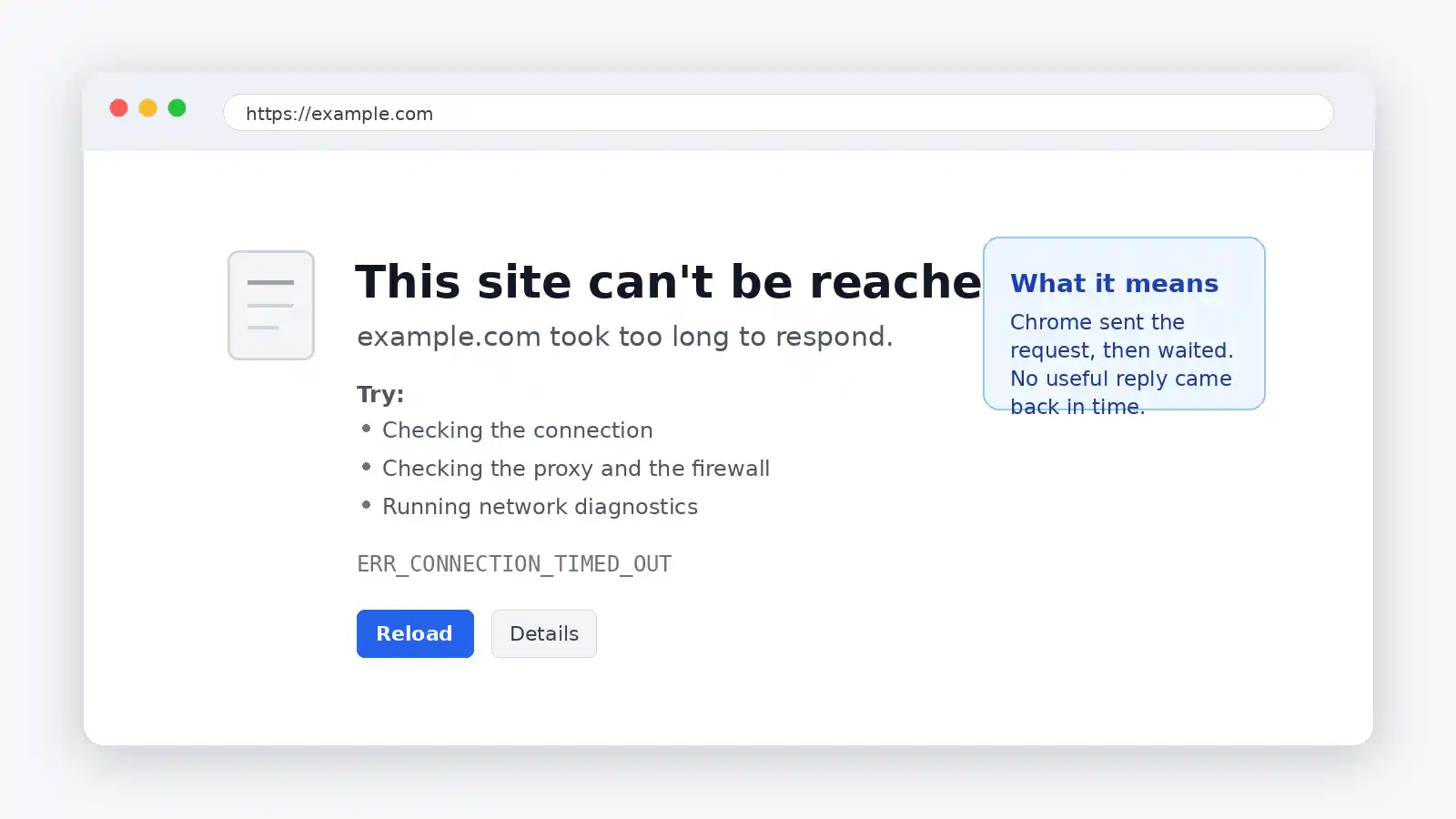
Basically, ERR_CONNECTION_TIMED_OUT or ERR_TIMED_OUT appears when a page takes too long to connect. And the cause may be a slow internet connection, or the page may be too busy.
Because so many people use Chrome, this error matters. StatCounter reports that Chrome held 69.65% of worldwide browser market share in June 2026.
So, if your website or browser breaks in Chrome, it can affect a large share of users.
Quick answer: you can fix ERR_CONNECTION_TIMED_OUT by finding where the connection fails
The fastest fix is to test whether the problem is Chrome, your device, your network, DNS, or the website itself. Once you know that, you won’t waste time doing random troubleshooting.
Start with this short checklist:
- Open a few other websites.
- Open the same site in Incognito.
- Try another browser.
- Try mobile data or another Wi-Fi network.
- Restart your router.
- Clear Chrome cache and cookies.
- Flush DNS.
- Turn off VPN or proxy temporarily.
- Try trusted DNS servers.
- Contact the website owner if it fails everywhere.
Here’s the simple rule: if only Chrome fails, fix Chrome first. If every browser fails, check your network. If the site fails on every device and network, the website may be the problem.
First, understand that ERR_CONNECTION_TIMED_OUT is Chrome error -118
Technically, ERR_CONNECTION_TIMED_OUT maps to Chromium network error -118. Chromium’s network error list defines CONNECTION_TIMED_OUT as “A connection attempt timed out”.
That detail helps because Chrome has several similar errors. They look alike, but they don’t always mean the same thing.
| Chrome error | What it usually means |
|---|---|
| ERR_CONNECTION_TIMED_OUT | Chrome didn’t get a reply in time |
| ERR_TIMED_OUT | A broader network step took too long |
| ERR_CONNECTION_REFUSED | The server rejected the connection |
| ERR_CONNECTION_RESET | The connection started, then broke |
| ERR_NAME_NOT_RESOLVED | DNS couldn’t find the domain |
So, you can think of this error as silence: Chrome sent a request, waited, and didn’t hear back soon enough.
Now, let’s try and fix this error!
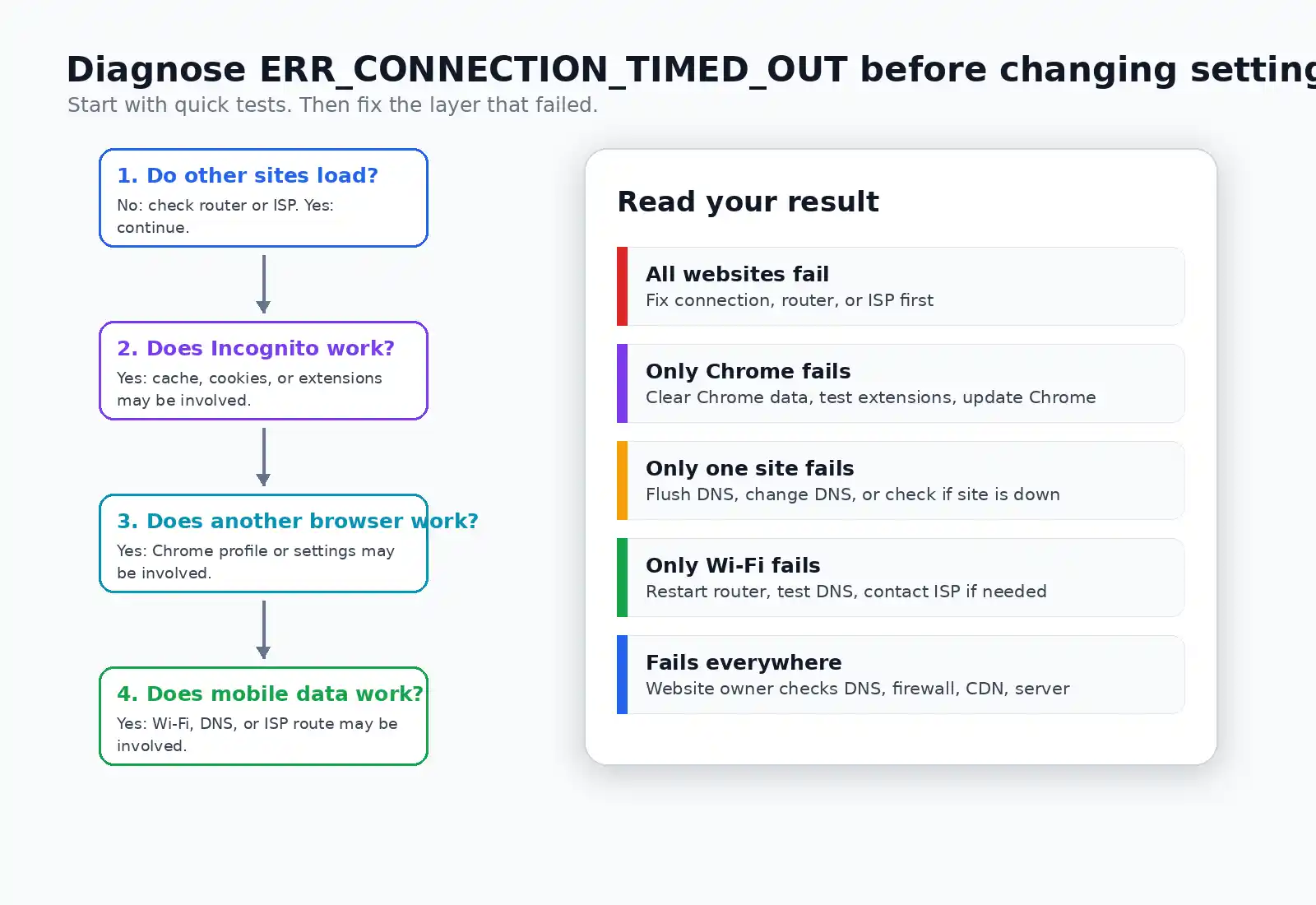
Start by checking whether the timeout is local or server-side
Before changing settings, you can quickly check where the problem likely sits. This step makes the rest much easier.
Try these tests in order:
- Open two or three popular websites.
- Try the failing site in Incognito.
- Try the failing site in Firefox, Edge, or Safari.
- Try the failing site on mobile data.
- Ask someone else to open the same URL.
Now, compare your result.
| What you see | What it likely means |
|---|---|
| All websites fail | Your internet or router may be the issue |
| Only one website fails | The site, DNS, or route may be the issue |
| Chrome fails, but Firefox works | Chrome data, extensions, or profile may be involved |
| Incognito works | Cache, cookies, or extensions may be involved |
| Mobile data works, but Wi-Fi fails | Router, DNS, or ISP routing may be involved |
| The site fails for everyone | The website owner may need to fix it |
This is the most useful part of the process. It tells you where to spend your time.
If Chrome is the only browser failing, clear Chrome cache and cookies
If other browsers work, Chrome’s stored data may be causing the timeout. Cache and cookies help websites load faster, but they can also become outdated or corrupted.
Google says clearing cache and cookies in Chrome can help fix loading and formatting issues 1. So, it’s a safe early step.
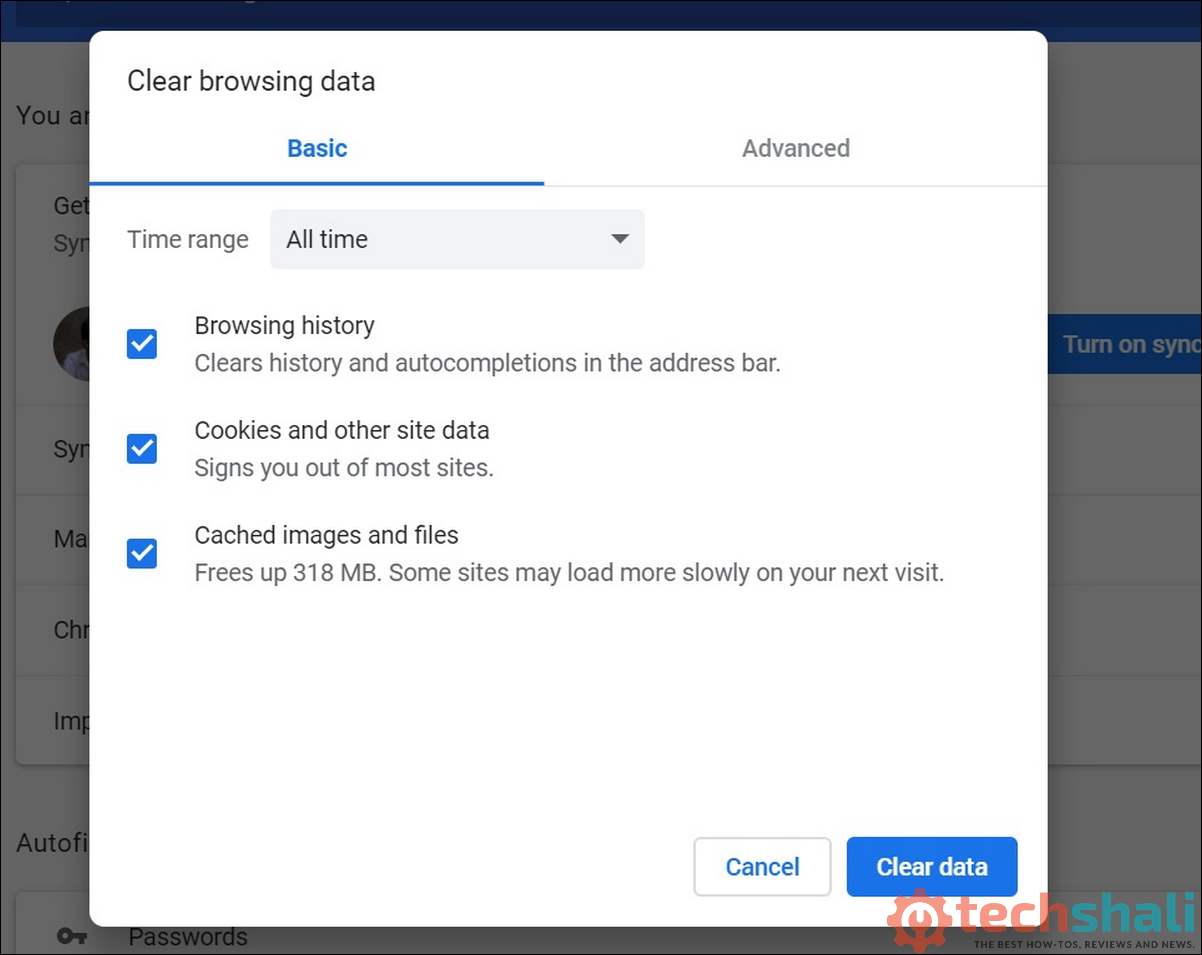
How to clear Chrome cache and cookies
- Open Chrome.
- Select the three-dot menu.
- Select Delete browsing data.
- Choose a time range.
- Select Cached images and files.
- Select Cookies and other site data.
- Select Delete data.
- Reopen the website.
If you don’t want to sign out of many sites, you can start with a shorter time range. Also, for one broken website, you may have the option to clear only that site’s data.
Note: Clearing cookies may sign you out of websites.
If Incognito works, test your Chrome extensions next
If the website works in Incognito, an extension may be interfering. This happens often with ad blockers, privacy tools, VPN extensions, download managers, and proxy extensions.
Google’s Chrome Web Store Help shows that you can manage extensions from More → Extensions → Manage extensions 1.
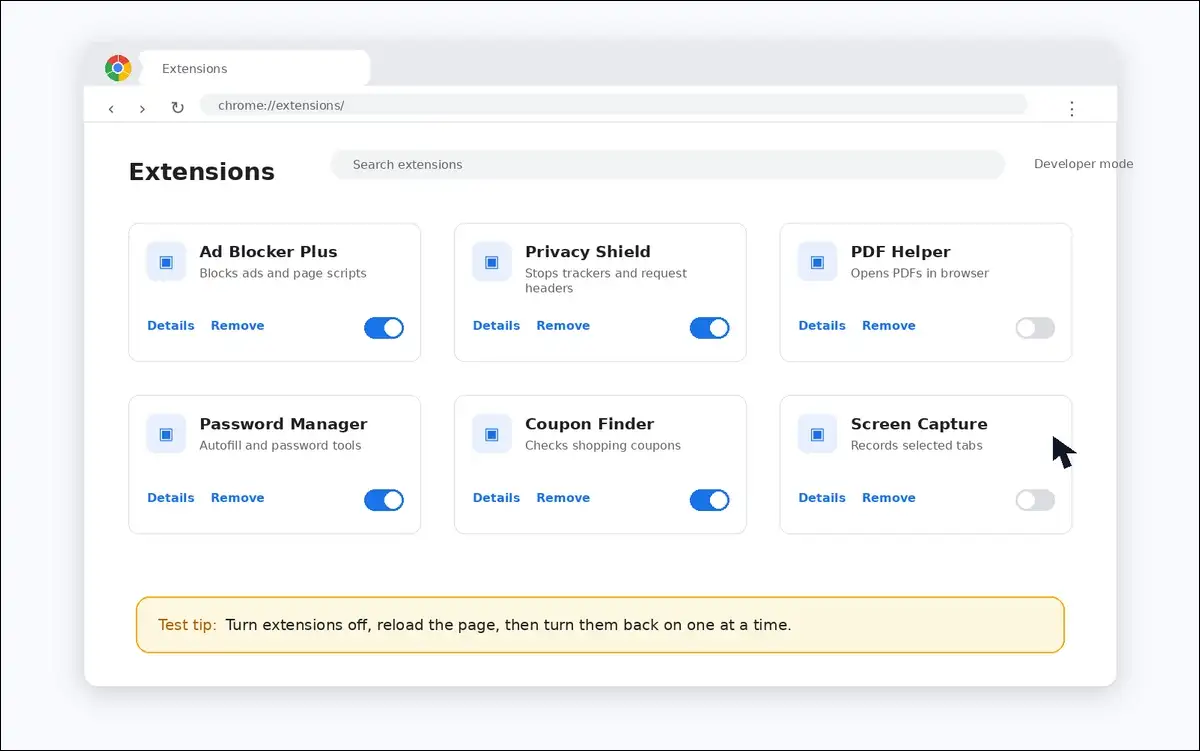
How to test Chrome extensions
- Open Chrome.
- Select the three-dot menu.
- Select Extensions.
- Select Manage extensions.
- Turn off all extensions.
- Reopen the website.
- Turn extensions back on one by one.
- Refresh the site after each one.
If the error returns after one extension, you’ve likely found the cause. From there, you can keep it off, update it, or limit its site permissions.
If Chrome is outdated, update it before deeper troubleshooting
An outdated Chrome version may cause connection or compatibility issues. So, before you change network settings, it’s worth checking Chrome updates.
Google says Chrome usually updates in the background. However, you can manually check updates from More → Help → About Google Chrome 1.
How to update Chrome
- Open Chrome.
- Select the three-dot menu.
- Select Help.
- Select About Google Chrome.
- Wait while Chrome checks for updates.
- Select Relaunch, if it appears.
- Test the site again.
If you don’t see Relaunch, Chrome is already up to date.
If Chrome settings seem broken, reset Chrome as a last browser fix
If Chrome still fails after cache, extensions, and updates, resetting Chrome may help. This can fix changed settings, broken extensions, or unwanted configuration changes.
Google says resetting Chrome restores browser settings, while saved bookmarks and passwords aren’t deleted 1.
How to reset Chrome settings
- Open Chrome.
- Select the three-dot menu.
- Select Settings.
- Select Reset settings.
- Select Restore settings to their original defaults.
- Select Reset settings.
- Restart Chrome.
- Test the site again.
This can change your extensions, cookies, site data, and custom settings. So, it’s best used after simpler fixes.
If every site is slow or broken, check your internet connection
If all websites fail, Chrome probably isn’t the main issue. Your Wi-Fi, router, modem, ISP, or device network settings may be causing the timeout.
Start with the basics first.
How to check your connection
- Open a few trusted websites.
- Test the same sites on another device.
- Move closer to your router.
- Turn Wi-Fi off and on.
- Restart your router and modem.
- Wait until the lights stabilize.
- Reopen Chrome and test again.
A router restart may clear temporary network problems. You can turn it off for about 30 seconds before reconnecting it.
If DNS is stale, flush DNS on your device
DNS problems can send Chrome to an old or unreachable address. DNS turns a domain, like example.com, into an IP address. If your device cached a bad answer, Chrome may keep trying the wrong place.
Microsoft’s ipconfig documentation lists /flushdns for DNS resolver cache troubleshooting. It also explains that /release and /renew refresh DHCP network configuration 2.
How to flush DNS on Windows
- Select Start.
- Type cmd.
- Select Run as administrator.
- Run this command:
batipconfig /flushdns
- Restart Chrome.
- Test the website again.
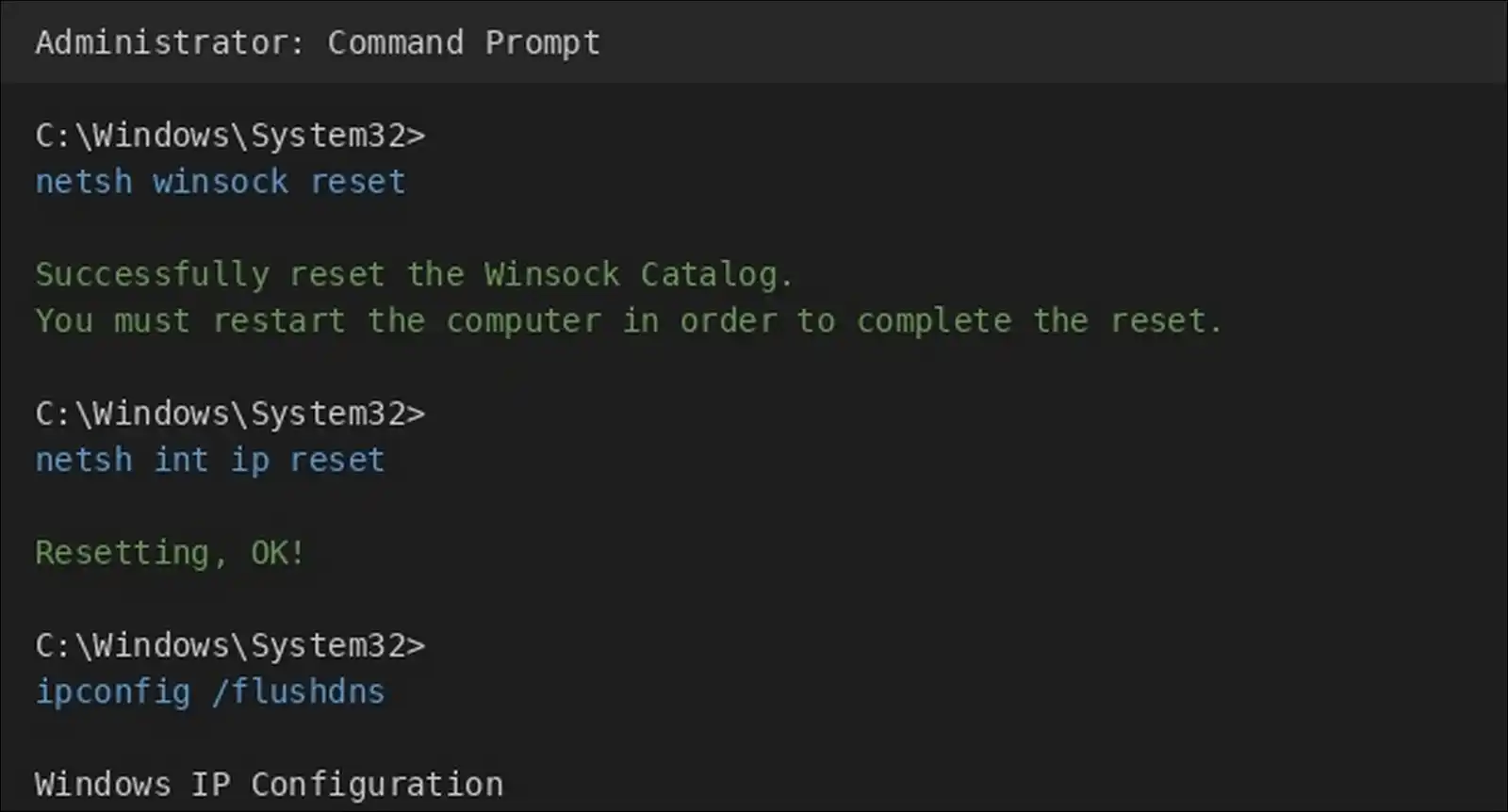
How to renew your IP on Windows
If the problem continues, you can also renew your network lease.
batipconfig /release
ipconfig /renew
However, be careful with this step. If you’re connected through remote support or VPN, /release may disconnect you.
How to reset Winsock and TCP/IP on Windows
If network issues continue, you may have the option to reset the network stack.
batnetsh winsock reset
netsh int ip reset
After that, restart your computer.
If you’re on macOS or Linux, flush DNS there too
macOS and Linux can also keep stale DNS records. So, if Chrome keeps timing out after a DNS change, you can clear the local DNS cache.
How to flush DNS on macOS
- Open Terminal.
- Run this command:
Bashsudo dscacheutil -flushcache; sudo killall -HUP mDNSResponder
- Enter your Mac password.
- Reopen Chrome.
- Test the website.
You may not see a success message. That’s normal.
How to flush DNS on Linux
On many systemd-based Linux systems, you can run:
Bashsudo resolvectl flush-caches
If your Linux system uses another resolver, the command may differ. In that case, you can check your distribution’s network settings.
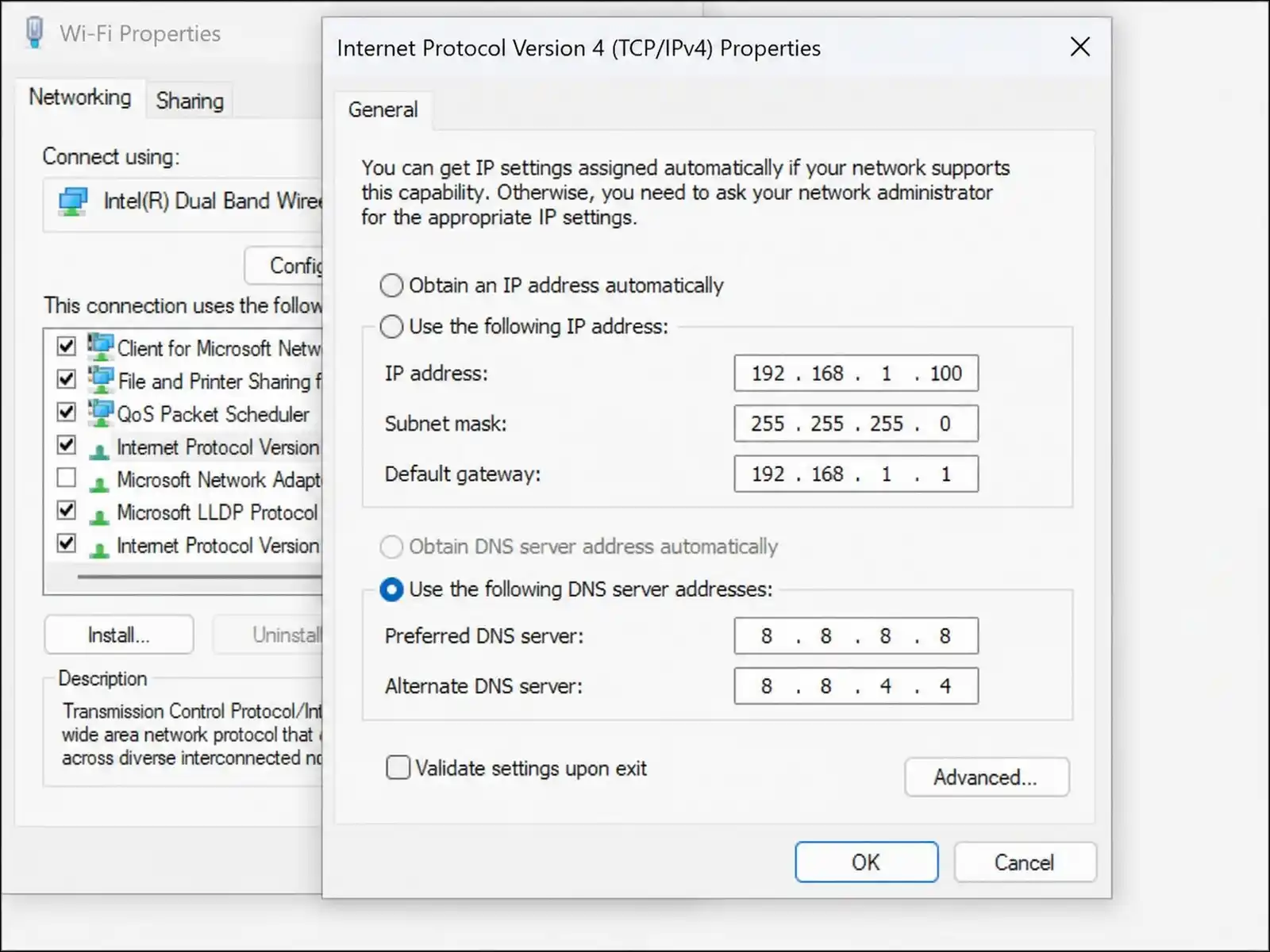
If your DNS resolver is slow, try Google or Cloudflare DNS
Changing DNS can help when your ISP DNS is slow, stale, or misrouting a domain. It’s especially useful when only some websites fail.
Google Public DNS lists these IPv4 addresses in its official setup guide: 8.8.8.8 and 8.8.4.4 1. Cloudflare lists 1.1.1.1 and 1.0.0.1 for its standard resolver 3.
Trusted DNS options
| Provider | DNS addresses |
|---|---|
| Google Public DNS | 8.8.8.8, 8.8.4.4 |
| Cloudflare DNS | 1.1.1.1, 1.0.0.1 |
How to change DNS on Windows
- Open Settings.
- Select Network & internet.
- Select your active connection.
- Open DNS server assignment.
- Select Edit.
- Choose Manual.
- Enter Google or Cloudflare DNS.
- Save your changes.
- Restart Chrome.
How to change DNS on macOS
- Open System Settings.
- Select Network.
- Select your active connection.
- Open Details.
- Select DNS.
- Add your chosen DNS addresses.
- Select OK.
- Reopen Chrome.
Before you change DNS, write down the old settings. That way, you can switch back if needed.
If Chrome still fails, clear Chrome’s own DNS and socket cache
Chrome also stores network state inside the browser. So, even after flushing your system DNS, Chrome may still hold old connection data.
How to clear Chrome host cache
- Open a new Chrome tab.
- Enter this address:
chrome://net-internals/#dns- Select Clear host cache.
- Then open this address:
chrome://net-internals/#sockets- Select Flush socket pools.
- Reopen the failing website.
Before you flush sockets, save important work in active tabs. This may affect current connections.
If VPN or proxy is active, test with it off and on
VPNs and proxies can either cause or solve this error. They may slow traffic, block some routes, or send requests through a server that can’t reach the website.
So, it’s best to compare both states.
How to test VPN
- Turn off your VPN.
- Reopen Chrome.
- Test the website.
- Turn the VPN back on.
- Try another VPN region, if available.
If the site works without VPN, the VPN route may be the issue. However, if the site works only with VPN, your ISP route may be the issue.
How to test proxy settings on Windows
- Open Settings.
- Select Network & internet.
- Select Proxy.
- Turn off Use a proxy server, if it’s not required.
- Test Chrome again.
How to test proxy settings on macOS
- Open System Settings.
- Select Network.
- Select your active connection.
- Open Details.
- Select Proxies.
- Turn off unnecessary proxy options.
- Test Chrome again.
If you’re on a work or school device, check with IT first. Your network may require a proxy.
If firewall or antivirus is blocking the site, test it safely
Security software can create timeouts if it blocks traffic silently. Still, you shouldn’t leave protection disabled.
Use this only as a short test.
How to test safely
- Close sensitive websites first.
- Pause web protection briefly.
- Test the failing website once.
- Turn protection back on immediately.
- If the site works, add a trusted exception.
- If it still fails, keep protection enabled.
A safe allow-list rule is better than disabling your firewall or antivirus permanently.
If only one domain fails, check the hosts file
A bad hosts file entry can override DNS and break one website. This often happens after local development, ad blocking, malware, or manual edits.
Hosts file locations
| System | File location |
|---|---|
| Windows | C:\Windows\System32\drivers\etc\hosts |
| macOS or Linux | /etc/hosts |
Bad hosts file examples
127.0.0.1 example.com
0.0.0.0 example.com
192.168.1.10 example.com
These entries may point the website to the wrong place.
How to check hosts file on Windows
- Open Notepad as administrator.
- Open this file:
C:\Windows\System32\drivers\etc\hosts- Search for the failing domain.
- Remove suspicious entries.
- Save the file.
- Flush DNS.
- Test Chrome again.
How to check hosts file on macOS or Linux
- Open Terminal.
- Run this command:
Bashsudo nano /etc/hosts
- Search for the failing domain.
- Remove suspicious entries.
- Save the file.
- Flush DNS.
- Test Chrome again.
Keep normal localhost entries. Only remove entries you understand.
If Wi-Fi fails but mobile data works, your route may be broken
When mobile data works but Wi-Fi fails, your router, DNS, ISP, or route may be the issue. The website may not be down at all.
Try this comparison.
- Test the site on Wi-Fi.
- Test the site on mobile data.
- Restart your router.
- Change DNS.
- Try another Wi-Fi network.
- Contact your ISP if only your network fails.
When you contact your ISP, share your tests. That helps them see it’s not just a browser issue.
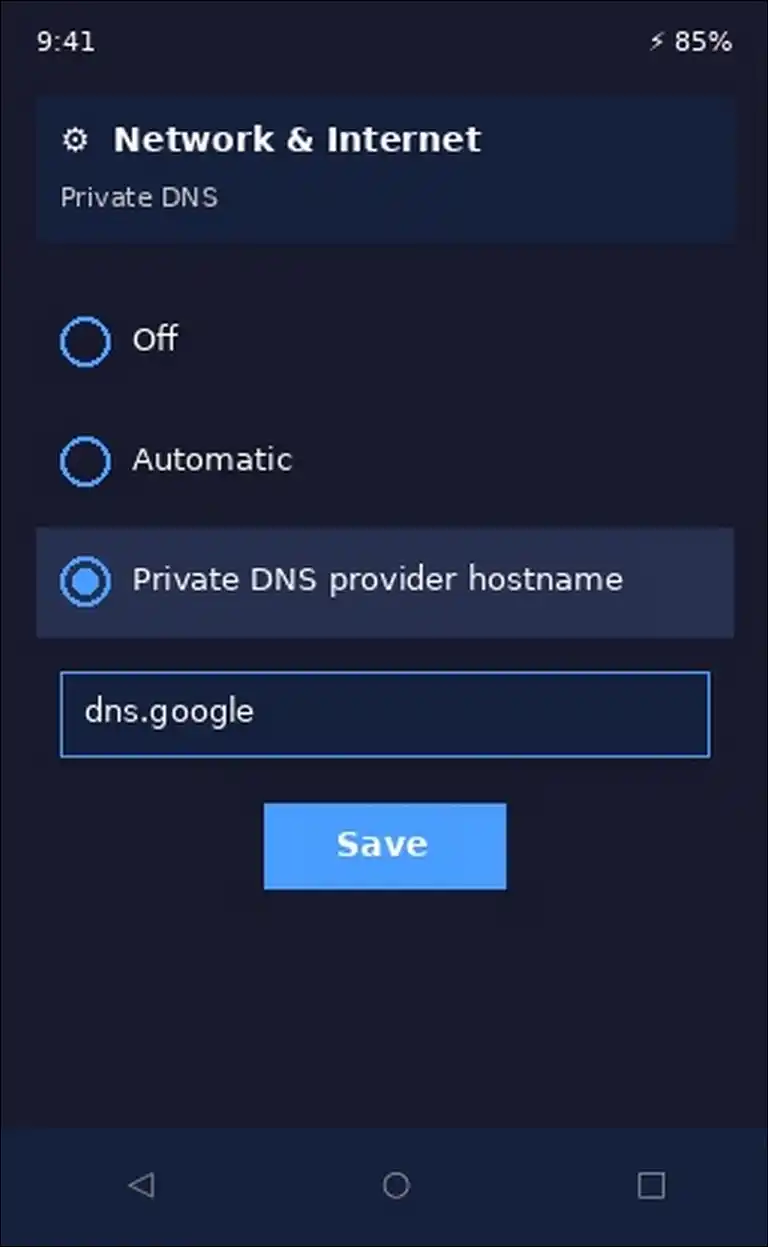
If you’re on Android, check Chrome cache, VPN, and Private DNS
On Android, this error often comes from Wi-Fi, VPN, Private DNS, or Chrome app cache. So, you can refresh the network path before changing advanced settings.
How to fix it on Android
- Turn Airplane mode on and off.
- Switch between Wi-Fi and mobile data.
- Restart your phone.
- Open Settings.
- Select Apps.
- Select Chrome.
- Select Storage.
- Clear Cache.
- Check any active VPN.
- Review Private DNS settings.
If Private DNS is set incorrectly, many websites may fail. You can turn it off temporarily to test.
If you’re on iPhone or iPad, refresh Wi-Fi and DNS
On iPhone and iPad, Wi-Fi settings and VPN profiles often cause timeouts. So, start with the network path before reinstalling apps.
How to fix it on iPhone or iPad
- Turn Airplane Mode on and off.
- Switch between Wi-Fi and mobile data.
- Forget and rejoin the Wi-Fi network.
- Restart the device.
- Check VPN settings.
- Change DNS for the Wi-Fi network.
- Reset network settings as a last option.
Resetting network settings removes saved Wi-Fi networks. So, you’ll need passwords again.
If you’re on a work or school network, ask IT to check proxy and policy
Managed networks may block or reroute traffic through proxies, VPNs, DNS policies, and web filters. That can create timeouts for specific websites.
Nexthink recommends scoping timeout issues by app, operating system, browser version, location, URL, and time frame in managed environments 1.
Before contacting IT, collect simple details.
- Test the site on mobile data.
- Note whether VPN is connected.
- Check if coworkers see the same issue.
- Check if only internal sites fail.
- Note your Chrome version.
- Take a screenshot.
- Record the time and timezone.
You can send IT a message like this:
I’m seeing
ERR_CONNECTION_TIMED_OUTin Chrome for this URL. It works on mobile data, but not on the work network. I tested it at 10:30 AM IST. Incognito gives the same result.
That gives IT a clear starting point.
If you own the website, check server reachability before WordPress
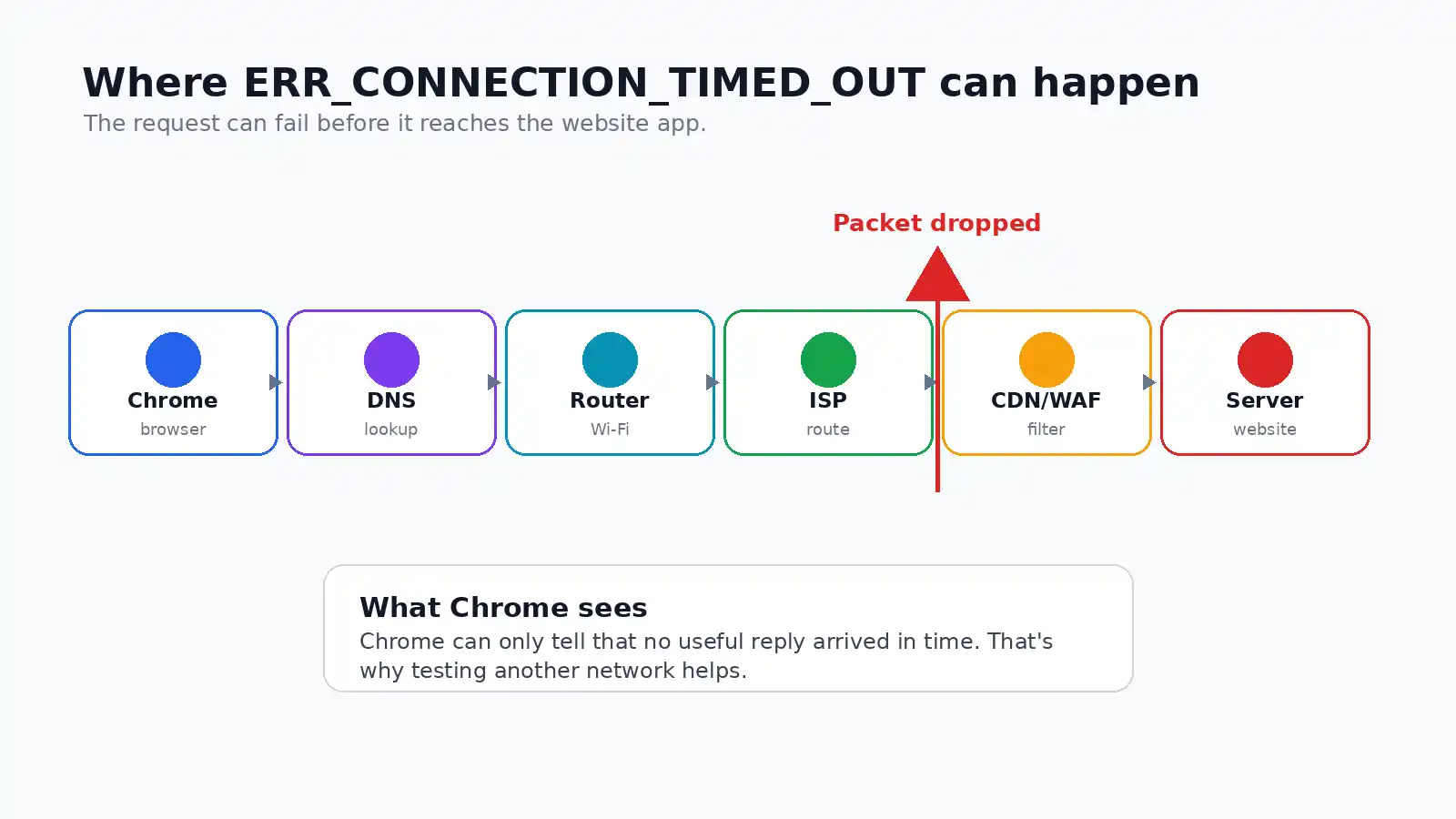
If users report this error, confirm the server is reachable before editing WordPress. A timeout may happen before the request reaches your app.
Start with the outside view first.
Website owner checklist
| What to check | Why it matters |
|---|---|
| DNS records | Users may be sent to the wrong IP |
Ports 80 and 443 | HTTP or HTTPS may be blocked |
| CDN or WAF | Rules may block regions or IPs |
| Server firewall | Dropped packets can cause timeouts |
| Hosting status | The server may be down |
| Server load | High traffic may delay responses |
| App logs | Code or database may be slow |
If the server is unreachable from several networks, your website team or host should investigate first.
If DNS points to the wrong server, fix A, AAAA, and CDN records
Wrong DNS records can send visitors to a dead or old server. This commonly happens after migrations, CDN changes, or staging updates.
DNS records to review
| Record | What to confirm |
|---|---|
| A | Correct IPv4 address |
| AAAA | Correct IPv6 address |
| CNAME | Correct host or CDN target |
| Nameservers | Correct DNS provider |
| CDN proxy | Correct origin server |
| TTL | Old records aren’t lingering too long |
If some users fail and others don’t, DNS propagation or regional routing may be involved.
If a firewall drops packets, Chrome may show a timeout
A server firewall can create a timeout when it drops traffic silently. That’s different from rejecting traffic.
| Firewall behavior | Browser result |
|---|---|
| Drops packet | Timeout |
| Rejects packet | Connection refused |
| Port is closed | Connection refused |
| Server is overloaded | Timeout |
So, if users get ERR_CONNECTION_TIMED_OUT, check firewall rules, security groups, CDN firewall events, and WAF logs.
Server firewall checks
- Review cloud security groups.
- Review host firewall rules.
- Check CDN firewall events.
- Check WAF blocks.
- Check rate limits.
- Check blocked IP lists.
- Check fail2ban or similar tools.
- Confirm ports
80and443are open.
If only one country or region fails, ask your CDN or host about regional blocking.
If WordPress times out, check plugins after server basics
WordPress plugins can cause slow responses, but they aren’t always first. So, check reachability, DNS, firewall, and logs before disabling everything.
WordPress troubleshooting path
- Back up the site.
- Check hosting resource usage.
- Check PHP error logs.
- Review recent changes.
- Disable recently changed plugins.
- Rename the
pluginsfolder if admin fails. - Switch to a default theme.
- Review slow database queries.
- Increase PHP memory only if needed.
- Adjust
max_execution_timeonly if needed.
You may see settings like this in support guides:
PHPdefine('WP_MEMORY_LIMIT', '256M');
set_time_limit(300);
However, use them carefully. Raising limits may hide a slow plugin, bad database query, or failing API request.
If you need support, send evidence instead of only the error
Support teams can help faster when you share what you’ve already tested. You don’t need to send private information.
Send this to your ISP
- Website URL.
- Chrome error screenshot.
- Date, time, and timezone.
- Whether other sites work.
- Whether mobile data works.
- Your DNS settings.
nslookupresult.tracertortracerouteresult.
Send this to your hosting provider
- Website URL.
- Server IP.
- Screenshot.
- External uptime result.
- Recent DNS changes.
- Recent deploys.
- CDN or firewall changes.
- Relevant logs.
curl -Ioutput.- Affected user locations.
This turns “the site is broken” into a clear technical report.
Use simple commands when you need proof
Network commands can show whether DNS resolves and where the route may fail. They’re also useful for support tickets.
Windows commands
batnslookup example.com
ping example.com
tracert example.com
macOS and Linux commands
Bashnslookup example.com
ping example.com
traceroute example.com
Curl test
Bashcurl -I --connect-timeout 15 https://example.com
Keep in mind, some servers block ping. So, a failed ping doesn’t always mean the site is down.
Avoid these common mistakes while fixing the error
Some fixes can create new problems if you use them too early. So, it’s better to test carefully and keep notes.
| Mistake | Why it’s risky |
|---|---|
| Leaving antivirus disabled | It lowers your protection |
| Deleting all browser data first | It may sign you out everywhere |
| Editing hosts file blindly | It can break other sites |
| Changing DNS without notes | You may lose working settings |
Running /release remotely | It can disconnect you |
| Installing random driver tools | They may create extra risk |
| Editing WordPress first | The request may not reach WordPress |
| Changing Chrome flags casually | Flags are experimental |
If you change a setting, write down the old value. Then, you can reverse it later.
You can reduce future timeouts with clean settings and monitoring
You can’t prevent every timeout, but you can reduce repeat issues. Users and website owners need different habits.
For Chrome users
- Keep Chrome updated.
- Remove extensions you don’t use.
- Avoid untrusted VPN or proxy extensions.
- Keep router firmware updated.
- Save your working DNS settings.
- Restart your router when Wi-Fi becomes unstable.
- Use trusted DNS if ISP DNS fails often.
For website owners
- Monitor uptime from multiple regions.
- Monitor ports
80and443. - Track DNS changes.
- Review CDN and WAF rules.
- Watch CPU, RAM, disk, and network.
- Keep WordPress and plugins updated.
- Log slow database queries.
- Add alerts for high error rates.
- Test after firewall changes.
- Keep a rollback plan.
People Also Ask These Questions
It means Chrome tried to connect, but the connection didn’t complete in time. The issue may be Chrome, your device, your network, DNS, VPN, proxy, firewall, or the website server.
It can be either. If only your device fails, start with Chrome and your network. If the site fails everywhere, the website owner may need to fix it.
Chrome cache, cookies, extensions, or profile settings may be involved. Try Incognito, disable extensions, clear Chrome data, update Chrome, or use a fresh profile.
Yes, DNS can cause it. A stale DNS record may send Chrome to an unreachable IP address. Flushing DNS or changing DNS servers can help.
No, but they’re related. Chromium maps ERR_CONNECTION_TIMED_OUT to error -118, while ERR_TIMED_OUT maps to broader error -7.
You can test briefly, but you shouldn’t leave it disabled. If the site works only when protection is off, add a trusted exception instead.
Your Wi-Fi, DNS, router, or ISP route may be the issue. Restart the router, flush DNS, change DNS, or contact your ISP with test results.
Start with network and Chrome app cache. Switch Wi-Fi and mobile data, clear Chrome cache, check VPN, and review Private DNS settings.
Website owners should confirm reachability first. Then they can review DNS, CDN, firewall rules, WAF logs, ports, server resources, and application logs.
Wrapping Up!
ERR_CONNECTION_TIMED_OUT is just a connection silence problem. Chrome waited for a response, but the response didn’t arrive in time.
So, start with diagnosis. If Chrome alone fails, check Chrome data, extensions, updates, and profile settings. If your whole network fails, check router, DNS, VPN, proxy, and ISP issues. If the site fails everywhere, the website owner should check DNS, firewall, CDN, ports, hosting, and logs.
In short, you’ll fix this faster when you test first and change settings second.
Here are more Chrome troubleshooting guides: