What is FileZilla and How to Use It
FileZilla is a name you’ve likely heard if you’ve ever needed to transfer files online. As a free, open-source FTP (File Transfer Protocol) client, it’s a go-to tool for web developers, website owners, and anyone managing files on remote servers.
Just like others, I’ve used it for years, and I’m excited to share how it works and how you can use it effectively. Let’s go ahead and find out details about FileZilla from all angles.

What is FileZilla?
FileZilla is a free FTP client for transferring files to and from servers. It supports FTP, SFTP, and FTPS. Available on Windows, macOS, and Linux, it’s open-source under the GNU General Public License.
Started in 2001 by Tim Kosse, FileZilla offers a client for transfers and a server for hosting. Download it from filezilla-project.org to avoid security risks.
Also read: RDP Tuning
Why Use FileZilla?
FileZilla is fast and handles files over 4GB. It supports pausing and resuming transfers, ideal for unstable connections. The tabbed interface allows multiple server connections.
Features include directory comparison and timestamp preservation. Many hosting providers, like GoDaddy, recommend it. The interface may feel cluttered initially but becomes intuitive with use.
How to install FileZilla
Download FileZilla Client from filezilla-project.org. Choose the installer version for simplicity. Follow the setup wizard to install it in minutes.
The interface shows local files on the left, server files on the right, and a transfer queue below. Select the correct version (32-bit or 64-bit for Windows) and avoid third-party download sites.
How to connect it to a Server
You need a hostname, username, password, and port (21 for FTP, 22 for SFTP). Your hosting provider supplies these details, often in cPanel or hPanel.
In FileZilla’s Quickconnect bar, enter the hostname (e.g., ftp.yourdomain.com), username, password, and port. For SFTP, use sftp://hostname. Click “Quickconnect” to connect.
Save connections in File > Site Manager. Add a new site, enter details, and save for quick access later.
| Field | Description | Example |
|---|---|---|
| Hostname | Server address or domain | ftp.example.com or sftp://example.com |
| Username | Your FTP account username | user123 or user@example.com |
| Password | Your FTP account password | ******** |
| Port | Connection port (default: 21 for FTP, 22 for SFTP) | 21 or 22 |
How to transfer Files using FileZilla
Drag files from the left panel (local) to the right (server) to upload. Drag from right to left to download. Right-click to select “Upload” or “Download.”
FileZilla supports bulk transfers for multiple files. If a file exists, choose to overwrite, rename, or skip. Monitor the transfer queue to ensure completion.
Large files may face timeouts. Check the queue to confirm successful transfers.
Also read: Download Xcode on Windows
Managing Files
Right-click server files to rename, delete, or change permissions. This is useful for fixing website access issues. Use Site Manager to organize multiple connections.
Export settings via File > Export to use on another computer. Directory comparison (View > Directory Comparison) highlights differences by size or date.
Files are color-coded: green for newer, yellow for unique, red for size differences.
Advanced Features
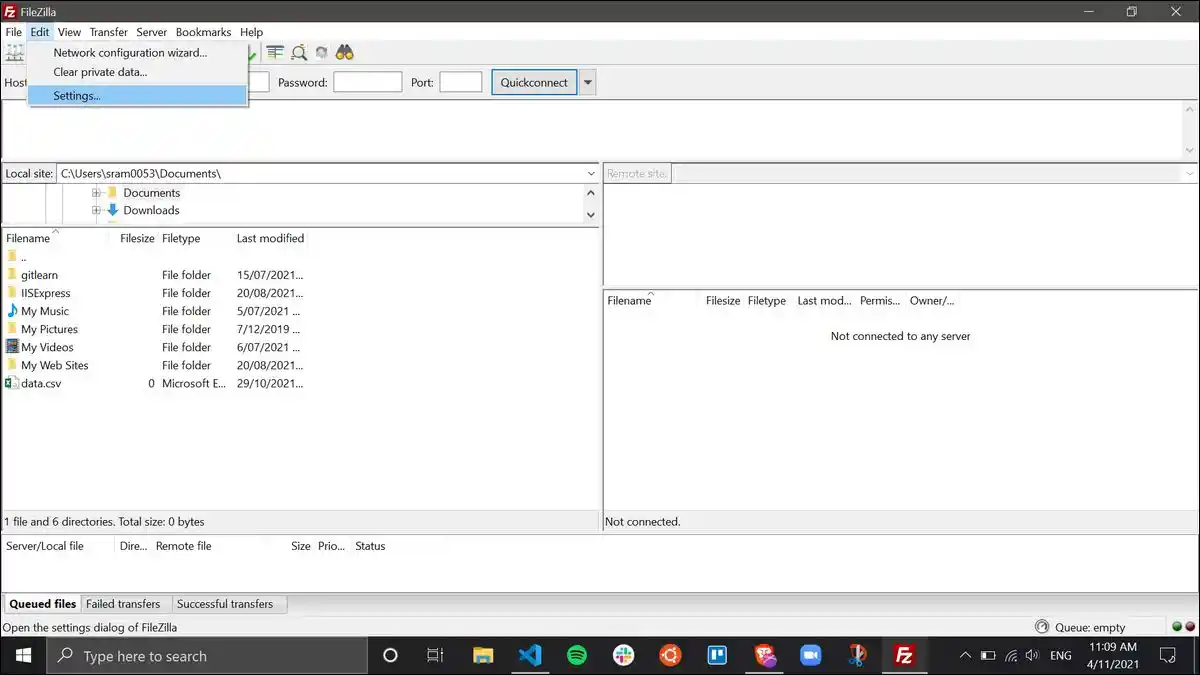
Set transfer speed limits in Edit > Settings > Transfers to manage bandwidth. Remote file editing allows direct server file modifications with a custom editor.
The transfer queue supports pausing or reordering tasks. FileZilla offers IPv6 support and filename filters for precise management.
Use SFTP or FTPS for secure transfers. SFTP is simpler for firewalls, as FTPS requires multiple open ports.
| Feature | Description | Use Case |
|---|---|---|
| Directory Comparison | Highlights file differences by size or date | Check for updated or missing files |
| Transfer Queue | Manages multiple file transfers | Prioritize or pause large uploads |
| Site Manager | Stores and organizes server connections | Quick access to multiple sites |
| Remote File Editing | Edit files directly on the server | Quick fixes for website files |
Troubleshooting Issues
If you see “Could not retrieve directory listing,” switch to passive mode in Site Manager > Transfer Settings. This resolves firewall-related issues.
Check credentials if connections fail. For “421 Too many connections” errors, limit connections to one in Site Manager or contact your server admin.
Slow transfers may stem from network issues or speed limits. Always back up files before uploading to avoid data loss.
Security Tips
Use SFTP or FTPS for encrypted transfers. Plain FTP is insecure, risking data interception. Download FileZilla only from filezilla-project.org to avoid malware.
FileZilla saves passwords in plain text. On shared computers, use the “Interactive” logon type in Site Manager to enter passwords manually.
FileZilla Pro vs. Free
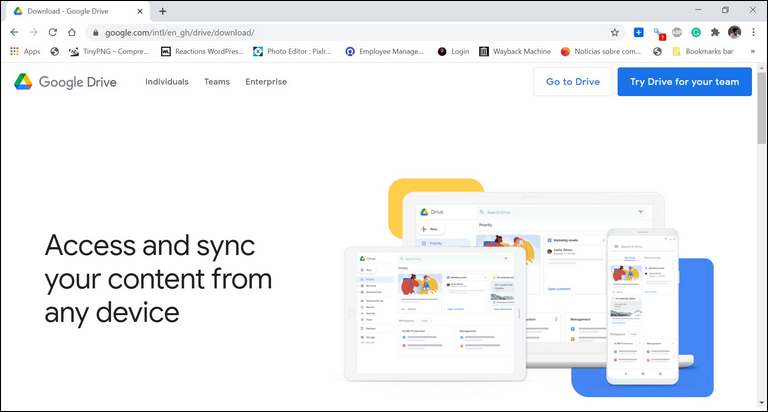
FileZilla Pro supports cloud storage like Google Drive and Amazon S3. It suits commercial users or large datasets. The free version meets most needs, especially for websites.
Check pricing for FileZilla Pro at filezilla-project.org. The free version is sufficient for basic file transfers.