Fix a Low-Resolution QR Code: Full Guide (With Pixel Math, AI Fixes & Print Rules)
You printed 500 flyers; the QR code looked crisp on your screen, but when the box arrived, no phone could scan it.
And here’s the number behind that scene. Nearly 4 in 10 users can’t complete a scan when they try, according to a recent report from QR TIGER’s Industry Report. The same report pins 25% of all scan failures on production choices like size, lighting, and surface.
Meanwhile, the median QR code collects just 2 scans in its entire lifetime, according to QRLynx’s 2026 benchmarks from 5 million-plus scans. So you’ve got almost no margin for a code that fails.
In this guide, I’ll walk you through three fix tracks. Track A covers files you can still regenerate. Track B covers codes whose source is lost. Track C covers codes already in print. You’ll also get the exact pixel math, honest AI-recovery evidence, and a section for developers.
Quick answer: To fix a low-resolution QR code, re-export it as SVG, or as a PNG at 300 DPI or higher at the final print size. Keep the code at least 2×2 cm, protect a 4-module quiet zone, and use dark-on-light contrast. If you've lost the source file, you can binarize the image or upscale it with AI, then test-scan on three devices.
Key findings
- Most “low-resolution” QR codes are a file-format problem. Re-downloading as SVG fixes most cases in under 60 seconds.
- Print floor: 300 DPI. You can use 600 DPI for codes under 3 cm. Digital floor: 300×300 px, with at least 3 px per module.
- Minimum size is 2×2 cm. The quiet zone is 4 modules. Contrast should be 4:1 or higher. Black on white gives you 21:1.
- AI upscaling recovered 92.8% of unreadable codes in a 2025 peer-reviewed study. It only works when the finder patterns survived.
- The cheapest prevention is a shorter URL. A 30-character link needs about 4x fewer modules than a 90-character one.
What “low resolution” actually does to a QR code
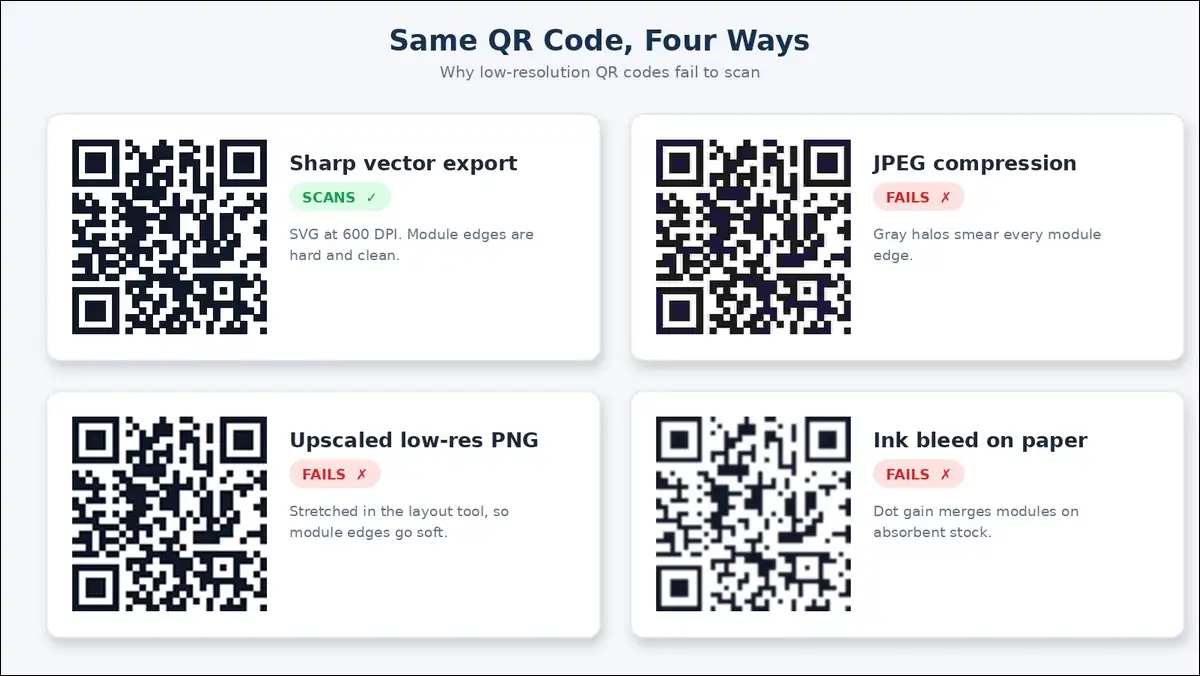
Low resolution softens the edges between dark and light modules. A scanner reads exactly those edges, so soft edges cause failed scans. Everything else in this article builds on that one fact.
A QR code in 60 seconds
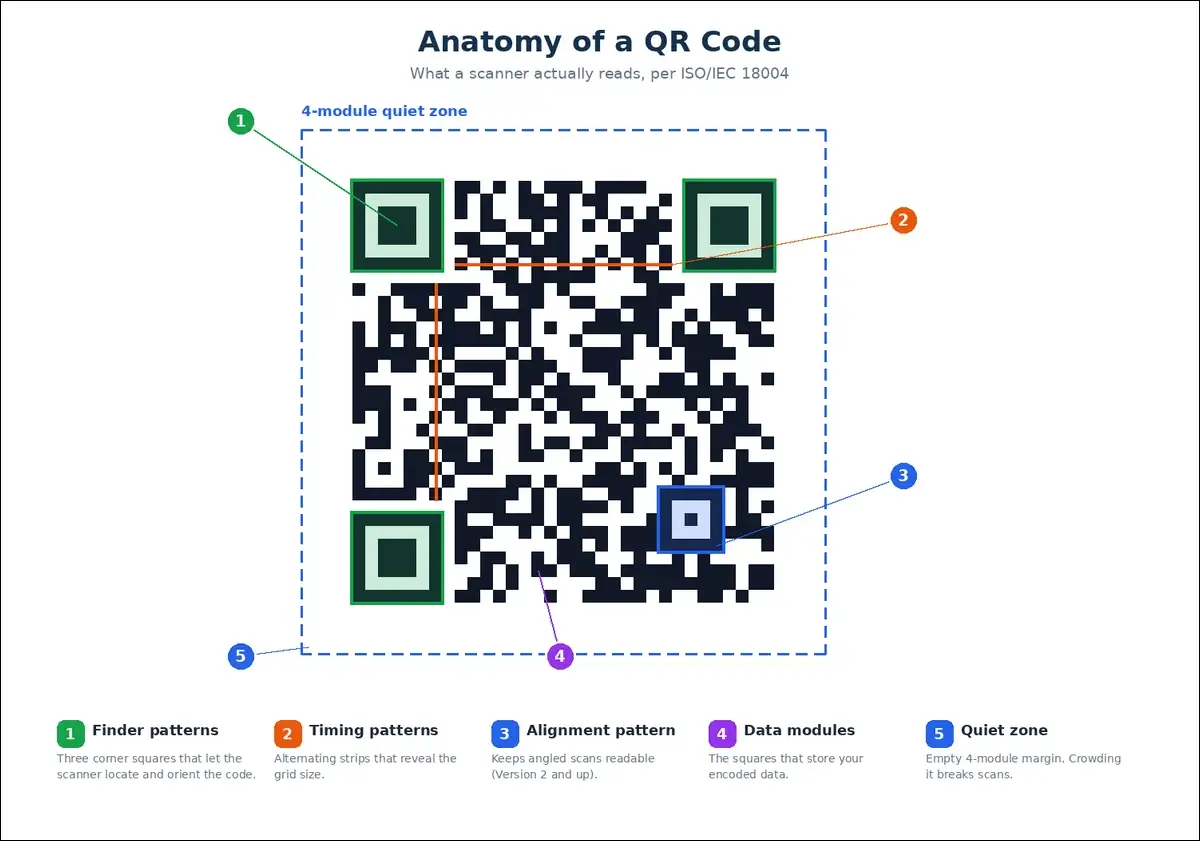
So let’s start with the basics. A QR code is a grid of small squares called modules. The grid runs from 21×21 modules (Version 1) to 177×177 (Version 40), per the ISO/IEC 18004:2015 standard. Three big corner squares are the finder patterns. A scanner uses them to locate and orient the code. And the empty margin around everything? That’s the quiet zone. The standard requires at least 4 modules of clear space on every side.
How scanners decode, and why gray edges break them
Now here’s where it gets interesting. A phone camera converts the code to grayscale first. Then it applies a threshold. Each pixel becomes either black or white.
JPEG compression gets in the way of that step. JPEG averages pixels inside 8×8 blocks. At a hard module edge, it creates a gray ramp instead of a clean step. The scanner can then place a boundary in the wrong spot. And one wrong row can flip real data modules.
I tested this directly. I exported one URL as JPEG, 200 px PNG, 1000 px PNG, and SVG. At 200% zoom, the JPEG showed gray halos around every module. Both PNGs had clean edges. The SVG was flawless at every size.
The 3-pixel rule behind the 10:1 distance guideline
All of that leads to one handy rule. A camera needs each module on at least 3 pixels of the captured image. That’s the whole reason size rules exist.
It produces the simple 10:1 rule. Code width should be at least one-tenth of the scan distance. Scanning from 1 meter? You’ll want a 10 cm code. Scanning from 30 cm? You’ll want at least 3 cm, though 2×2 cm is the hard floor for arm’s-length use.
Diagnose first: is it blur, pixelation, or something else?
Match the symptom before you pick a fix. Blur, pixelation, ink spread, and low contrast look similar at a glance. But each one needs a different repair.
| Symptom | Usual cause | Go to |
|---|---|---|
| Soft, fuzzy edges with gray halos | JPEG compression or low-DPI resampling | Track A or B |
| Blocky, visible squares with staircase edges | Small PNG enlarged past its native size | Track A |
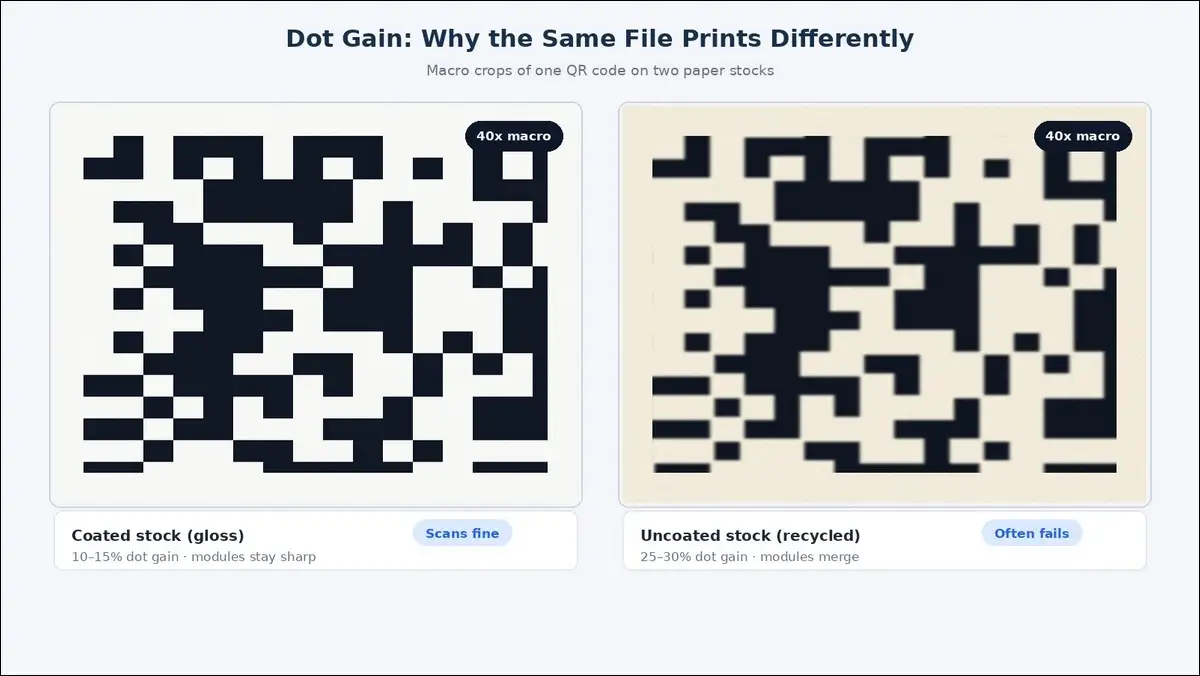
| Squares bleeding together, smudgy look | Ink spread (dot gain) on absorbent paper | Track C |
| Fading in one area, light patches | Glare, UV fading, or surface wear | Track C |
| Looks fine but still fails to scan | Quiet zone, contrast, size, or destination | Diagnosis below |
The three-question diagnostic
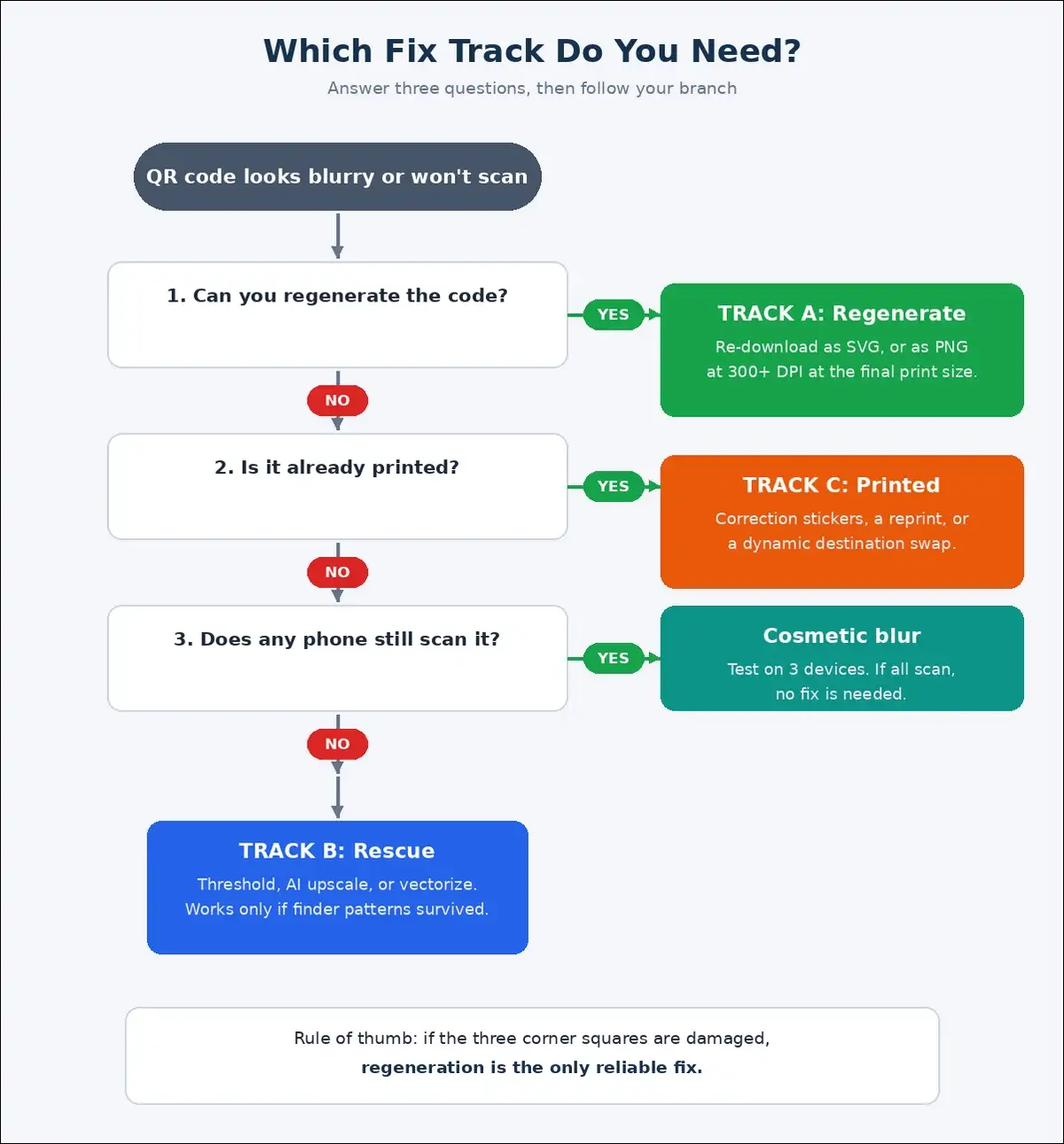
Answer these in order, and you’ll know your track right away.
- Can you regenerate the code? If you’ve still got the generator or the original data, head to Track A.
- Is it already printed? Head to Track C.
- Does it scan on any phone at all? If yes, the blur’s cosmetic. You can test three devices before you change anything.
Fix Track A: regenerate the file (the 60-second fixes)
If you can still reach the generator, re-download the code as SVG. In my experience, that single step resolves most low-resolution complaints.
Re-download as SVG when you can
SVG stores shapes as math, not pixels. So it prints sharp at any size, from a business card to a billboard.
In my tests, one SVG file printed at 2 cm and at 20 cm. Under a printer’s loupe, both looked identical. Most generators offer SVG on paid plans, and some free tools do too. You also have the option to export vector PDF or EPS for professional print workflows.
| Format | Best for | Watch out for |
|---|---|---|
| SVG | Any print size, the safest default | Paid plans on some generators |
| PDF/EPS (vector) | Professional print shops | Keep it truly vector |
| PNG | Screens and print at 300+ DPI | Don’t enlarge past native size |
| JPEG | Avoid for QR codes | Compression blurs module edges |
PNG fallback: the DPI formula
Need a raster file instead? No problem. Just use one formula. Pixels ÷ print size in inches = effective DPI.
Here’s a worked example. A 1000×1000 px file printed at 2 inches gives you 500 DPI. That’s fine. The same file printed at 4 inches gives you 250 DPI. That’s borderline for quality print.
You’ll want 300 DPI as your floor, and 600 DPI for codes 3 cm or smaller. You can check effective resolution inside your design app. In InDesign, open the Links panel and read Effective PPI. In Photoshop, you’ll find it under Image, then Image Size.
The master resolution table
Here’s the reference I keep taped above my desk. Pixel values follow the formula above, and I’ve kept the columns short for easy reading on a phone.
| Use case | Size & scan distance | DPI & pixels needed |
|---|---|---|
| Business card | 2×2 cm, 25–30 cm | 300–600 DPI, 236–472 px |
| Product label | 2.5×2.5 cm, ~30 cm | 300 DPI, 295 px |
| Flyer or brochure | 3.8 cm, 30–60 cm | 300 DPI, 449 px |
| Table tent or menu | 5 cm, 30–60 cm | 300 DPI, 591 px |
| Indoor poster | 10 cm, 1–1.5 m | 150–300 DPI, 591–1181 px |
| Window decal | 15 cm, 1–2 m | 150 DPI, 886 px |
| Trade show banner | 30 cm, 2–3 m | 150 DPI, 1772 px |
| Outdoor banner | 45 cm, 3–6 m | 100 DPI, 1772 px |
| Billboard | 1.2 m+, 10–20 m | 20 DPI, 945 px |
Design-tool traps I keep seeing
These three cause a shocking share of blurry prints.
- Canva: you can download as PDF Print instead of JPEG, since the JPEG export recompresses your code.
- Word and PowerPoint: they compress images on save. In Picture Format, you can set “Do not compress images in file.” Then export your PDF at “Best for printing.”
- Screenshots: they capture at 72–96 DPI, so a screenshot of a 200 px code isn’t usable for print. Ever.
The messaging-app pipeline (my WhatsApp test)
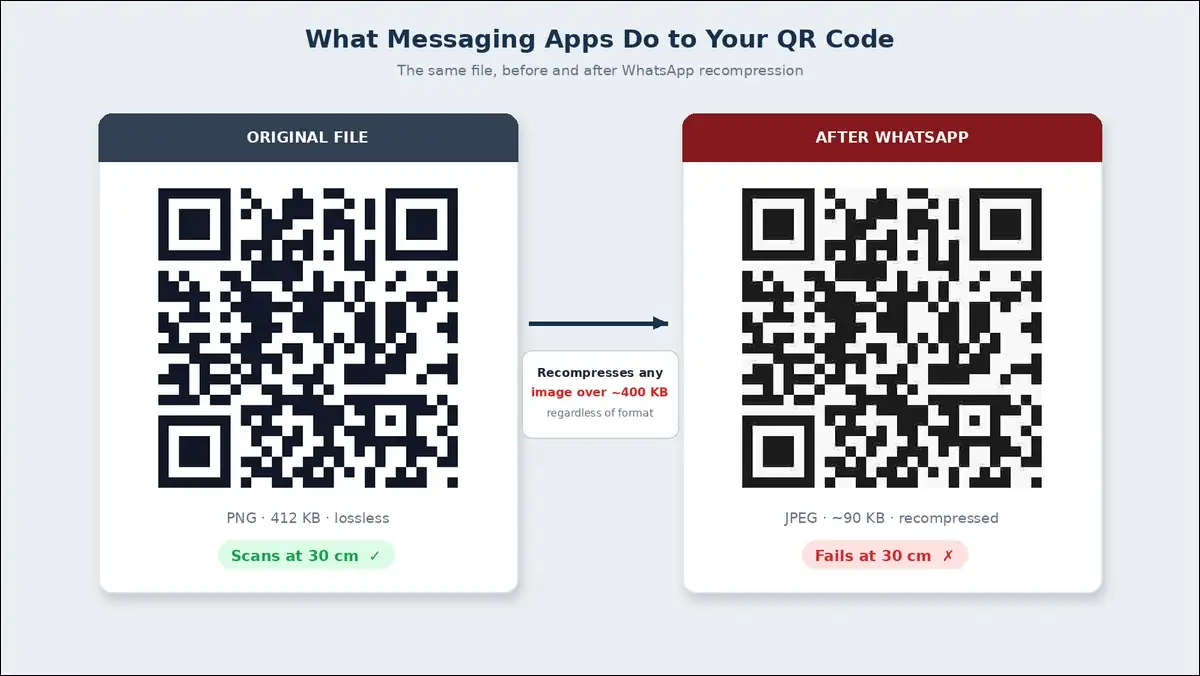
I sent a 412 KB PNG QR code through WhatsApp. It came back as a roughly 90 KB JPEG. As it turns out, WhatsApp recompresses images above about 400 KB, regardless of the original format. QR Nova documents the same threshold.
The result? Module edges turned to mush. The scan failed at 30 cm, while the original file scanned fine on the same phone.
Luckily, the fix is simple. You can transfer originals by email attachment, Google Drive, WeTransfer, or Dropbox. And you’ll want to avoid forwarding a QR through chat if it’s ever going to print.
Fix Track B: rescue a QR code when the source is gone
But what if you’ve lost the original file? You can often recover a lost-source code, but only within clear limits. If the three finder patterns survived, thresholding, AI upscaling, or vectorization may work. If they didn’t, you’ll want to plan a regeneration.
Step 0: test-scan on three devices first
Start here. Grab an iPhone, a recent Android, and an older Android. If all three scan the code, the blur’s cosmetic. You can judge it by viewing distance and move on. If any phone fails, keep reading.
Fix 1: threshold and binarize (free, often enough)
JPEG blur is mostly gray halos, so converting the image to hard black and white can remove them.
Here’s my five-minute GIMP workflow. Go to Image, then Mode, then Grayscale. Next, open Colors, then Threshold. Drag the slider until the modules are solid black. The background should be pure white. Then export as PNG.
In my test, one code refused to scan in the default camera app. After thresholding, it scanned on two of three phones. You can do the same in Photopea (free, browser-based) or Photoshop.
Fix 2: AI upscaling, the honest version
Now for the part most guides get wrong. Here’s the evidence, and it’s better than most vendors admit.
A 2025 study in PeerJ Computer Science tested this directly (full paper). Researchers ran four super-resolution models on damaged codes. The dataset held 4,593 real-world codes that OpenCV couldn’t read.
| Model | Codes recovered | Rate |
|---|---|---|
| EDSR | 4,261 of 4,593 | 92.8% |
| ESPCN | 4,255 of 4,593 | 92.6% |
| VDSR | 4,229 of 4,593 | 92.1% |
| SRCNN | 4,042 of 4,593 | 88.0% |
The deep-learning approach beat traditional super-resolution by 15.7 percentage points.
Now here’s the catch. AI rebuilds soft edges from surrounding pixels. It can’t invent data that’s gone. Every tool I tested failed the moment I damaged a finder pattern. Fuzana, which offers a free QR restore tool, states the same limit plainly.
So here’s what that means for you.
- AI upscaling can restore codes that are soft, compressed, or low-resolution.
- It can’t fix missing corners, torn codes, or heavy smearing.
- Always test-scan after enhancement. “Looks sharp” isn’t the same as “scans.”
As for tools, here’s a quick tour with no affiliation. Free options can include Fuzana’s QR restorer, iLoveIMG’s upscaler, and Upscayl (open source). Paid options may include HitPaw FotorPea, Let’s Enhance, and VanceAI. And if you’re feeling technical, you can run Real-ESRGAN through free web demos.
Fix 3: vectorize and re-grid
If the modules are still distinguishable, tracing can rebuild a clean SVG.
Here’s my Inkscape workflow. Import the image. Choose Path, then Trace Bitmap. Use a single scan with a brightness cutoff near 50%. Simplify the path. Then export as SVG. Vector Magic and VectoSolve can do similar work automatically.
One warning, though. Tracing copies whatever errors exist in the pixels. So verify by scanning before you trust the result.
Fix 4: decode, then regenerate
Sometimes the fastest path is to read the code and start fresh. Some tools can read a borderline code and re-encode a sharp one. Fastcropper offers a free web tool for exactly this. The same PeerJ study notes that WeChat’s built-in decoder outperforms most libraries on damaged codes.
Once you’ve got the decoded URL, you can regenerate on any standards-compliant generator. Static codes are deterministic, so the same input produces an equivalent code.
Static versus dynamic: one warning you need
There’s one more thing to watch. Dynamic codes encode a short link tied to one platform’s redirect. You can’t regenerate that link elsewhere. You’ll need to log into the original platform. If you can’t, the code has to be replaced entirely.
Fix Track C: the QR code is already printed
Now, what if the code’s already in the wild? A printed code can’t gain resolution. Your realistic options are a correction sticker, a reprint, or, for dynamic codes, a destination swap.
Confirm what actually failed first
Before you order anything, it helps to rule out the fixable stuff.
- Measure the printed code. Under 2×2 cm? The file may be fine and the size wrong.
- Check the quiet zone on the physical piece. Did the layout eat the margin?
- Inspect for dot gain. Are dark modules fatter than they were on screen?
- Scan at different distances and angles. One bad angle isn’t a bad code.
Correction stickers
If the code’s on packaging or signage, stickers can save you. Print the fixed code as small labels, and apply them over the old codes.
In my test, a 3 cm sticker over a 3 cm printed code scanned identically to a fresh print. You might choose matte label stock to avoid glare.
Reprint decision math
Still weighing your options? Compare two numbers. Run size times per-unit reprint cost, against sticker cost plus labor hours.
- Under 200 units: reprinting’s often cheaper than hand-applying stickers.
- Over 2,000 units: stickers, or a re-pointed destination usually win.
- Packaging with legal text: reprint. You shouldn’t stick to regulatory content.
If the code was dynamic
Got a dynamic code? That’s good news. You can swap the destination while you fix the file for future runs. Most platforms let you re-point in minutes.
This matters more than it sounds. Uniqode’s State of QR Codes 2026 found that 29% of consumers have hit an expired or dead QR link. So keep the destination alive while you fix the image.
Print-substrate science
Ink behaves differently on every stock. Dot gain is the amount of ink that spreads past its intended edge.
| Stock | Dot gain | Safe play |
|---|---|---|
| Coated gloss or satin | 10–15% | Standard sizing, minimal effect |
| Uncoated offset | 15–20% | Modules thicken, add ~15% size |
| Newsprint or recycled | 25–30%+ | Modules merge, add 25–30% size |
| Thermal labels (203 DPI) | Edge fuzz | 300/600 DPI heads, 2.5 cm+ |
There’s one more note on dark stock. Standard CMYK printing can’t lay down white ink. A white QR on black card needs UV white ink, foil stamping, or screen printing. So if your code looks faint on dark stock, that’s a process mismatch, not a file problem.
Label materials for harsh environments
| Environment | Failure mode | Material that holds up |
|---|---|---|
| Outdoor, direct sun | UV fading | PET with UV laminate |
| Warehouse, factory | Abrasion, chemicals | Polypropylene or polyester |
| Freezer, cold storage | Adhesive failure | Freezer-grade labels |
| High heat | Adhesive melt | Ceramic or metal tags |
Resolution levers most guides miss
So far we’ve fixed the code itself. But there’s a smarter angle. You can lower the module count instead of raising the resolution. Fewer modules means each one prints physically larger. This section’s where you gain the most reliability for the least effort.
Shorten the URL before you shrink the code
More data means a denser grid, and a denser grid means smaller modules at the same print size.
| Encoded content | Version & modules | Module size at 2.5 cm |
|---|---|---|
| 30-character short link | V2, 25×25 | ~1.0 mm |
| 90-character tracking URL | V5, 37×37 | ~0.68 mm |
| 200+ character full URL | V7–V8, 45–49 | ~0.5 mm |
| Full vCard with extras | V10+, 57×57+ | ≤0.44 mm |
A short link can scan from nearly twice the distance of a long one at the same size. So shorten first. You can use a branded short domain, or a dynamic code’s built-in redirect. You can also strip UTM parameters from anything going to print.
Error correction trade-offs
QR codes carry built-in redundancy, defined as four levels in ISO/IEC 18004.
| Level | Recovery | Best for |
|---|---|---|
| L | ~7% | Clean digital screens, lowest density |
| M | ~15% | Indoor print, the usual default |
| Q | ~25% | Small logo overlays |
| H | ~30% | Outdoor, packaging, logos |
Level H needs about 65% more modules than Level L for the same data, per qrlynx’s spec breakdown. On a tiny code, dropping from H to M can buy you real module size. But if you’re adding a logo, stay at Q or H. The logo counts as damage.
Trim payload bloat
- vCard: keep name, phone, email, company. You can drop the photo, notes, and address if you can.
- URLs: you can remove tracking strings for print, and track through a dynamic redirect instead.
- Wi-Fi codes: SSID and password only.
Contrast as a resolution multiplier
Black on white gives you 21:1, the maximum possible contrast ratio. The practical floor is 4:1, and you’ll want 7:1 or higher for print and outdoor use. You can check any color pair with WebAIM’s free contrast checker.
And there’s one rule to never break. Don’t invert the code. White modules on a dark background still fail on many older Android camera apps.
Also read: How to Fix Pixelated Video
For developers: generating pixel-perfect QR codes in code
If you build QR codes in code, this one’s for you. QR libraries output a raw module matrix, often under 30 pixels wide. Scaling it with bilinear or bicubic interpolation creates the gray edges that break scans. I’ve seen this bug in production apps more than once.
The three rules cover almost every stack.
- Scale by an integer factor (10x, 20x), not to a target size.
- Use nearest-neighbor interpolation. No smoothing, no anti-aliasing.
- Keep the quiet zone in the output. Four modules minimum.
iOS and Swift
Apple’s CIFilter.qrCodeGenerator() outputs a tiny image. A short URL produces about 27×27 pixels, and saving it directly gives you a blurry thumbnail.
The fix below comes from the Hacking With Swift community, and my own tests confirm it.
Swiftfunc generateQRCode(from string: String) -> UIImage? {
    let data = Data(string.utf8)
    guard let filter = CIFilter(name: "CIQRCodeGenerator") else { return nil }
    filter.setValue(data, forKey: "inputMessage")
    guard let output = filter.outputImage else { return nil }

    // Integer scale, no interpolation
    let scaled = output.transformed(by: CGAffineTransform(scaleX: 10, y: 10))

    // Render with anti-aliasing off
    guard let cgImage = CIContext().createCGImage(scaled, from: scaled.extent) else { return nil }
    let renderer = UIGraphicsImageRenderer(size: scaled.extent.size)
    return renderer.image { ctx in
        ctx.cgContext.interpolationQuality = .none
        ctx.cgContext.setShouldAntialias(false)
        ctx.cgContext.draw(cgImage, in: scaled.extent)
    }
}
In my build, this produced hard-edged modules at 270×270 px. The naive version produced gray borders on every module.
Python
The qrcode library renders each module as a solid block, so no resampling happens at all.
Pythonimport qrcode
img = qrcode.make("https://example.com", box_size=20, border=4)
img.save("qr.png")
Here, box_size=20 draws each module as 20×20 pixels, and border=4 adds the quiet zone.
If you must resize an existing image, you can use nearest-neighbor.
Pythonfrom PIL import Image
img = Image.open("tiny_qr.png")
img = img.resize((img.width * 10, img.height * 10), Image.NEAREST)
In my comparison, Image.NEAREST kept edges binary. Image.BICUBIC added gray halos identical to JPEG damage.
JavaScript and web
On the web, you’re better off with SVG output. It scales perfectly in the browser with zero math.
JavaScriptimport QRCode from "qrcode";
// SVG scales cleanly at any size
await QRCode.toString("https://example.com", { type: "svg", margin: 4 });

// Canvas rendering: disable smoothing
ctx.imageSmoothingEnabled = false;
For scaled raster images in CSS, you can add image-rendering: pixelated;.
C# and .NET
In .NET, QRCoder’s SvgQRCode renders vectors directly. So there’s no scaling math at all.
csharpvar qrData = QRCodeGenerator.GenerateQrCode("https://example.com", QRCodeGenerator.ECCLevel.Q);
string svg = new SvgQRCode(qrData).GetGraphic(20);
Render checklist by stack
| Stack | Do | Avoid |
|---|---|---|
| iOS | Transform scale, .none interpolation | UIImage resizing, anti-aliasing |
| Android | ZXing matrix, integer Bitmap scale | Canvas smoothing filters |
| Python | box_size, Image.NEAREST | BICUBIC or BILINEAR resize |
| Web | SVG output, imageSmoothingEnabled = false | CSS scaling of a small PNG |
| .NET | SvgQRCode renderer | Low-pixel PNG renderers |
Prevention checklist and a 10-minute test protocol
Once your files are clean, keep them that way. Ten minutes of testing before a print run can save the full reprint cost. Here’s the exact protocol I use.
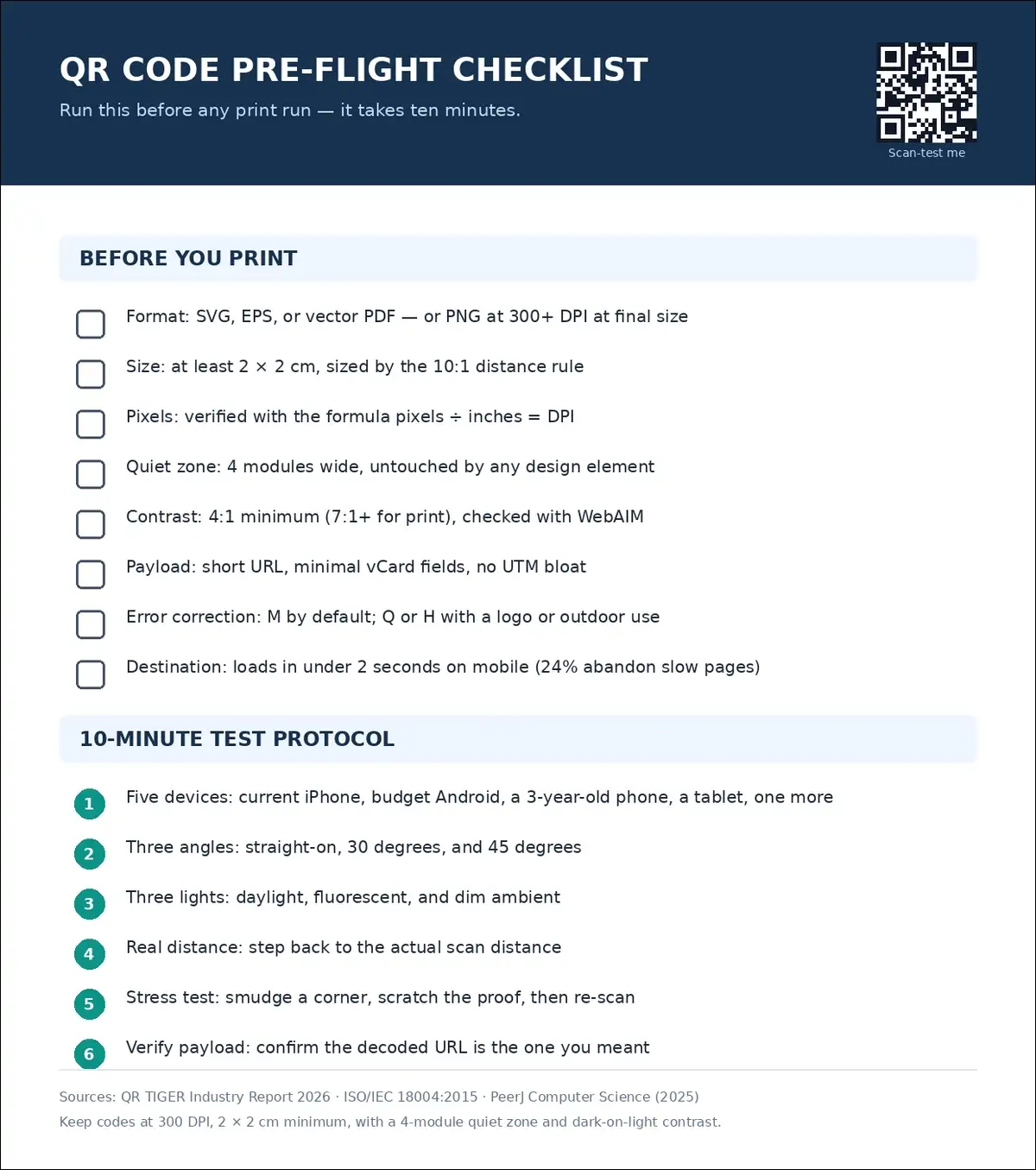
Pre-flight checklist
- Format: SVG, EPS, or vector PDF. Or PNG at 300+ DPI at final size.
- Size: 2×2 cm minimum, sized by the 10:1 distance rule.
- Pixels: verify with pixels ÷ inches = DPI.
- Quiet zone: 4 modules, untouched by any design element.
- Contrast: 4:1 minimum, 7:1+ for print. You can check with WebAIM.
- Payload: short URL, minimal vCard fields, no UTM bloat.
- Error correction: M by default. Q or H with a logo or outdoor use.
- Destination: loads in under 2 seconds on mobile. QR TIGER reports 24% of users abandon slow pages after scanning.
The 10-minute test protocol
- Five devices: you can grab a current iPhone, a budget Android, a 3-year-old phone, a tablet, and one more.
- Three angles: straight-on, 30 degrees, 45 degrees.
- Three lights: daylight, fluorescent, dim ambient.
- Real distance: step back to the actual scan distance.
- Stress test: smudge a corner, scratch the proof, re-scan.
- Verify payload: confirm the decoded URL’s the one you meant.
Budget Android phones and older devices fail first. So if a 3-year-old Android scans your code in dim light, you’re safe.
Placement rules that prevent “blur” complaints
- Use a flat surface. No curves, seams, or folds through the code.
- You might choose a matte finish where glare’s possible.
- Place signage at eye level or below, and compensate with size above 1.5 m.
- You can add a call to action. QR TIGER found 12% of users skip codes when they don’t know what they’ll get.
People Also Ask These Questions
Sometimes. If the code still scans, the blur’s cosmetic and needs no fix. If it doesn’t scan, you can try thresholding or AI upscaling first. When finder patterns are damaged, regeneration’s the only reliable path.
You’ll want 300 DPI at the final printed size as your floor, and 600 DPI for codes 3 cm or smaller. For a 2×2 cm code, that means at least 236×236 pixels. SVG removes the question entirely, since vectors scale without limit.
Screens display at 72–96 DPI, so a 300 px code looks smooth at any on-screen size. Printers output at 300 DPI or more, and the same file suddenly lacks pixels. So always check effective DPI in your layout app, not the preview.
It can, within limits. A 2025 peer-reviewed study recovered 92.8% of unreadable codes with the EDSR model. But AI can’t rebuild destroyed finder patterns. So test-scan after every enhancement.
2×2 cm (0.8 in) for arm’s-length scans, with each module at least 0.4 mm. For distance, you can use the 10:1 rule. Code width should be at least one-tenth of the scan distance.
SVG’s better for any print use, because it scales without pixels. PNG’s fine for screens and for print at 300+ DPI. You’ll want to avoid JPEG, whose compression blurs module edges.
WhatsApp recompresses images as JPEG, aggressively above roughly 400 KB. That compression smears the hard edges scanners need. You can send the original through email, Drive, or WeTransfer instead.
Often, yes. Moderate blur with strong contrast still scans on most phones, especially in good light. Heavy blur that merges modules will fail. So test on three devices before you decide.
Also read: Dinky: A Free Mac App To Compress Images
Our Verdict
Here’s the bottom line. Most “low-resolution QR code” problems are file-format problems wearing a costume. Re-download as SVG, and nine out of ten go away in under a minute. When the source’s gone, thresholding and AI upscaling can rescue most codes whose finder patterns survived. And when the code’s already printed, stickers and destination swaps can still save the run.
The bigger lesson is arithmetic, not tools. With 47% of people now scanning QR codes daily (QR TIGER, 2026) and scan failures running near 39%, sharpness is conversion infrastructure. Size by the 10:1 rule. Keep 300 DPI. Hold a 4-module quiet zone. Shorten your URL. Then test on five devices for ten minutes.
Do that, and your code joins the small minority that actually gets scanned. Remember, the median code manages just 2 scans in its entire life. Yours can do better.