Conroe ISD SSO Password Reset, Lockout & Recovery
You can reset a forgotten Conroe ISD SSO password and clear most lockouts in under five minutes when you follow the exact district process.
The system uses ClassLink. Official rules set clear password standards, a 15-minute lockout window, and specific recovery steps. This guide walks you through every verified detail from the Conroe ISD Knowledge Base, so you regain access without guesswork.
Important Insights
- Passwords need at least 10 characters.
- They cannot contain three or more sequential or repetitive characters (examples: abc, 123, or ccc).
- Passwords expire every 90 days. Reminders start 10 days earlier.
- Accounts lock for 15 minutes after five failed attempts or leftover sessions on other devices.
- Recovery works best with a personal email address.
- Multi-factor authentication must finish after every reset.
- Help Desk reaches you fastest at help@conroeisd.net or 936-709-7658.
Official Password Requirements and Expiration Rules
Your password must meet two hard rules before the system accepts it. It needs a minimum of 10 characters. It also cannot use three or more letters or numbers in a row, or the same character repeated three times.
You can choose any mix of letters, numbers, and symbols that clears those checks. A password like “BlueSky2026!” works. “Password123” or “AAABlue” does not.
Passwords expire every 90 days. The system sends reminder emails starting 10 days before the deadline. You may reset the password at any time before it expires. After expiration, the login screen simply refuses the old password.
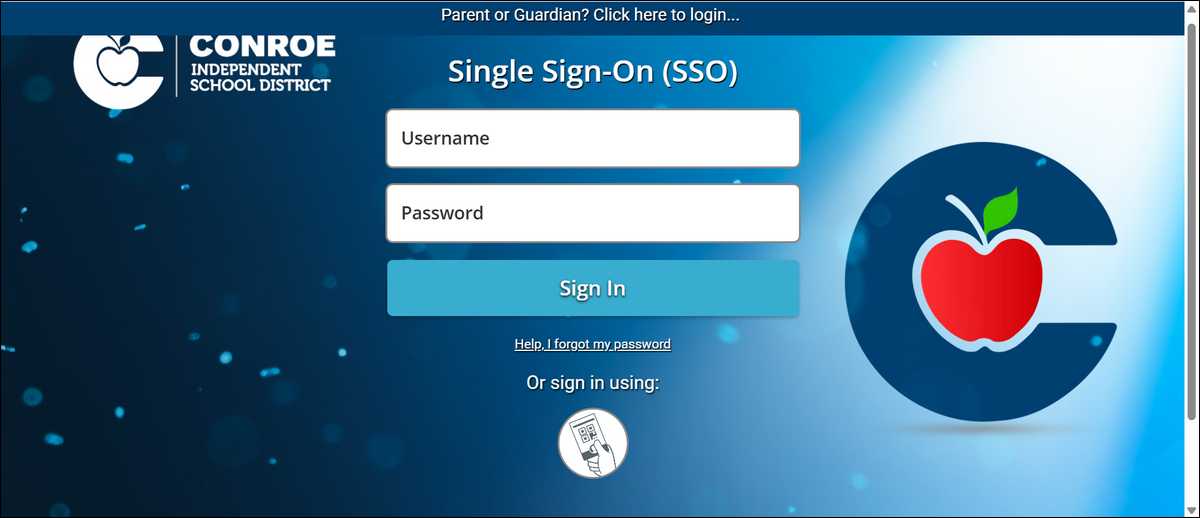
Step-by-Step Password Reset from the Login Screen
You can reset the password directly from the login page without calling anyone. Open a browser and go to https://sso.conroeisd.net or https://launchpad.classlink.com/conroeisd.
- Select the link that says Help, I forgot my password.
- Type your username and select the checkmark.
- Choose SMS or email as the recovery method.
- Enter the code that arrives.
- Create a new password that meets the 10-character rule and avoids sequential or repeated characters.
- Confirm the password and complete multi-factor authentication.
After the success message appears, sign in with the new password. Manually update the password on every other device you use. The system does not push the change automatically.
Changing a Password While Already Logged In
You may change the password at any time once you sit inside the dashboard. Select your profile icon in the upper right corner. Confirm the profile shows the correct setting (Staff-2FA Security for employees). Open Settings, then choose the Recovery tab. Select Change Password and follow the prompts.
At the same time, you can add or update a personal email address for future recovery. District email does not work well for this purpose because a locked account blocks access to it.
Account Lockouts — Causes, Duration, and Immediate Recovery
Most lockouts last exactly 15 minutes and clear on their own. Two events trigger the lock. Five failed login attempts in a row will lock the account. Leaving sessions open on multiple devices (phone, home computer, school laptop) without signing out also triggers it.
The error message shows the remaining time. Further attempts during that window simply restart the 15-minute clock. Wait the full period. After the timer ends, you can either sign in normally or start a password reset.
You can end leftover sessions yourself. Open the profile icon, go to Settings, then the Security tab. Look for the section labeled Your Active Sessions. Check the boxes for any sessions you no longer need and select the option to log them out.
Multi-Factor Authentication Requirements During Recovery
Every successful password reset requires you to finish multi-factor authentication before the dashboard opens. Three methods are available.
Google Authenticator is the option the district recommends most often. SMS text works when you have reliable cell service. An image challenge appears for some accounts.
1. Google Authenticator
You download the free Google Authenticator app on your phone. During setup, the ClassLink screen shows a QR code. Open the app, scan the code, and the six-digit number appears every 30 seconds. Enter that number when the system asks.
I tested this path on both iPhone and Android, and the scan completed in under ten seconds with no extra steps.
2. SMS / Text Message
You can enter a cell phone number and authorize messages. The system sends a one-time code. Type the code into the box and select Verify. This method needs a clear cellular signal.
When I tried it on a weak connection, the code arrived after a 20-second delay, so a strong signal helps.
3. Image Challenge
You can select a simple image such as a mountain or question mark during setup. On later logins, the system shows the same image, and you confirm it.
Not every account receives this option. It requires no phone, which some users prefer.
Prevention Strategies and Long-Term Recovery Setup
You can stop most future lockouts with three simple habits. First, add a personal email address under the Recovery tab and keep it current. Second, always use the Sign Out option in the profile menu instead of just closing the browser. Third, clear old sessions from the Security tab whenever you finish work on a shared or personal device.
Preferred browsers are Chrome, Edge, and Safari. The district notes that personal VPNs and iCloud Private Relay can interfere with login, so you may want to turn those off while using the SSO.
Troubleshooting Common Access Issues
A few extra steps clear the stubborn cases:
- Clear the browser cache and cookies, then restart the browser.
- Check that the correct profile is selected under the avatar icon.
- Students sometimes land on a “DO NOT USE – Container Students” profile that hides apps; switching to the proper grade-level profile restores them.
- Parent Portal recovery follows a different path. Parents log in with the email address on file at the campus and reset through that separate ClassLink parent site.
When and How to Contact the Technology Help Desk
You can reach the Help Desk when the steps above still fail. Email help@conroeisd.net for the fastest reply. You may also call 936-709-7658. Include your full name, username or student ID, campus, and a short description of the error message.
Staff members can open a ticket inside the Incident IQ app that sits on the SSO dashboard.
Wrapping Up!
The official Conroe ISD process works cleanly when you follow the exact password rules, wait out the 15-minute lockout, and keep a personal email ready for recovery. Most users regain access in one short session.
Bookmark https://sso.conroeisd.net and the Help Desk contacts so the next interruption stays brief.