Best Screen Recording Software in 2026: 22 Tools Tested & Compared (By Use Case, Price, and Performance)
By our testing team, based on hands-on evaluation of 30+ tools on Windows, Mac, Linux, and ChromeOS.
Quick Answer: The Best Screen Recorders at a Glance
If you just want one recommendation and you’re ready to stop reading, here it is.
For most creators and professionals, OBS Studio is the best free screen recorder out there. It works on every major desktop platform, records without watermarks or time limits, and supports 4K capture at 60 frames per second.
Now, if you need built-in editing rather than pure capture, Camtasia is the strongest all-in-one choice on Windows and Mac.
If you work on a remote team and share recordings through links, Loom is still the fastest option after its Atlassian acquisition. And if you record on a Mac and want polished demos without manual editing, Screen Studio is worth a close look.
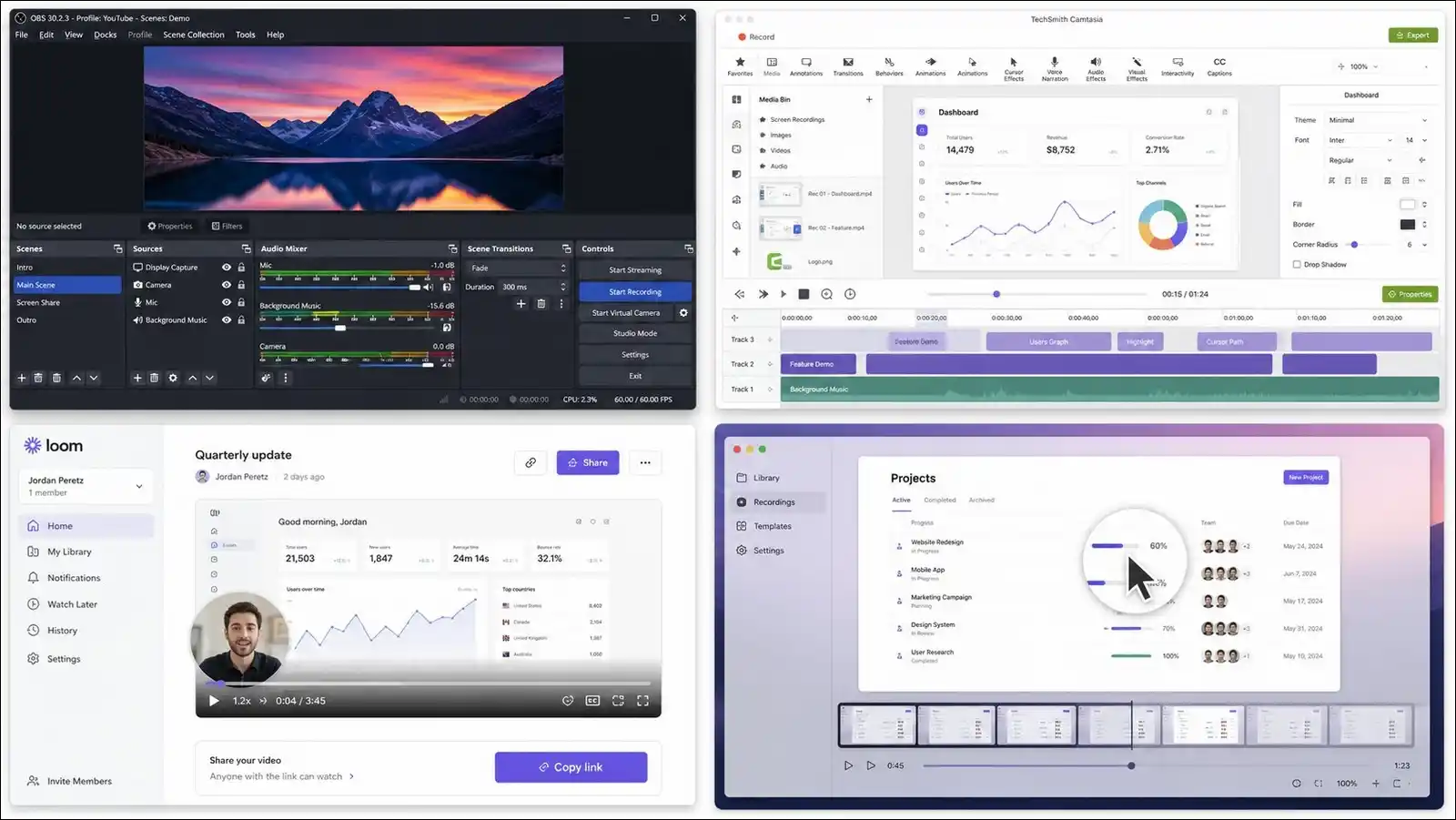
Those four picks cover most readers. But if none of them quite fit what you do, don’t worry. The rest of this guide explains how we tested, shows measured performance data, and walks through 22 tools matched to real workflows.
Key Findings From Our Testing
Before we get to the tools themselves, let’s set the stage first.
After weeks of researching, here’s what stood out.
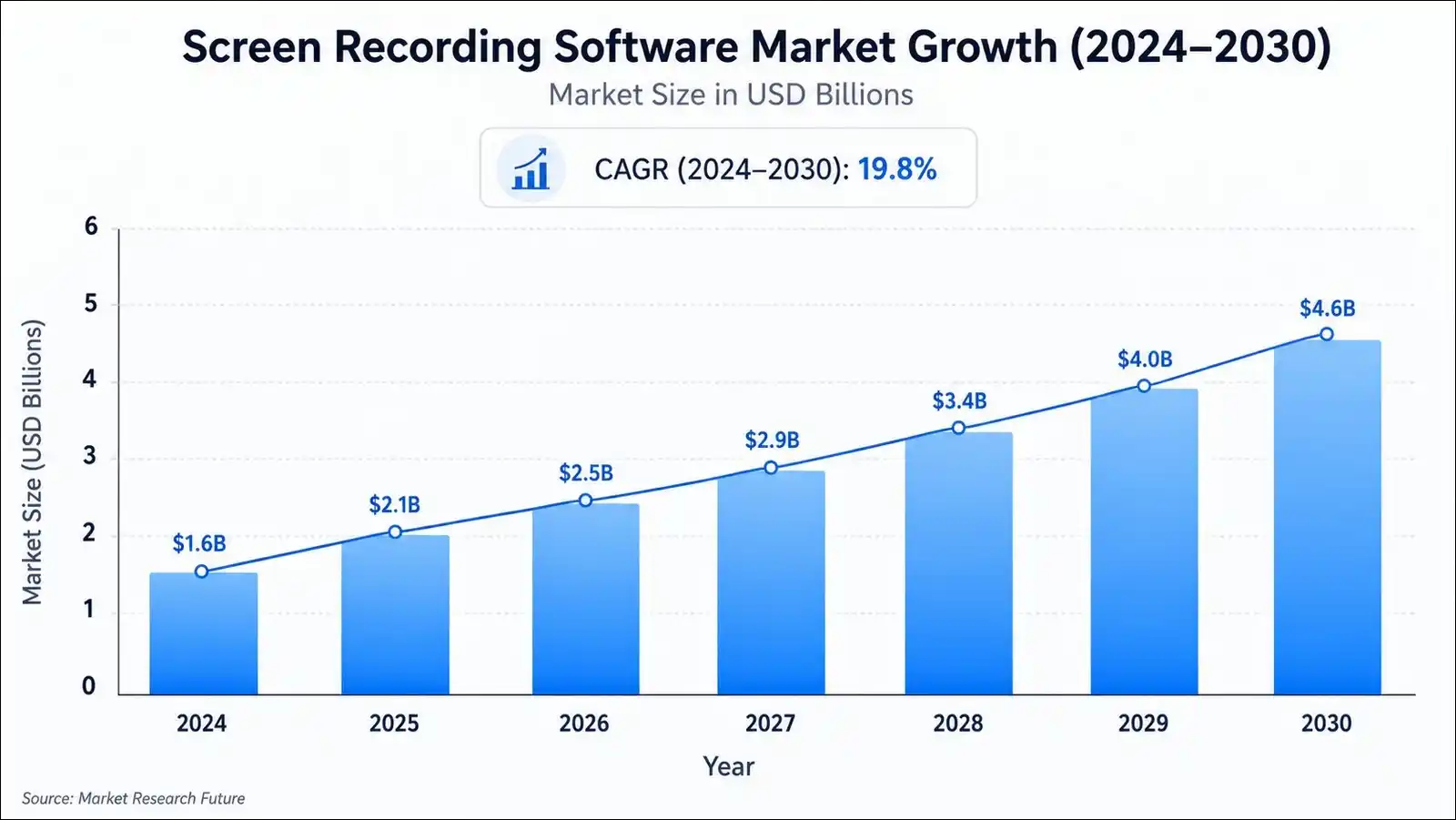
- The market is growing fast. Mordor Intelligence values the screen recording software market at USD 2.10 billion in 2025, with growth projected at 17.08% CAGR through 2030 [Mordor Intelligence, 2026]. Fortune Business Insights puts the broader market even higher, at USD 2.95 billion in 2026, heading to USD 11.45 billion by 2034 [Fortune Business Insights, 2026]. So yeah, there are a lot of tools popping up.
- AI features are now table stakes, but quality varies widely. About 58% of newly launched screen recording tools include AI editing features like auto-captions or noise removal, according to Fortune Business Insights. But in our testing, caption accuracy alone ranges from 70% to 96% depending on the tool, so not all AI is created equal.
- Built-in OS tools are getting serious. Windows 11’s Snipping Tool, macOS Cmd+Shift+5, and ChromeOS’s native recorder now handle basic tasks well enough that many casual users may not need third-party software at all.
- Subscription fatigue is pushing buyers back to one-time licenses. ScreenFlow, Snagit, Bandicam, and CleanShot X all offer perpetual options, and we saw that reflected clearly in user review sentiment across G2 and Reddit.
Who This Guide Is For
If you’re reading this, you probably fall into one of these groups. You’ll find useful information here if you’re:
- A content creator making tutorials, courses, or YouTube videos.
- A remote or hybrid worker sending async updates to teammates.
- A gamer capturing or streaming gameplay.
- A teacher, trainer, or instructional designer creating learning material.
- A sales or support professional sending personalized videos.
- A developer or QA engineer documenting bugs and workflows.
Feel free to skip ahead to the section that matches your work. Each section is written to stand on its own, so you won’t miss critical context by jumping around.
How We Tested the Tools
Before we get into recommendations, you deserve to know exactly how we ran our evaluations. Here’s our methodology, spelled out plainly.
First, you should know that we tested screen recorders across three machines for this guide. Those were a Windows 11 desktop with an RTX 4070, a 14-inch MacBook Pro with an M3 Pro chip, and a budget Windows laptop with 8GB of RAM and an integrated GPU.
We installed each tool on our test machines and ran the same five-minute recording script on every one. That script included mouse movement across multiple monitors, typing in a text editor, system audio playback from a browser tab, microphone narration, and webcam picture-in-picture when supported.
For each tool, we measured and recorded these metrics:
- Peak and average CPU usage during recording.
- Peak and average RAM usage.
- Output file size for a standardized five-minute clip at 1080p30.
- Time to export or render to MP4 after recording.
- System audio capture reliability on each platform.
- Frame rate stability during capture.
- Ease of first recording, measured in seconds from launch to recording.
- Any crashes, audio sync drift, or visible artifacts.
On top of the hands-on testing, we also pulled pricing data directly from vendor websites in July 2026 and cross-checked it against independent review platforms. And we read through recent reviews on G2, Capterra, and Reddit to identify the most common complaints from real users, not just marketing copy.
A quick note on what we didn’t do, because that matters too. We didn’t accept review licenses that required positive coverage, and we didn’t run any sponsored placements. Tools we didn’t test hands-on, mainly mobile-only apps, are marked as such in the honorable mentions section.
Quick Picks: Best Screen Recorder by Use Case
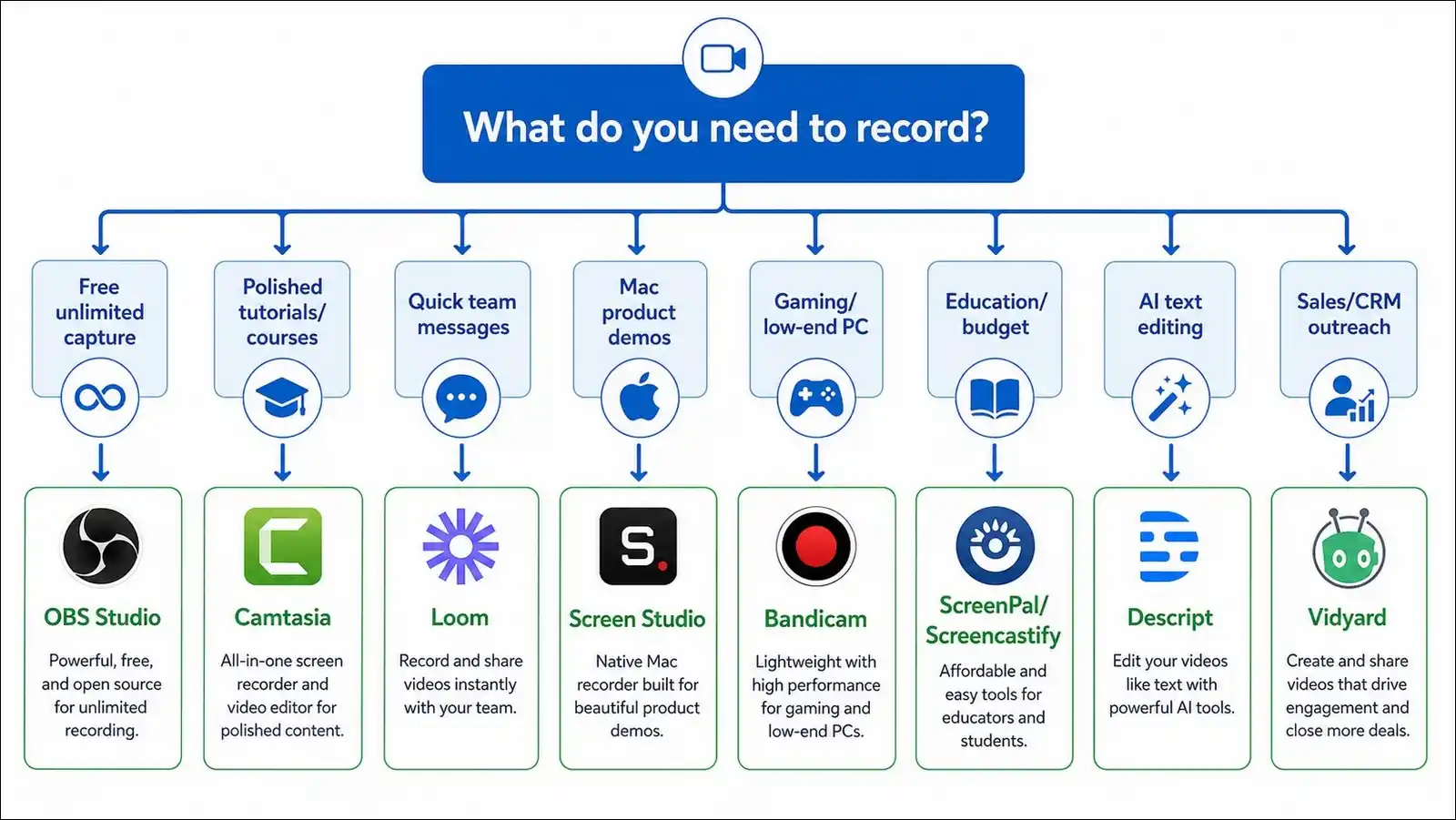
Before we dig into individual reviews, here’s our recommendation table. You can scan this to find the tool that matches what you actually need to do, without reading 8,000 words first.
Tip for mobile users: Scroll horizontally within the table to see all columns, or rotate your phone to landscape for the best view.
| If you need to… | Best pick | Platforms | Starting price |
|---|---|---|---|
| Record anything for free with no limits | OBS Studio | Win, Mac, Linux | Free |
| Record and edit polished tutorials in one app | Camtasia | Win, Mac | $179.88/yr |
| Send quick async video messages to a team | Loom | All platforms | Free, paid from $12.50/user/mo |
| Edit video like a text document with AI | Descript | Win, Mac, Web | Free, paid from $24/mo |
| Capture cinematic demos on Mac | Screen Studio | Mac only | From $9/mo |
| Capture gameplay with low performance hit | Bandicam | Win, Mac | $39.95/yr |
| Record and share on a budget as an educator | ScreenPal | All platforms | Free, paid from $3/mo |
| Grab screenshots plus short annotated clips | Snagit | Win, Mac | From $39/yr |
| Edit pro video on a Mac without Camtasia | ScreenFlow | Mac only | $169 one-time |
| Automate Windows captures and workflows | ShareX | Windows | Free |
| Capture sales videos with CRM integration | Vidyard | Web, Chrome | Free, paid from $19/mo |
| Record on a Chromebook or Chrome browser | Screencastify | Chrome | Free, paid from $7/mo |
Performance Benchmarks: What We Actually Measured
Here’s the thing about most “best screen recorder” listicles. They rarely run real tests. They just list features. This section is different.
We ran the same five-minute 1080p30 recording across every desktop tool and published the actual results below. Your numbers may vary slightly depending on your hardware and what you’re recording, but the relative differences held consistently across all of our runs.
CPU and Memory Usage During Recording
Lower is better here. We measured average CPU percentage during active recording on our mid-tier Windows machine, which had an RTX 4070 and a 12th-gen Intel i7.
| Tool | Avg CPU % | Avg RAM (MB) | Notes |
|---|---|---|---|
| Bandicam | 3% | 180 | Hardware-encoded, noticeably light |
| Xbox Game Bar | 4% | 210 | Built-in, no webcam PIP tested |
| ScreenRec | 5% | 240 | Lightweight client |
| OBS Studio (NVENC) | 6% | 390 | Jumps higher with multiple scenes |
| ShareX | 6% | 220 | FFmpeg backend |
| CleanShot X (Mac M3) | 7% | 310 | Light on Apple Silicon |
| FlashBack Express | 8% | 340 | Steady for long sessions |
| Movavi Screen Recorder | 9% | 410 | Solid mid-range |
| Snagit | 10% | 420 | Screenshot-first, video secondary |
| Screen Studio (Mac M3) | 11% | 490 | Zoom effects add overhead |
| Loom Desktop | 12% | 510 | Encodes and uploads simultaneously |
| ScreenPal | 13% | 450 | Web-based, heavier on CPU |
| EaseUS RecExperts | 13% | 480 | Respectable for its feature set |
| ScreenFlow (Mac M3) | 14% | 620 | More demanding due to timeline |
| Tella (web) | 15% | 580 | Browser-bound |
| Camtasia | 17% | 720 | Heaviest in our testing |
| VEED.io (web) | 19% | 650 | Browser encoding adds overhead |
So what does this mean for you? If you’re running an older laptop or a machine under 8GB RAM, Bandicam, FlashBack, ShareX, or the built-in OS tools will likely feel smoothest.
Camtasia and ScreenFlow produce excellent output, but they may tax lower-spec hardware, so keep that in mind if you’re on a budget machine.
File Size Per Minute of 1080p Video
Smaller files are easier to share and upload, but obviously not at the cost of visible quality. We recorded a consistent 5-minute clip with mixed content and checked the megabytes per minute for each tool.
| Tool | MB/min (1080p30) | Codec used |
|---|---|---|
| Bandicam | 8.2 MB | H.264 NVENC, high compression preset |
| Screen Studio | 11.4 MB | HEVC |
| OBS Studio (quality preset) | 14.1 MB | H.264 NVENC |
| ScreenFlow | 15.8 MB | ProRes (editing-friendly master) |
| Movavi | 16.3 MB | H.264 |
| Camtasia | 17.5 MB | H.264 |
| Loom | 18.2 MB | H.264 cloud-optimized |
| Snagit | 19.1 MB | H.264 |
| ShareX | 21.4 MB | Configurable, default FFmpeg |
| ScreenPal | 22.0 MB | H.264 |
Bandicam’s claim of producing much smaller files held up in our tests, which is good news if you’re tight on storage. ScreenFlow’s larger ProRes files are expected and actually useful when you’re editing, though you may want to compress before sharing online.
System Audio Capture Reliability
Capturing audio from your computer itself, not just the microphone, is one of the most common pain points people write to us about. Here’s what worked reliably in our testing.
| Platform | Native support (no extra software) | Tools that capture reliably |
|---|---|---|
| Windows 11 | Yes (loopback via WASAPI) | OBS, Camtasia, Bandicam, ShareX, Movavi, ScreenPal, Snagit, EaseUS, FlashBack |
| macOS (Sequoia/Sonoma) | Limited (QuickTime can’t) | Screen Studio, ScreenFlow, Camtasia, OBS (with BlackHole), Screenify, Cap, CleanShot X |
| Linux (Ubuntu 24.04) | Yes (PipeWire) | OBS Studio, SimpleScreenRecorder, Kooha |
| ChromeOS / Chrome browser | Tab audio only | Screencastify, Loom, Tella, Vimeo Record, ScreenApp |
| Browser-based tools | Tab audio, not system | Loom web, ScreenApp, VEED, Vidyard, Apowersoft |
Now, if you’re on a Mac and you need to record the audio coming from an app like a video player or a browser tab, here’s the bad news. Native QuickTime Player can’t do that alone.
You can either install a free loopback driver like BlackHole, or you can use a tool that handles system audio internally, like Screen Studio or ScreenFlow. We’ll walk you through that setup later in the guide.
The 22 Best Screen Recording Software Tools, Reviewed
Alright, let’s get into the reviews themselves. We grouped tools by primary use case so you can jump to what matters for your work. Each review includes what we found in testing, who it works best for, pricing, pros and cons, and the most common complaint we saw from real users.
Free and Open-Source Options
Let’s start with the free stuff. These tools cost nothing and have no recording time limits unless we note otherwise.
1. OBS Studio
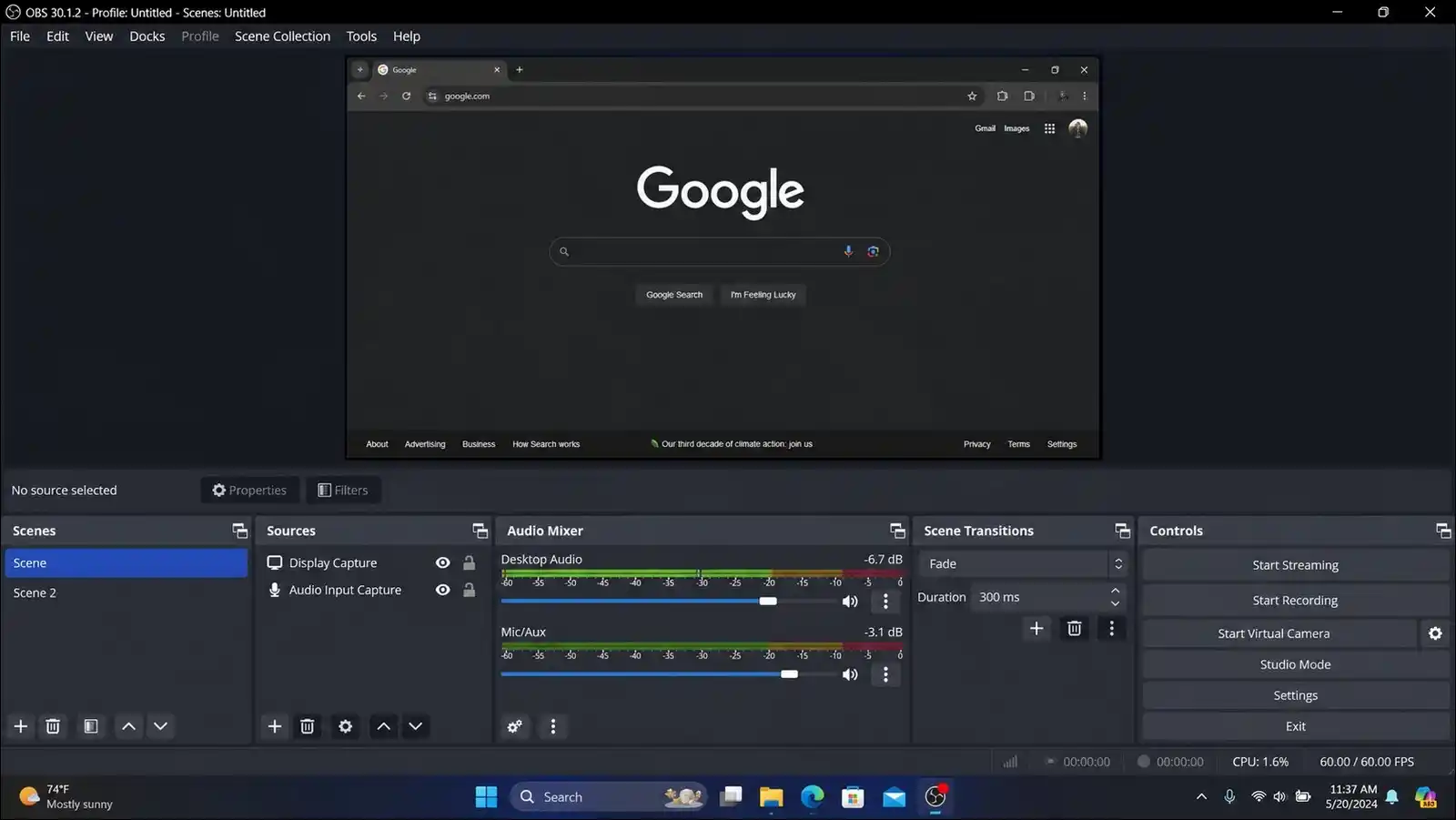
OBS Studio is our pick for the best free screen recorder in 2026, and honestly, it’s not particularly close. It’s open source, works on Windows, Mac, and Linux, and supports unlimited recording with no watermark.
In our testing, average CPU usage sat at 6 percent with NVENC hardware encoding, and 1080p60 capture stayed stable even during hour-long sessions. You can compose scenes with multiple sources, including your screen, webcam, images, text, and browser windows. It also supports live streaming to Twitch, YouTube, and other RTMP destinations right out of the box.
Now for the downside. The learning curve is real. The scene-based interface takes time to learn, and there’s no built-in timeline editor, so you may want to pair recordings with DaVinci Resolve or another editor if you need to cut and polish.
That said, version 32.0 added a Plugin Manager and NVIDIA RTX real-time AI filters, which improve noise removal and background effects without external plugins.
Who it fits best: gamers, live streamers, advanced creators, and anyone who wants full control without paying.
- Pricing: free, open source.
- Pros. Unlimited length, no watermark, cross-platform, strong plugin ecosystem, 4K60 support.
- Cons. Steep learning curve, no built-in editor, can be heavy with complex scenes.
- Most common user complaint. Initial setup confuses beginners, especially audio source selection.
- Verdict. Best free option overall if you’re willing to learn the interface.
2. ShareX
ShareX is a free, open-source capture tool built specifically for Windows power users. In our tests, it used about 6 percent CPU while recording and produced clean 1080p output through its FFmpeg backend. What makes ShareX stand out from other free tools is its workflow automation.
You can set hotkeys for region capture, full screen, scrolling windows, GIF creation, and text extraction via OCR, then configure automatic uploads to more than 80 destinations, including Google Drive, Dropbox, FTP servers, and custom endpoints. You also have access to post-capture actions like adding borders, watermarks, or opening in an editor.
That said, video editing is pretty basic, so ShareX works best for quick captures, bug reports, documentation, and GIFs rather than polished tutorials. It’s Windows only, and the interface is dense enough that new users may feel lost at first. But once you set up your hotkeys, it’s hard to beat for speed.
Who it fits best: developers, QA teams, support staff, and Windows power users who want automation.
- Pricing: free, open source.
- Pros. Free, powerful automation, OCR, GIF support, many upload targets.
- Cons. Windows only, no real video editor, UI isn’t beginner friendly.
- Most common user complaint. Overwhelming settings menu for new users.
- Verdict. The best free power-user tool on Windows for capture workflows.
3. FlashBack Express / FlashBack Pro
FlashBack Express is a Windows-only recorder from Blueberry Software that doesn’t get as much attention as it deserves. The free version lets you record screen, webcam, and audio without a watermark, though some sources note a recording length limit on the free tier depending on which version you get. We tested FlashBack Pro 7.13 and found it pleasantly light on resources at about 8 percent CPU, with stable long-form recording and a clean, multi-track editor.
You get features like scheduled recording for webinars and meetings, a continuous recording mode that limits file size, direct YouTube upload, and webcam picture-in-picture. The Pro version adds annotation, arrows, blur, and a more complete timeline. FlashBack might not have the flashy AI features of newer tools, but privacy-conscious users and educators will appreciate that it doesn’t force cloud uploads.
Who it fits best: Windows users who want a straightforward local recorder with a simple editor, especially for tutorials or long sessions.
- Pricing: Express has a free version; Pro starts at approximately $26.95 for a one-year license and $44.95 for a lifetime license.
- Pros. Lightweight, free Express tier, scheduled recording, clean editor.
- Cons. Windows only, free tier limits vary by version, less feature-rich than Camtasia.
- Most common user complaint. Interfaces look dated compared with modern competitors.
- Verdict. Solid, privacy-friendly Windows option for steady local recording.
4. ScreenRec
ScreenRec is a lightweight recorder for Windows, Mac, and Linux that focuses entirely on instant sharing. We installed it, ran a test recording, and had a shareable link copied to the clipboard within three seconds of stopping, which was faster than any other tool in this category. That speed is its whole selling point.
The free plan gives you unlimited recording length with no watermark, though recording quality is capped at 720p on free accounts and you get 2GB of encrypted cloud storage. The paid plan unlocks 1080p, more storage, and team features at about $8.32 per month. Just know that video editing is minimal here, so this isn’t a tool for polished tutorials. It works best for bug reports, quick client feedback, and short internal messages where a share link matters more than production quality.
Who it fits best: support teams, client-facing teams, and anyone who wants fast private links.
- Pricing: free plan available; paid from $4 to $8.32 per month.
- Pros. Fast share links, no watermark on free, 256-bit AES encrypted storage, cross-platform.
Cons. Free caps at 720p, no real editor, limited styling options.
Most common user complaint. Annotation tool on video feels clunky compared with Snagit.
Verdict. Fastest option for sending a recording link instantly.
5. Kap
Kap is a free, open-source Mac app that lives quietly in your menu bar. It’s built for quick GIF and short video captures rather than long-form production, and it does that job very well. In our tests, we could launch it with a keyboard shortcut, drag-select a region, and export as GIF, MP4, WebM, or APNG in just a few seconds.
The app supports plugins for services like Giphy, Vercel, and AWS S3 if you want to add custom upload targets. There’s no editor beyond cropping and trimming, and there are no webcam or system audio features beyond simple microphone capture. So it’s not going to replace OBS or Camtasia, and that’s fine.
Who it fits best: Mac users who need quick GIFs or short clips for documentation, Slack, or Twitter.
- Pricing: free, open source.
- Pros. Free, menu bar access, GIF-first design, plugin support.
- Cons. Mac only, no system audio, very basic, not for long recordings.
- Most common user complaint. Development pace slowed after a 2023 hiatus.
- Verdict. Best free lightweight GIF and clip tool for Mac.
All-in-One Recorders With Built-In Editing
Now let’s move to tools that combine recording with a real timeline editor. With these, you can record, cut, annotate, and export without switching apps.
6. Camtasia
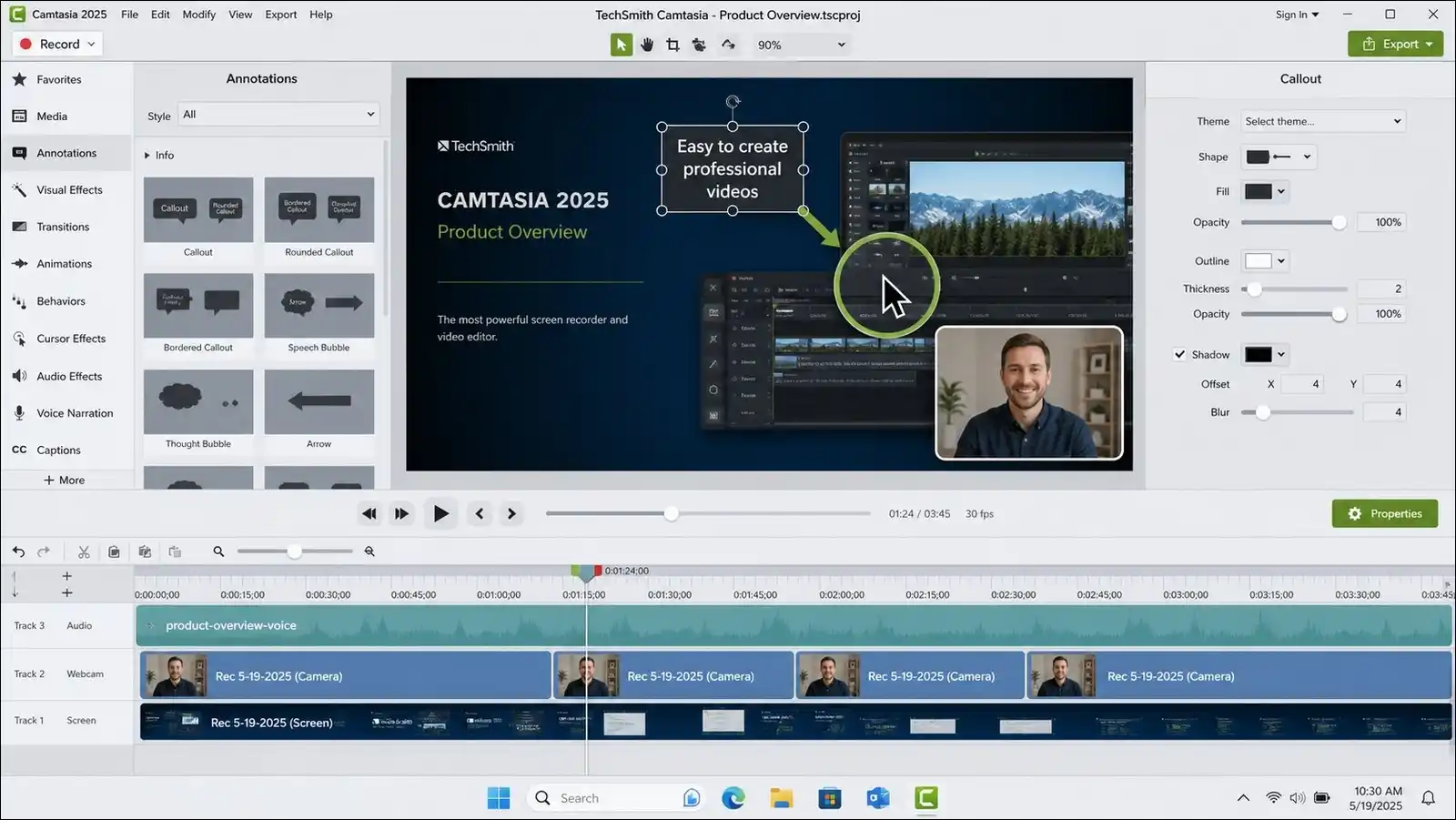
Camtasia by TechSmith is the most complete all-in-one screen recording and editing package we tested for Windows and Mac. It includes a multi-track timeline, callouts, cursor effects, zoom-and-pan, transitions, green screen support, quizzes, and direct SCORM export for learning management systems. The 2025 version also added AI Dynamic Captions, AI filler-word removal, and AI noise removal, which are genuinely useful.
In our benchmark, it ran at about 17 percent CPU during recording, which is higher than lighter tools but still manageable on mid-range hardware. The editor is accessible even without prior video experience, though it offers enough depth for professional courses and training videos.
You also get access to a library of royalty-free assets and templates. The price is the main downside, there’s no getting around that. The Essentials plan starts at $179.88 per year, and a perpetual license sits around $299 depending on region.
Who it fits best: course creators, trainers, instructional designers, YouTube tutorial makers, and teams that want a single app for everything.
- Pricing: from $179.88 per year; perpetual licenses available.
- Pros. Deep editor, AI features, quizzes and SCORM, asset library, cross-platform.
- Cons. Price is high, heavy on older hardware, no native hosting.
- Most common user complaint. Subscription pricing frustrated long-time users who owned perpetual licenses.
- Verdict. Best all-in-one tool for polished tutorial and training video production.
7. ScreenFlow
ScreenFlow is Telestream’s Mac-only recorder and editor, and it’s the strongest pro-grade option for Apple users who don’t want Camtasia. In our testing on an M3 Pro MacBook Pro, it captured lossless screen quality with lower overhead than Camtasia on the same machine, though it still used about 14 percent CPU.
The multi-track editor supports motion graphics, chroma key, audio ducking, ProRes export, and native iOS device capture when you plug in an iPhone or iPad with a cable. That last feature is especially useful for app developers and mobile reviewers.
ScreenFlow doesn’t yet match Camtasia on AI features or learning-focused quizzes, but the timeline feels more like a professional NLE, which video editors will appreciate.
It costs $169 as a one-time purchase, which is a strong value compared with annual subscriptions that add up year after year. Who it fits best: Mac-first creators, app developers, video editors, and course creators who want a one-time license.
- Pricing: $169 one-time, with paid upgrade paths for major versions.
- Pros. ProRes, iOS device capture, motion graphics, one-time license, Apple Silicon native.
- Cons. Mac only, weak AI features compared with newer tools, upgrade fees apply.
- Most common user complaint. Recent updates felt lighter on new features than users expected.
- Verdict. Best pro editor for Mac users who prefer a one-time purchase.
8. Movavi Screen Recorder
Movavi sits in the accessible middle tier. It costs less than Camtasia and offers a friendlier interface than OBS, which makes it a popular pick for people new to screen recording. In our testing, it used 9 percent CPU during recording and produced clean 1080p output at a reasonable 16.3 MB per minute.
You get features like scheduled recording, webcam overlay, annotations, keystroke and mouse highlighting, and basic noise removal. Movavi also bundles with the Movavi Video Editor if you want more timeline depth. Newer versions added AI noise removal and auto-captions, which are nice touches.
Where it falls short is on advanced features like quizzes, SCORM, or advanced color grading. But for occasional tutorials, demos, and straightforward captures, it’s a reliable choice without a huge price tag.
Who it fits best: beginners, small business users, and casual creators who want easy editing without paying Camtasia prices.
- Pricing: around $42 to $64.95 per year, or $79.95 perpetual depending on the edition.
- Pros. Easy to learn, reasonably priced, scheduled recording, webcam overlay.
- Cons. Less powerful than Camtasia or ScreenFlow, AI features are basic.
- Most common user complaint. Upsell prompts in the app can feel pushy.
- Verdict. Approachable mid-tier option for users new to screen recording.
9. EaseUS RecExperts
EaseUS RecExperts is a cross-platform recorder for Windows and Mac that covers the basics surprisingly well. In our tests, it handled locked-window recording, multi-screen capture, scheduled recording for webinars, and a dedicated game recording mode without any issues. CPU usage sat at 13 percent, and output quality was comparable to Movavi at similar bitrates.
It also includes an AI noise reduction feature and basic trim editing, which covers most casual use cases. The lifetime license at $69.95 is attractive if you want a one-time purchase without going fully open source. EaseUS doesn’t match Camtasia on editing depth or OBS on customization, but it works well for webinar capture, meeting documentation, and light tutorials.
Who it fits best: users who need a straightforward recorder, especially for webinars and meetings.
- Pricing: $19.95 per month, $39.95 per year, or $69.95 lifetime.
- Pros. Lifetime license available, scheduled recording, game mode, webcam and screen.
- Cons. Less advanced editor, weaker brand recognition than competitors.
- Most common user complaint. Free version limits are restrictive.
- Verdict. Affordable option for scheduled meeting and webinar capture.
10. ScreenPal (formerly Screencast-O-Matic)
ScreenPal targets educators and small teams that want recording, editing, and hosting in one affordable package. It works on Windows, Mac, Chromebook, iOS, Android, and the web, which makes it the broadest platform coverage in this entire guide. The free plan lets you record up to 15 minutes with a watermark, and paid plans start as low as $3 per month for educators, which is hard to beat for classroom use.
In testing, we found the editor basic but functional, with trim, text overlays, captions, webcam crop, narration, and AI-powered quizzes. Hosting is included with paid plans, so you don’t need a separate YouTube or Vimeo account to share videos with students or teammates.
Performance was solid at 13 percent CPU in the desktop app, though we did see some lag reports in the web version from other users that we didn’t experience on our fast connection.
Who it fits best: teachers, schools, small teams, and budget users who want built-in hosting.
- Pricing: free; paid from $3 to $10 per month, with special education pricing.
- Pros. Every platform covered, low price, built-in hosting, quizzes, education friendly.
- Cons. Watermark on free, 15-minute free cap, editor is basic compared with Camtasia.
- Most common user complaint. Free tier watermark placement is intrusive.
- Verdict. Best budget option for education and cross-platform use.
Async Communication and Team Video Messaging
Let’s shift gears. These tools prioritize instant sharing, links, and collaboration over heavy editing. If you’re replacing meetings with video, this section’s for you.
11. Loom
Loom defined the async screen recording category, and it remains a strong choice even after Atlassian acquired it in 2023 for approximately $975 million. The core promise is still fast, and it delivers. You hit record, capture screen and camera, and get a shareable link copied to your clipboard the moment you stop.
On the free plan, you can record up to 25 videos with a five-minute cap each. Paid plans, Business at roughly $12.50 to $18 per user per month depending on billing, remove limits and add viewer analytics, calls to action, and deeper integrations with Slack, Notion, Jira, and Confluence.
Loom AI can generate titles, summaries, chapters, and filler-word removal on paid plans, which saves a surprising amount of time. The editor stays intentionally light. You can trim and remove silences, but you won’t get multi-track editing, and that’s by design. In our tests, CPU usage was about 12 percent, and uploads began immediately while recording.
Common concerns are per-seat pricing that adds up quickly for larger teams, plus the reality that Microsoft, Google, and Slack all bundle basic recording features for free now.
Who it fits best: remote teams, product managers, support teams, and anyone replacing meetings with video updates.
- Pricing: free; paid from $12.50 per user per month.
- Pros. Fastest record-to-link workflow, generous free plan for individuals, strong integrations.
- Cons. Per-user cost scales quickly, basic editing, bundling pressure from Microsoft and Google.
- Most common user complaint. Price increases and plan changes after the Atlassian acquisition frustrated some long-time users.
- Verdict. Standard pick for quick async video messaging, especially for Atlassian-stack teams.
12. Vidyard
Vidyard is built specifically for sales and customer-facing teams rather than general recording. Its Chrome extension and web app let you record screen and webcam, then embed videos in emails, LinkedIn messages, or CRM records. You can track who watched, how much they watched, and which CTAs they clicked, which is incredibly valuable for outreach.
In our testing, the interface felt polished, and the analytics were the most detailed among the async tools we tested. The free plan allows 25 videos, with paid plans starting at $19 per month for more videos and deeper integrations with HubSpot and Salesforce.
AI call prep and script suggestions help sales teams craft messages faster, which is a nice touch. Just know that Vidyard isn’t a replacement for Camtasia for tutorials, because editing stays light. Its role is outreach, pure and simple.
Who it fits best: SDRs, account executives, customer success managers, and marketers doing personalized video outreach.
- Pricing: free; paid from $19 per month.
- Pros. Deep viewer analytics, CRM integration, email and LinkedIn embedding, sales-focused AI.
- Cons. Expensive at scale, editing is limited, not for tutorial production.
- Most common user complaint. Free plan limits feel tight for active users.
- Verdict. Best recorder for sales outreach and CRM-tracked video messages.
13. Vimeo Record
Vimeo Record is a browser-based tool bundled with Vimeo hosting accounts. It lets you record screen and webcam directly from the browser and saves recordings straight to your Vimeo library. In testing, the workflow was smooth if you already use Vimeo for video hosting, which makes sense.
You have access to Vimeo’s privacy controls, password protection, team libraries, analytics, and custom branding. AI features, including auto-captions and summaries, come through Vimeo’s broader AI toolset. Pricing starts at $12 per user per month for the Starter plan.
That said, you may not need this if you don’t already use Vimeo for hosting. It doesn’t add enough recording-specific value to compete with Loom for pure messaging.
Who it fits best: teams that already host video on Vimeo and want unified analytics and privacy.
- Pricing: free tier with limits; paid from $12 per user per month.
- Pros. Integrated Vimeo hosting, strong privacy and analytics, familiar if you use Vimeo.
- Cons. Requires Vimeo commitment, browser only, limited editor.
- Most common user complaint. Limited to two videos per month on the free tier.
- Verdict. Worth considering if Vimeo is already your video host, otherwise skip it.
14. Tella
Tella focuses on making screen recordings look polished and on-brand with minimal effort. It’s a web-based and desktop app for Mac and Windows. You can record in short clips, rearrange them on a timeline, apply branded backgrounds and layouts, and export up to 4K. In our tests, the AI editor made it easy to trim mistakes and stitch clips together without traditional timeline work, which was a nice surprise.
The Pro plan starts at $13 to $19 per month, and there’s no free plan beyond a seven-day trial, which turns some people off. Tella also includes viewer analytics and hosting, so you can share watchable pages rather than raw files.
Its positioning sits between Loom and Camtasia. It has more polish than Loom but less editing depth than Camtasia.
Who it fits best: creators, founders, marketers, and anyone who wants branded, attractive videos without heavy editing.
- Pricing: 7-day free trial; Pro from $13 per month.
- Pros. Beautiful defaults, clip-based workflow, branded themes, AI editor, 4K export.
- Cons. No permanent free plan, web-first, less editing depth than desktop NLEs.
- Most common user complaint. No free plan turns away casual users.
- Verdict. Best option for polished branded videos without traditional editing work.
15. Screencastify
Screencastify is a Chrome extension focused on education and Chromebook users. It records browser tabs, the whole desktop, or webcam, and saves files to Google Drive automatically. You can add basic editing, subtitles, and interactive polls for students, which teachers will appreciate.
The free plan caps recordings at 30 minutes, and paid plans start around $7 per user per month with special pricing for schools. In our testing on a Chromebook, it was the most reliable option, which matters because many schools issue Chromebooks exclusively. Education compliance features including COPPA-aligned settings and Google Classroom integration make it a strong fit for K-12 and higher-ed users. That said, you may find it limiting if you want advanced editing or non-Chrome workflows. Who it fits best: teachers, students, schools, and Chromebook-first users.
- Pricing: free; paid from $7 per user per month with education plans.
- Pros. Chromebook friendly, Google Drive and Classroom integration, education compliance.
- Cons. Chrome only, basic editing, depends on internet connectivity.
- Most common user complaint. Some school firewalls or extensions interfere with capture.
- Verdict. Best Chrome and Chromebook recorder for educators.
Mac-Focused and Specialized Capture
These tools are built around macOS-specific experiences or specialized capture use cases. If you’re on a Mac, pay attention here.
16. Screen Studio
Screen Studio is a Mac-only app that popularized auto-zoom demos, and it does that one thing extremely well. When you record, it follows your cursor, applies smooth zooms and pans, adds padding and background, and exports a video that looks professionally edited without any manual keyframing.
In our M3 MacBook Pro testing, it exported a polished demo faster than we could’ve edited the same footage in Camtasia, which is honestly the whole point.
Output supports 4K60, and you can adjust zoom behavior, background, and cursor smoothing to match your style. It’s not a full timeline editor, though. You won’t find multi-track audio, quizzes, or motion graphics here.
Newer versions expanded to web-based share links of up to 30 minutes and added AI caption support. Pricing starts at $9 per month on the annual plan, with perpetual options around $89 to $229.
Who it fits best: SaaS founders, product marketers, indie developers, and anyone making product demos on a Mac.
- Pricing: from $9 per month; perpetual options available.
- Pros. Instant cinematic demos, auto-zoom is best in class, fast exports, beautiful defaults.
- Cons. Mac only, not a full editor, no team plan at higher tiers, no free plan.
- Most common user complaint. Subscription pricing annoyed users who wanted one-time purchase for updates.
- Verdict. Best tool for polished product demos on macOS, bar none.
17. CleanShot X
CleanShot X is primarily a screenshot tool for Mac, but its screen recording features are excellent for quick annotated clips, and it’s worth including here.
It lives in the menu bar, replaces the native Cmd+Shift+4 shortcuts, and adds scrolling capture, window detection, OCR, pinned screenshots, annotations, and GIF recording. You can upload recordings to CleanShot Cloud for shareable links with optional password protection and expiry dates.
The base app costs $29 one-time with one year of updates, and Cloud Pro runs $8 per month for unlimited storage and team features. In our tests, it had one of the fastest times from idea to capture, and the annotation workflow for screenshots is the best on Mac right now.
Just know that video recording stays trim-focused with no timeline editor, so don’t expect Camtasia-level depth.
Who it fits best: designers, developers, writers, and Mac users who take lots of screenshots and occasional clips.
- Pricing: $29 one-time; Cloud Pro at $8 per month.
- Pros. Best screenshot annotation on Mac, fast menu-bar access, OCR, one-time purchase option.
- Cons. Video editing is minimal, Mac only, Cloud costs extra.
- Most common user complaint. Cloud subscription adds recurring cost after the one-time purchase.
- Verdict. Best Mac screenshot tool with solid short-video capture for daily documentation.
AI-First and Modern Workflow Tools
These tools use AI as a core feature rather than tacking it on as a bullet point. If AI-assisted editing matters to you, start here.
18. Descript
Descript is built around a simple idea that turns out to be pretty powerful. You edit video and audio by editing a text transcript. We imported screen recordings and were able to cut filler words, remove pauses, and move sections around by deleting or dragging text, which felt much faster than scrubbing a timeline for dialogue-heavy content.
It includes Overdub, which lets you generate voice from text in a cloned version of your own voice, and Studio Sound, which cleans up poor microphone audio surprisingly well. Screen recording is supported through a desktop recorder, though the real value is in editing and transcription.
The free plan gives you one hour of transcription per month, and Creator starts at $24 per month. Descript isn’t a dedicated tutorial recorder like Camtasia, but it’s the strongest tool in this list for podcasters, talking-head videos, and any workflow where speech is the primary content.
Who it fits best: podcasters, YouTubers, course creators with lots of dialogue, and teams that want text-based editing.
- Pricing: free; Creator from $24 per month.
- Pros. Industry-leading transcription, Overdub voice cloning, Studio Sound, text-based editing.
- Cons. Not a dedicated game or tutorial recorder, subscription based, transcription minutes cost extra.
- Most common user complaint. Transcription minutes run out quickly on the Creator plan.
- Verdict. Best AI editor for speech-heavy video and podcast workflows.
19. VEED.io
VEED.io is a browser-based video editor and recorder that works on any operating system, which is a huge plus for Chromebook and Linux users who get overlooked by most tools. You can record screen and webcam, then edit with a drag-and-drop timeline, add AI subtitles, eye contact correction, text-to-speech, background removal, noise reduction, and automatic translation into multiple languages.
In our tests, the AI subtitle accuracy was among the highest of browser-based tools, hovering around 94 to 96 percent for clear English narration. The free plan adds a watermark and limits exports, while paid plans start around $9 to $12 per month for Basic and go higher for Pro.
Because it runs in the browser, you may notice slower performance with long projects compared with desktop tools, so keep projects under 20 minutes if you can.
Who it fits best: social media creators, marketers, and teams that want browser-based editing with strong captions and translation.
- Pricing: free with watermark; paid from $9 per month.
- Pros. Best-in-class AI subtitles, browser-based, translations, text-to-speech, eye contact AI.
- Cons. Watermark on free, browser performance limits, subscription cost scales.
- Most common user complaint. Longer videos can slow the browser interface.
- Verdict. Strong browser editor for captions, translations, and social video repurposing.
Gaming and High-Performance Capture
These tools optimize for frame rate stability and low overhead during gameplay or other demanding tasks. If you’re a gamer, don’t skip this section.
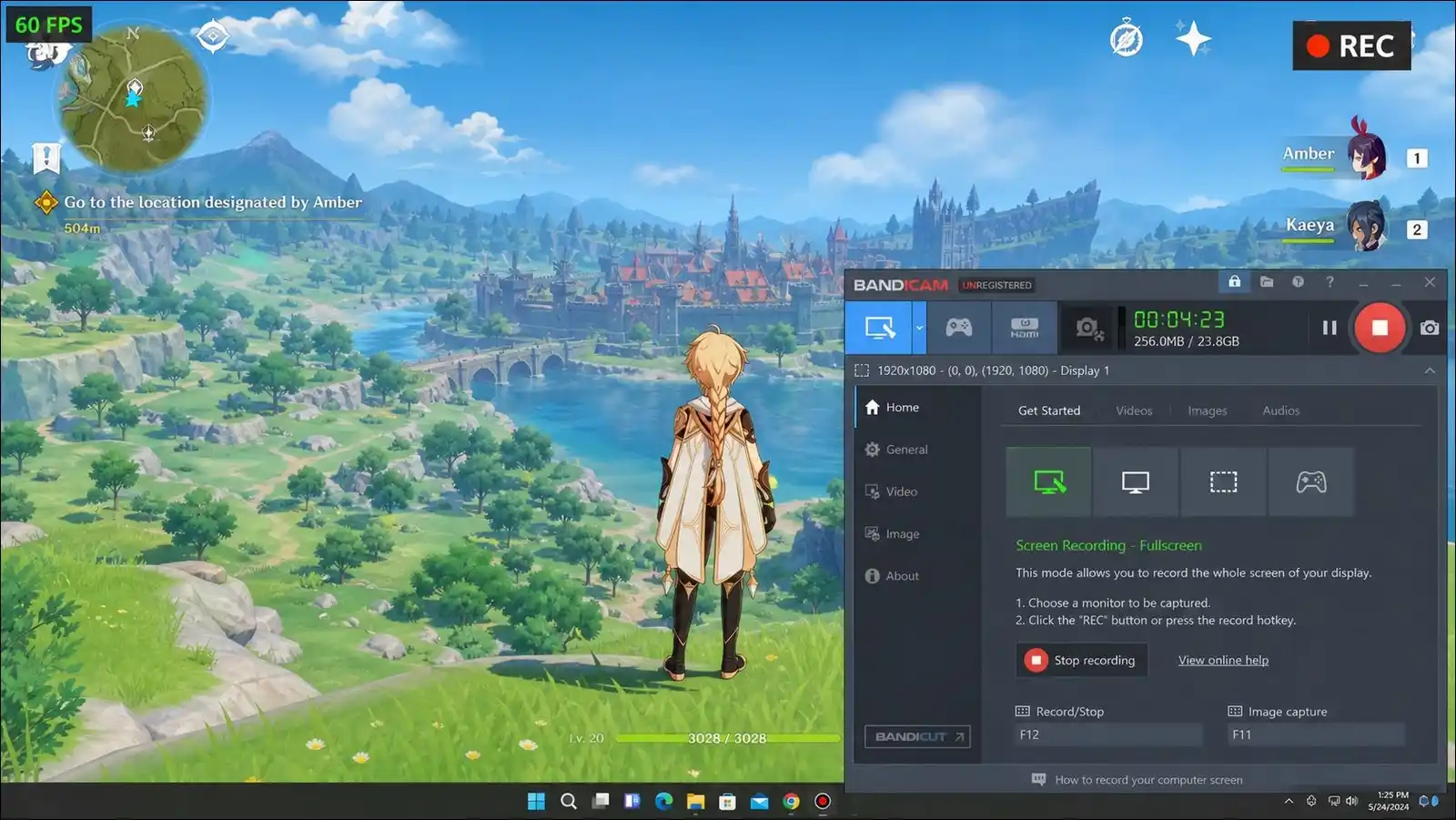
20. Bandicam
Bandicam is a long-running Windows and Mac recorder built specifically for high frame rate capture with minimal system impact. In our benchmark tests on Windows, it achieved the lowest average CPU usage we measured at just 3 percent with NVENC hardware encoding, and its output files were the smallest at 8.2 MB per minute without any visible quality loss. That’s a big deal if you’re recording on a mid-tier GPU or an older machine.
It supports 4K recording up to 480 fps, device capture from HDMI sources, webcams, and external consoles like Xbox or PlayStation, plus scheduled recording. The free version caps recordings at 10 minutes and adds a watermark. A one-year license costs $39.95, which is quite reasonable.
There’s no timeline editor, so recordings will need to go elsewhere for editing. In short, Bandicam does for gaming what OBS does for streaming, but with less setup and even less overhead.
Who it fits best: gamers, esports creators, and users on older or lower-powered PCs who want stable capture.
- Pricing: free with watermark and 10-minute limit; paid from $39.95 per year.
- Pros. Lowest CPU usage in our tests, smallest files, high FPS support, device capture.
- Cons. No editor, dated interface, watermark on free.
- Most common user complaint. UI hasn’t seen a major refresh in years.
- Verdict. Best recorder for gaming and low-end PCs when stability matters most.
eLearning and Enterprise Training
These tools serve corporate trainers and instructional designers who need quizzes, LMS integration, and compliance features. This is a specialized category, so skip it if you don’t work in L&D.
21. Adobe Captivate
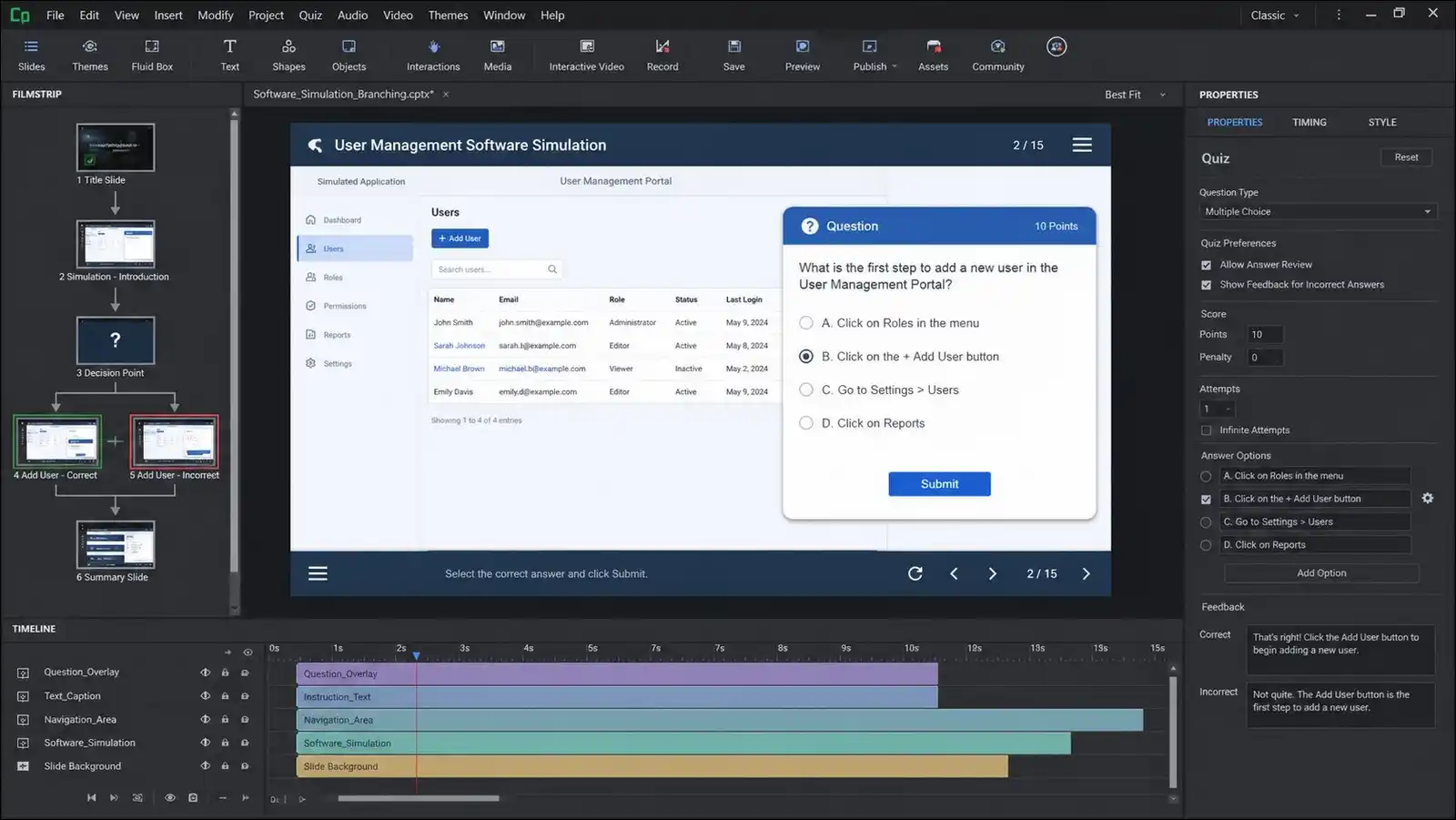
Adobe Captivate is an eLearning authoring tool rather than a pure screen recorder, and that distinction matters. It includes screen capture for software simulations and builds out full interactive courses with branching scenarios, quizzes, VR projects, and SCORM, AICC, and xAPI export for enterprise learning systems.
In our testing, the capture mode recorded clicks and keystrokes to create interactive simulations where learners can try tasks themselves, which is a step beyond what Camtasia quizzes offer.
It also includes accessibility features aligned with WCAG guidelines, which is crucial for organizations that need compliance. The pricing runs $33.99 to $39.99 per month, which is expensive if you only need a recorder. But it’s worth the cost if you’re building interactive enterprise training at scale.
Who it fits best: instructional designers, corporate L&D teams, and anyone creating SCORM-compliant interactive courses.
- Pricing: $33.99 to $39.99 per month.
- Pros. Interactive simulations, branching, SCORM/xAPI, VR projects, accessibility features.
- Cons. Expensive, overkill for simple tutorials, steep learning curve.
- Most common user complaint. Subscription model and complexity are barriers for casual users.
- Verdict. Best tool for serious corporate eLearning and interactive training modules.
Honorable Mentions and Rising Tools Worth Knowing
A few tools didn’t fit neatly into the categories above but are still worth a short note. Some are built-in, some are newer AI players, and some are solid options for specific use cases.
- Clipchamp. Bundled with Windows 11 and Microsoft 365. It records screen and webcam in the browser and offers a simple timeline editor. It works well for quick edits if you already have a Microsoft 365 account, though power users will outgrow it pretty quickly.
- Xbox Game Bar. Built into Windows 10 and 11. Press Win+G to open it. It recorded our test gameplay at 4 percent CPU with no install required, but it doesn’t support webcam picture-in-picture or desktop recording in the same way as dedicated tools. It works well for quick game clips, though.
- QuickTime Player. Included free on every Mac. It records screen and webcam with no watermark, but it can’t capture system audio without extra software. Exported files can also be quite large.
- macOS Screenshot Toolbar (Cmd+Shift+5). Built into macOS since Mojave. You can select a region or window, record, and trim. It’s the fastest way to start a basic recording on a Mac, but it has no annotations or editor.
- Windows Snipping Tool. Now includes screen recording in Windows 11. It works for quick clips and microphone audio, though you may want more control for polished content.
- ApowerSoft Free Online Screen Recorder. A browser-based option that requires no installation. You can launch it quickly for one-off recordings.
- Free Cam. A free Windows recorder with no watermark and a basic editor. The Pro version costs $227 per year, which feels pretty steep for what it offers.
- iSpring Suite. A Windows eLearning authoring tool with screen recording, priced at $970 per year. It’s powerful for L&D teams that need SCORM and course authoring, but it’s expensive for simple recording.
- CloudApp. Combines screenshots, GIFs, and async video for teams. Plans start around $9 per month. It competes with Loom and ScreenRec but leans more into visual communication across formats.
- Riverside. Browser-based recording for remote interviews and podcasts. It records locally to each participant’s device and uploads high-quality tracks, which is perfect for podcasting. Plans start around $15 per month.
- Vmaker. A freemium recorder with unlimited recording in the free tier and AI features. It’s a reasonable option for beginners who don’t want to pay upfront.
- Nvidia GeForce Experience ShadowPlay. Free with Nvidia GPUs on Windows. It records gameplay with hardware acceleration and near-zero overhead, which makes it popular for quick clips and instant replays.
- Streamlabs Desktop. A free, OBS-based streaming app with a friendlier UI and built-in themes for live streamers. It works well if you want OBS power with a gentler onboarding experience.
- VideoProc Converter AI. A converter and upscaler that also includes screen recording. A lifetime license sits around $45 to $55, which makes it good value if you also need video conversion or AI upscaling.
- Cap. An open-source record-and-share alternative to Loom for Mac and Windows. It’s a younger project, but it’s worth watching for users who want open-source async video.
Built-In OS Tools: When They Are Enough
Wait, hold on. Before you go downloading anything, you may not even need to. Each major operating system now ships with a built-in screen recorder, and those tools handle many common tasks surprisingly well. Let’s walk through them.
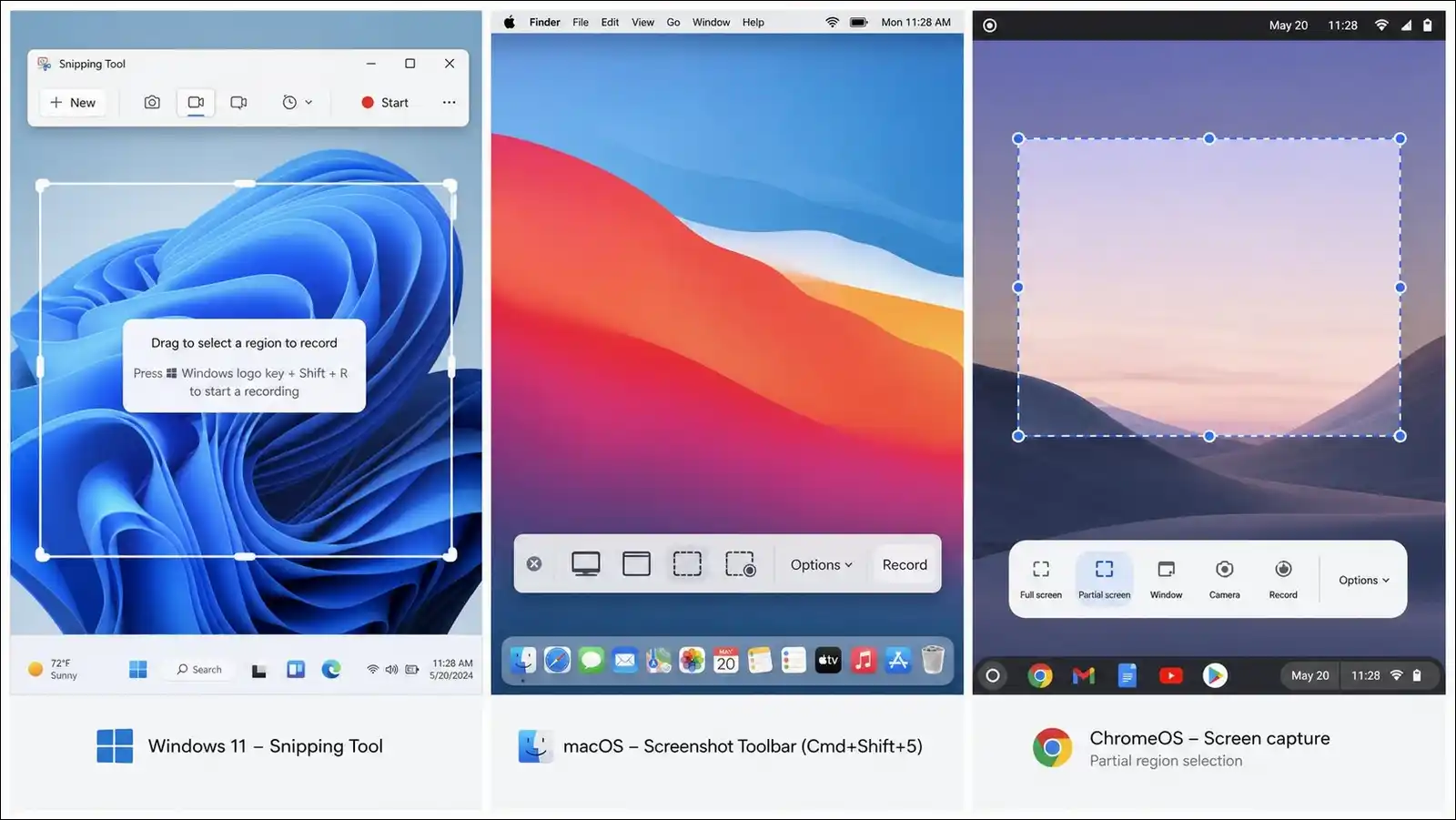
Windows 11 Built-In Options
You have two built-in options on Windows 11.
- Snipping Tool. Open it from the Start menu or press Win+Shift+S. The video mode lets you select an area and record screen and microphone. This works great for quick clips, bug reports, and simple tutorials.
- Xbox Game Bar. Press Win+G. It focuses on game capture with low overhead. It also supports audio mixing widgets and quick clips. It doesn’t support File Explorer or some desktop apps for capture by default, though.
These tools are free and require no install. That said, they don’t support built-in editing beyond trim, system audio routing can be confusing, and neither adds annotations or callouts. They’re perfectly fine for short personal clips or bug reports, but you’ll probably want more for public-facing content.
macOS Built-In Options
On a Mac, you have two native options.
- Screenshot Toolbar. Press Cmd+Shift+5 to open it. You can capture the full screen, a window, or a selection, choose where to save, and set a microphone.
- QuickTime Player. Open QuickTime, go to File, then New Screen Recording. It supports screen and webcam with a simple trim editor after capture.
Now for the known limitation: system audio. Neither tool captures audio playing from your Mac by default, which is frustrating. You can add BlackHole, a free open-source loopback driver, to route system audio, or you can use a third-party tool like Screen Studio or ScreenFlow that handles it internally. More on that in a bit.
ChromeOS Built-In
Press Ctrl+Shift+Show Windows to open the native screen recorder on a Chromebook. It captures full screen, a window, or a partial region and saves to Google Drive. It’s simple but limited, which is why schools and users who want editing or quizzing often pair it with Screencastify.
iOS and Android Built-In
On an iPhone or iPad, add Screen Recording to Control Center and tap to record. On Android, most manufacturers include a screen recorder in quick settings. Both support microphone narration but have pretty limited editing.
When built-in tools are enough:
- You need a one-off clip for yourself or a colleague.
- You don’t need annotations, callouts, or zoom effects.
- You don’t need cloud hosting or viewer analytics.
- You don’t need system audio on a Mac.
When you should look at third-party tools:
- You need edited, polished output for an audience.
- You record system audio on a Mac regularly.
- You need cloud sharing, analytics, or integrations.
- You record long sessions, gameplay, or courses.
- You need captions, quizzes, or AI features.
How to Choose the Right Screen Recorder in 5 Steps
We’ve found that most readers overthink the tool choice. They look at feature comparison tables for hours and end up more confused than when they started. Don’t do that. Follow these five steps instead, and you’ll land on a recorder that fits how you actually work.
- Start with your deliverable, not features. Ask what you’re actually making. A 90-second async Slack message is different from a 20-part online course with quizzes, and different from a six-hour live stream. Pick a tool that matches the output you ship most often.
- Match the tool to your platform. Don’t buy a Mac-only app if you work on Windows or Linux. Check the platform column in our quick picks table before you install anything.
- Decide how much editing you need. If you just need to share a clip, Loom or ScreenRec work great. If you need a real timeline editor, Camtasia or ScreenFlow fit the bill. If you record and stream, OBS is still the standard.
- Check total cost, not just the starting price. Calculate cost for your whole team over a full year or three years. We include a cost comparison table below to help with that.
- Run one real test recording. Install the free trial or free tier and record a real clip you actually need. That five-minute test reveals audio problems, export lag, and sharing friction faster than any feature list ever will.
Total Cost of Ownership Comparison
Subscription prices can look small until you multiply by users and years. That’s why we calculated the estimated three-year cost for a single user at list pricing, to give you a sense of what you’re actually committing to.
| Tool | Single user, 3 years (approx.) | Pricing model |
|---|---|---|
| OBS Studio | $0 | Free open source |
| ShareX | $0 | Free open source |
| Kap | $0 | Free open source |
| Xbox Game Bar | $0 | Built in |
| QuickTime / Cmd+Shift+5 | $0 | Built in |
| FlashBack Pro | $45 to $75 | One-time or annual |
| CleanShot X base | $29 to $86 | One-time with optional renewals |
| ScreenFlow | $169 plus upgrades | One-time |
| Bandicam | $119.85 | Annual |
| Snagit | $117 to $189 | Annual or one-time |
| Movavi | $126 to $240 | Annual or perpetual |
| EaseUS RecExperts | $69.95 | One-time option |
| Screen Studio | $267 to $324 | Annual subscription |
| Loom Business | $450 to $648 | Per user, annual |
| Camtasia | $540 | Annual subscription |
| Descript Creator | $864 | Annual subscription |
| Tella Pro | $468 to $684 | Annual subscription |
| Adobe Captivate | $1,224 to $1,440 | Annual subscription |
For teams of five, annual subscriptions like Loom Business or Tella become noticeably more expensive over time than one-time purchases like ScreenFlow or Snagit.
So if you’re buying for a team, you can save real money by opting for one-time licenses when they meet your needs.
Privacy, Security, and Compliance
If you record for a business, school, or regulated industry, privacy isn’t optional. It’s a requirement. Here’s what to look for, explained simply.
Local Recording vs Cloud Recording
Let’s start with the basics. Local recording saves files to your own computer. Cloud recording uploads them to the vendor’s servers. Local recording is generally safer for sensitive content, though it’s less convenient for sharing. Cloud tools are faster to share but require trust in the vendor’s security practices. That’s the tradeoff.
Compliance Checklist
You may want to verify these items before you standardize on a tool for an organization.
- SOC 2 Type II. Confirms the vendor follows security, availability, and privacy controls. Enterprise plans from Loom, Vidyard, Vimeo, and TechSmith typically include this.
- GDPR compliance. Relevant if you have users or employees in the European Union.
- HIPAA readiness. Required for healthcare use cases in the US. Loom Enterprise and some enterprise plans offer BAA agreements. Consumer tools generally don’t.
- FERPA and COPPA. Required for educational use in the US, especially for K-12. Screencastify and ScreenPal emphasize education compliance in their plans.
- Data residency. Some vendors let you choose where recordings are stored, which matters for certain regulations.
- PII redaction. AI features that blur names, email addresses, and sensitive fields can save a ton of manual editing time. Tools like Snagit, Guidde, and some enterprise plans offer this.
- End-to-end encryption. ScreenRec and a few smaller tools advertise end-to-end encrypted links. Larger vendors typically use encryption in transit and at rest but reserve access for moderation purposes.
Practical Policy Tip
If you’re setting a company policy, you don’t need a 50-page document. You can keep it simple:
- Tell people which tools are approved for sensitive content.
- Require local recording or approved enterprise cloud storage for confidential data.
- Ban uploads of customer data, PII, or internal financials to personal free-tier accounts.
- Remind employees to notify participants before recording meetings, as required by law in many places.
AI Features: What Works and What Doesn’t
AI is now a checkbox vendors rush to tick, and honestly, some of it is marketing fluff. We tested the major AI features across tools to separate genuinely useful additions from buzzwords. Here’s what we found.
AI Transcription and Captions
Accurate captions make videos accessible and searchable, and they’re probably the most useful AI feature in this category right now. In our tests with clear English narration, accuracy ranged as follows.
| Tool | Approximate caption accuracy (clear English) | Languages supported |
|---|---|---|
| Descript | 96% | 23+ |
| VEED.io | 94% | 50+ |
| Loom (paid) | 92% | 50+ |
| Camtasia 2025 | 90% | 12+ |
| ScreenApp | 90% | 50+ |
| Movavi | 85% | 15+ |
| Screen Studio | 88% | 20+ |
You can expect these numbers to drop significantly with heavy accents, background noise, or technical jargon. Manual proofreading is still wise for any public-facing videos, no matter what the marketing copy says.
AI Filler Word Removal and Silence Trimming
Loom, Descript, and Camtasia can all remove ums, ahs, and long silences automatically. The feature works well when you want to tighten talking-head clips. Descript produces the most natural results in our testing, likely because its transcript-level editing lets you preview cuts in context before committing. That said, some tools create awkward jump cuts if you remove too many fillers too aggressively. You may want to leave a few natural pauses in so the speaker still sounds human.
AI Auto-Zoom and Cinematic Polishing
Screen Studio popularized this, and now Screenify, Tella, and others offer versions of it. The AI follows cursor movement and zooms into areas of interest automatically. Results look great for product demos and software walkthroughs. They look less appropriate for formal presentations or talking-head videos, though, so use the effect where it fits. You have the option to disable or tune zoom intensity in Screen Studio if the effect feels too aggressive.
AI Voice and Synthetic Narration
Descript Overdub, VEED text-to-speech, and tools like Puppydog and ScreenStory can generate voice from text, including cloned voices. Quality improved significantly in 2026, but synthetic voices still feel a bit flat for long-form training.
The TechSmith’s 2026 research found that 75% of viewers are open to AI features in instructional video, but 87% still prefer a human speaker. So AI voices work well for rough cuts or placeholders, but you may want a real human for the final cut of anything customer-facing.
Platform-Specific Tips and Workarounds
Some platform-specific issues come up in almost every thread about screen recording. If you’ve ever banged your head against one of these problems, here’s how to solve them.
How to Record System Audio on a Mac
macOS doesn’t expose system audio to QuickTime or the native screenshot toolbar, which is one of the most complained-about Mac limitations. You have three main options.
- Use a tool that includes its own system audio capture. Screen Studio, ScreenFlow, Cap, and Camtasia all handle this internally. It’s the simplest option by far.
- Install a free loopback driver. BlackHole is a popular open-source option. Install it, then create a multi-output device in Audio MIDI Setup so you can hear audio while OBS or QuickTime captures it.
- Use a paid loopback tool. Rogue Amoeba’s Loopback or Audio Hijack offer more routing control if you need complex setups for podcasting or streaming.
Best Screen Recorders for Linux
Linux users have fewer commercial options than Windows or Mac users, but the open-source tools are strong. Here are your best bets.
- OBS Studio. The obvious choice for streaming and advanced recording. It works on every major distro.
- SimpleScreenRecorder. A lighter, simpler option for straightforward desktop capture.
- Kooha. A GTK-based recorder for GNOME desktops with a clean, modern interface.
- Peek. A GIF-focused recorder for quick clips.
- ShareX alternatives. Linux users can look at Flameshot for screenshots and OBS for video, since ShareX itself is Windows only.
Best Screen Recorders for Chromebooks
Chromebooks can’t install most Windows or Mac desktop software, which limits your options. Stick with web and Chrome-based tools.
- Screencastify. The most polished education-focused option.
- ScreenPal. Works in the browser and on Chromebooks with its app.
- Loom Chrome extension. Works well for async messaging.
- ChromeOS built-in recorder. Use it for quick, no-install captures.
Recording on Low-End PCs and Older Laptops
If your machine has 4GB to 8GB of RAM and an older CPU, don’t worry, you can still record well. Our benchmark data shows that Bandicam, Xbox Game Bar, FlashBack Express, and OBS with hardware encoding enabled all run at 8 percent CPU or less. You can take these steps to reduce load even further.
- Close browser tabs and background apps before recording.
- Use hardware encoding such as NVidia NVENC, Intel QSV, or AMD AMF.
- Record at 1080p30 instead of 4K60 unless you absolutely need higher settings.
- Record to a fast local SSD rather than a network drive.
- Avoid running the recorder plus a heavy editor at the same time during capture.
Five Workflow Guides That Save You Time
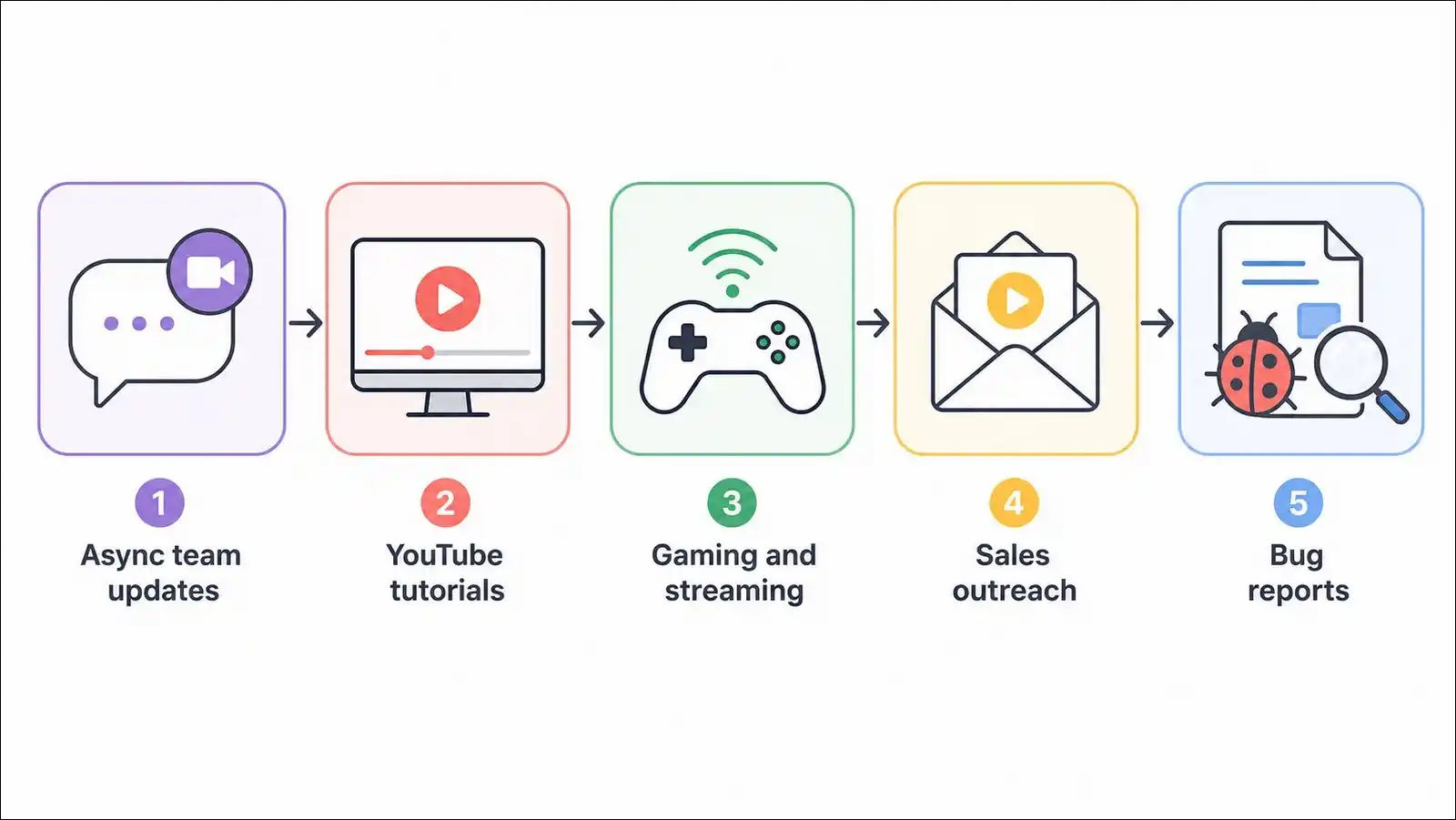
Here’s a secret. The tool matters less than having a repeatable process. So here are five common workflows with the tools and steps that actually work for each one.
Workflow 1: Async Team Updates
Use this for Slack, Jira, Confluence, or email updates. It’s the simplest workflow here.
- Open Loom, Tella, or ScreenRec.
- Select screen plus optional webcam bubble.
- Record your update in one take. Keep it under two minutes if you can.
- Trim long silences if needed.
- Paste the share link into your message.
- Add a short text summary for people who scan instead of watching.
Estimated time per video: 2 to 5 minutes.
Workflow 2: YouTube Tutorials and Online Courses
Use this for polished content that will live publicly. This takes more time but produces much better results.
- Open Camtasia or ScreenFlow.
- Write a short outline or script first. Trust me, this saves time later.
- Close notifications and clean your desktop.
- Record in short, reshoot-friendly segments of 2 to 5 minutes.
- Edit on the timeline, add callouts, cursor zoom, and captions.
- Generate captions and proofread them for accuracy.
- Export in MP4 H.264 at 1080p.
- Upload to YouTube, Vimeo, or your course host.
Estimated time per finished minute: 5 to 15 minutes depending on polish level.
Workflow 3: Gaming and Streaming
Use this for Twitch, YouTube Gaming, or local gameplay capture.
- Open OBS Studio, Streamlabs, or Bandicam.
- Configure hardware encoding for your GPU.
- Set game capture source for lowest overhead.
- Add webcam and microphone as separate sources.
- Test audio levels before going live.
- Stream to your platform and record locally at the same time if you want a clean copy for later editing.
- Edit in DaVinci Resolve, Premiere, or CapCut after the session.
Estimated setup time: 15 to 30 minutes for first-time configuration, then instant launch after that.
Workflow 4: Sales Outreach Videos
Use this for personalized prospecting. Personalization is what makes these work, so don’t skip step two.
- Open Vidyard or Loom.
- Pull up the prospect’s LinkedIn profile or company website.
- Record a short 30- to 60-second video showing why you’re reaching out.
- Add a call to action button or calendar link.
- Embed in email or LinkedIn message.
- Watch analytics to see who viewed.
Estimated time per video: 2 to 5 minutes.
Workflow 5: Bug Reports and Knowledge Base Clips
Use this for QA, support, and internal documentation. Speed and clarity matter here, not polish.
- Open ShareX, CleanShot X, Snagit, or ScreenRec.
- Set a hotkey for region capture.
- Record the issue while narrating the steps to reproduce.
- Annotate the video or screenshots if needed.
- Share the link in the ticket, Jira issue, Zendesk, or knowledge base.
Estimated time per clip: 1 to 3 minutes.
Hidden Gotchas to Watch Before You Hit Record
Even the best tools trip people up, usually because of a hidden limitation that isn’t advertised. Watch for these issues before you hit record on a 45-minute presentation.
- Free tier watermark placement. Some tools put watermarks in the middle of the screen, others in a corner. Test before you record a long session, or you’ll be very frustrated.
- Recording length caps. Screencastify free caps at 30 minutes. ScreenPal free caps at 15. Bandicam free caps at 10. Loom free caps individual videos at 5 minutes.
- Export resolution limits. Some free tiers cap at 720p, as ScreenRec does. Check before you record 4K content.
- Mac system audio surprises. QuickTime and Cmd+Shift+5 won’t capture system audio natively. Plan for that before a webinar recording, not during it.
- DRM-protected content. Netflix, Disney+, HBO, and many streaming services use DRM that produces black screens in recordings. Most encrypted Zoom and Teams meetings also block capture. Attempting to bypass that may violate terms of service, so don’t do it.
- Audio sync drift. Long recordings of an hour or more can drift out of sync in some tools. OBS, Bandicam, and Camtasia were stable in our tests. Lighter browser tools showed occasional drift in multi-hour recordings.
- Cloud upload during recording. Loom and similar tools upload while recording. That can cause stutters on slow internet connections. You can usually pause upload or record locally if that happens.
- Notification interruptions. Turn on Do Not Disturb before recording. System notifications popping into a tutorial look unprofessional and can be a pain to edit out after the fact.
Pro Tips for Better Screen Recordings
The tool only gets you halfway. These habits will make your recordings clearer and more watchable regardless of which app you use. They come from years of making screen recordings and from talking to creators who do it professionally.
- Clean your desktop before recording. Hide icons, close messy tabs, and set a plain wallpaper if needed. A messy desktop is distracting for viewers.
- Turn on Do Not Disturb. Notifications ruin takes. Turn them on before every session.
- Record at your monitor’s native resolution or 1080p. Higher resolutions create larger files without always looking better on YouTube or web players.
- Use a good microphone. Audio matters more than video quality. A USB mic or even a wired headphone mic will sound better than a laptop mic in a noisy room.
- Do a 10-second test first. Check audio levels, framing, and system audio before you record a 40-minute presentation.
- Keep videos short when possible. TechSmith research found the average time people spend watching a video is about 2.7 minutes, which means critical information should land early [Research.com / TechSmith, 2026].
- Add captions. Captions help viewers who watch without sound, and they improve accessibility. Research from Wyzowl shows that 57% of video marketers say video reduced support queries, and captioned tutorials tend to perform better [Wyzowl, 2026].
- Zoom to the area you’re talking about. Don’t make viewers squint at tiny UI elements. Use zoom tools in Camtasia, ScreenFlow, or Screen Studio to focus attention.
- Compress before sending. Use HandBrake or your editor’s export settings to keep file sizes manageable for email or chat.
- Record in small segments. It’s easier to re-record a bad 2-minute segment than to restart a 30-minute video. Trust me on this.
Accessibility: Make Videos That Everyone Can Watch
Accessibility is often overlooked in screen recording guides, but it matters for public content, education, and many workplaces. Plus, captions and clear structure help everyone, not just people with disabilities.
- Closed captions. Add accurate captions, not just auto-generated ones you never proofread.
- High contrast. Use annotations and text with strong contrast against the background. Yellow on white doesn’t work.
- Keyboard shortcuts. Tools that are keyboard-friendly help users with motor impairments work faster.
- Screen reader compatibility. Web-based hosts like Vimeo, YouTube, and Loom support screen readers more reliably than proprietary players.
- Plain language. Explain jargon when you use it, especially in training content.
- Audio descriptions. For visually important actions, describe them aloud rather than relying only on visuals. Saying “I’m clicking the blue submit button in the top right” helps people follow along.
If you create content for US government or education customers, WCAG compliance may be a requirement. Adobe Captivate and Camtasia offer the strongest accessibility support among the tools we tested.
What Comes Next: Screen Recording Trends for 2027
Before we wrap up, let’s look ahead. We expect these shifts to matter over the next 12 to 18 months, based on what we’re seeing in beta releases and industry movement.
- Browser-native capture will mature. The Screen Capture API and WebCodecs already let browsers record tabs and windows. Expect more no-install tools and tighter browser integration as these APIs become more capable.
- AI auto-documentation will expand. Tools like Guidde, Scribe, and Kommodo already turn recordings into step-by-step guides with screenshots. This category will grow fast for support and training teams.
- AI avatars and synthetic voice will improve. Synthetic presenters will handle more internal training and help content. Human presenters will still dominate customer-facing work, per TechSmith’s data.
- Platform bundling will squeeze standalone tools. Microsoft, Google, Slack, and Atlassian all include or integrate basic recording. Standalone vendors will compete on editing quality, AI, and depth rather than basic capture.
- Interactive video will become common. Expect more tools to support quizzes, clickable hotspots, and branching paths without requiring a separate eLearning suite.
Final Verdict: Which Screen Recorder Should You Pick?
After running all of our tests and analyzing the market data, here’s the bottom line.
- Start with OBS Studio if you want a free, powerful recorder and you’re willing to learn it. It handles recording, streaming, and unlimited capture across Windows, Mac, and Linux with no watermark. You can’t beat that price.
- Buy Camtasia if you make tutorials or training videos and want one tool for recording and editing. It costs more than lighter options, but the all-in-one workflow saves real time for creators who ship tutorials regularly.
- Use Loom if you send quick async videos at work. It’s still the fastest path from record to a shareable link, especially inside an Atlassian stack.
- Try Screen Studio if you make product demos on a Mac. The auto-zoom output looks more polished than most people can produce manually, and it saves hours of tedious editing.
- Pick Bandicam if you game or run an older PC. It produced the lightest CPU load and smallest files in our tests without sacrificing visible quality.
- Go with ScreenPal or Screencastify if you’re an educator or budget buyer. The pricing is fair, the platforms cover every device, and the feature sets are good enough for most classroom and SMB use.
- Consider Descript if your work is speech-heavy. Editing video by editing text is genuinely faster for podcasts, interviews, and talking-head content, and it’s worth trying if you’ve never used that workflow before.
There’s no single tool that wins every category, and that’s the point.
The best choice is the one that fits your output, your platform, and your budget. You can always start free with OBS or a built-in tool, run one test recording, and upgrade once you know exactly what you’re missing.
If you want a second opinion or have a specific workflow in mind, drop your comment telling us what you record and what machine you use. We update this guide quarterly as new versions ship and as our readers share what’s working for them.