Text-to-Speech AI for Educators: Making Instructional Videos in CapCut Desktop
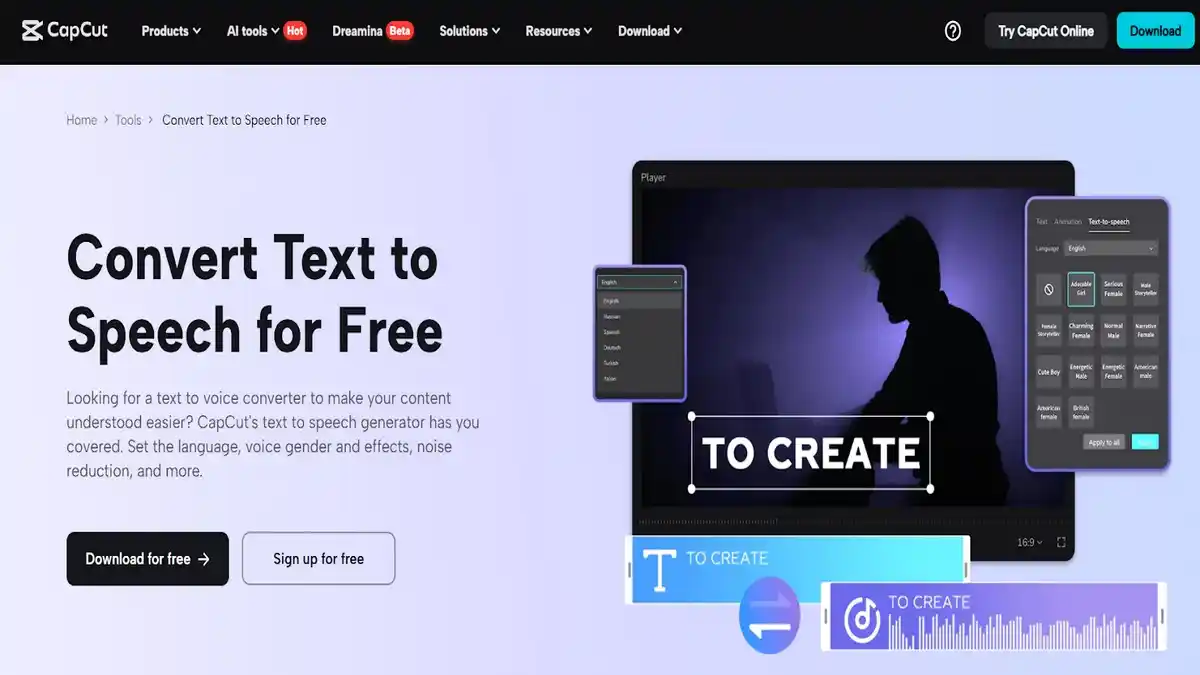
Educators do not have to rely on chalkboards and whiteboards only in modern digital classrooms. Using software such as CapCut Desktop Video Editor, educators find themselves able to produce an impressive instructional video within a few minutes, without the need to find a voiceover talent or spend cash to set up a professional microphone. With the strength of text to speech AI, you can now create more understandable, human-like voiceovers with a few lines of text, which will help you create lectures, tutorials, and explainers anytime and anywhere.
This tutorial will take you through the steps of making a teaching person talk out of CapCut: their AI Voice Generator, which you can use right at your desktop.
The Significance Of Instructional Videos In Learning
The online videos have taken the role of advanced teaching, with teachers being able to convey the information in a more detailed, structured manner, and a visual format. What makes such videos effective is the way they deconstruct complex topics, besides accommodating all learning types through the visual, auditory, or kinesthetic learning processes. Due to the availability of digital learning tools and the emerging flipped classrooms, this kind of instruction allows students to go through the content at their own time, retrace the areas they found difficult, and remain engaged even when they are not in an actual physical classroom.
In addition to that, instructional videos can be further utilized in several sessions and with groups of students, and thus, are a resource-efficient tool. With the help of such tools as CapCut with assigned text-to-speech of Artificial Intelligence, teachers will be able to create high-quality and consistent voiceovers, making them clear and understandable to all students, despite visual and reading impairments.
Why Educators Should Use CapCut’s Text-to-Speech AI
CapCut Desktop has an easy and clear user interface that can be used by teachers who might not know much about video editing. With its Text-to-speech AI tool, you have the option to read written lessons and turn them into spoken narration, and this will enable you to explain key concepts you are undoubtedly covering in a soft and coherent tone. Voiceovers can be applied in a flipped classroom, online coursework, or homework assistance, and whether you prepare the material yourself or get it in an audiovisual form, it will be easier to comprehend because of voice-overs.
What is more, you can boost the overall visual quality of your content with such features as the AI Video Upscaler which helps to sharpen blurry visuals in case you are reusing older footage or screen recording.
Step-by-Step: Creating an Instructional Video with AI Voice Generator in CapCut
Here’s how you can go from idea to full instructional video using CapCut Desktop:
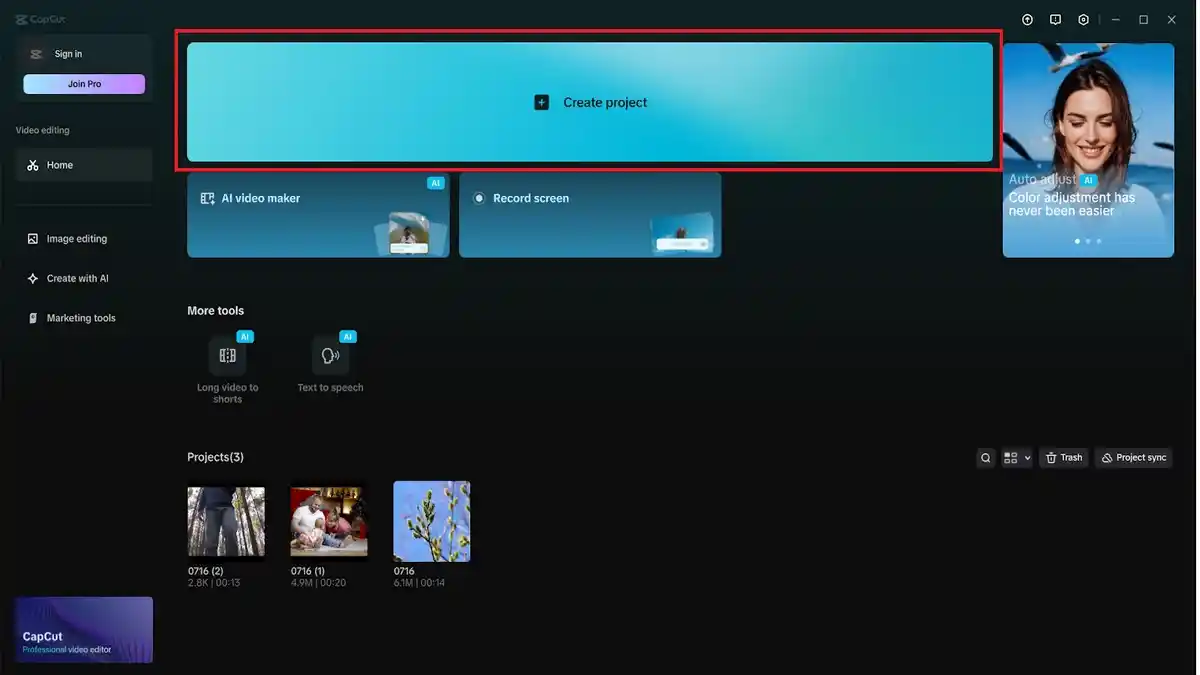
Step 1: Start a New Project
Launch Open CapCut Desktop and tap on “New project” to start. This brings up the main editor where you are going to construct your learning material.
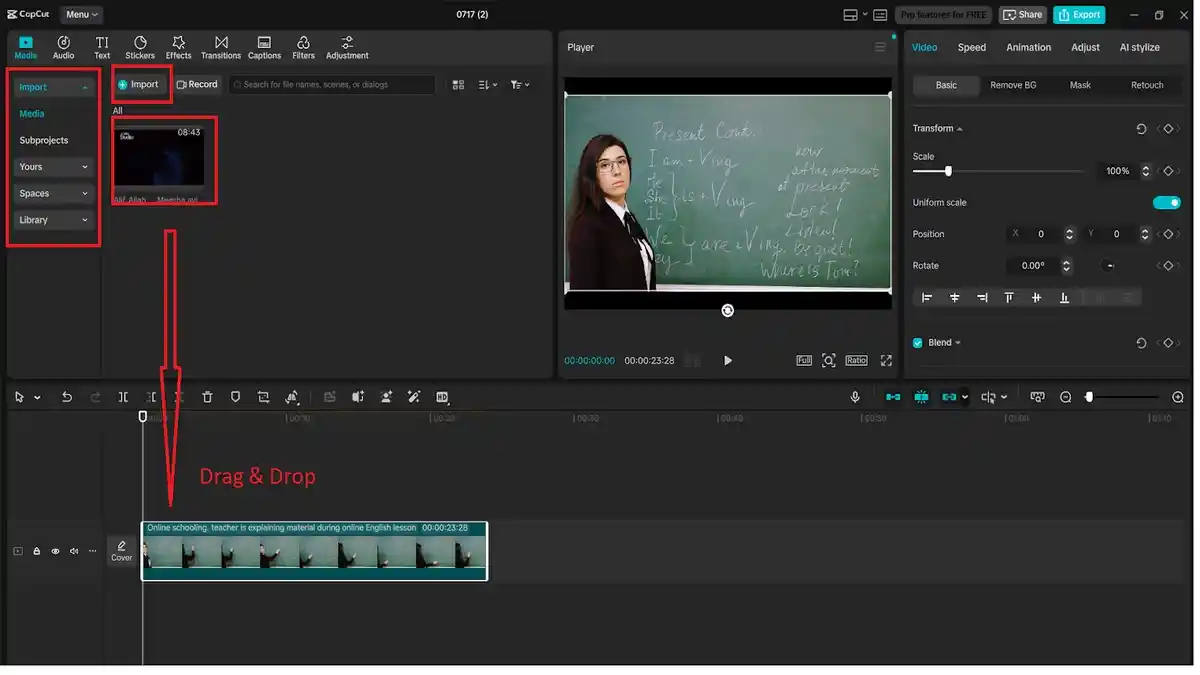
Step 2: Import Your Visuals
To do this, click on the “Import” button on the top left and upload your images, screen recording, or presentation slides. Place them in the timeline by dragging and dropping them into the structure of your lesson.
Step 3: Add and Customize Your Text
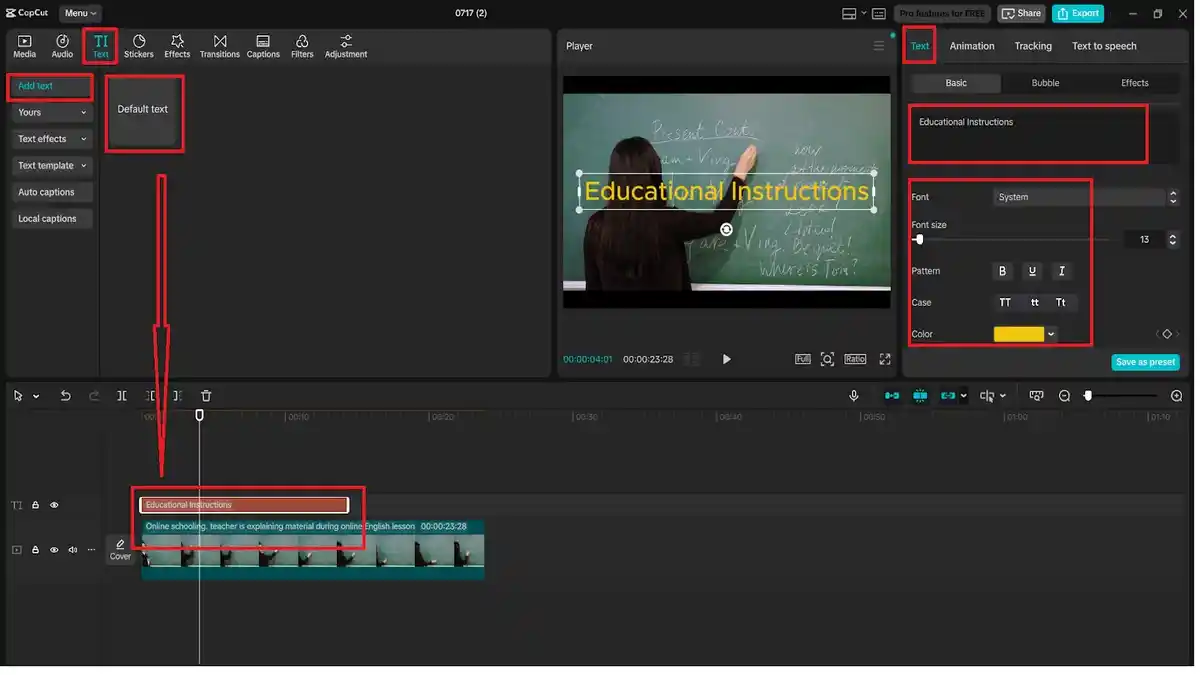
Then, you should click on the top toolbar and select the option: “Text” -> “Default text”. Write your script on a typewriter. This can be an explanation of a concept, instructions, or it can be a summary of important points. You will be able to set font, size, and time to display the text at the moment of your need.
Step 4: Generate Voice with Text-to-Speech AI
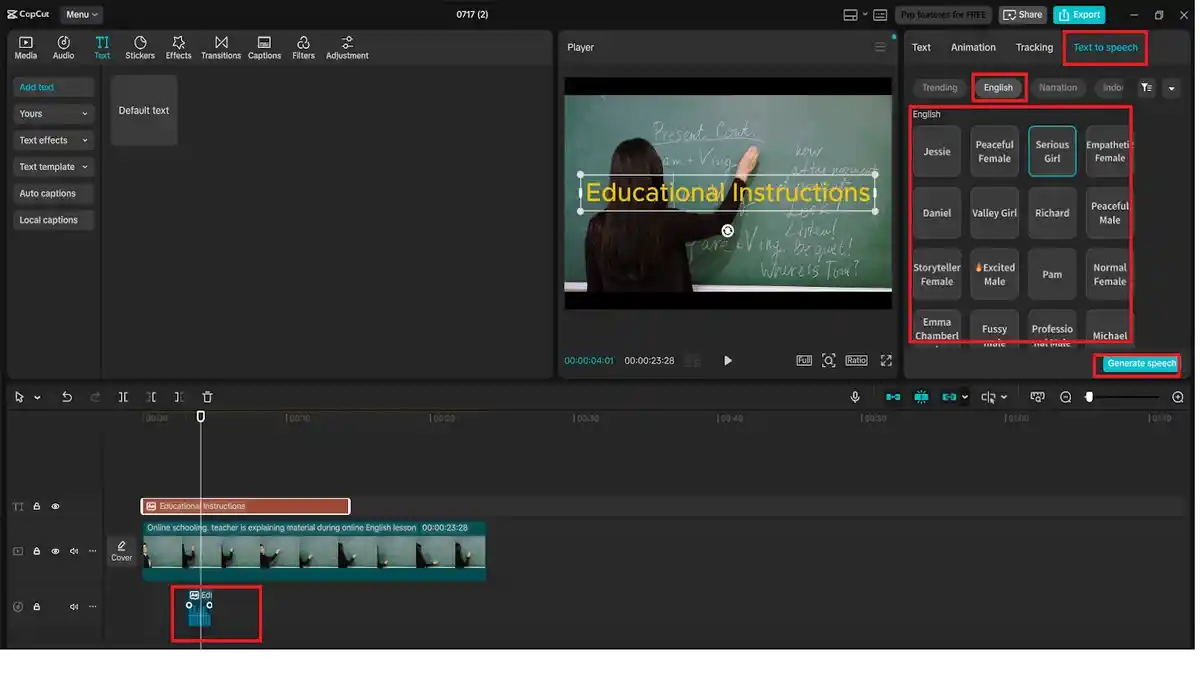
Click on the “Text” box on your timeline. Next, open the floating menu over it and click on the “Text to speech”. Pick the voice you want, the language (e.g., calm, serious, cheerful). After that, press the button “Generate speech” and within several seconds, CapCut will synthesize a natural-like voiceover using your script.
It is this aspect where the AI Voice Generator in CapCut becomes fantastic because it provides readers with understandable sound without recording devices.
Step 5: Export Your Instructional Video
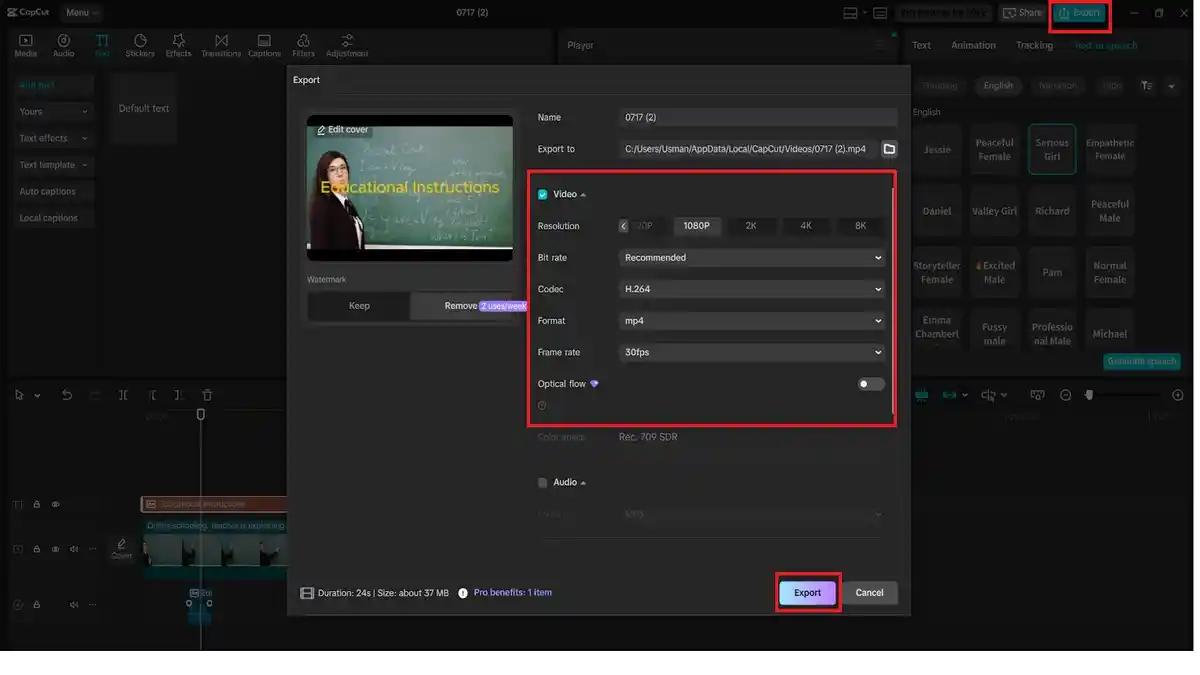
When everything appears and sounds right, click on the top-right corner button marked as “Export”. Choose how you will record the video (1080p or better is recommended), the file name, format, and where the recording is to be saved. Export again to render and save your teaching video; it is ready to share on LMS or YouTube, or Google Classroom.
Educational Use Cases for CapCut’s Text-to-Speech AI
The text-to-speech built-in AI in CapCut Desktop is not only a time-saving feature it serves up but also a new horizon of instructional content creation:
Language Lessons: Learn to pronounce with the help of several AI voices.
Science Demonstrations: Tell about the experimental procedures in the video.
Math Tutorials: Screen recording with artificial voice, allowing teaching of equations.
The art of history: Add stories to pictures.
Flipped Classrooms: Record explanations ahead of time so that the classroom can be used to work out problems.
Final Thoughts
CapCut Desktop will enable educators and use professional video tools to educators that were previously only available to video experts. With its flawless text-to-speech AI capabilities and advanced AI functions such as the AI Voice Generator and AI Video Upscaler, it has never been easier to produce top-quality, interactive learning materials that can be of use to anyone who is studying at any level.
CapCut either supports your live teacher-directed classes or teaches online, to animate your scripts and your sessions.